

Cyllo Quality Documentation
Introduction
The Cyllo Quality Management suite is a set of three modules that deliver end-to-end quality control across inventory operations, manufacturing, and repair workflows. Together they provide a unified framework for defining control points, executing inspections, tracking check outcomes, and raising alerts — all tightly integrated into the standard Cyllo document flow. Cyllo Quality is the foundational quality management application. It introduces the concept of Quality Control Points that are automatically matched to inventory operations, generates Quality Checks when operations are confirmed, provides a structured inspection workflow with multiple verification types, and supports a full alert lifecycle for non-conformances.
1. Quality
Key Features
- Configurable Quality Control Points (QCPs) per operation type, product, or product category
- Three control types: per-Operation, per-Product, per-Quantity (percentage sampling)
- Three control frequencies: All transfers, Randomly, Periodically
- Four inspection types: Pass/Fail, Measure (with min/max range), Instructions, Take a Picture
- Dependency-based blocking between inspection steps
- Quality Alert creation with four stages: Quarantine, Rework, Released, Scrap
- Team-based assignment with automatic email notification on QCP creation
- Multi-company security with role-based access (User / Manager)
- Full integration with Stock Pickings, Manufacturing Orders, and Repair Orders
2. Inspection Types & Logic
Pass / Fail
The simplest type. The inspector selects Pass or Fail. The result is stored directly as the line status.
Measure
The inspector enters a numeric value. The system compares it against a configured Start and End range (inclusive). Values outside the range are automatically failed. Validation Rule: measure_start ≤ entered_value ≤ measure_end → Pass; otherwise Fail. Non-numeric input also fails.
Instructions
Displays textual instructions for the inspector to follow. The inspector then explicitly marks it as Pass or Fail after completing the steps.
Take a Picture
The inspector must upload a photo as evidence. The result is submitted in the format status|image_data. Status is extracted and stored along with the image reference.
Blocking Dependencies
Each Inspection line can have a Blocked By field pointing to another inspection step in the same QCP. If a blocking step has not yet been completed (is_checked = False), attempting to validate the dependent step raises a UserError, enforcing inspection order.
3. Installation Order
- Install cyllo_quality first (base module — depends on hr and stock)
- Install cyllo_quality_mrp if Manufacturing is in use (auto-installs when cyllo_quality + mrp are both present)
- Install cyllo_quality_repair if Repair is in use (auto-installs when cyllo_quality + repair are both present)
4. Setup Phase (Configuration)
- Create Quality Team : Define team name, assign Team Lead (hr.employee) and members. Enable 'Send Email' if notifications are required.
- Define Inspection Actions : Create named actions that describe what should be inspected (e.g., 'Weight Check', 'Surface Inspection', 'Dimension Measurement').
- Configure Quality Control Point : Select Operation Types, set Control Type (Operation/Product/Quantity), Control Frequency (All/Random/Periodic), and optionally restrict to products or categories.
- Add Inspection Lines : Add at least one Quality Inspection line to the QCP. Set priority, inspection type (Pass/Fail, Measure, Instructions, Take a Picture), and optionally add instructions or measurement range.
- Set Failure Location : (Optional) Configure a stock location to route failed items.
5. Quality Teams
Quality teams are the organisational backbone of the quality system. Every Quality Control Point and every Quality Order is assigned to a team — ensuring that responsibility for each check is clear, and that the right people are notified when action is required. The module ships with two pre-configured quality teams as part of its demo data. These can be used as-is in most oil and gas downstream environments, or used as templates for creating additional teams specific to your operations.
Creating a Quality Team
- Navigate to Quality.
- Go to Configuration → Quality Teams.
- Click New. Enter a team name that reflects the operational area.
- Configure email notifications. Toggle the Email field if the team should receive notifications when quality orders are created or failed.
- Save. The team is immediately available for selection in Quality Control Points.
6. Quality Control Points
A Quality Control Point (QCP) is the master template that defines the rules for a quality check. It specifies which stock operations trigger a check, which team is responsible, and what inspection steps must be completed. QCPs are the configuration layer — they define the rules. Quality Orders are the execution layer — they record the results. When a stock operation that matches a QCP's criteria is performed (e.g., an internal transfer in the refinery), the system automatically generates a Quality Order based on that QCP's inspection template. The operator does not need to create anything manually — the check appears in their queue.
Navigating to Quality Points
- Click Quality Points. The list of all configured QCPs opens.
Each Quality Control Point contains one or more Inspection Lines. Each line defines a single inspection step — specifying what action to take, what method to use, and what result constitutes a pass. Together, these lines form the quality checklist that operators work through when executing a Quality Order.
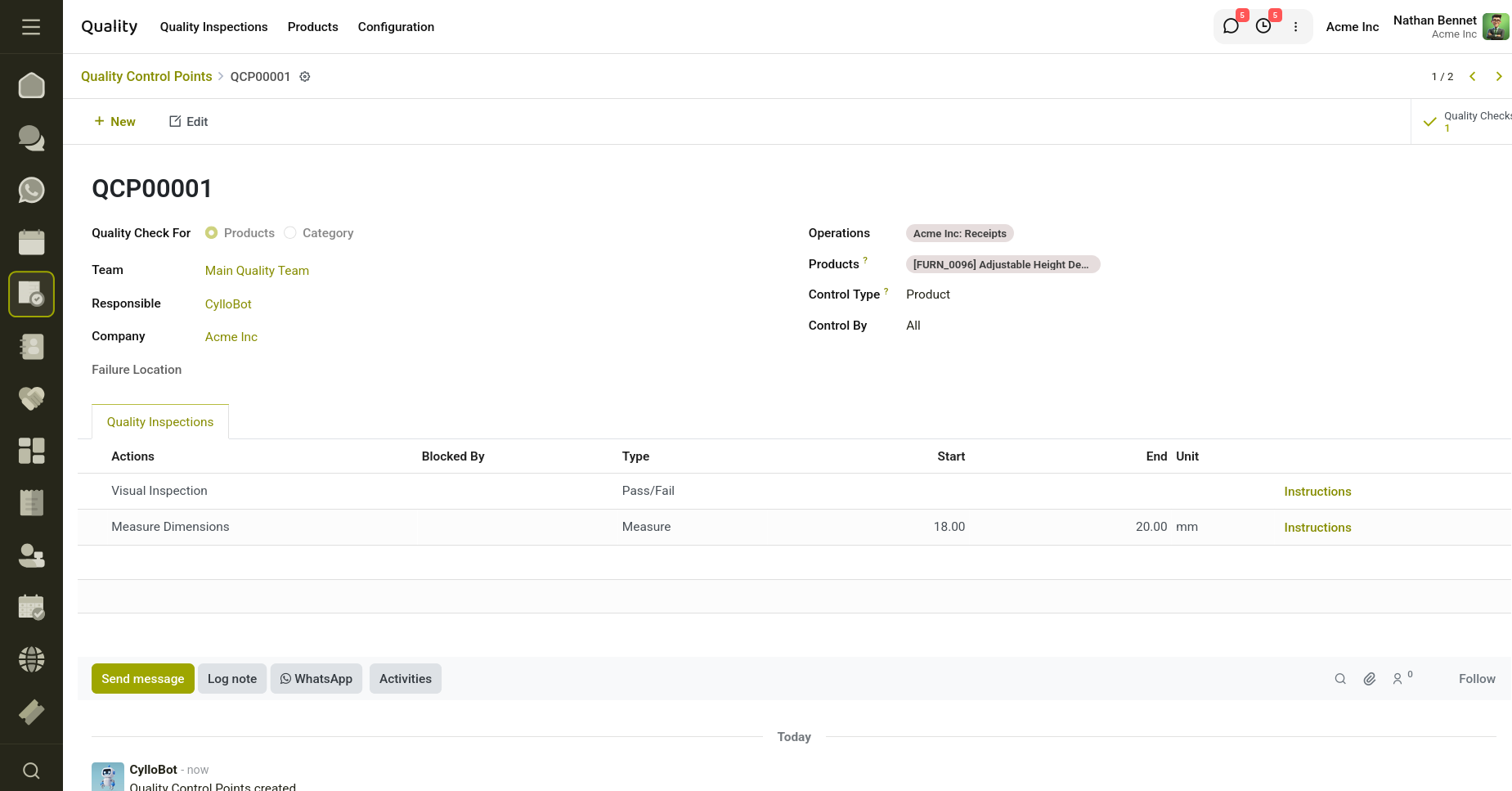
Fig 6.1 — Creation of Quality Control Point.
Each Quality Control Point can have multiple inspection steps.
The fields for each step are:
- Inspection Action : What action should be taken.
- Inspection Type : Measure (for numeric ranges) or Pass/Fail (for binary outcomes).
- Instruction : Detailed instructions shown to the inspector during the quality order.
- Measure Start: Minimum acceptable value (Measure type only).
- Measure End : Maximum acceptable value (Measure type only).
7. Quality Check
A Quality Check is the runtime instance produced when an inventory operation, manufacturing order, or repair order is confirmed against an active control point. It aggregates the check lines derived from the control point's inspection steps.
8. Quality Alert
Raised when a quality check line fails or an issue is identified during inspection. Alerts follow a Kanban-style stage pipeline and support corrective and preventive action documentation.
9. Quick Setup Workflow:
- Create quality teams : Navigate to Cyllo Quality → Configuration → Quality Teams
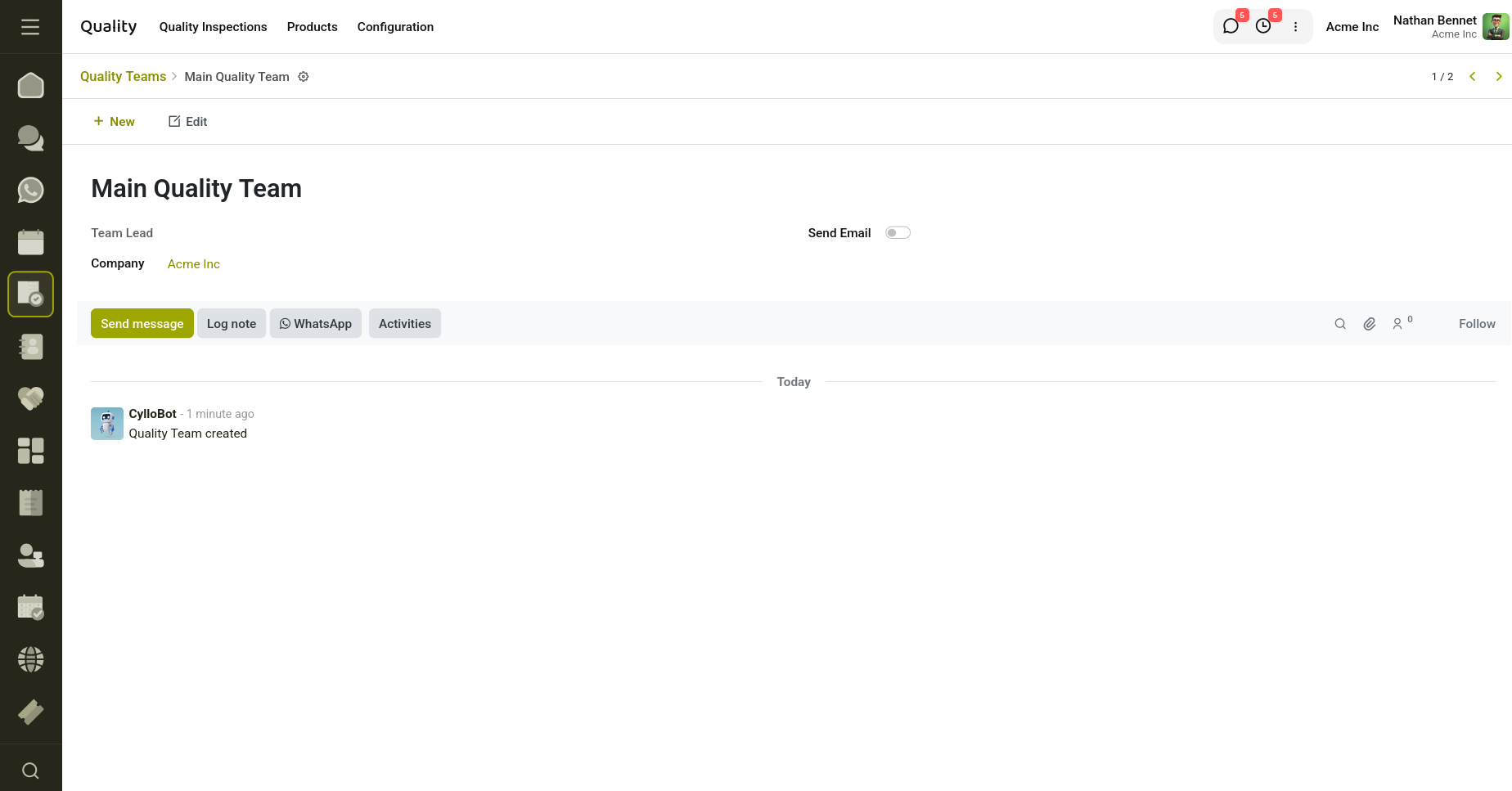
Fig 9.1 — Quality Team creation.
- Create inspection actions: Navigate to Configuration → Inspection Actions and create actions for each procedure your teams must perform.
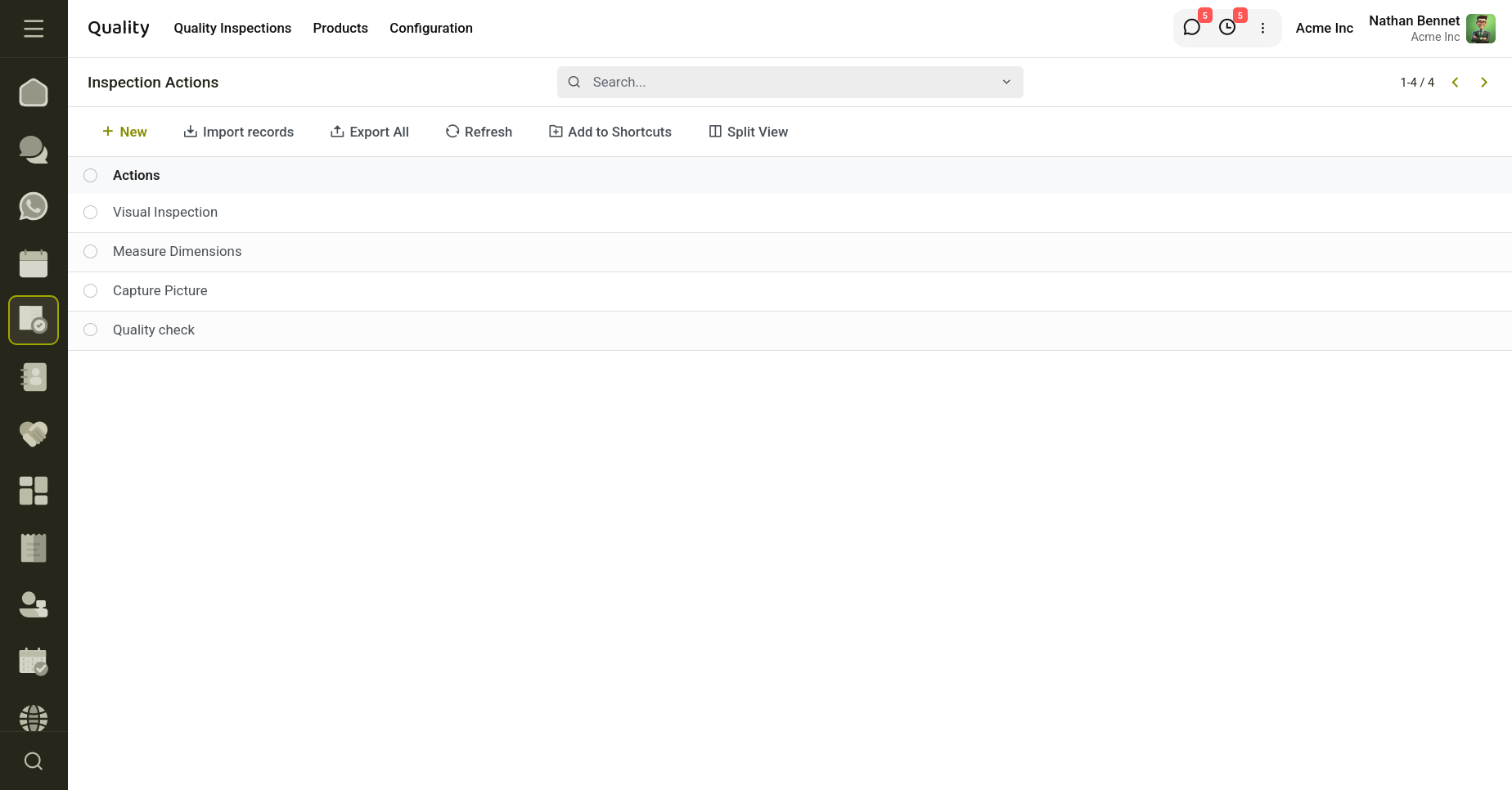
Fig 9.2 — Inspection Action Creation
- Create Quality Control Points : Navigate to Cyllo quality→ Configuration → Quality Points. Create QCPs for each critical control point. Assign operation types, teams, and add inspection lines with actions and types.
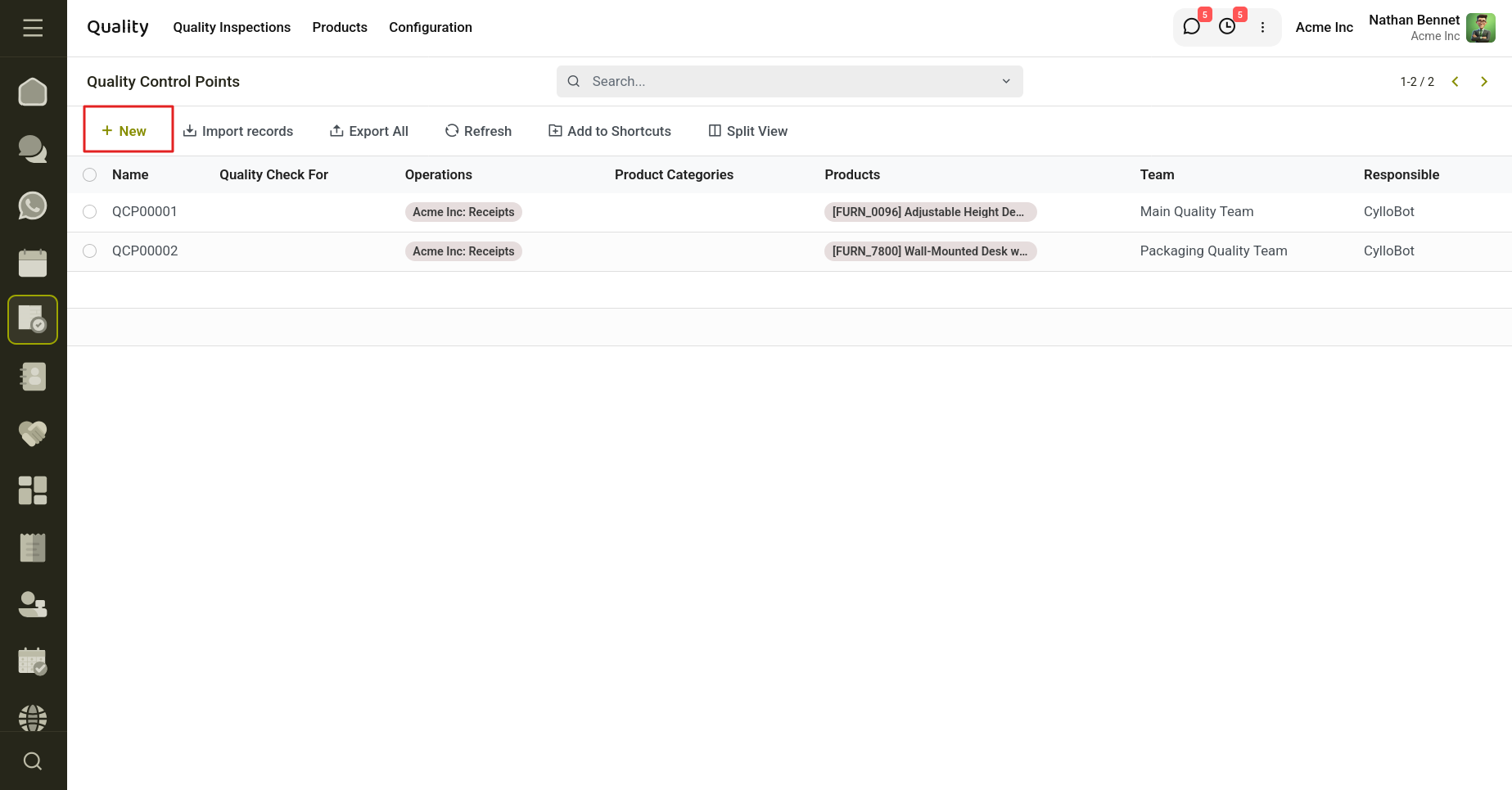
Fig 9.3 — Quality Control Point Creation.
- Verify operation types : Perform a test stock operation of the type linked to your QCP
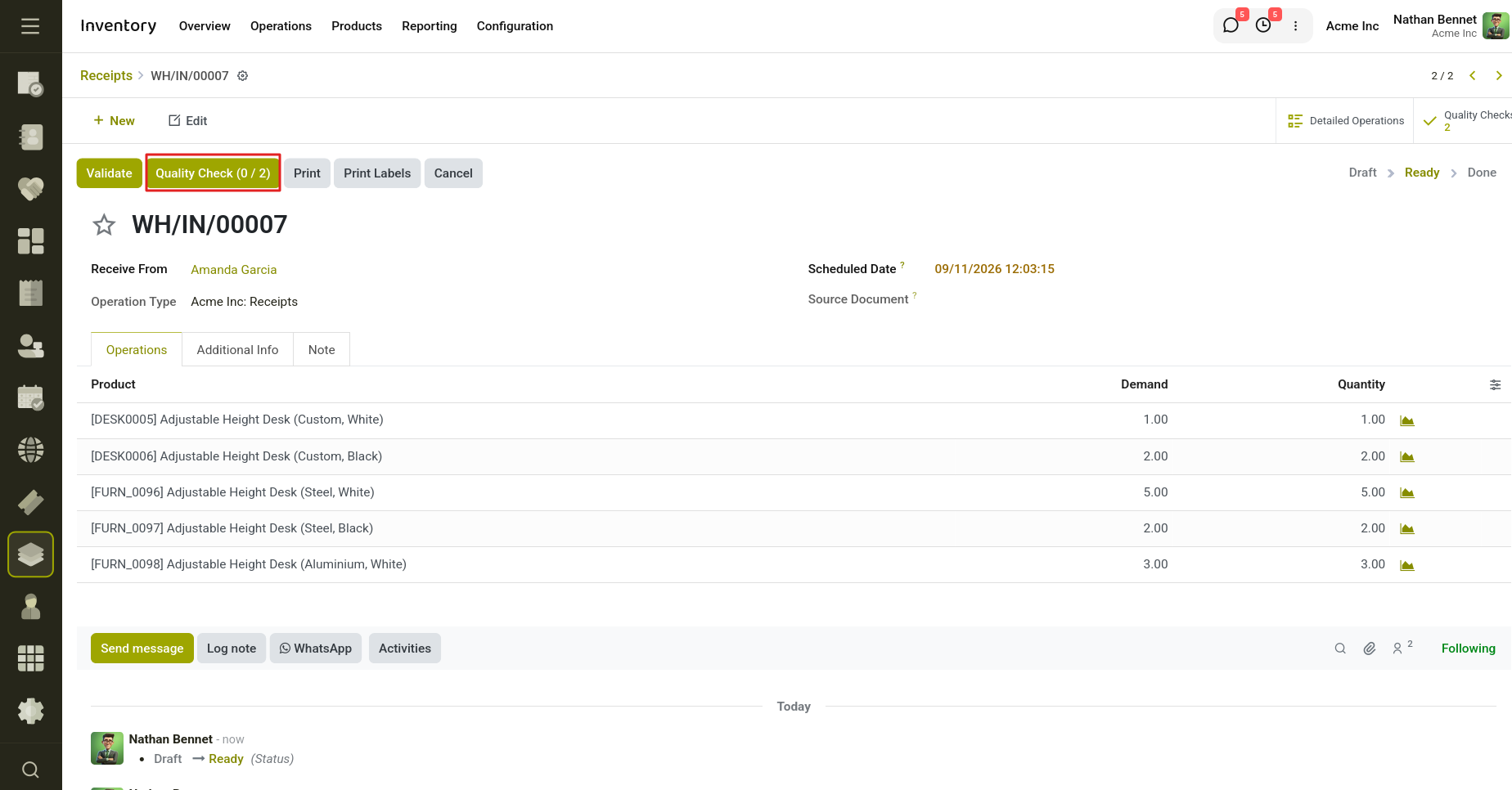
Fig 9.4 — Quality check from the operation type configured in QCP.
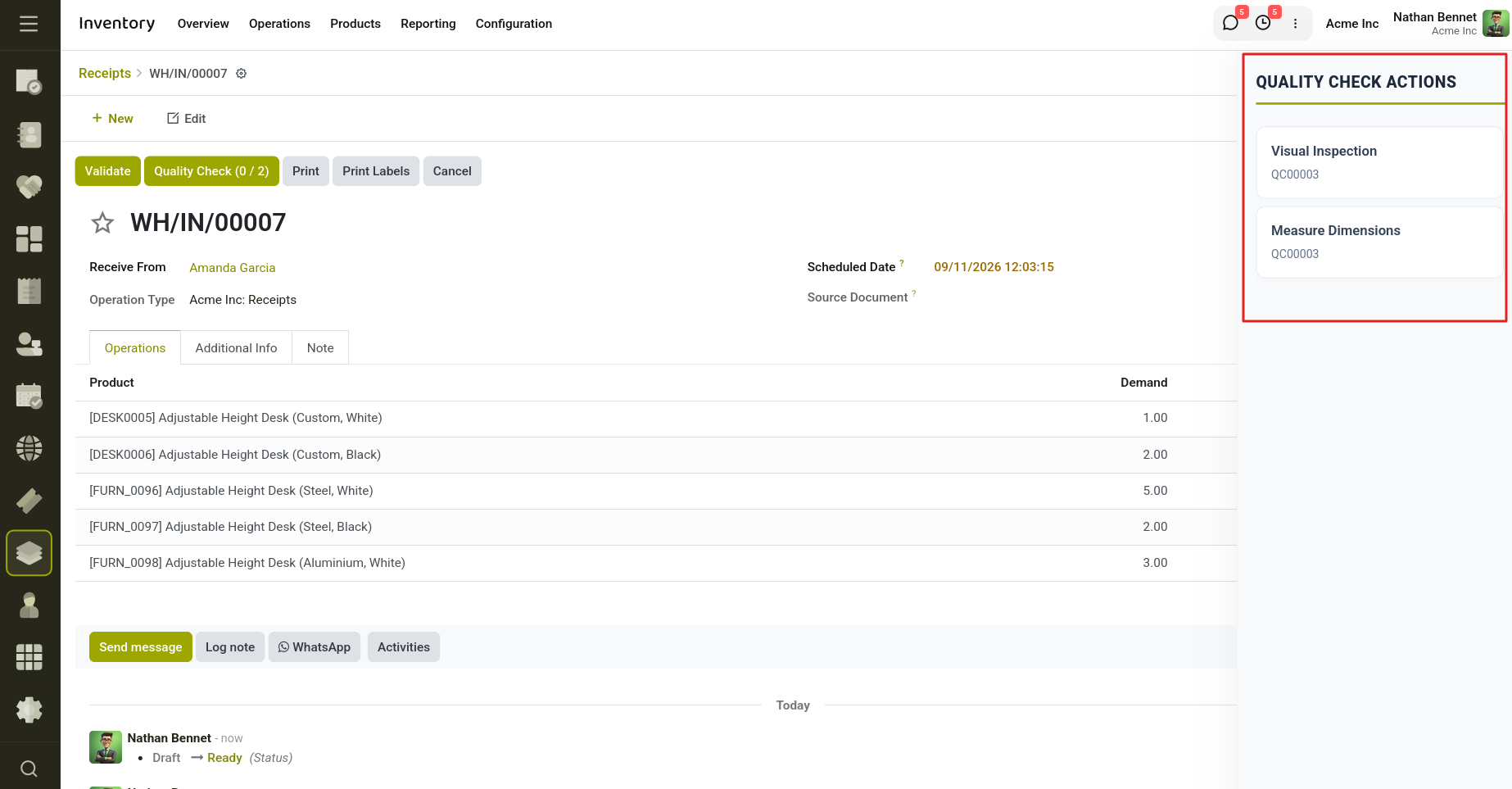
Fig 9.5 — Quality Check Actions.
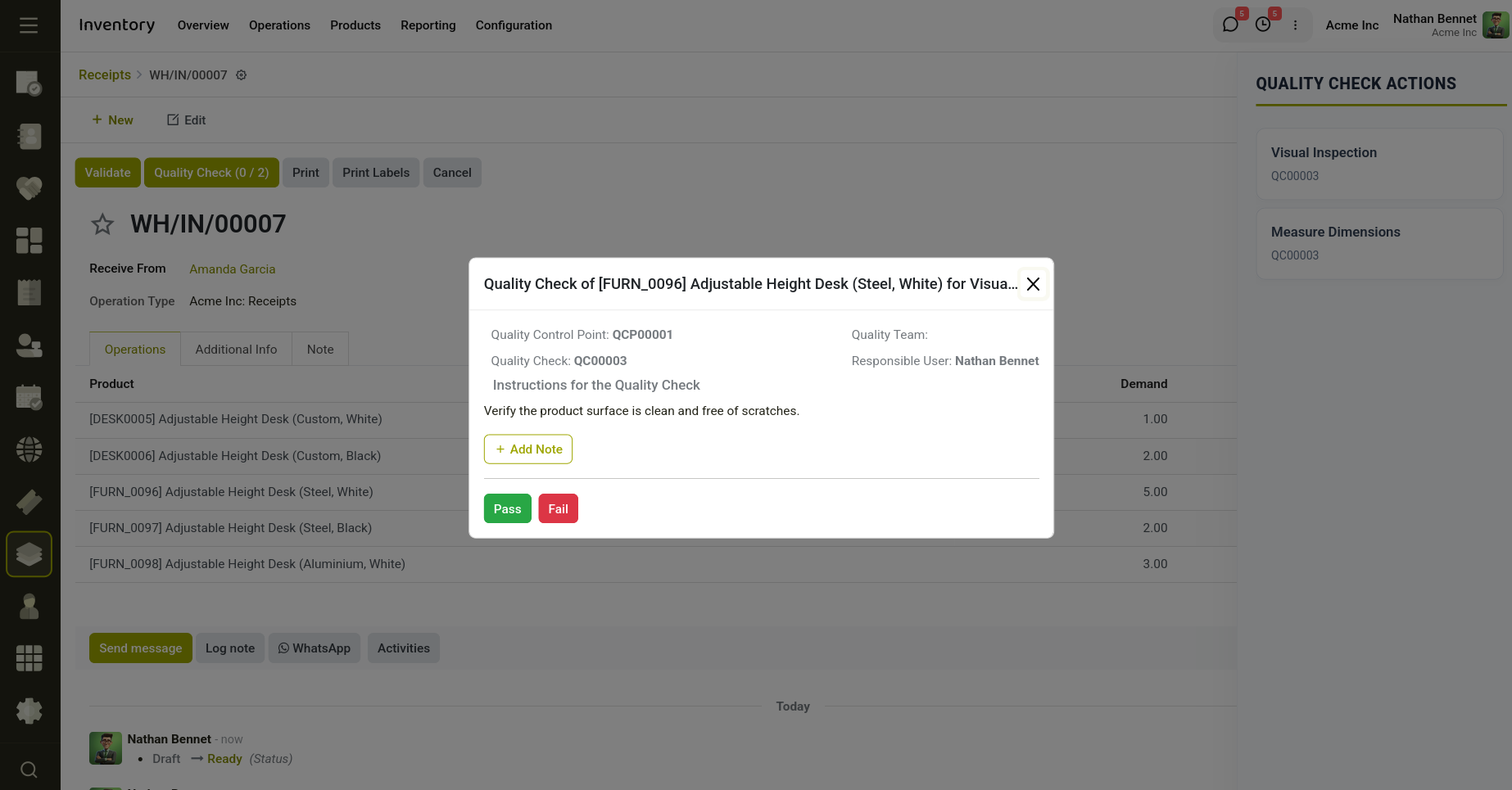
Fig 9.6 — Quality Checking wizard.
10. Quality - Manufacturing Order Workflow
The Quality – Manufacturing Order Workflow integrates quality checks directly into the manufacturing process. As production progresses, quality inspections can be created and performed within the Manufacturing Order, ensuring products meet quality standards before they are completed. This helps identify defects early, maintain consistent product quality, and reduce rework during manufacturing.
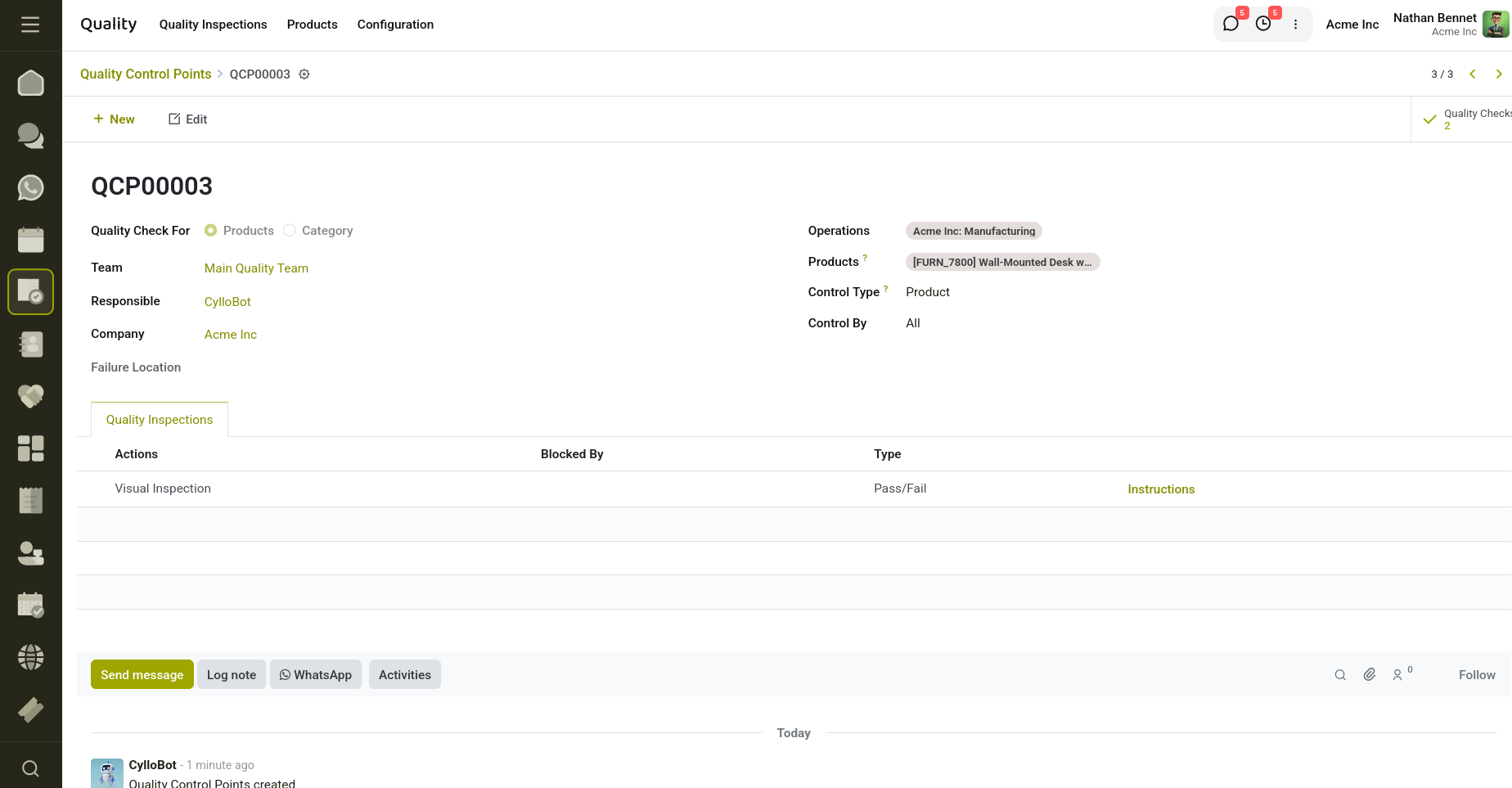
Fig 10.1 — Quality Checks created from Manufacturing order.
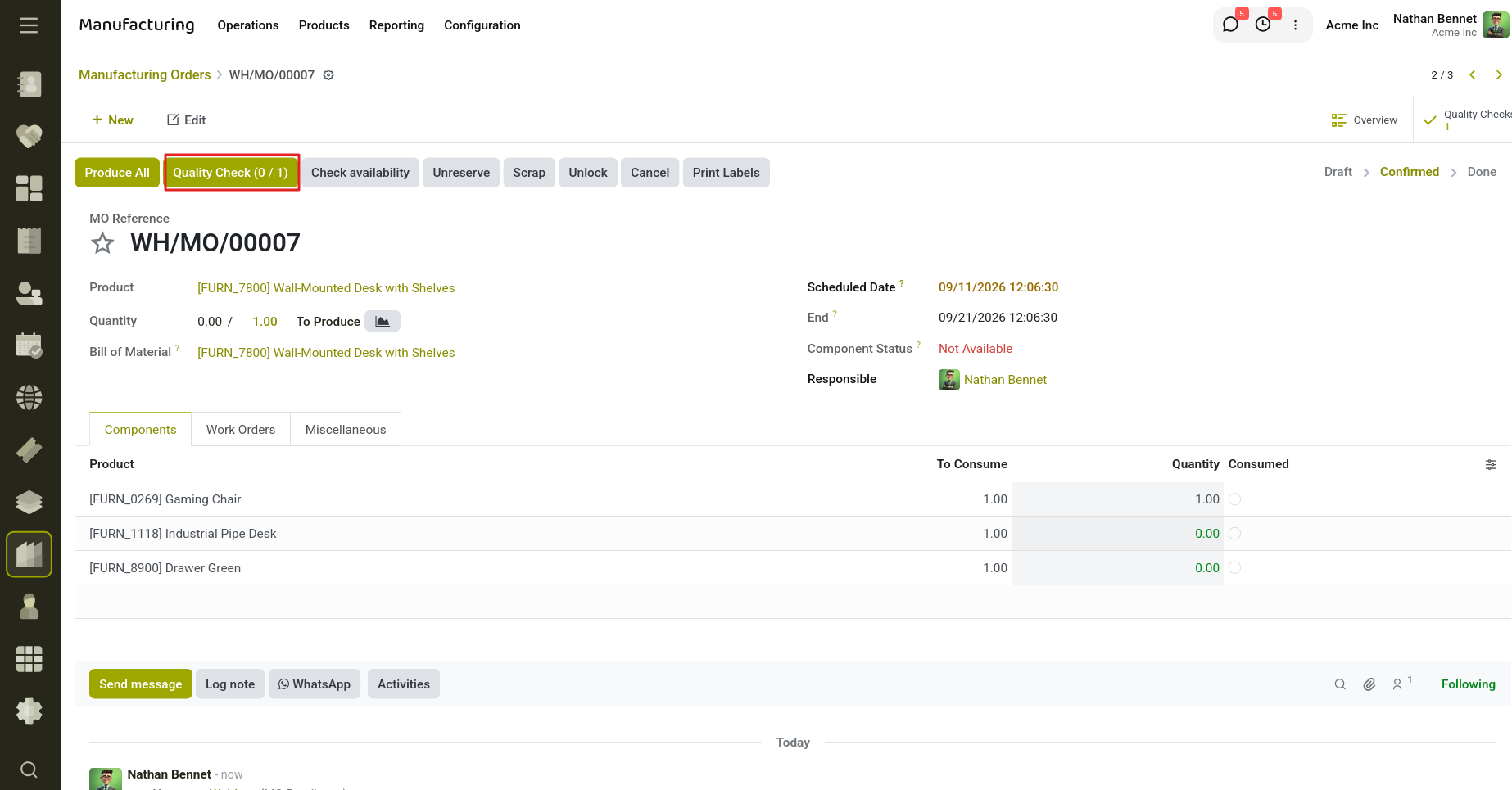
Fig 10.2 — Quality Checking wizard.
11. Quality - Repair Order Workflow
The Quality – Repair Order Workflow integrates quality inspections into the repair process. When a repair order is validated, the system automatically creates the required quality checks. The repair cannot be completed until all quality inspections are successfully finished, ensuring every repaired product meets the required quality standards before delivery.
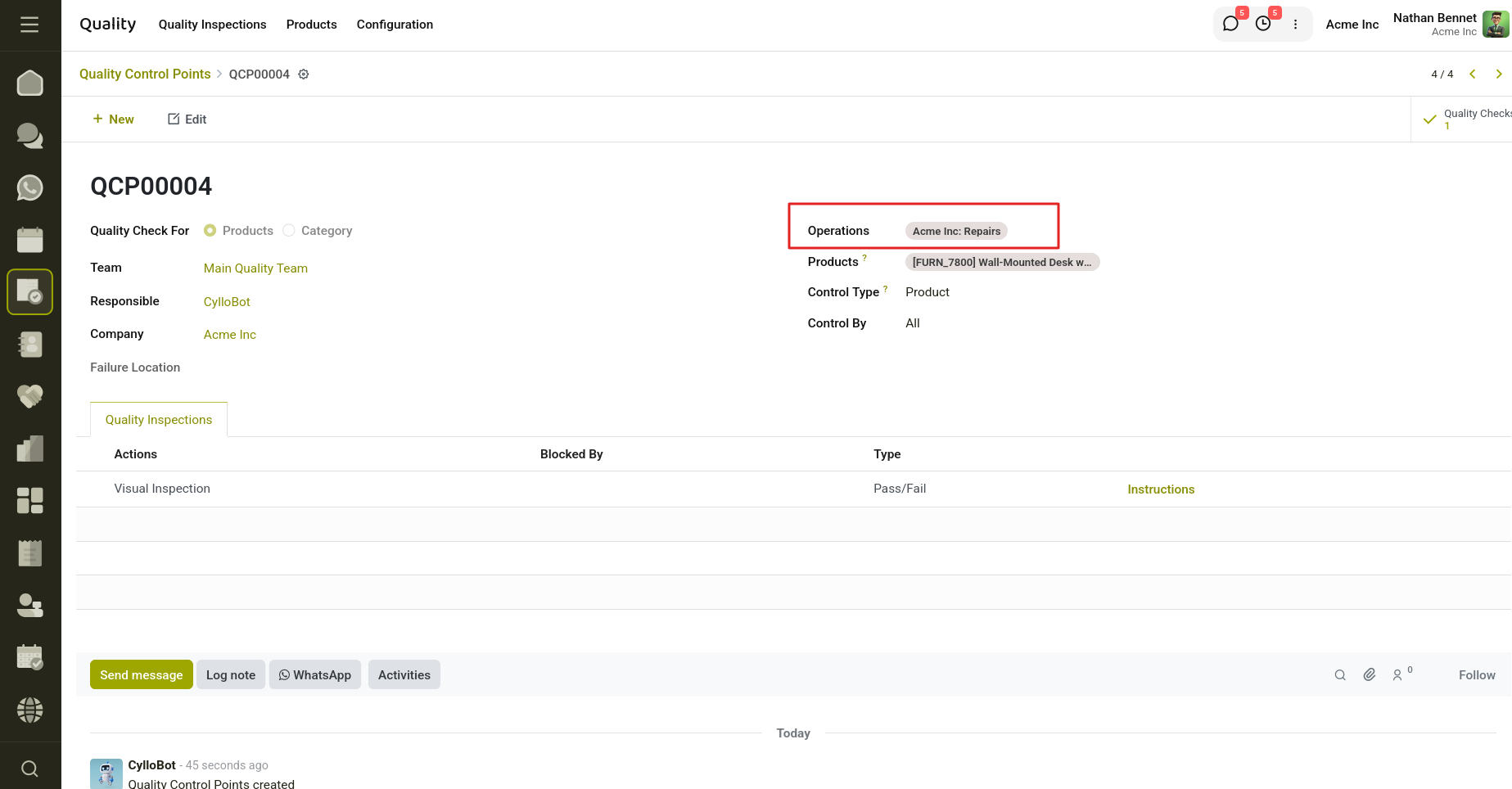
Fig 11.1 — Quality Control Point for Repair operation.
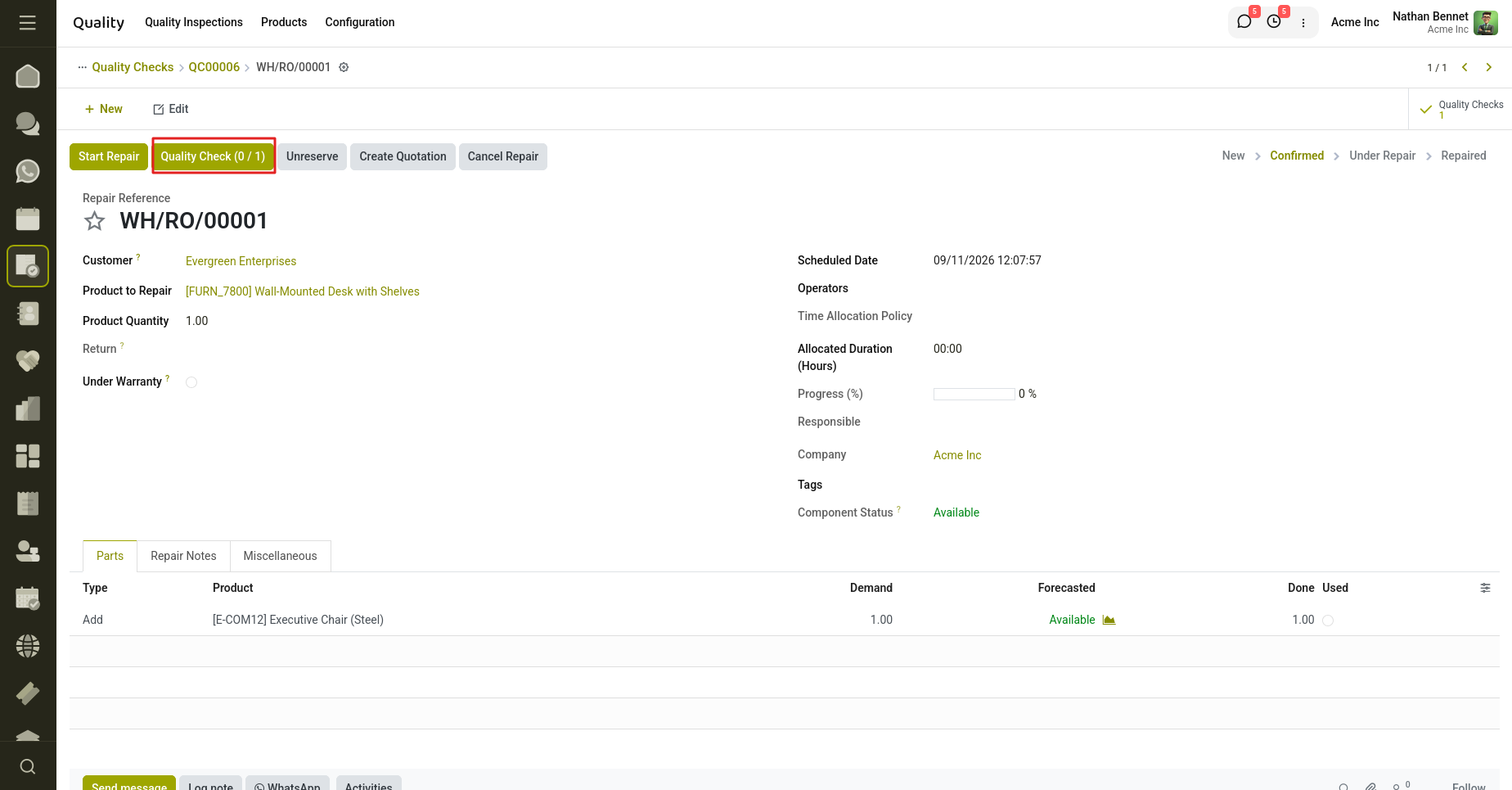
Fig 11.2 — Quality Checks for Repair Order.