

Cyllo CRM Documentation
Introduction
The most often used module in Cyllo for managing lead generation and customer acquisition is the Customer Relationship Management (CRM) module. Using this platform, you can collect and arrange leads from multiple sources to convert them into opportunities quickly and effectively. It is also possible to handle these leads via a single integrated channel. The ability of Cyllo CRM to integrate with other modules, like Sales and Inventory, ensures increased productivity in producing output, or the ability to turn leads into opportunities.
It is easier for the sales department to operate effectively because of the CRM module's speed and versatility. Because it's closely related to marketing, accounting, management, and other departments, you can monitor and control their activities with the help of the CRM module. A customer relationship management (CRM) system is one of the essential elements of a business that directly affects how it expands. This module provides a comprehensive framework for customer-related operations, optimizing business dealings, and raising output. Gathering contact details, engagement metrics, and sales potential of potential clients and customers within a business is the primary function of Cyllo's CRM module.
Maintaining and advancing the company's commercial prospects requires a solid professional relationship with its clientele. All necessary data is transferred to and from the system by the centralized Cyllo ERP database, making creating and managing these interactions more efficient. For future convenience, you can store a record of your clients and business dealings in this section. The CRM module's flexible and user-friendly interface improves its operational competency in managing your correspondence with prospects and customers. You might also schedule and prepare meetings with potential customers. Additionally, it makes it easier for the sales department to input and export pertinent system contact data. The integration with the Sales Module in Cyllo’s CRM module ensures seamless coordination between customer relationship management and sales activities. From the point of lead generation to the final sale, this connection enables a uniform view of client interactions. Sales representatives can access customer data, communication history, and opportunity status directly from the CRM interface, enabling them to make informed decisions and prioritize their sales efforts effectively. By streamlining the sales process and improving data visibility, this integration enhances overall sales efficiency and customer satisfaction.
1. Dashboard
When you open the CRM module, the first thing you see is the main dashboard, which gives you an overview of all CRM details.
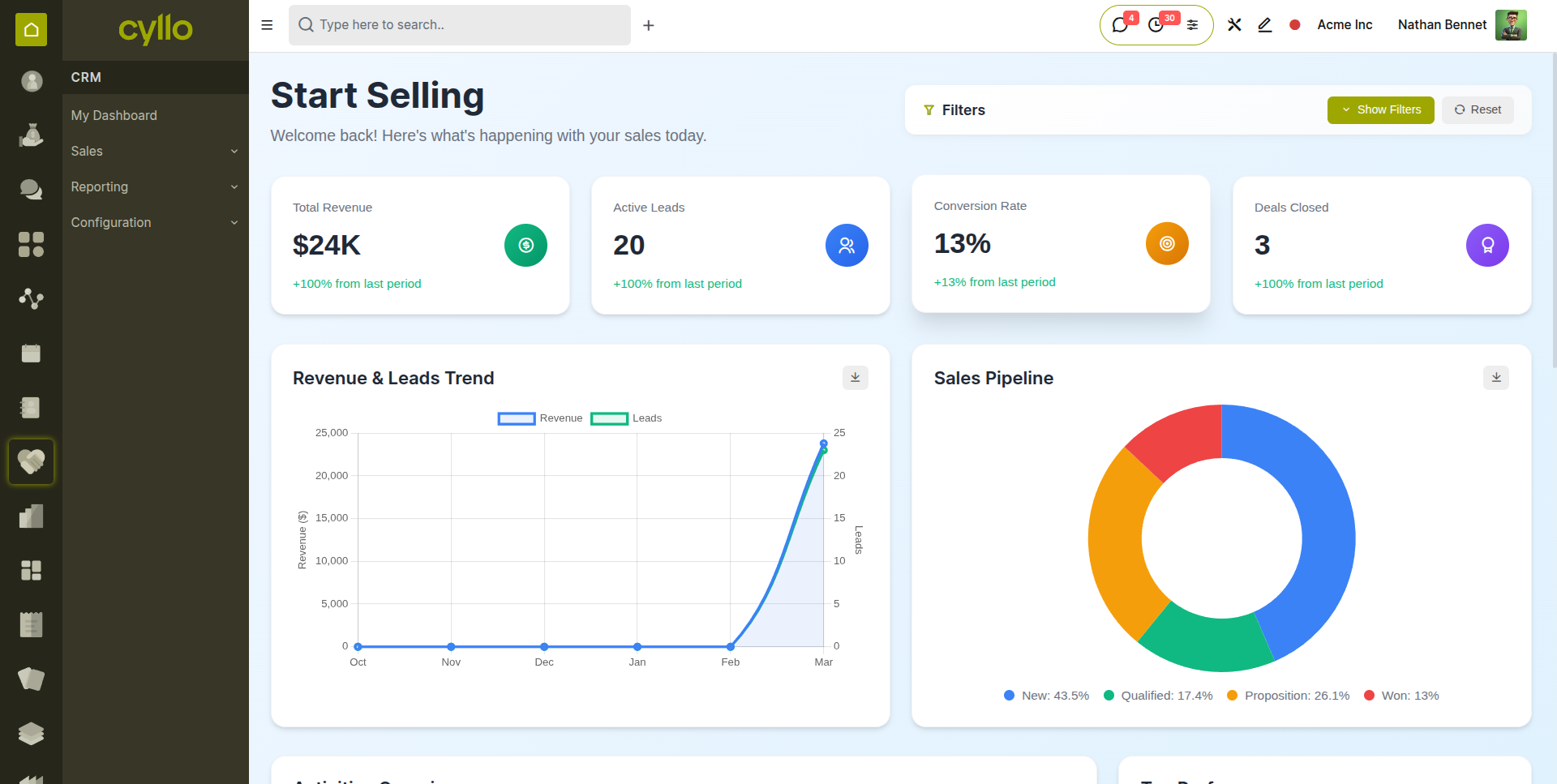
Fig 1.1 — CRM Dashboard
We can filter the data displayed on the dashboard except the updates with the filters.
Click on the “Show Filter” button to display the filters dropdown and if we have added filters and we need to clear it on single click ,click on the “Reset” Button.
In the summary cards we can see the Total Revenue, Active Leads, Conversion Rate and Closed Deals along with the growth rate from the previous period of the same.
In the Revenue and Lead Trend graph will show the expected revenue and leads for the applied filter.Click on the download icon to download the graphClick
In the sales pipeline we can see the graphical representation of leads in different stages along with the download icon to download the graph.
Activity Overview will display the activities for the filters applied with the Count of each activity in y-axis and Date in x-axis .Top performers will list the salespersons who worked on the closed leads with sum of expected revenue for the applied filter.
Updates will display the Activities(Due,today) ,Idle leads for the last 7 days with button View lead and Dismiss, view lead will take you to the lead and Dismiss button will dismiss the update from there.
- Due activities in orange color
- High expected revenue leads in green color
The View Report button in the Quick Actions will take you to the Pipeline Report.
2. Leads
2.1 What is a Lead?
A lead is any potential customer who has shown interest but has not yet been confirmed as a real sales opportunity. Think of leads as the raw material of your pipeline — they need to be reviewed, contacted, and qualified before you invest significant sales effort. In Cyllo CRM, leads can arrive from multiple sources: a web form submission, an email to your sales address, a manual entry by a salesperson, or an import from a spreadsheet.
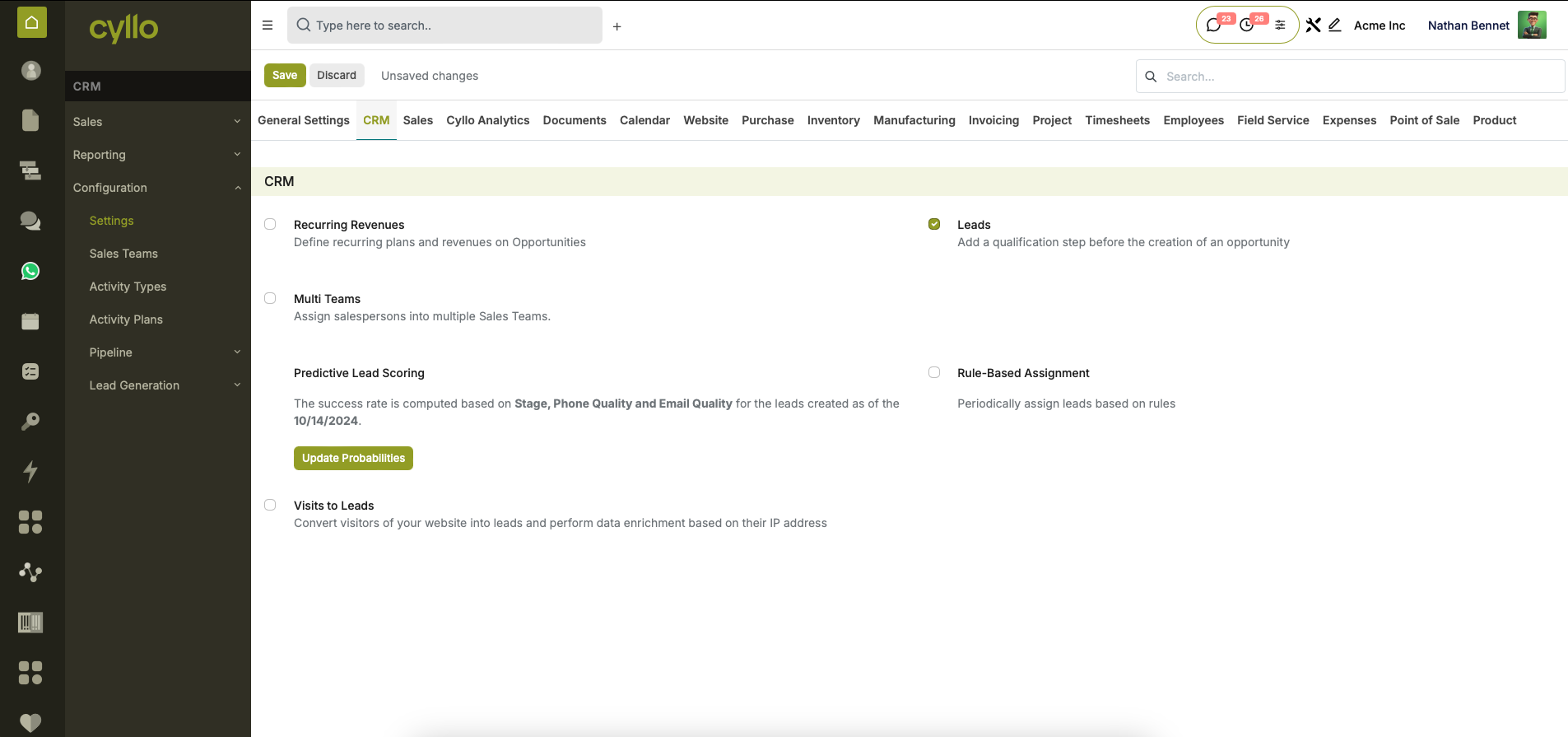
Fig 2.1 — CRM settings
2.2 Creating Leads Manually
To create a lead manually:
- Go to CRM → Leads.
- Click the New button in the top-left corner.
- Fill in the Lead Name (usually the company or the inquiry topic).
- Add the Customer details.
- Select a Salesperson and Sales Team.
- Click Add to save the lead.
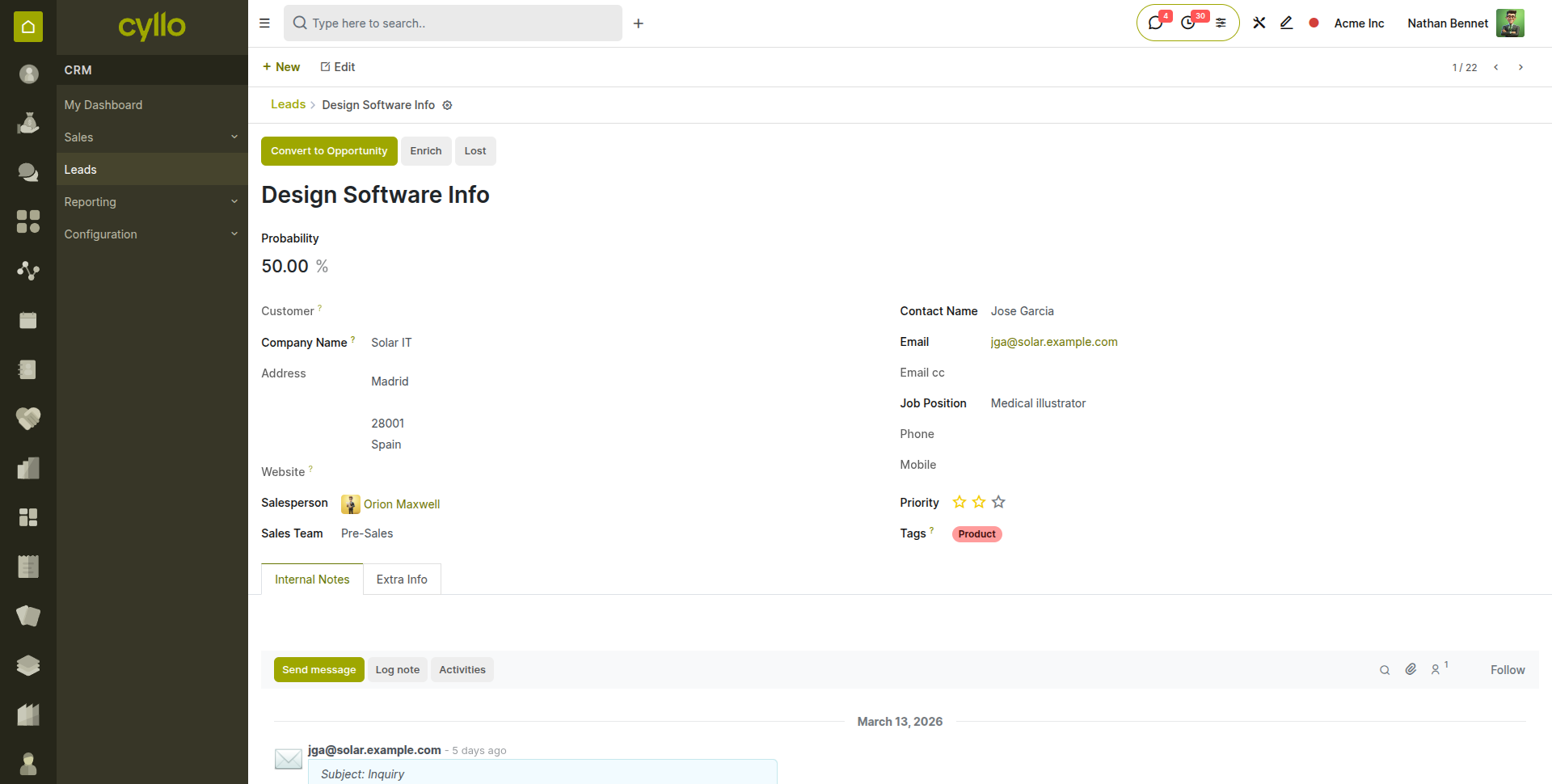
Fig 2.2 — Lead form view
Note
Use a descriptive lead name that helps your team identify the inquiry at a glance — for example 'ABC Corp — Office Supplies Inquiry' rather than just 'New Lead'.
2.3 Lead Sources & Tracking
Cyllo CRM tracks where each lead came from. This helps you understand which channels are generating the most business. Common lead sources include:
- Website Contact Form — automatically creates a lead when a visitor submits the form.
- Email Alias — emails sent to a configured address (e.g. sales@yourcompany.com) are turned into leads automatically.
- Manual Entry — created directly by a salesperson in the CRM interface.
- Import — bulk upload of leads from a CSV or Excel file.
- Phone Call — logged manually after an inbound call.
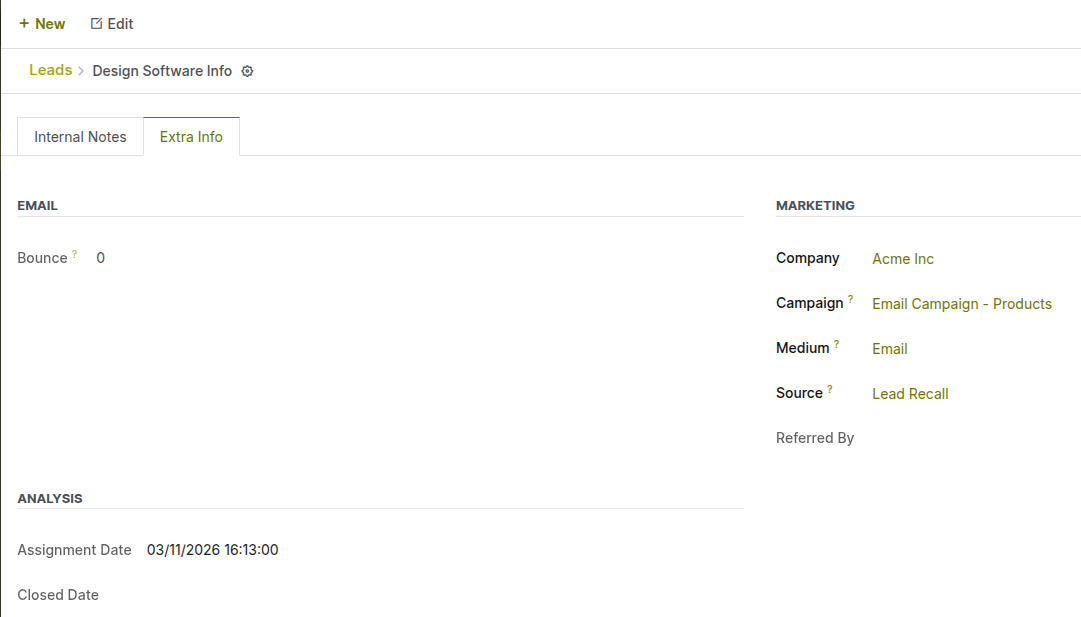
Fig 2.3 — Marketing details in lead form
2.4 Converting a Lead to an Opportunity
Once you have reviewed a lead and confirmed there is genuine sales potential, you convert it into an Opportunity. This moves it into the pipeline where it becomes trackable with revenue and close date.
To convert a lead:
- Open the lead record.
- Click the Convert to Opportunity button at the top of the form.
- In the dialog that appears, set Customer if not given in lead a. Create a new customer b. Link to an existing customer c. Do not link to a customer
- Check for duplicate leads. a. Convert to opportunity b. Merge with existing opportunities
- Set the Sales Team and Salesperson.
- Click Create Opportunity.
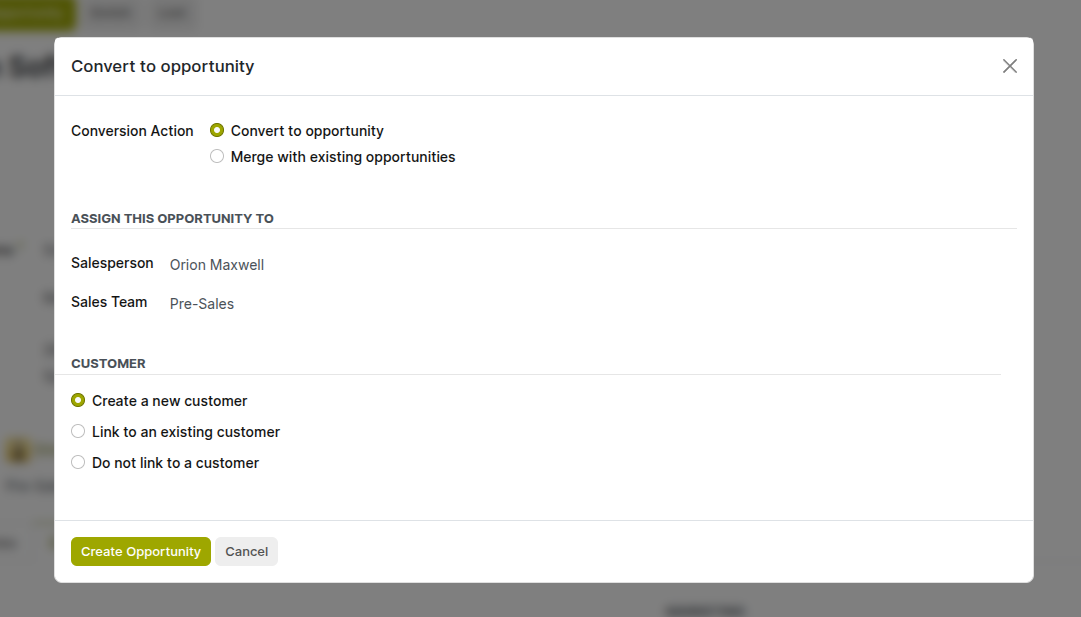
Fig 2.4 — Lead converting popup
2.5 Advance Lead: Abandoned Cart, Wishlist & Referral Leads
The Advance Lead feature in Cyllo CRM automatically generates qualified leads based on customer interactions on the website. Instead of manually identifying potential customers, businesses can capture opportunities from abandoned shopping carts, wishlists, and product referrals. Once enabled, these lead generation methods work automatically according to the configured settings, helping sales teams engage with prospects at the right time.
Enable Advance Lead
- Navigate to CRM → Configuration → Settings.
- Enable the Advance Lead option.
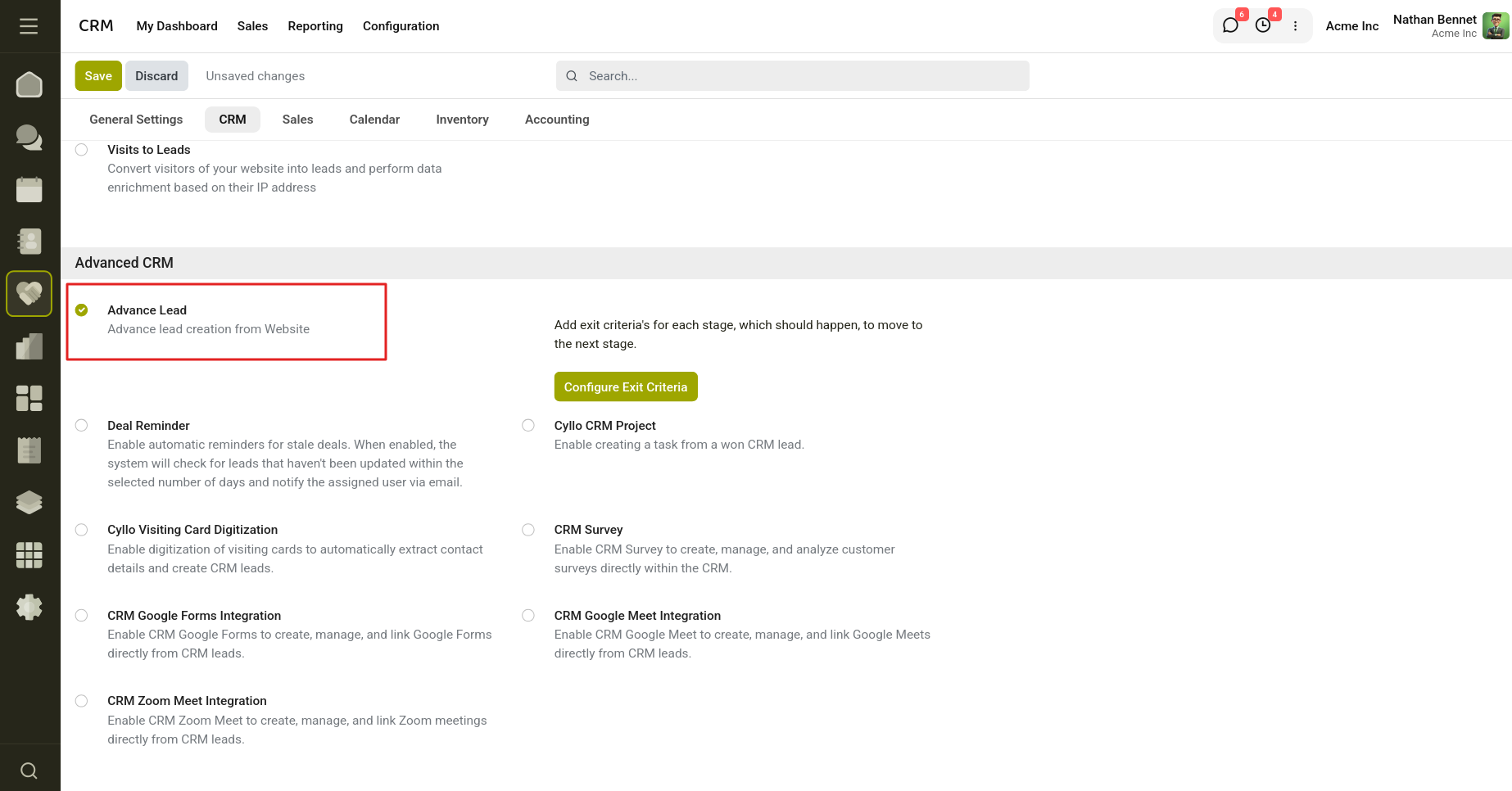
Fig 2.5 — Enabling the Advance Lead feature in the CRM settings.
- Click Save to apply the changes.
- Once enabled, the following lead generation options become available:
- Abandoned Cart Lead
- Wishlist Lead
- Referral Lead
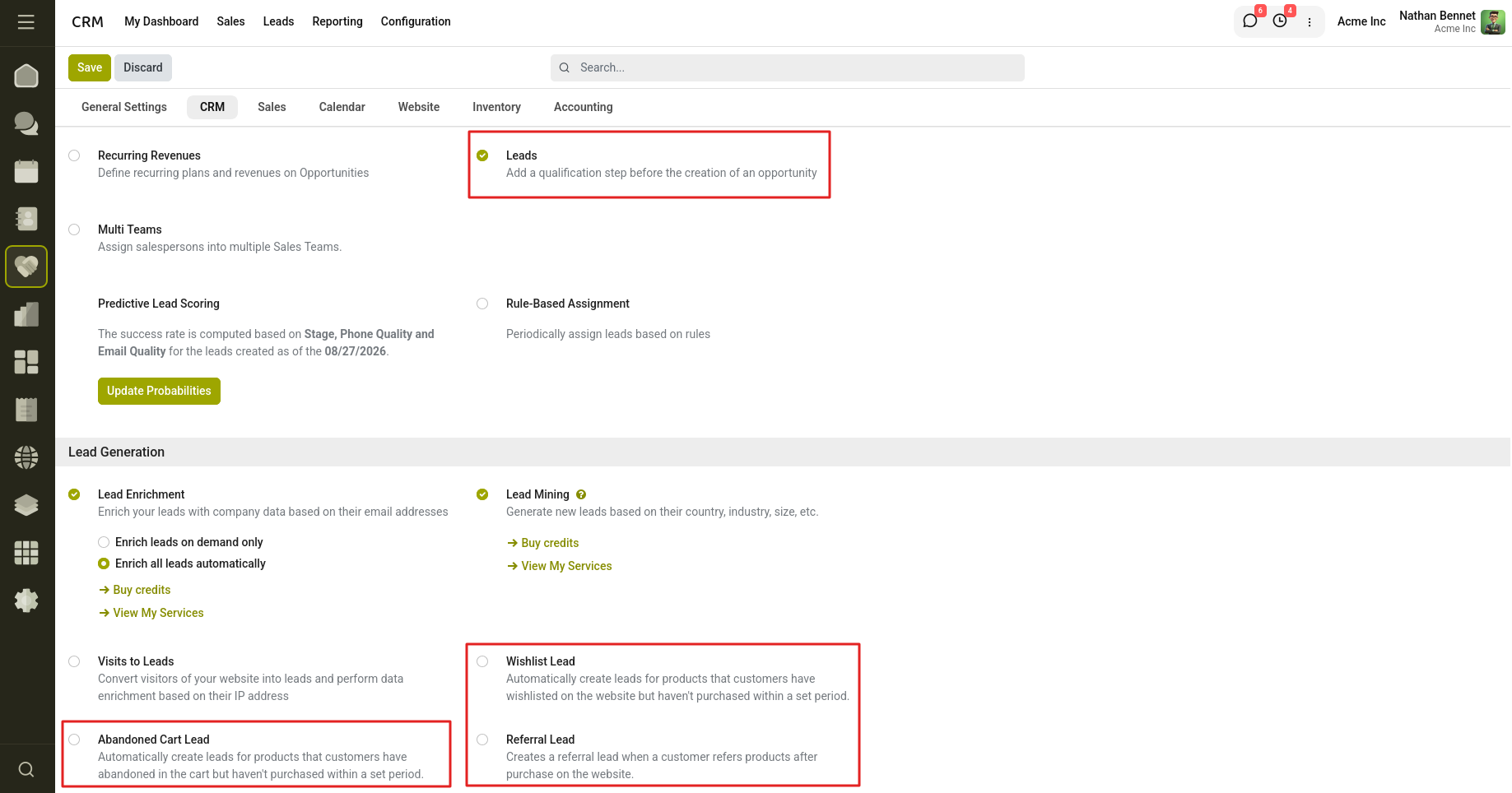
Fig 2.6 — Lead generation options become available.
Abandoned Cart Lead
The Abandoned Cart Lead feature automatically creates CRM leads for customers who add products to their shopping cart but do not complete the purchase within a specified period. This helps sales teams follow up with potential customers before the opportunity is lost.
- Enable the Abandoned Cart Lead option.
- Enter the number of days in the Days field.
- Save the configuration.
- If a customer's cart remains inactive beyond the configured number of days, the system automatically creates a CRM lead.
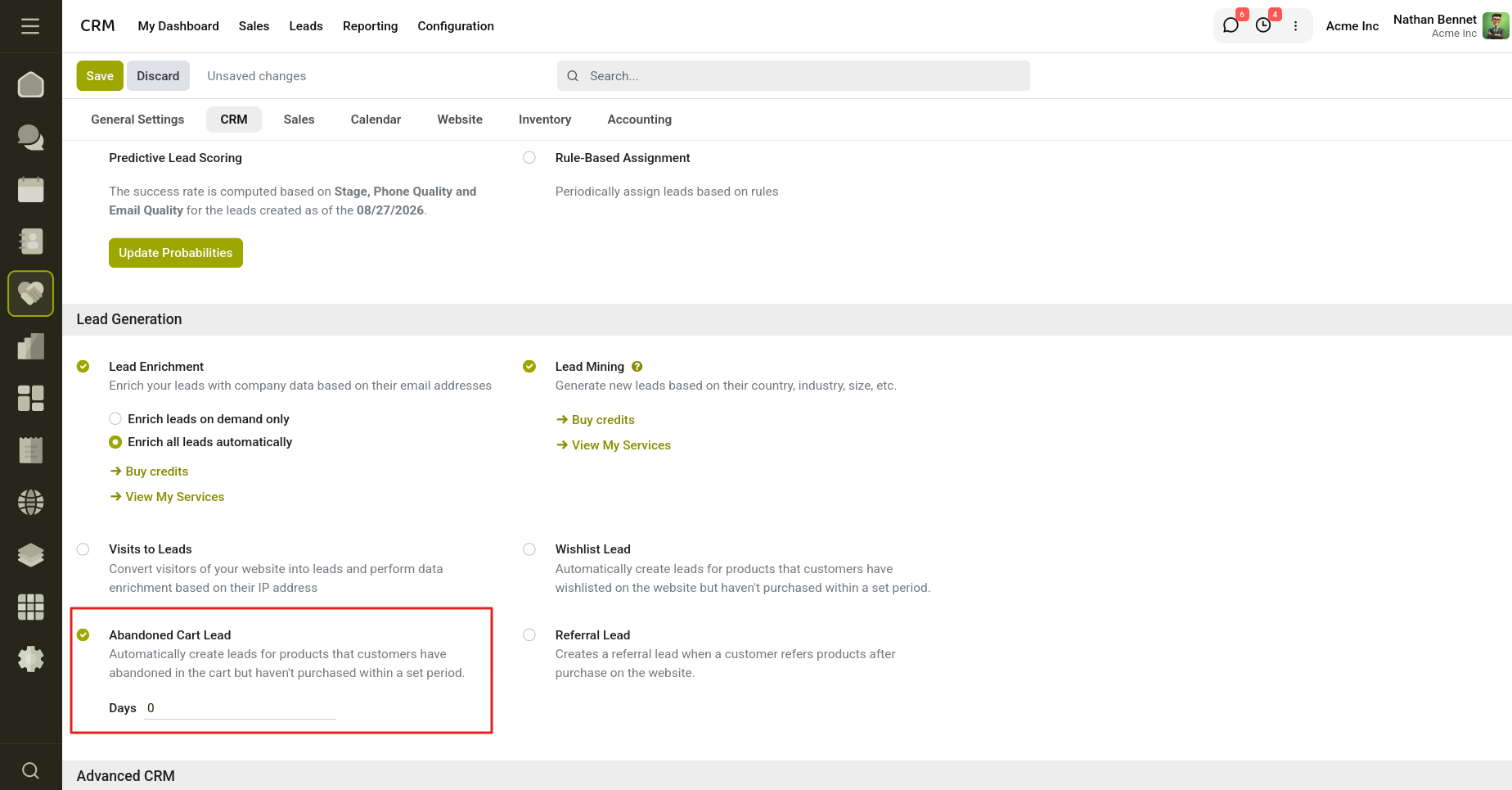
Fig 2.7 — Enable Abandoned Cart Lead.
Example
If the value is set to 5 days, a lead is generated when a shopping cart remains abandoned for more than five days.
Wishlist Lead
The Wishlist Lead feature identifies customers who have shown interest in products by adding them to their wishlist but have not completed a purchase. After the configured waiting period, the system automatically creates a CRM lead for follow-up.
- Enable the Wishlist Lead option.
- Specify the waiting period in the Days field.
- Save the configuration.
- When a product remains in a customer's wishlist beyond the configured period, a CRM lead is generated automatically.
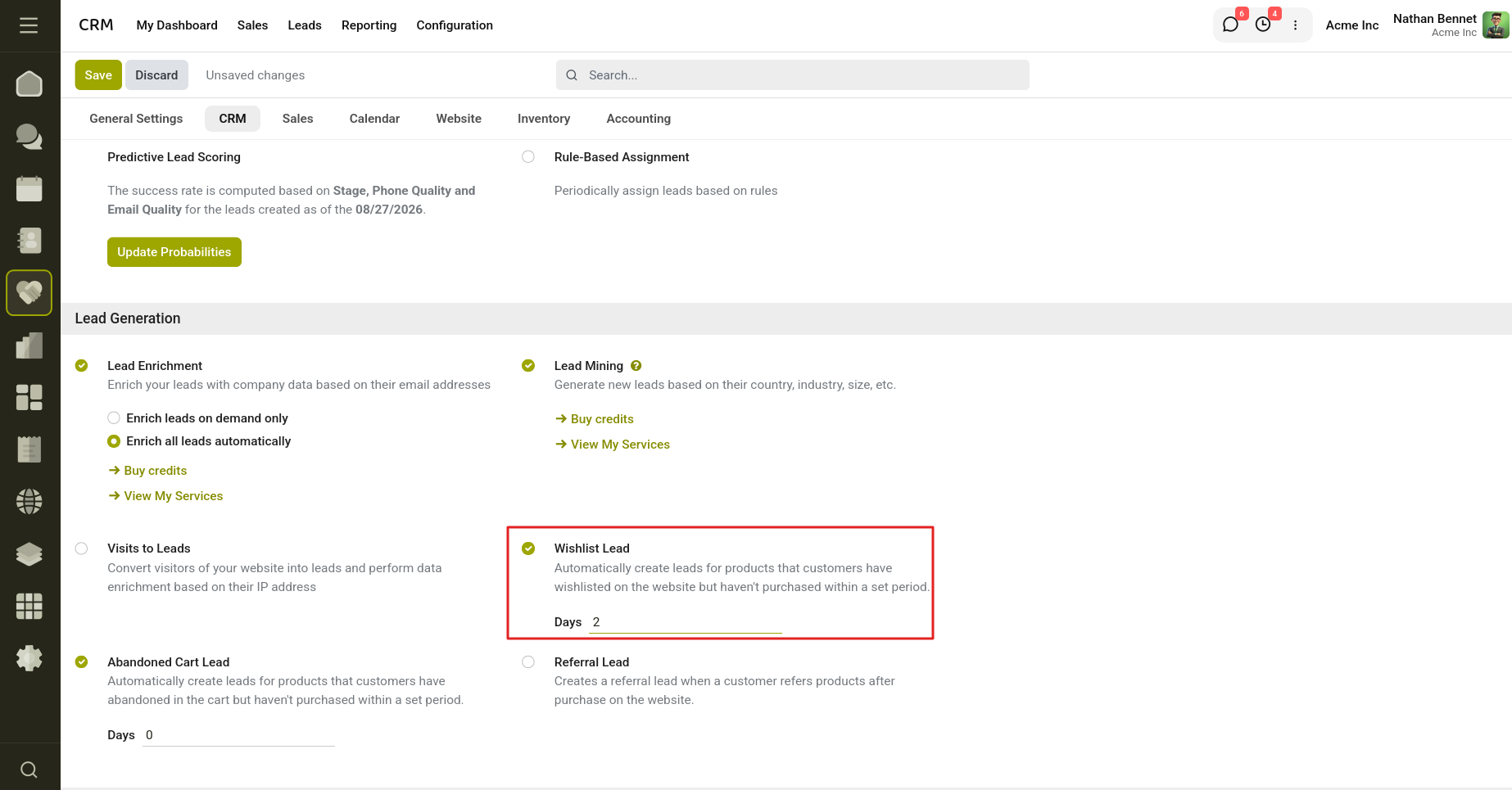
Fig 2.8 — Enable Wishlist Lead.
Example
If the waiting period is set to 5 days, a lead is created when a product remains in the wishlist for more than five days.
Referral Lead
The Referral Lead feature encourages existing customers to recommend purchased products to friends. When a referral is submitted, the system automatically creates a CRM lead using the referred person's information, enabling the sales team to contact new prospects.
- Enable the Referral Lead option in the CRM settings.
- Save the configuration.
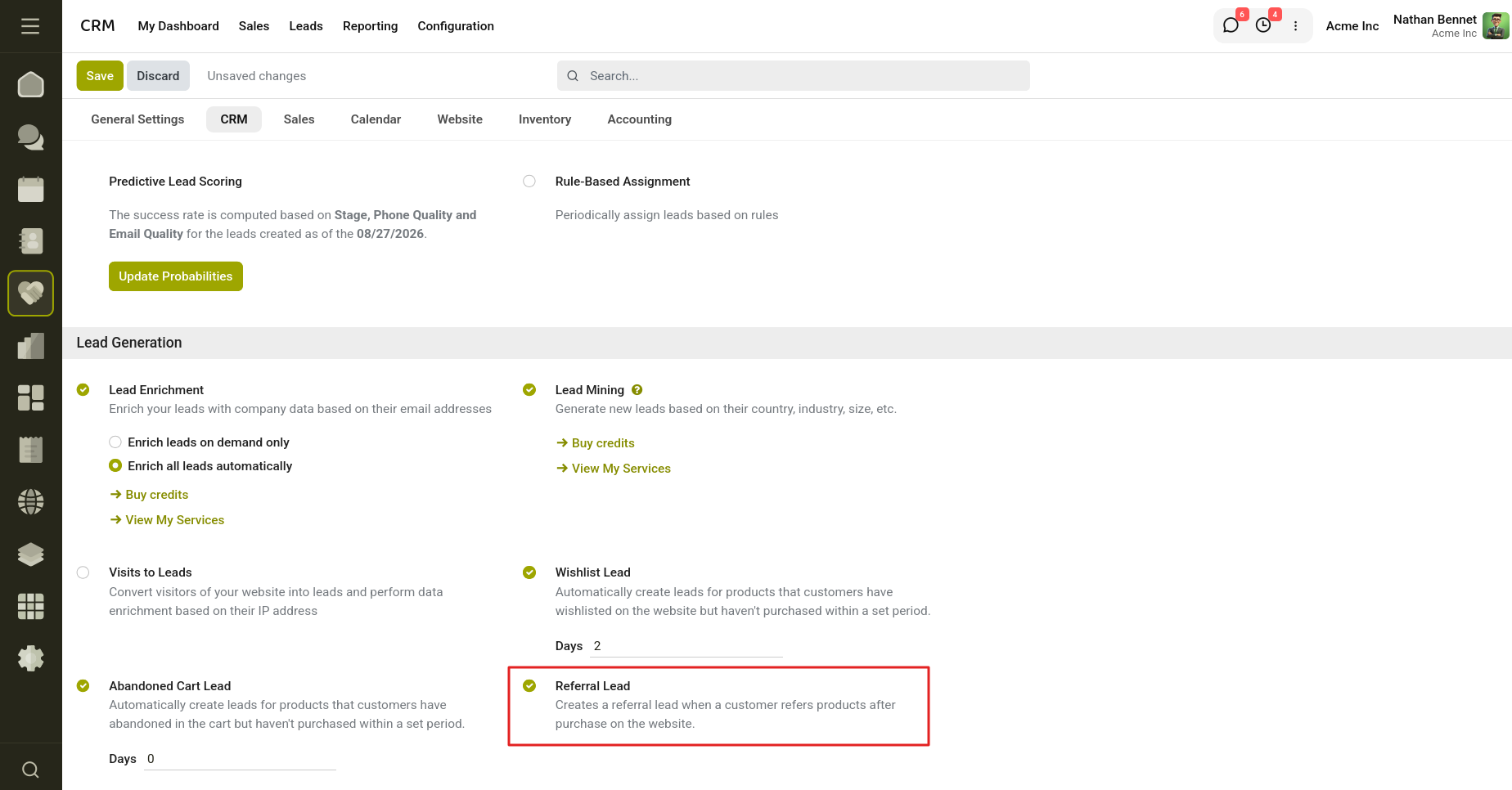
Fig 2.9 — Enable Referral Lead.
- After a customer successfully completes a purchase, a referral pop-up appears on the confirmation page.
- Click Yes to refer the purchased product.
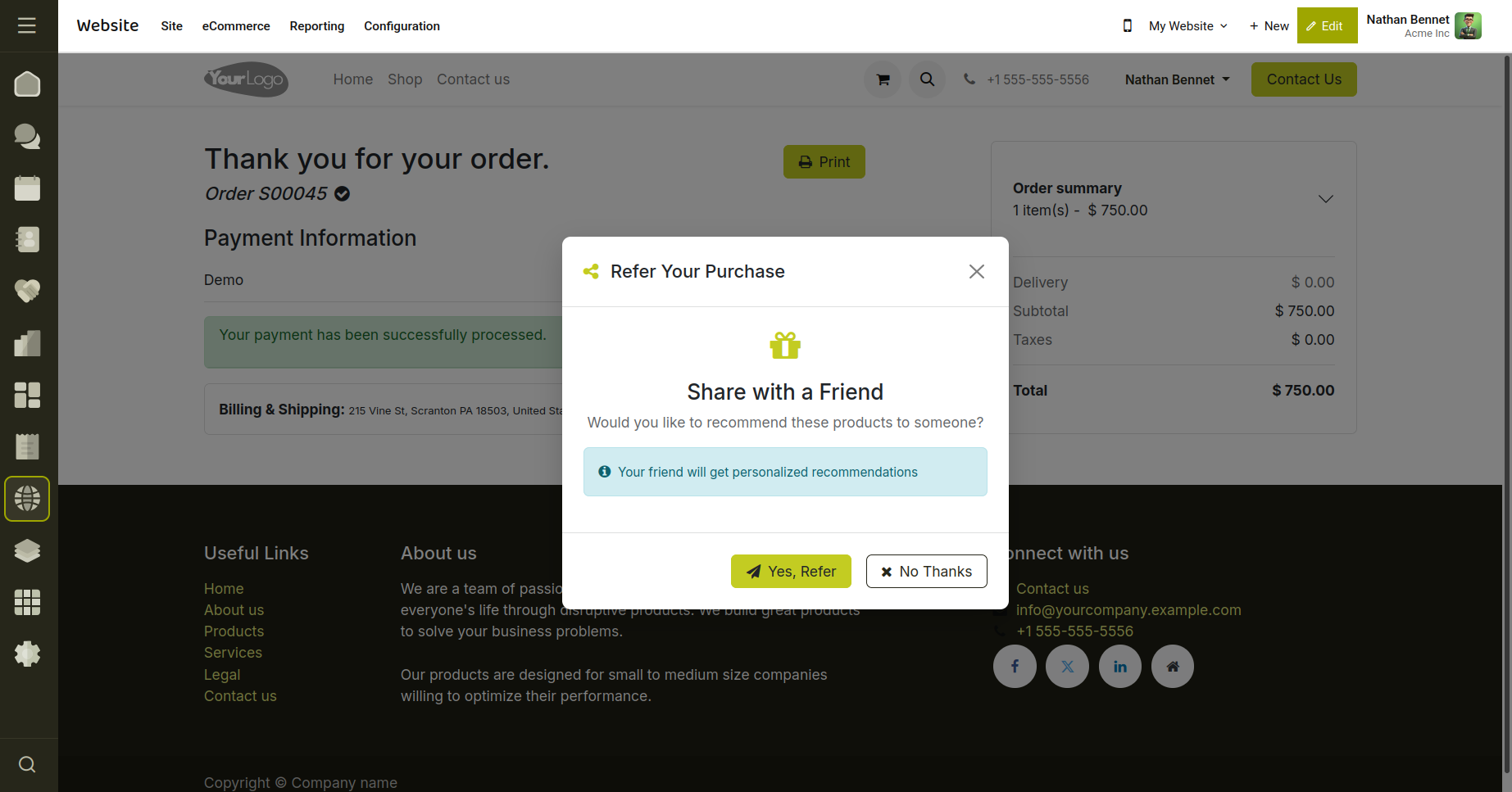
Fig 2.10 — Click yes to refer the purchased product.
- Enter the referred person's name and email address in the referral form.
- Submit the referral.
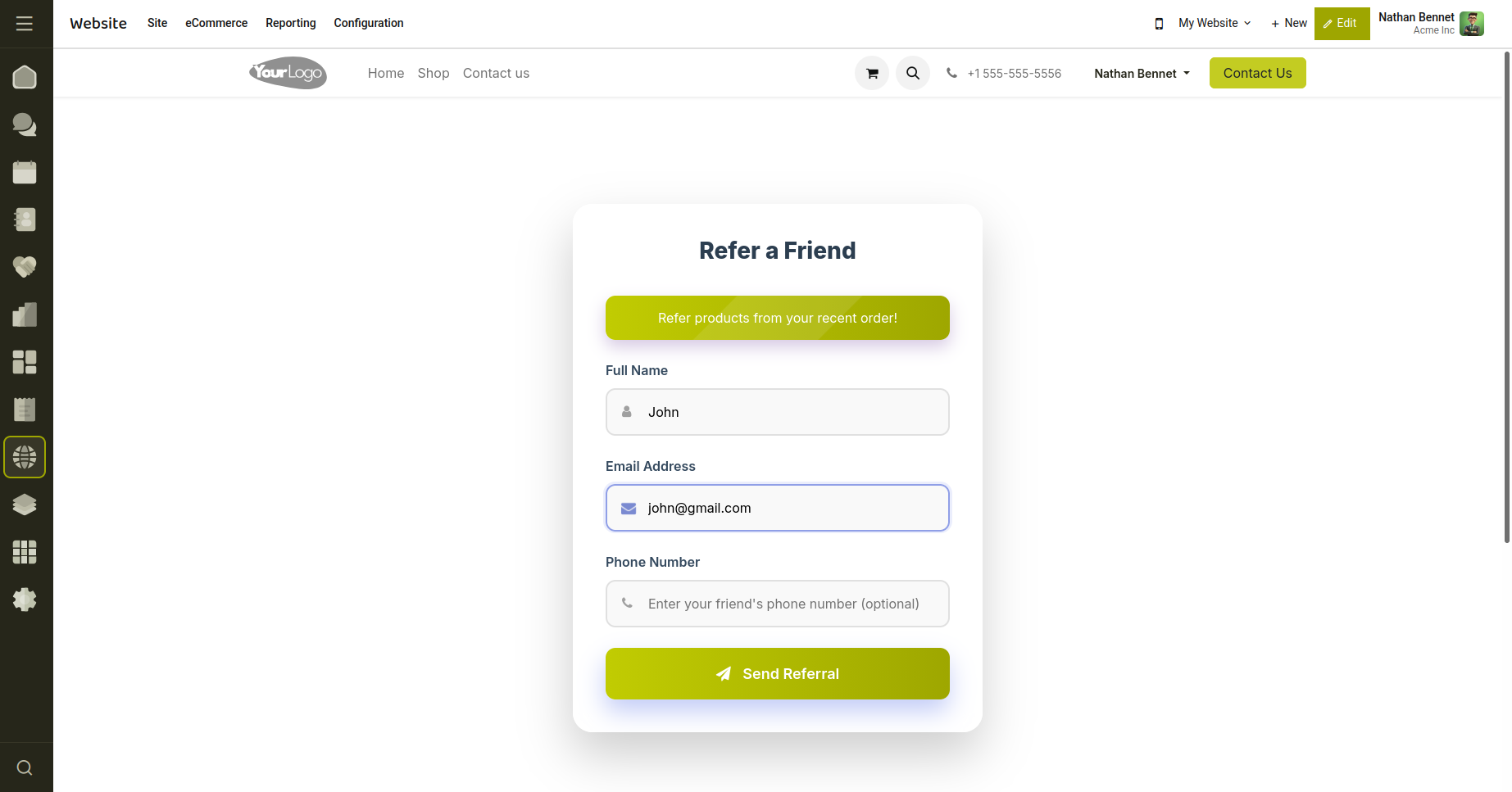
Fig 2.11 — Referral Form
- The system creates a new CRM lead using the referral details and redirects the customer to the Thank You page.
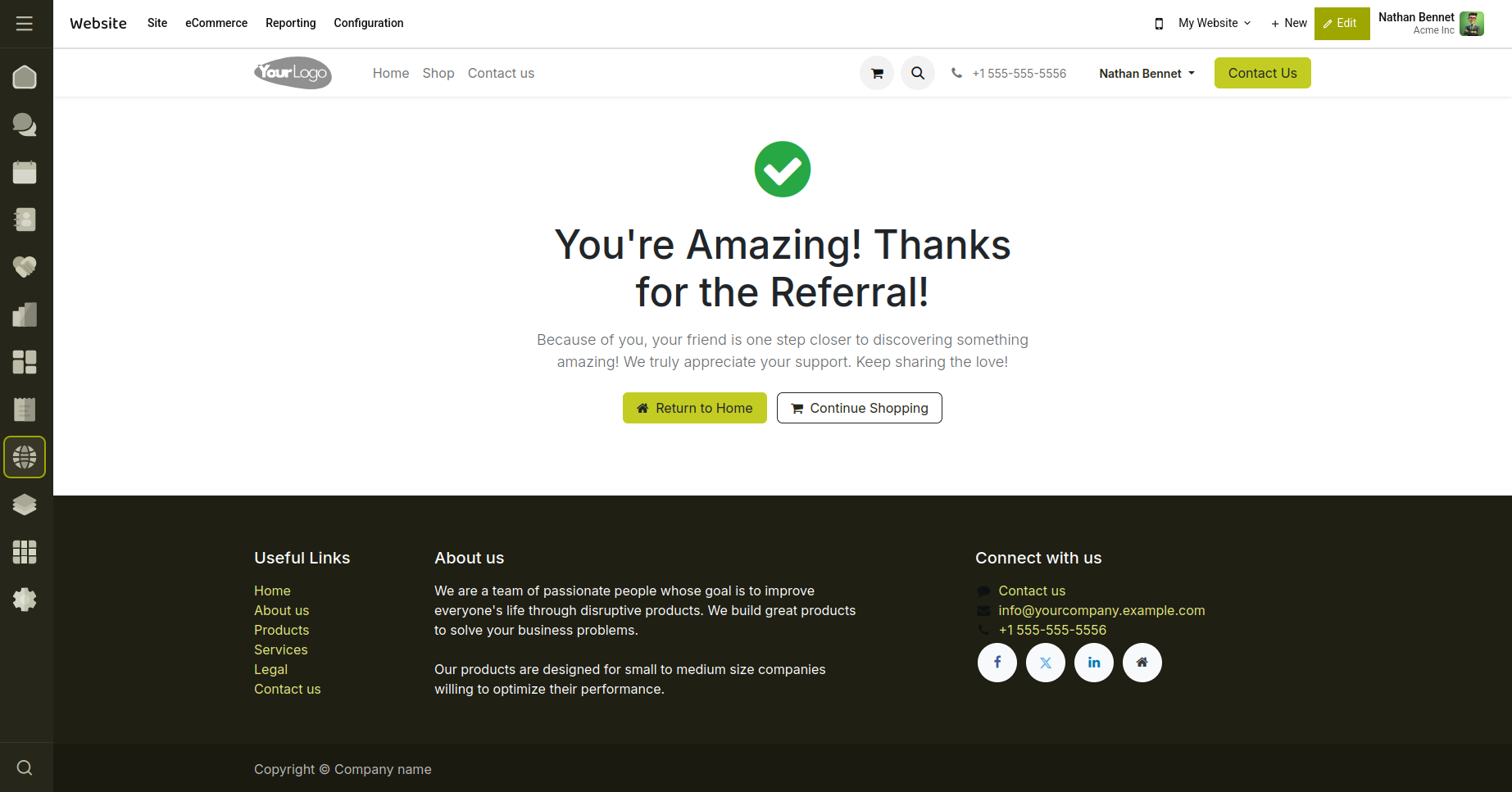
Fig 2.12 — Referral Thank you page.
- Open the Leads menu in the CRM application to view the newly created referral lead.
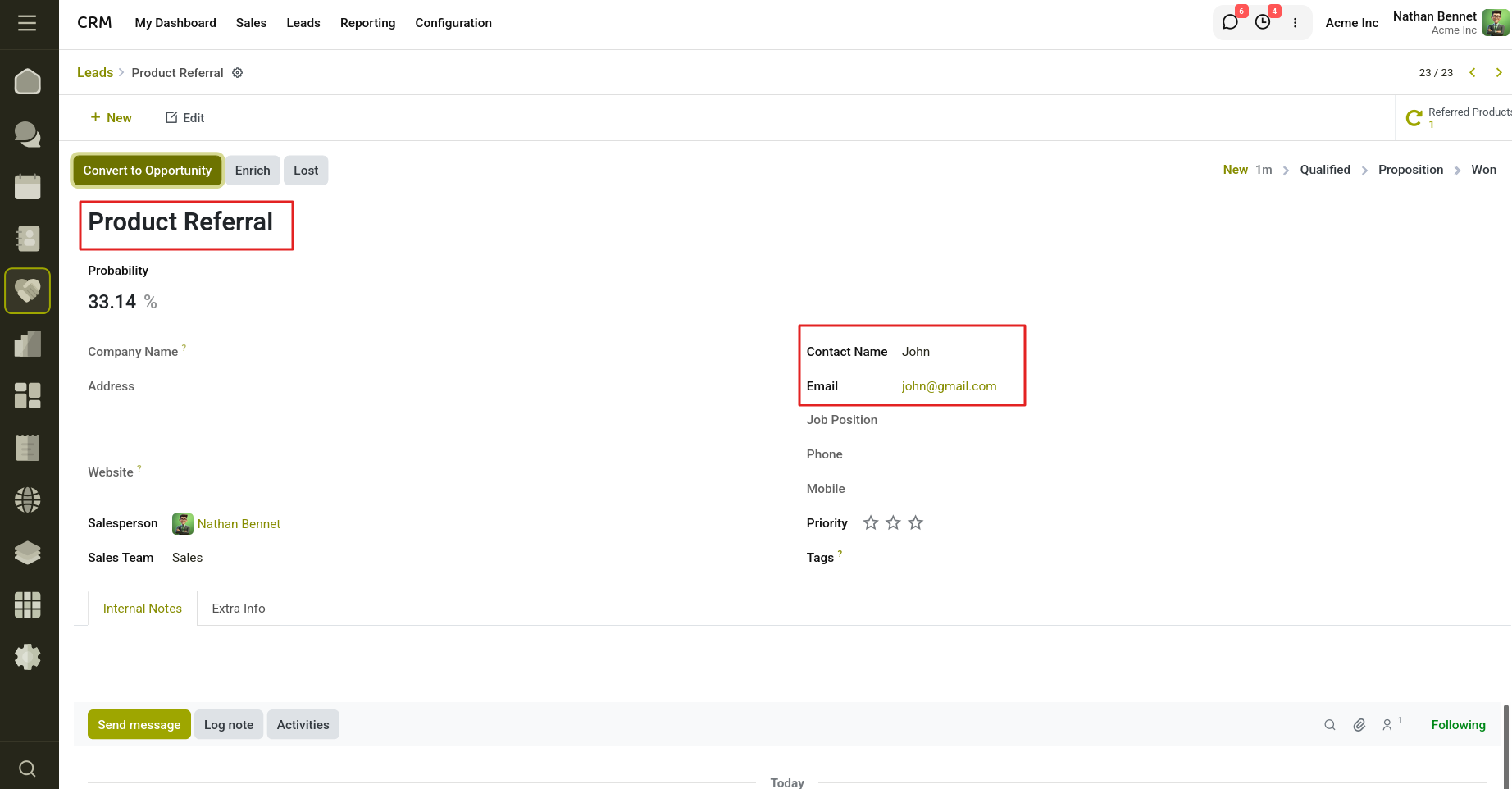
Fig 2.13 — Newly Created Lead.
3. Opportunities
3.1 What is an Opportunity?
An opportunity is a qualified sales prospect. Unlike a lead, an opportunity represents a real potential deal — it has a customer, an expected value, a close date, and a place in your pipeline. Your sales team works opportunities every day: scheduling calls, sending proposals, and moving them through stages toward a win.
3.2 Opportunity Form — Field by Field
Key Fields:
- Opportunity: Name of the deal or inquiry (required)
- Customer: Link to the customer
- Email: Customer's email address
- Phone: Customer's phone number
- Sales Team: Team responsible for this opportunity
- Salesperson: Individual owner of the opportunity
- Expected Revenue: Estimated deal value in your company currency
- Probability (%): Likelihood of closing — set manually or by AI scoring
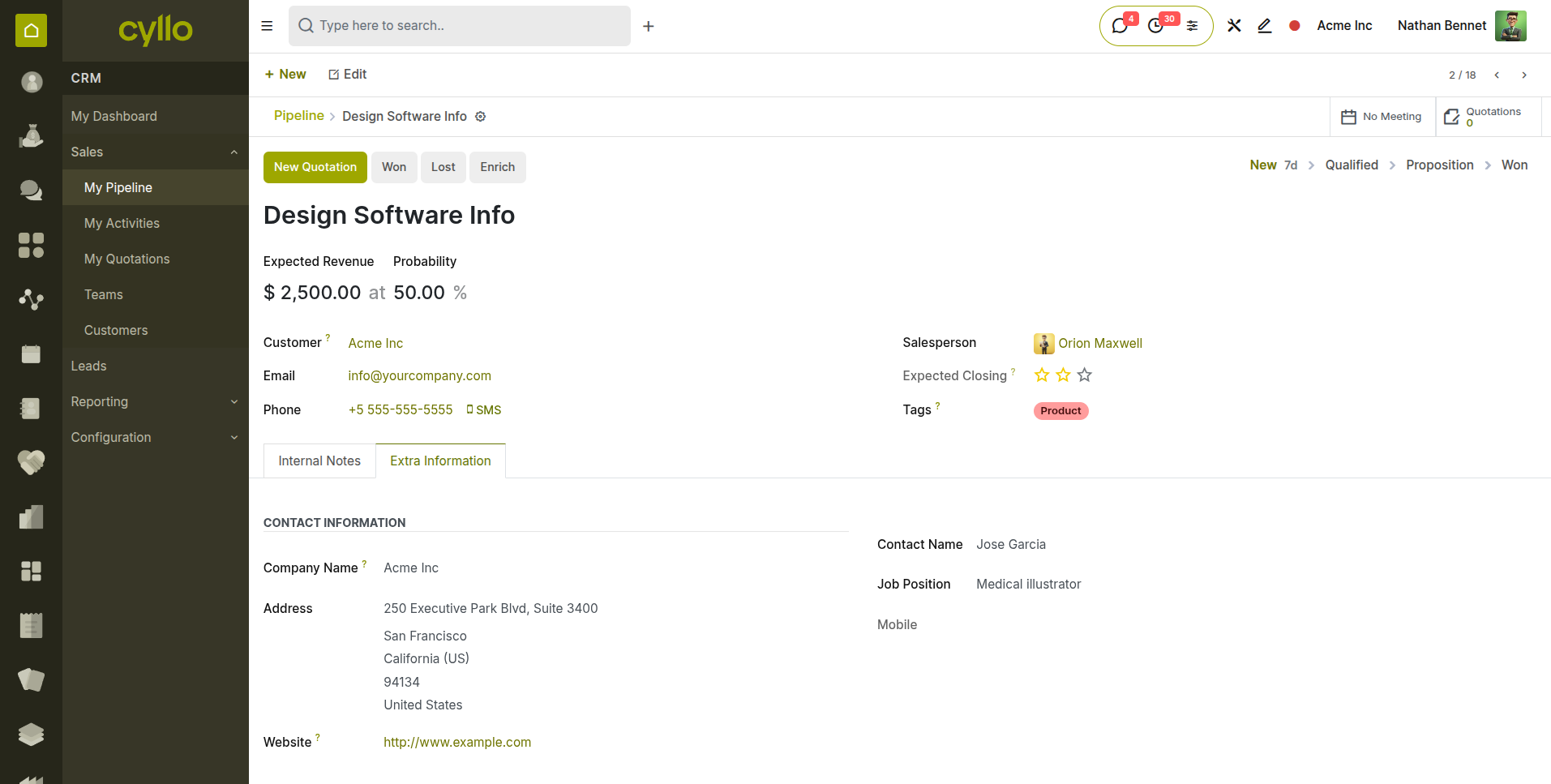
Fig 3.1 — Lead converting popup
3.3 Moving Opportunities Through Stages
You can move an opportunity to the next stage in two ways:
- Drag and drop — on the Kanban pipeline view, drag the opportunity card to the target stage column.
- Form view — on the opportunity form, click the stage name in the status bar at the top to jump to any stage.
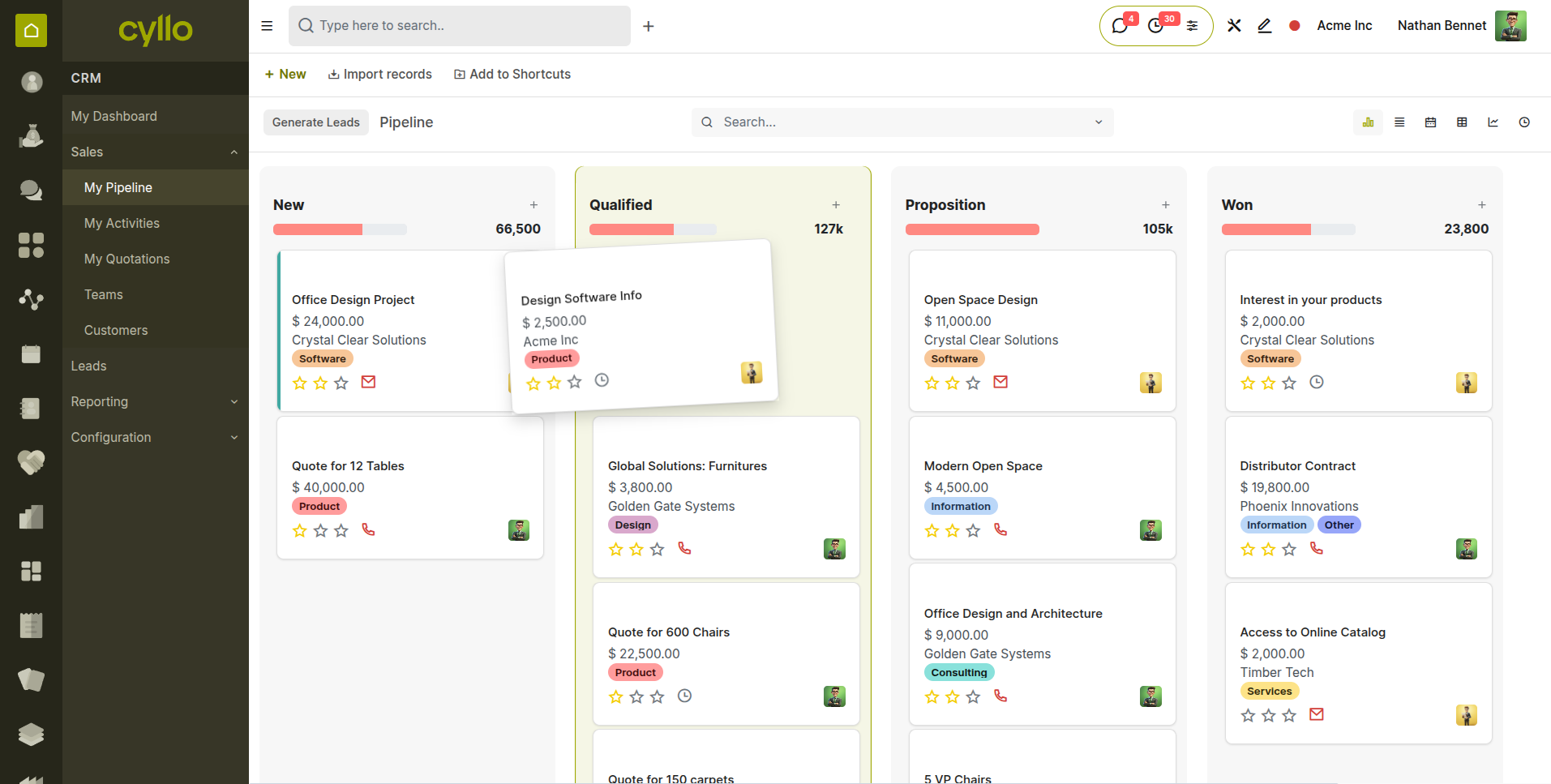
Fig 3.2 — Drag and drop from kanban
3.4 Setting Expected Revenue & Close Date
Expected Revenue is the estimated value of the deal if won. Close Date is when you expect the deal to close. Both fields are used in the revenue forecast report. Keep them updated as the deal progresses — stale data leads to inaccurate forecasts
Note
Set a Close Date on every opportunity, even an approximate one. Without a date, the opportunity will not appear in pipeline forecasts or activity planning views.
3.5 Auto Assigning to a Salesperson / Team
Cyllo CRM automatically assigns incoming leads to the right sales team or salesperson without manual intervention.
How to set assignment rules:
- Go to CRM → Configuration → Settings → Enable Rule-Based Assignment
- CRM → Configuration → Sales Teams → Open a team → Under Assignment Rules → Set domain.
- Rules evaluate lead properties such as country, language, industry, or lead source to find a match.
- When a lead matches a rule's conditions, it is assigned to the corresponding team or individual instantly.
- Simple rules can target a single condition — for example, all leads from a specific country go to a regional team.
- Multiple conditions can be combined for more precise targeting and routing.
- At the salesperson level, leads can be assigned based on more granular criteria within their team's scope.
- When multiple rules exist, Cyllo evaluates them in sequence and applies the first matching rule.
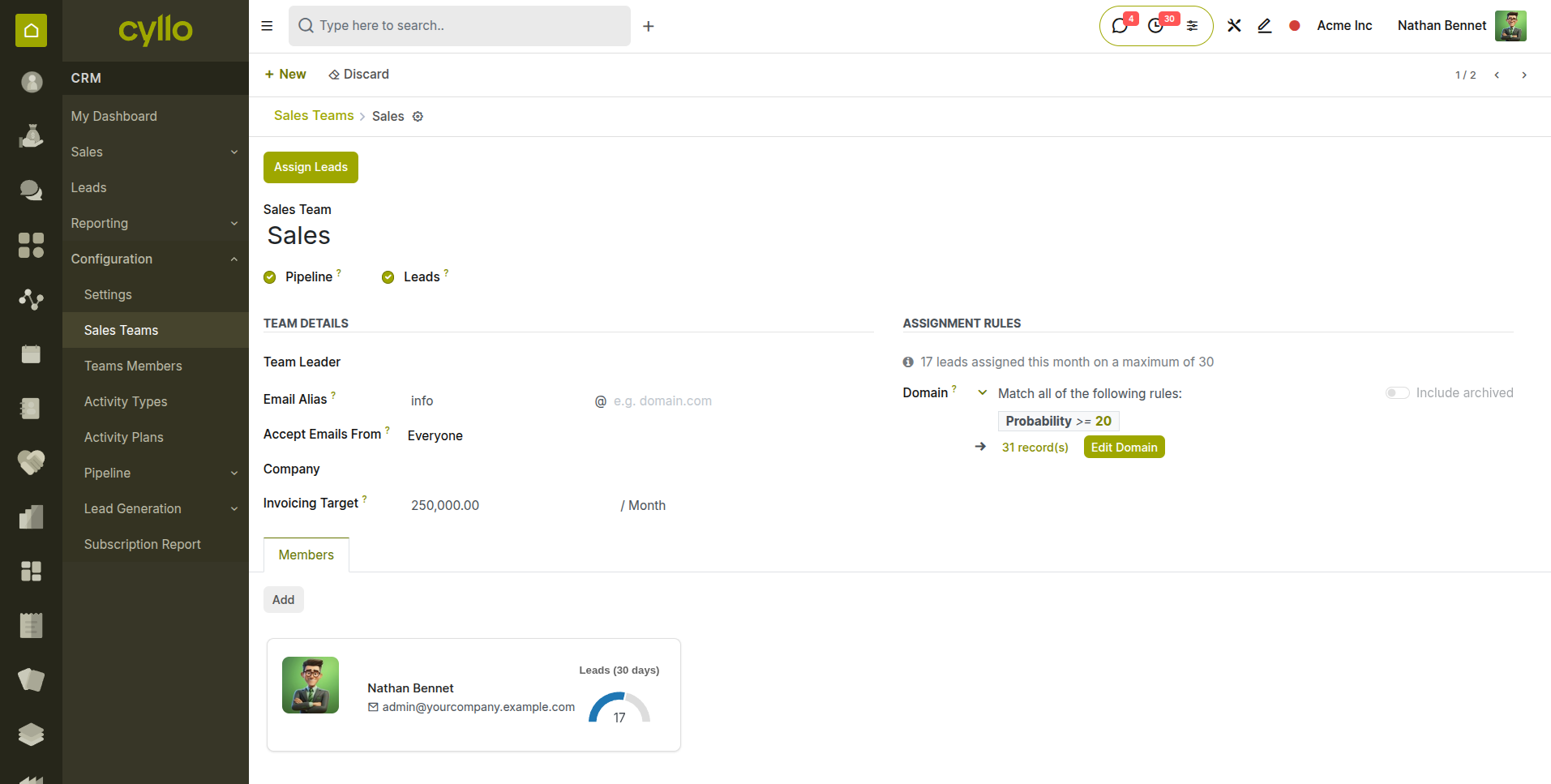
Fig 3.3 —Sales team form with assignment rules
3.6 Marking Won or Lost
When a deal reaches a final outcome, you must mark it as Won or Lost. This removes it from the active pipeline and records the result for reporting.
To mark an opportunity as Won:
- Open the opportunity.
- Click the Won button.
To mark an opportunity as Lost:
- Open the opportunity.
- Click the Lost button.
- Select a Lost Reason from the dropdown (e.g. Too Expensive, Chose Competitor).
- Add an optional note and click Submit.
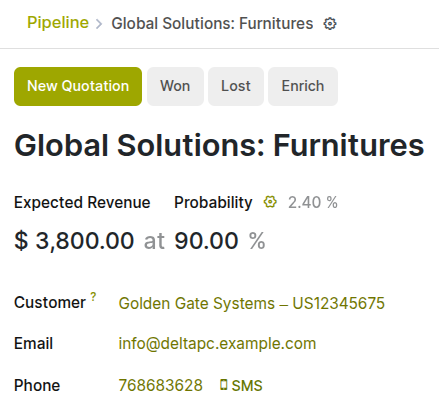
Fig 3.4 —Won, Lost buttons in opportunity
Note
Lost reasons are configured by your administrator in CRM > Configuration > Pipeline > Lost Reasons. Always select a reason — it is critical for win/loss analysis reports.
4. Pipeline
4.1 Understanding the Kanban Pipeline
The pipeline is the central workspace of Cyllo CRM. It shows all active opportunities as cards arranged in columns — each column is a stage in your sales process. At a glance, you can see how many deals are in each stage, their expected values, and which ones need attention.
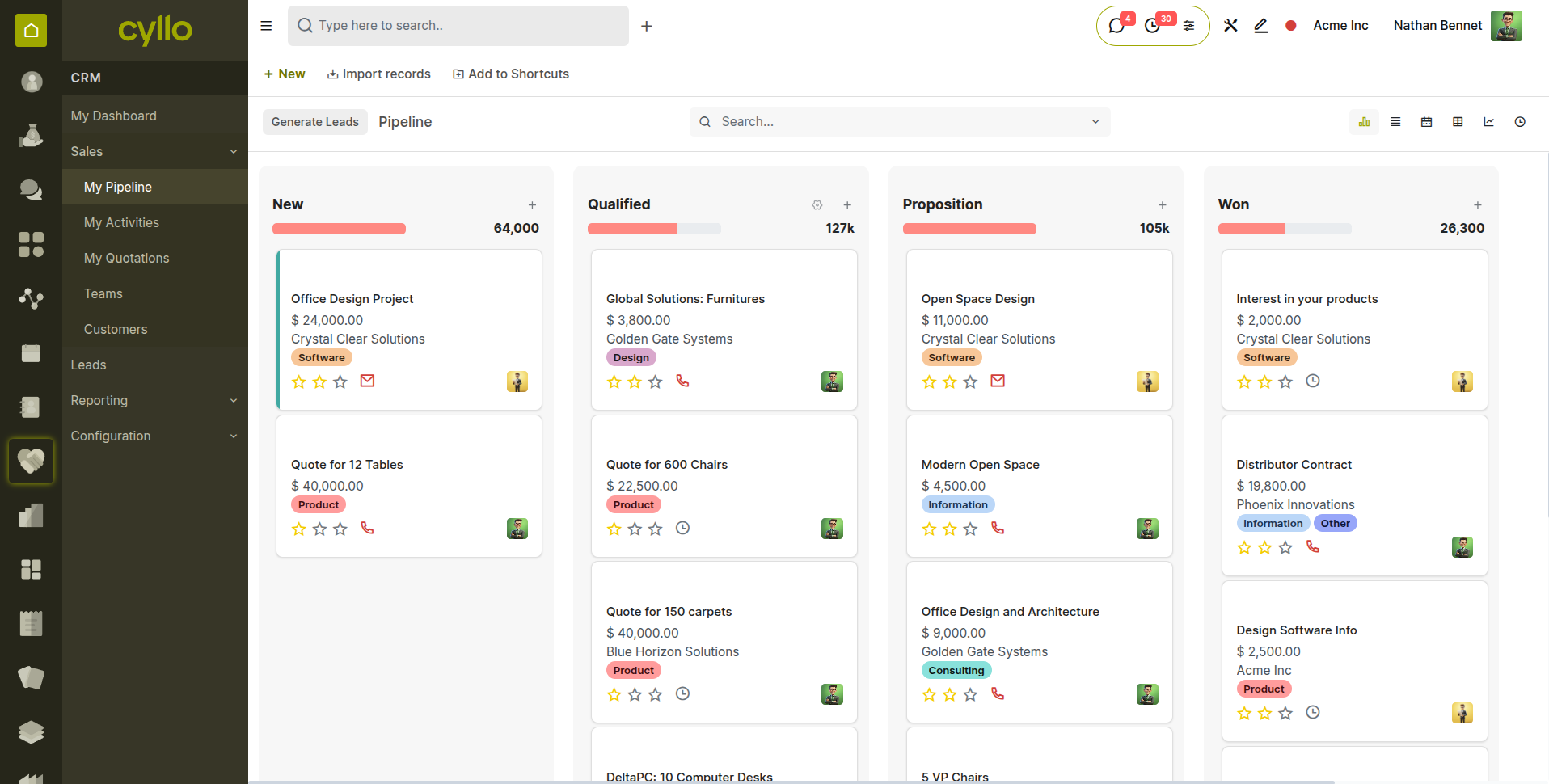
Fig 4.1 — Pipeline kanban
Each opportunity card on the pipeline shows:
- Opportunity name and customer
- Expected revenue
- Priority (stars)
- Assigned salesperson avatar
- Next scheduled activity (if any)
- Activity status indicator (green = on track, orange = due today, red = overdue)
4.2 Customizing Stages
Stages define your sales process. Cyllo comes with default stages, but your administrator can rename, reorder, add, or remove stages to match your real-world workflow.
- Stage customization is done by an administrator.
- CRM > Configuration > Pipeline > Stages.
- Add a new stage or open a stage to modify existing.
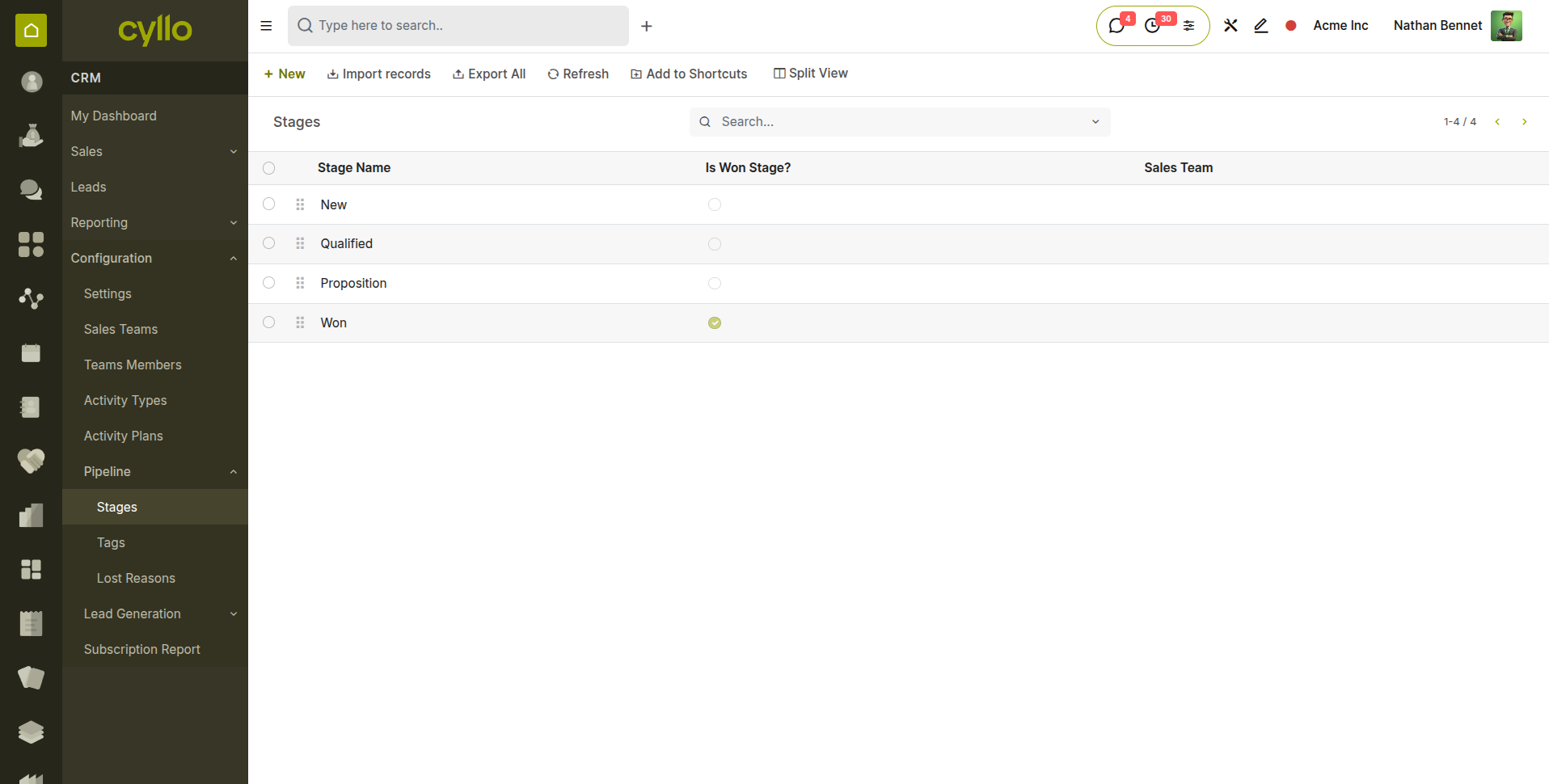
Fig 4.2 — Stages list
4.3 Filtering & Grouping the Pipeline
The pipeline search bar lets you filter and group opportunities to focus on what matters most.
Click the search bar and use the built-in filters:
- My Pipeline: Only opportunities assigned to you
- My Activities: Opportunities with activities assigned to you
- Overdue: Opportunities past their close date
- Won: Closed won opportunities
- Lost: Closed lost opportunities
- Group by Team: Columns organized by sales team instead of stage
- Group by Salesperson: Columns organized by individual salesperson
4.4 Exit Criteria
The Exit Criteria in Cyllo CRM ensures that mandatory activities are completed before a lead can progress to the next stage of the sales pipeline. By defining required tasks for each stage, organizations can standardize their sales process, improve customer engagement, and maintain the quality and consistency of lead management.
- Navigate to the CRM Pipeline and click Configure Exit Criteria.
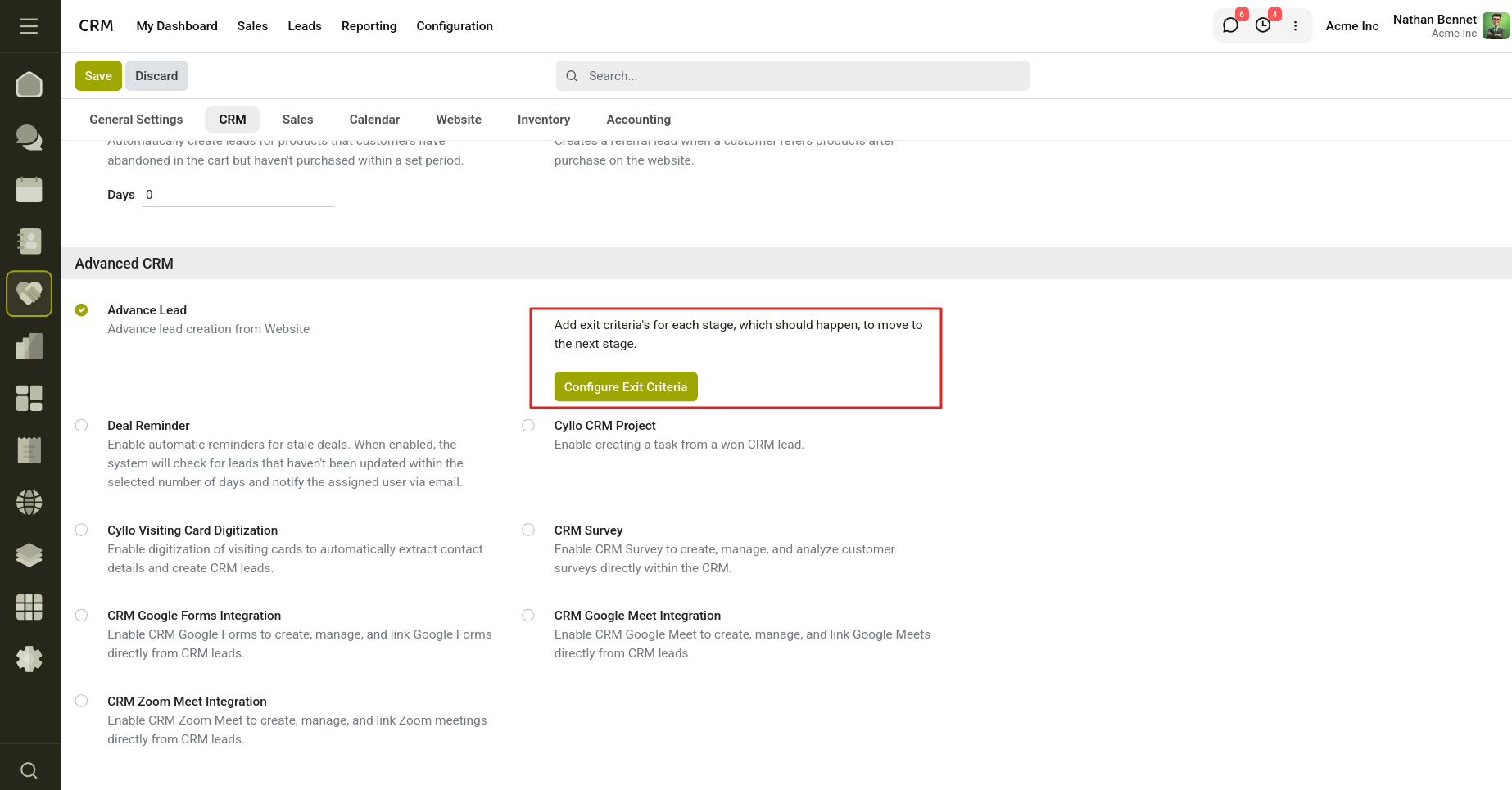
Fig 4.3 — Configure exit criteria from Settings.
- In the configuration wizard, click Add a Line.
- Select the Pipeline Stage.
- Choose the Mandatory Activity to be completed for that stage.
- Optionally, assign the activity to a specific User.
- If an assignee is selected, that user becomes responsible for completing the activity.
- If no assignee is specified, the activity is automatically assigned to the Salesperson of the lead.
- Repeat the process for additional stages as required.
- Click Save to apply the configuration.
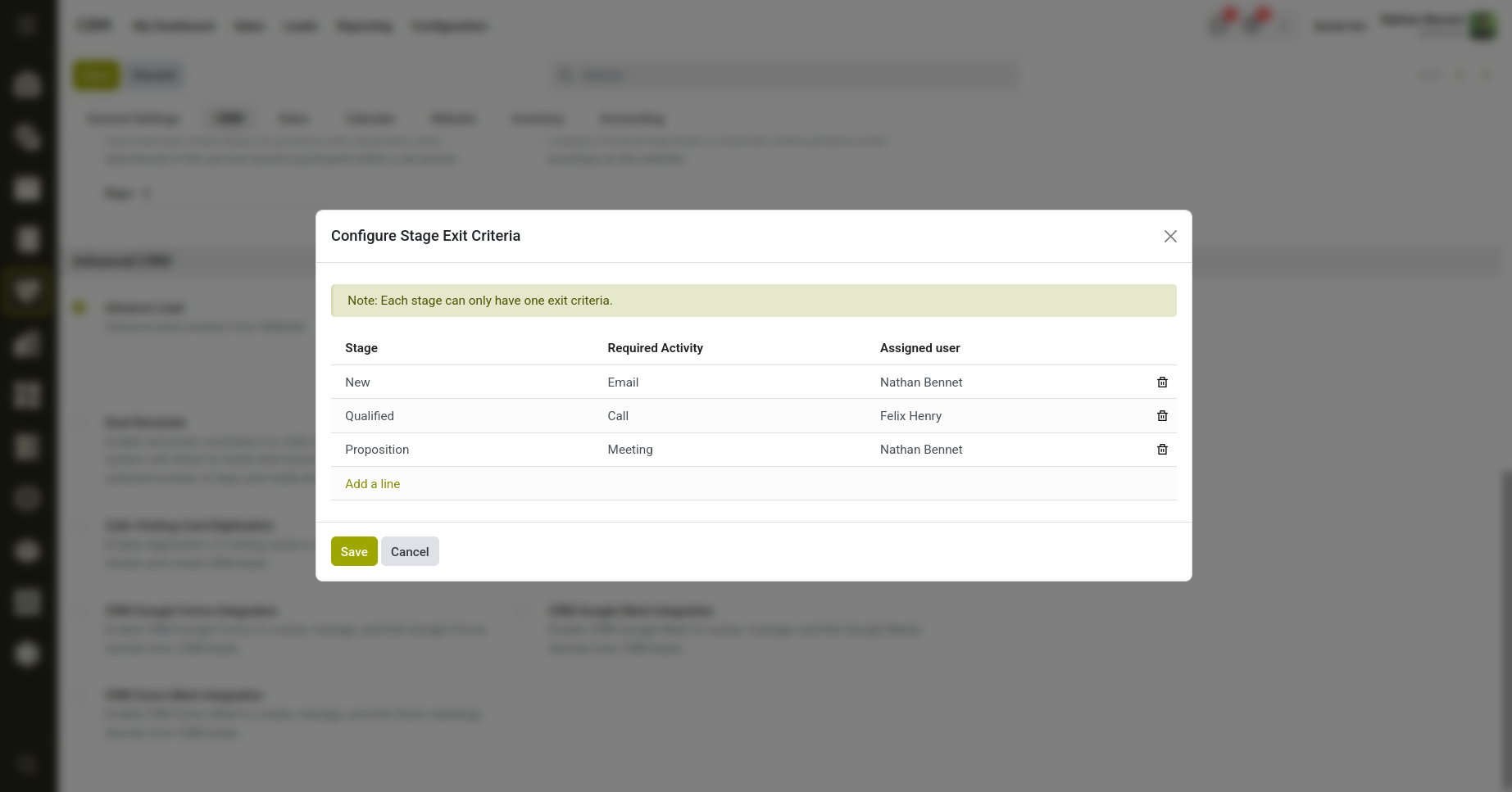
Fig 4.4 — Exit Criteria Wizard.
Note
Note: Only one mandatory activity can be configured for each pipeline stage. After saving, an email notification is automatically sent to the assigned user informing them of the activity.
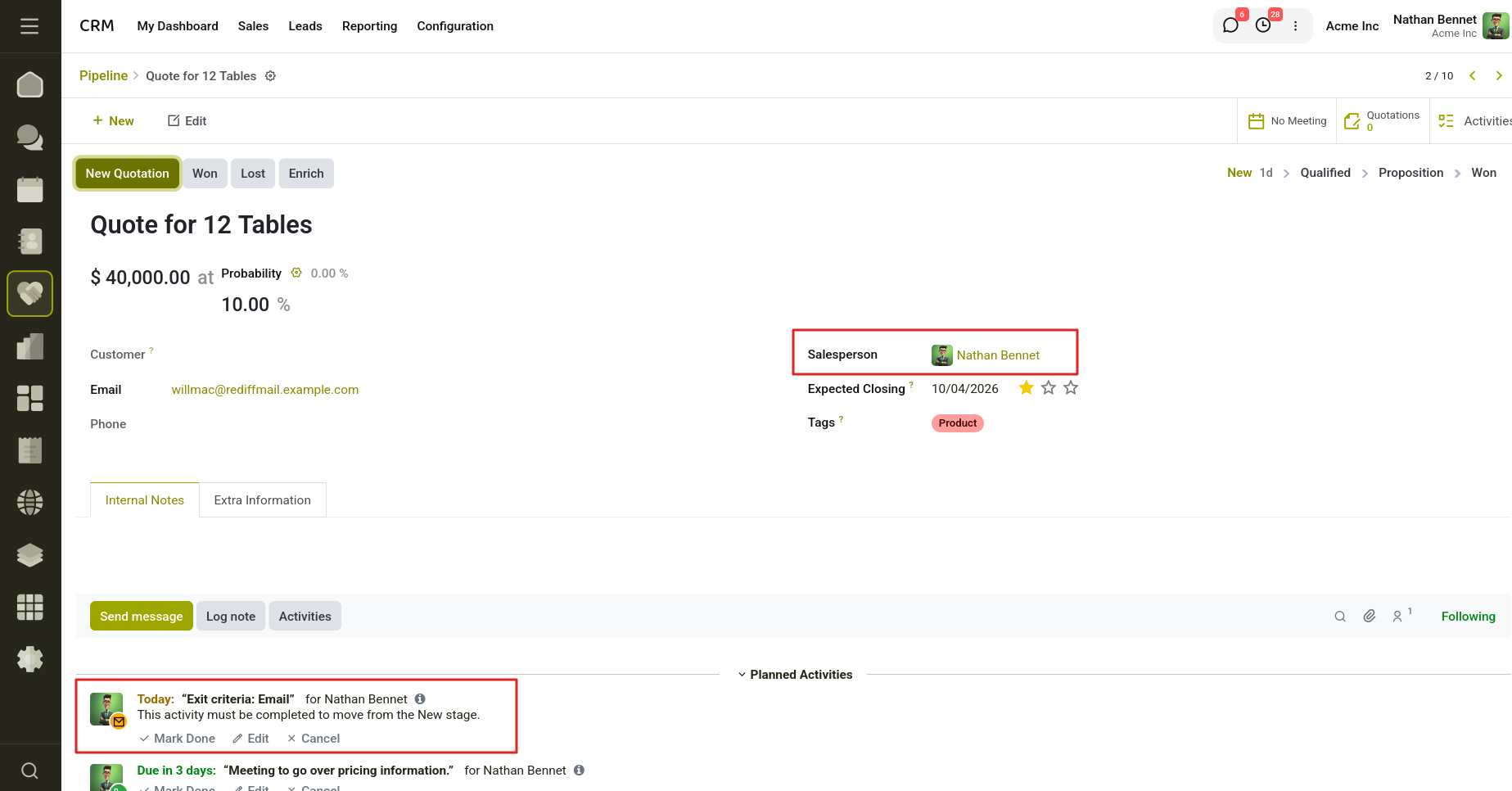
Fig 4.5 — Welcome email sent for the salesperson.
Once the stage moved to the Proposition stage the Make a Quote activity is assigned to the user we specified in the Exit Criteria . When we move the stage if there is a mandatory activity a mail is sent to the assignee regarding that.
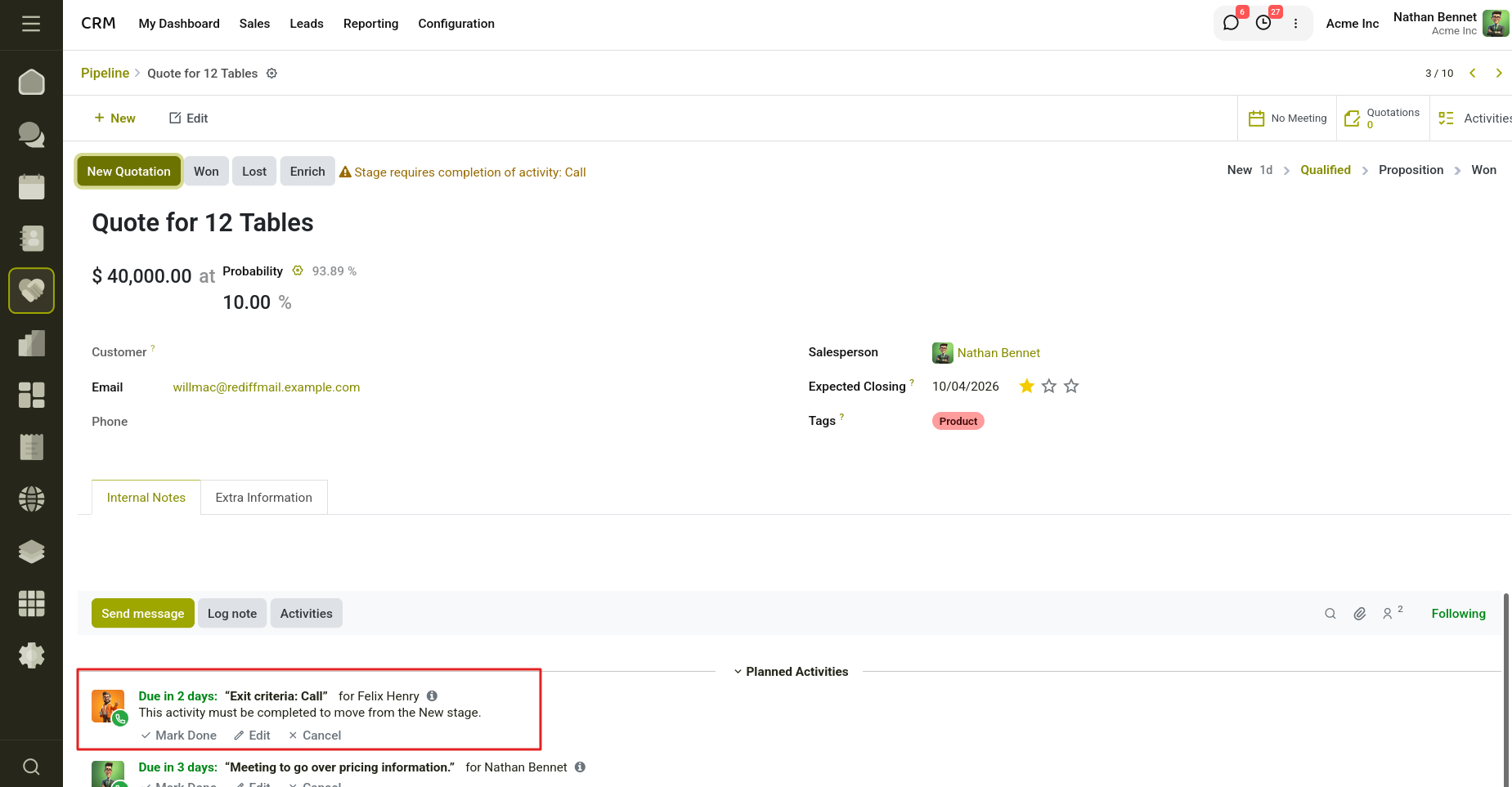
Fig 4.6 — When we move the stage if there is a mandatory activity a mail is sent to the assignee.
4.5 Deal Reminder
Deal Reminder helps ensure that leads are not forgotten when they remain in the same stage for too long. When enabled, it automatically sends an email notification to the salesperson about idle leads after the specified period.
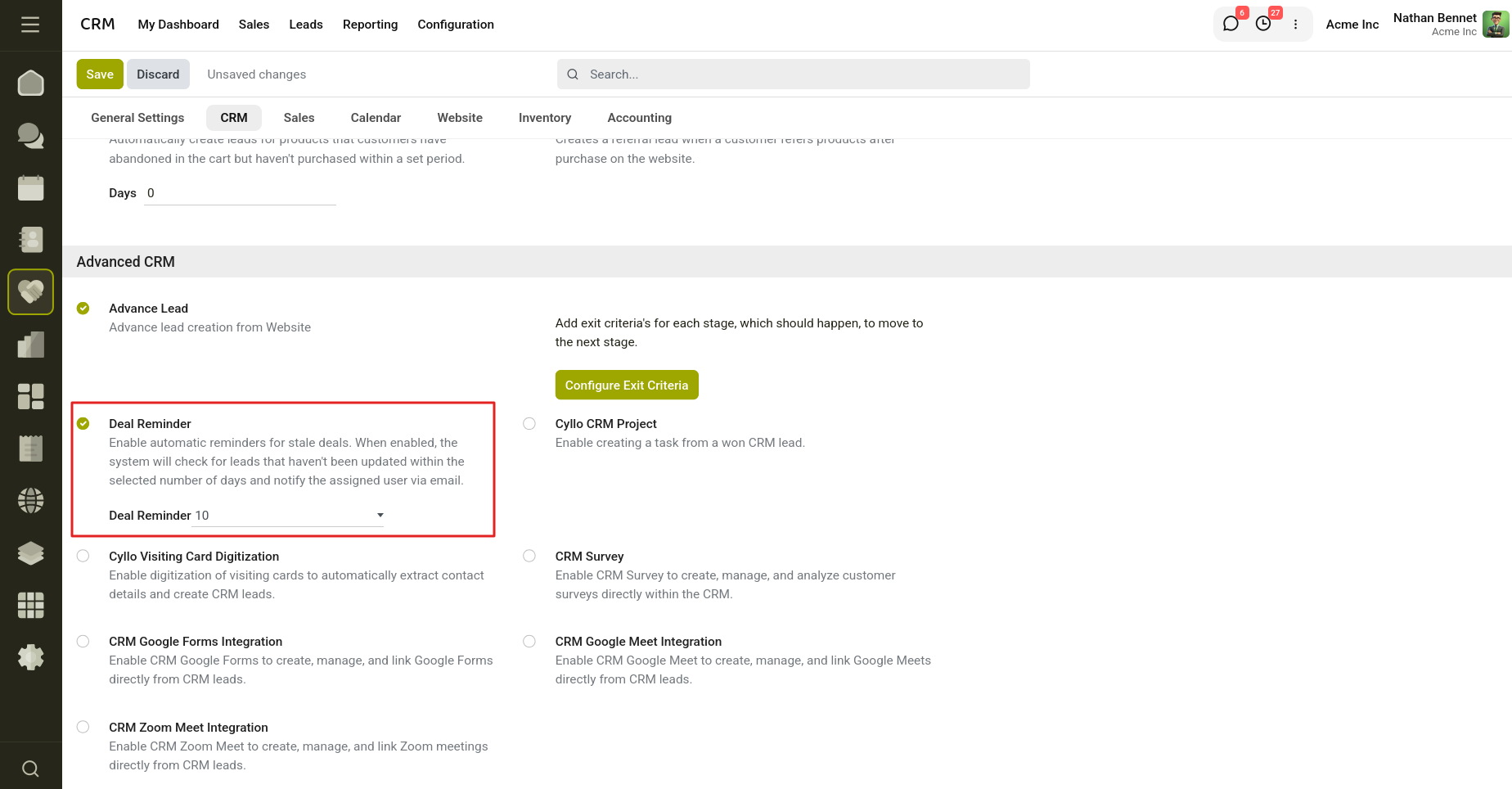
Fig 4.7 — Enable Deal Reminder from Settings.
Enable this setting and specify the number of days for idle leads. If a lead remains in the same stage beyond the defined number of days, a reminder email will be sent to the salesperson, notifying them that the lead has been idle for that period and prompting them to take action.
5. Activities & Follow-ups
5.1 Scheduling Activities
Activities are the day-to-day tasks your sales team performs to move deals forward — calls, emails, meetings, and demos. Scheduling an activity on an opportunity creates a reminder and assigns responsibility to a team member.
To schedule an activity:
- Open an opportunity.
- Click the Activities button (clock icon) in the chatter section.
- Select the Activity Type: Call, Email, Meeting, To-Do, or a custom type.
- Set the Due Date and assign it to a User.
- Add a Note describing what needs to happen.
- Click Schedule.
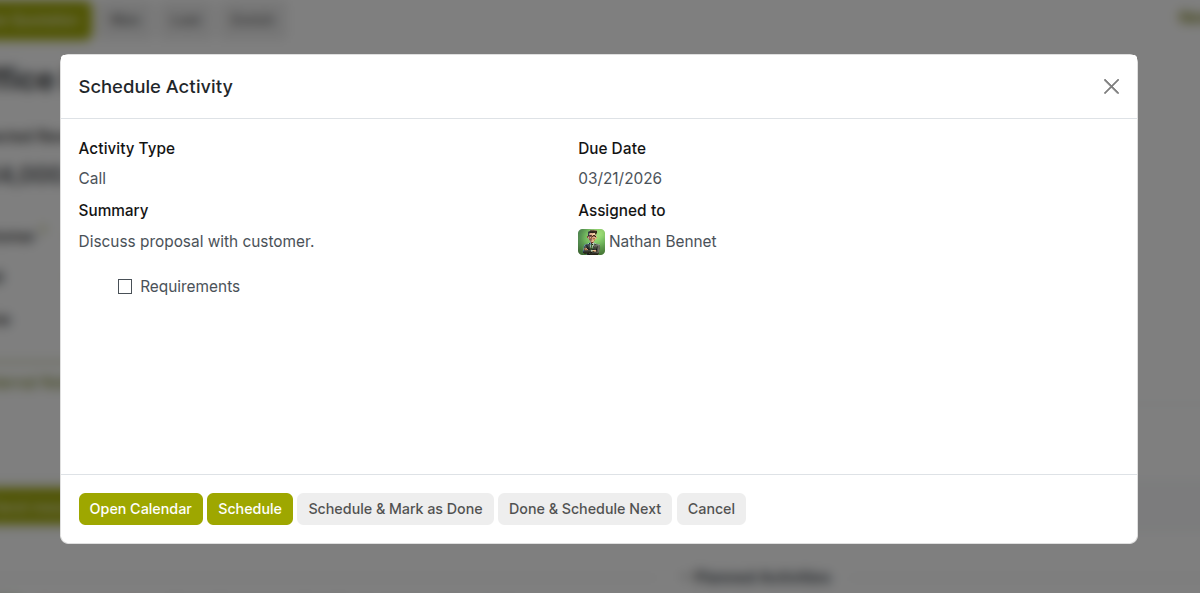
Fig 5.1 — Form for scheduling activity
5.2 Activity Reminders & Deadlines
Cyllo uses color-coded activity indicators to keep your team on track:
🟢 Green: Activity is scheduled and not yet due
🟠 Orange: Activity is due today — action required
🔴 Red: Activity is overdue — immediate attention needed
⚪ Grey: No activity scheduled on this opportunity
Note
Note: Review your activity list every morning by going to CRM > Sales > My Activities. This view shows all your scheduled activities across all opportunities in one place.
5.3 Logging Notes & Internal Messages
The chatter at the bottom of every opportunity form is used for:
- Log a Note: add an internal comment visible only to your team (not sent to the customer). Use this to record a call summary, a decision made, or context for the next person who opens the record.
- Send a Message: compose and send an email to the customer directly from the opportunity. The email is logged in the chatter automatically.
- Field changes: when a key field like Stage or Expected Revenue changes, Cyllo logs the old and new values automatically.
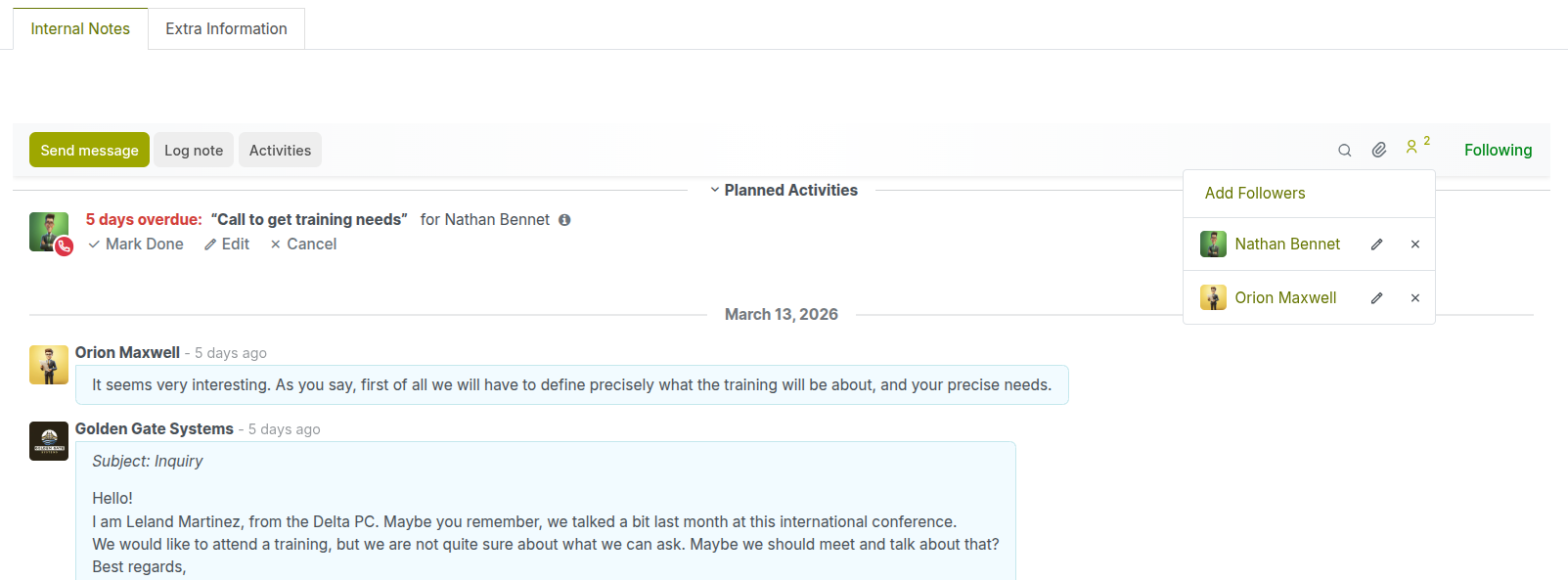
Fig 5.2 — Form for scheduling activity
Note
- Followers — add colleagues as followers so they receive email notifications when the record is updated.
- Attachments — drag and drop files (proposals, contracts, PDFs) directly into the chatter.
6. Customers & Contacts
Customers in Cyllo are managed as Contacts — a unified record shared across Sales, Accounting, CRM, and other modules. For details refer sales page
6.1 Customer History & Interactions
Cyllo gives you a complete view of everything connected to a customer. Open any customer record and you will find:
- All opportunities (open and closed) — how many deals and their total value.
- All meetings scheduled — past and future.
- All invoices and payments — financial history.
- All support tickets — if Helpdesk is enabled.
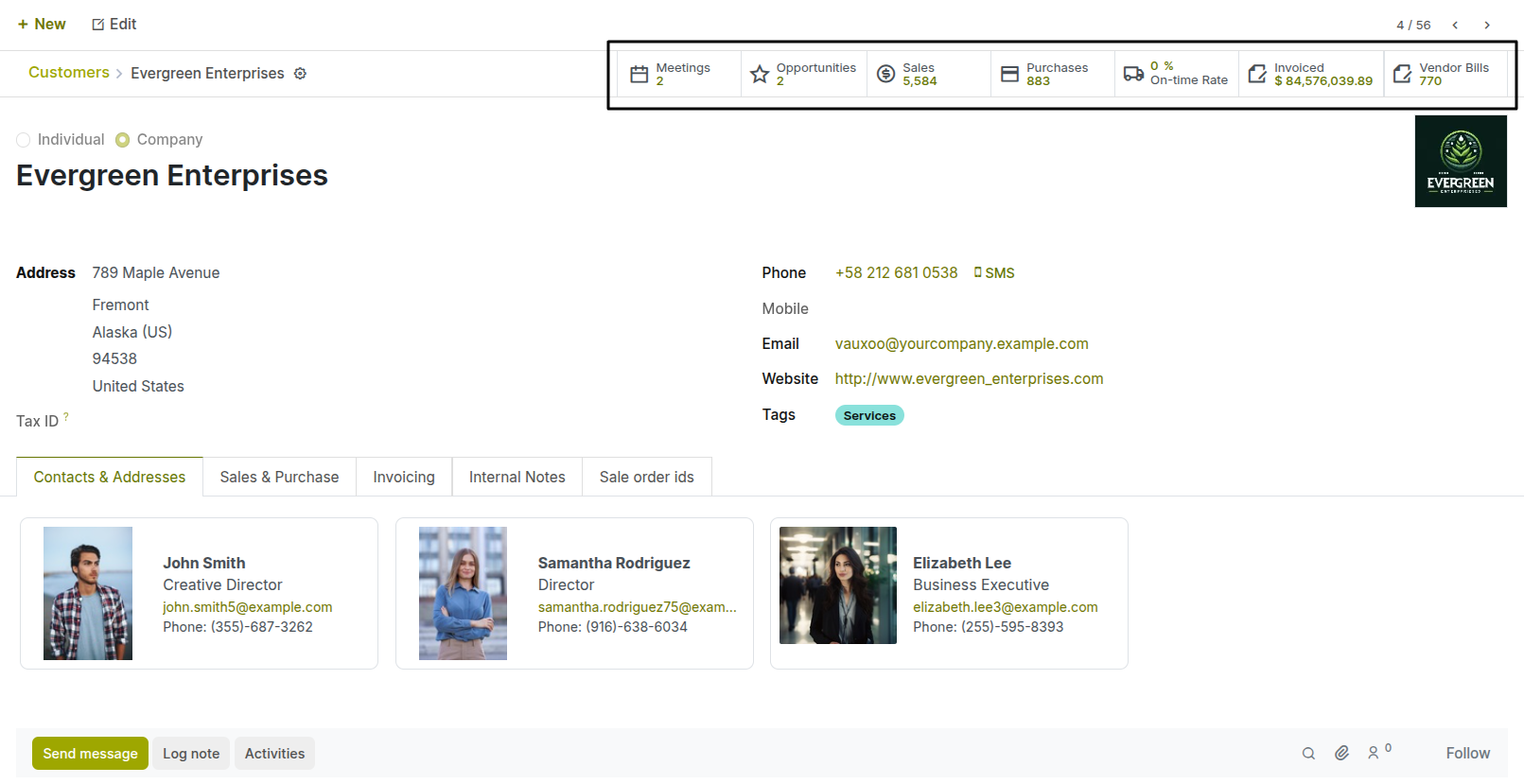
Fig 6.1 — Contact form with smart buttons to easy access
7. Communication
7.1 Sending Emails from CRM
You can send emails to customers directly from any opportunity or lead — no need to switch to an external email client. All sent emails are automatically logged in the chatter.
- Open the opportunity.
- In the chatter at the bottom, click Send message.
- Expand with the full composer button at the end of the text box.
- Type your message or choose a template.
- Add recipients (the customer is added by default).
- Attach files if needed.
- Click Send.
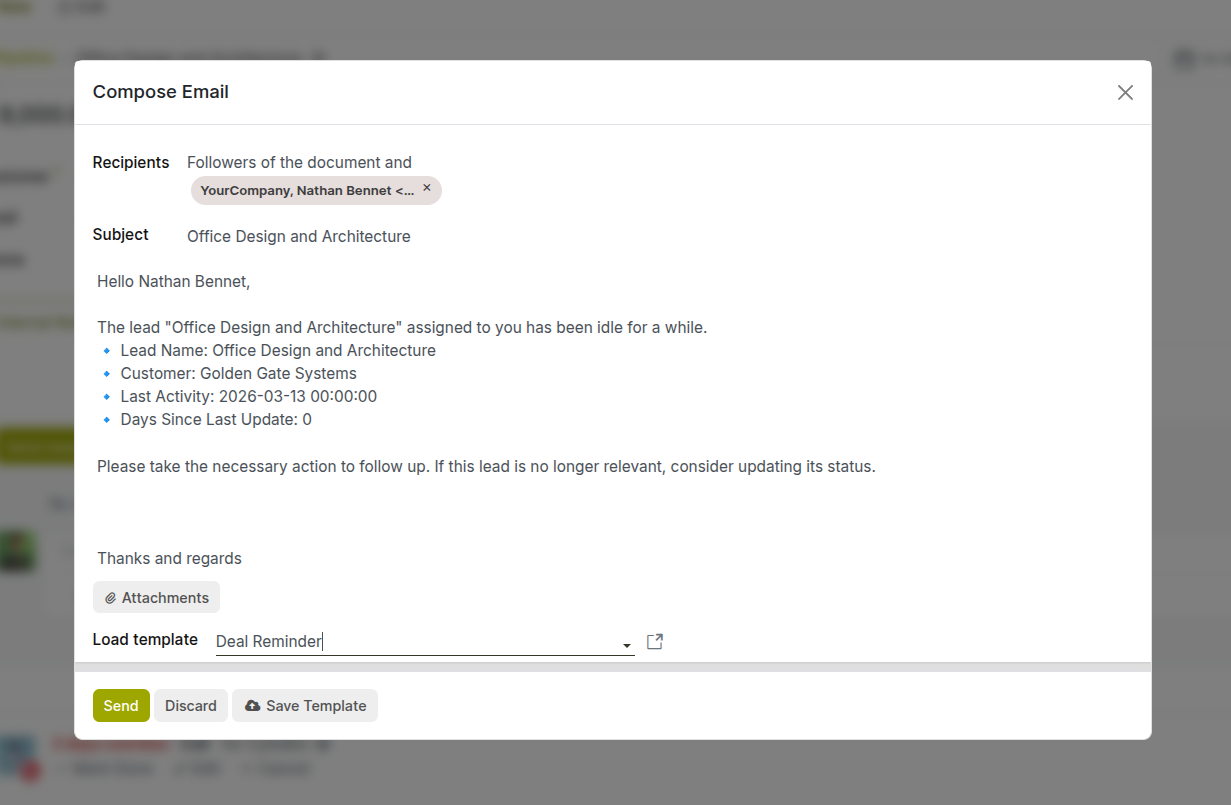
Fig 7.1 — Chatter 'Send message' form
7.2 Email Templates
Email templates let you send consistent, professional messages without retyping common content. Cyllo supports dynamic placeholders that automatically fill in the customer name, opportunity details, salesperson name, and more.
Creating a Template:
Go to Settings → Technical → Email → Templates
Click the New button (top left).
Fill in the Basic Details
- Name — Give your template a clear name, e.g. Sales Order Confirmation
- Applies To — Select the model this template is for, e.g. Sale Order or Invoice
- Subject — Write the email subject, e.g. Your Order (object.name )is Confirmed
Write the Email Body Key variables you can use:
- (object.name ) — the record's name
- (object.partner_id.name) — the customer name
- (user.name ) — the logged-in user
- (object.company_id.name) — the company name
Example: Dear (object.partner_id.name),
Your order ( object.name ) has been confirmed. Total: (object.amount_total) (object.currency_id.name)
Thanks,
(user.name )
- Click Save.
Note
Only administrators have access. Ask your administrator to set up templates for your most common emails: introduction, follow-up after meeting, proposal sent, and deal won. This saves significant time and ensures consistent messaging.
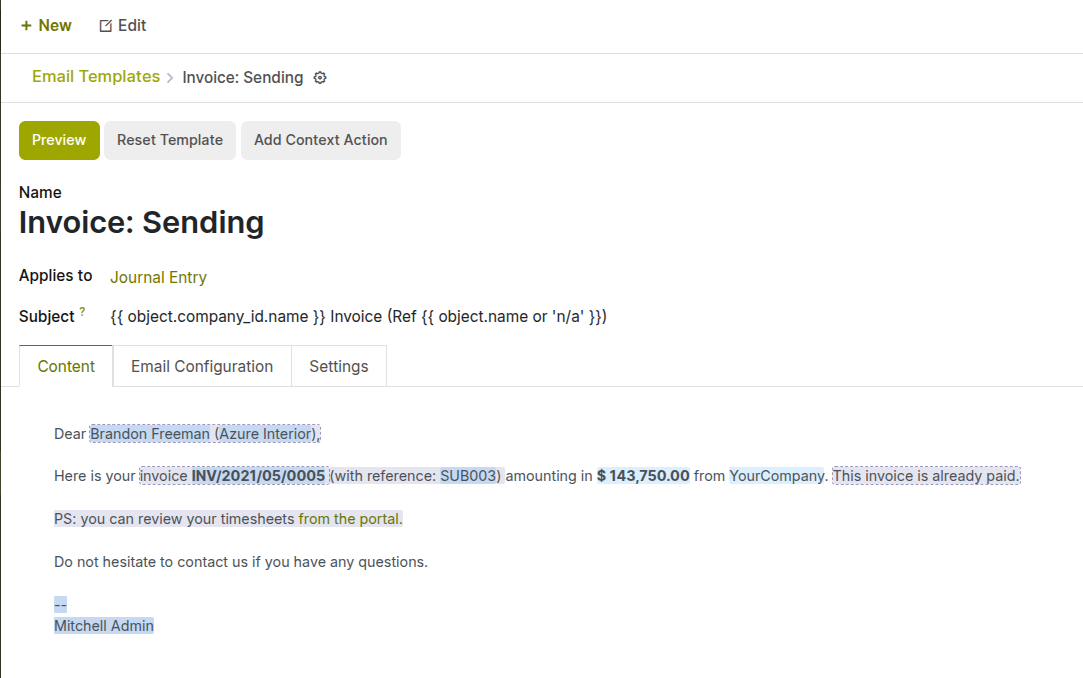
Fig 7.2 — Email template form for custom templates
7.3 WhatsApp / SMS (if enabled)
If your Cyllo instance has WhatsApp or SMS integration enabled, you can send messages directly from an opportunity using the same chatter interface. Contact your administrator to confirm if this feature is active for your account.
Note
WhatsApp and SMS availability depends on your Cyllo configuration and active integrations. These features may require additional setup and a third-party provider account.
7.4 Meeting Scheduling
You can schedule a meeting with a customer directly from an opportunity. The meeting is added to your Cyllo Calendar and can be synced with Google Calendar or Outlook.
- Open the opportunity.
- Click the Activities button and select Meeting as the activity type.
- Alternatively, click the Meetings smart button at the top of the form.
- Click on the date-time in the calendar to schedule the meeting.
- Set the meeting title, date, time, duration, and location.
- Add attendees — Cyllo will send them an invitation email.
- Save the meeting.
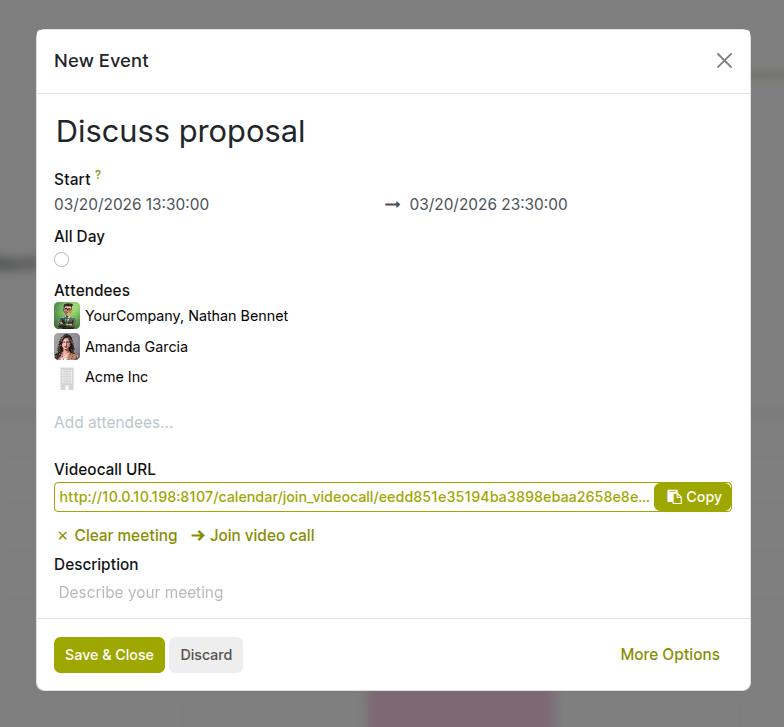
Fig 7.3 — Meeting configuration from calender
8. Quotations & Sales Orders
8.1 Creating a Quotation from an Opportunity
When a deal is ready to move into a formal proposal, you can create a quotation (sales order draft) directly from the opportunity. The customer details, salesperson, and pricing automatically carry over.
- Open the opportunity.
- Click the New Quotation button at the top of the form.
- A new quotation form opens pre-filled with the customer and salesperson.
- Add the products or services to the order lines.
- Set quantities, prices, and discounts as needed.
- Click Send by Email to send the quotation to the customer.
Note
Refer Sales documentation for details
8.2 Linking Sales Orders to CRM
All quotations and sales orders created from an opportunity are automatically linked back to it. You can see them from the opportunity's Quotations smart button. This keeps a full commercial history — every proposal version, every order — in one place.
If a sales order is created outside of CRM (directly from the Sales module), it will not automatically link to an opportunity. Always create quotations from within the opportunity to maintain the link.
8.3 Tracking Revenue from CRM
Cyllo CRM tracks two types of revenue for each opportunity:
- Expected Revenue — the estimated deal value you enter manually on the opportunity form. Used for forecasting.
- Prorated Revenue — the actual revenue from confirmed sales orders linked to the opportunity, weighted by the probability percentage.
When an opportunity is marked Won, the Expected Revenue is recorded in the win history and appears in all CRM revenue reports.
8.4 Recurring Revenues from CRM
How to set assignment rules:
- Go to CRM → Configuration → Settings → Enable ‘Recurring Revenues’
- Add Recurring Revenue to a Lead/Opportunity from form view.
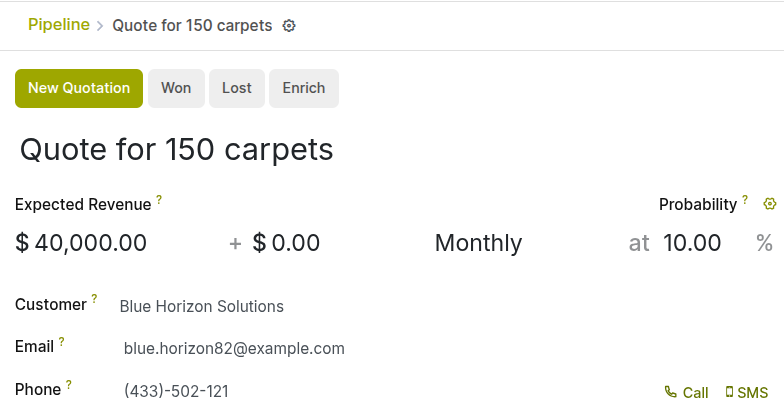
Fig 8.1 — Setting recurring period in opportunity form
9. Integrations
9.1 CRM Project
CRM Project feature allows users to create and manage project tasks directly from CRM opportunities after they reach the Won stage. This helps in converting successful opportunities into actionable tasks and ensures smooth transition from sales activities to project execution.
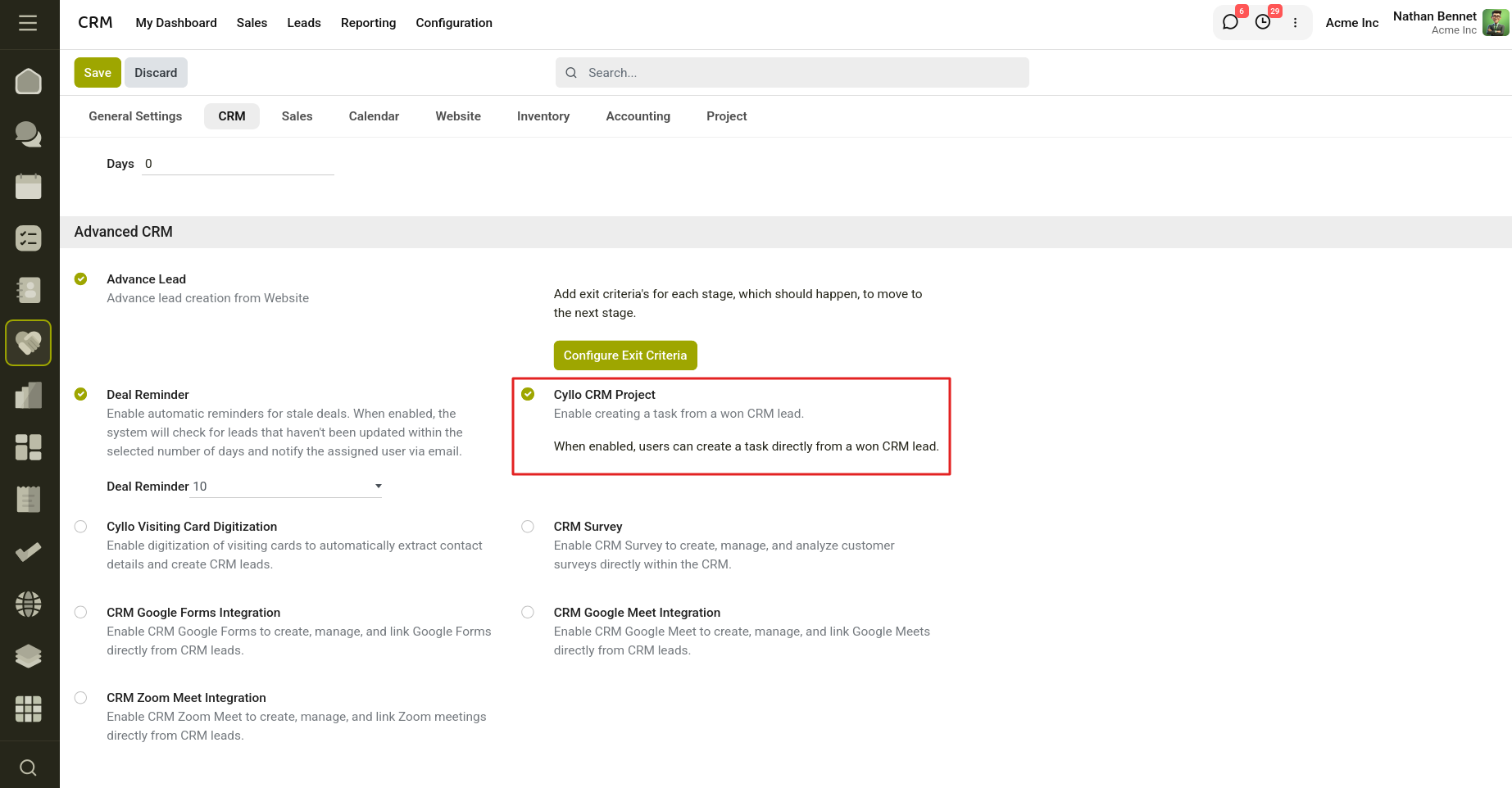
Fig 9.1 — Enable CRM project from Settings.
The feature can be enabled from the Settings menu. Once enabled, users can create tasks from Won CRM opportunities. When an opportunity is marked as Won, a Create Task option becomes available within the opportunity form.
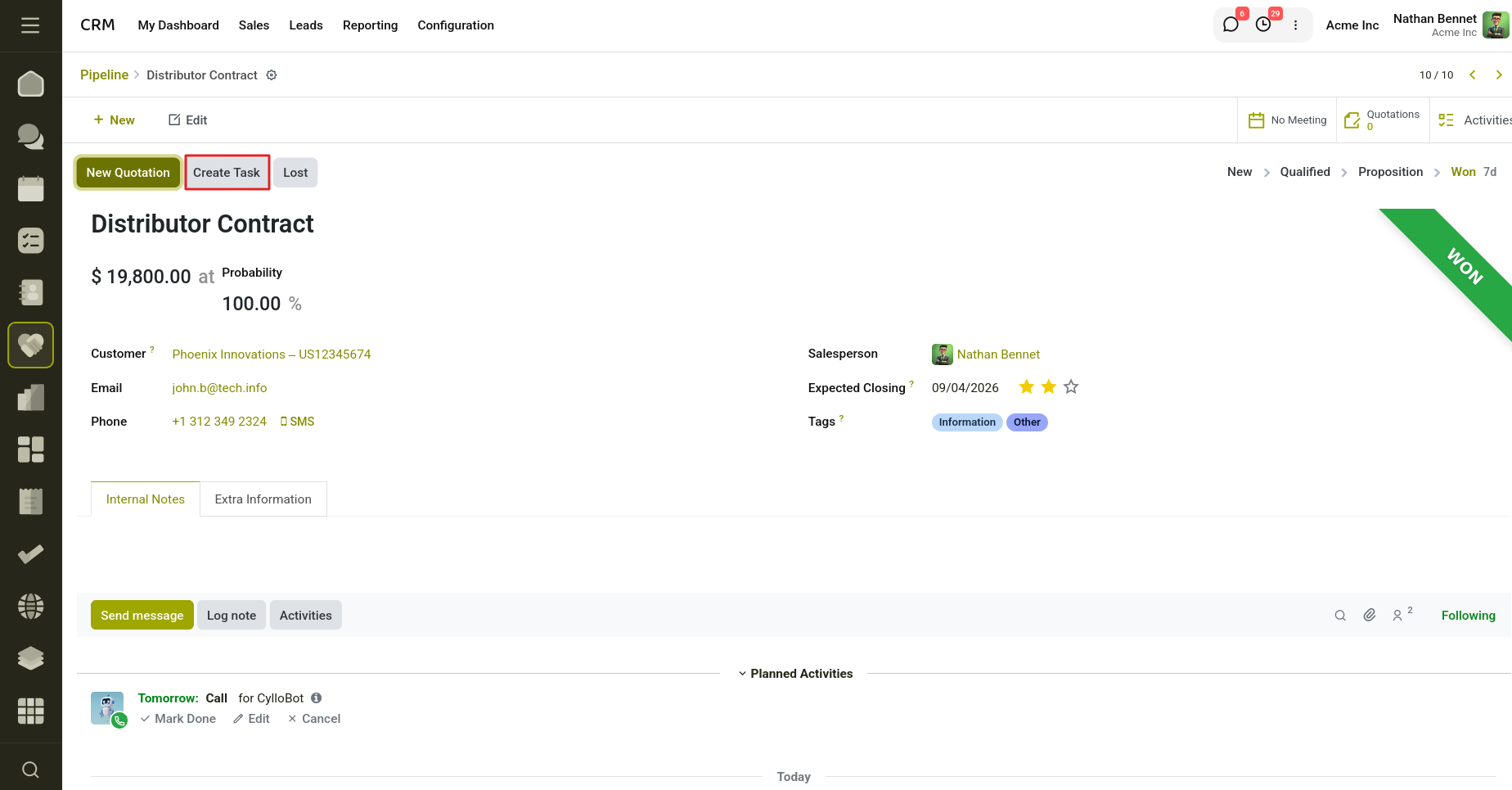
Fig 9.2 — Create Task button on Leads.
Click on the Create Task button to redirect to the new task form with prefilled details, including the project named CRM Leads. The form allows users to enter task details such as task name, assigned user, deadline, and other related information.
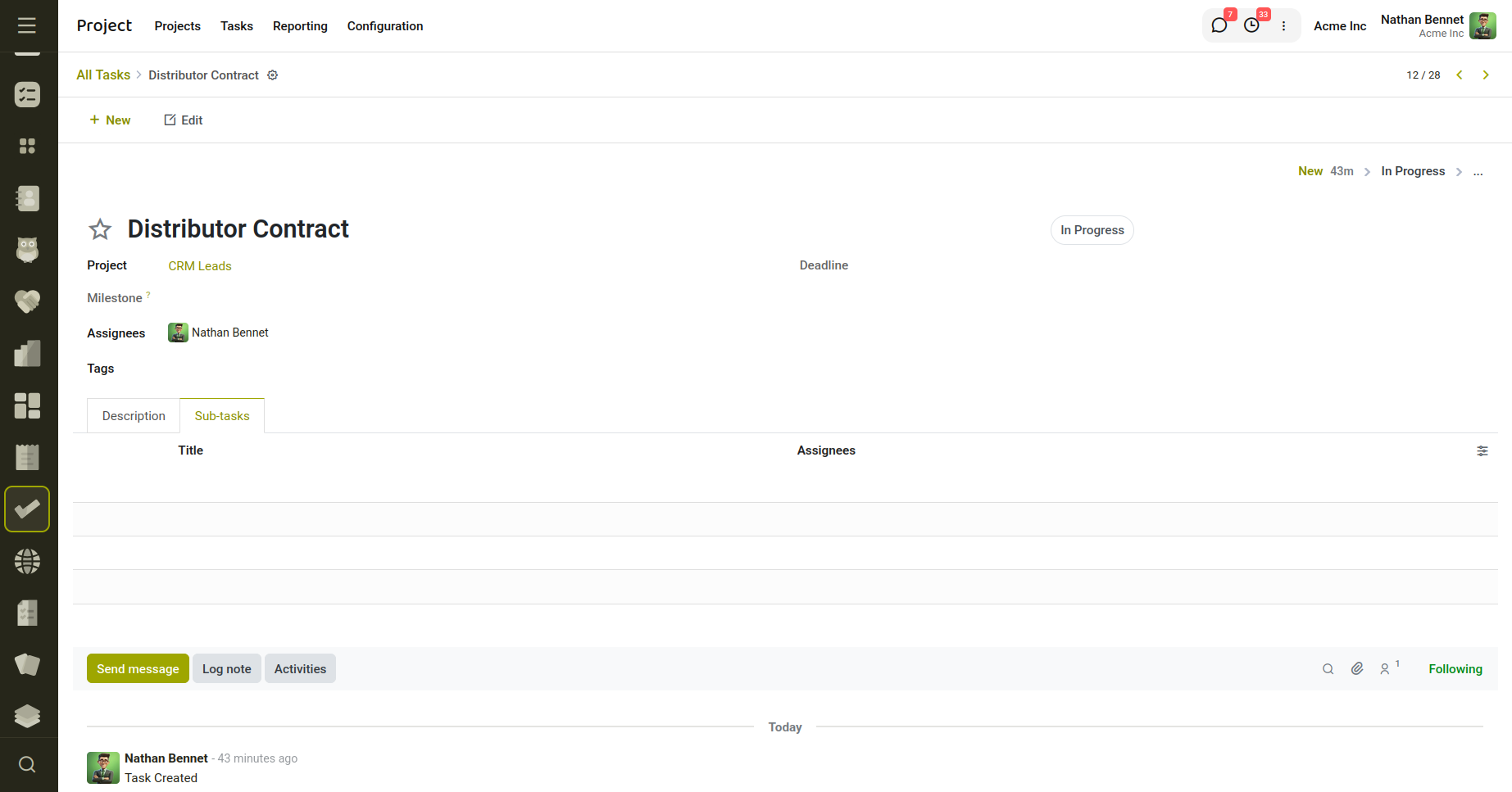
Fig 9.3 — Newly created Task from Lead.
Users can access and monitor the created tasks directly from the CRM opportunity, helping maintain continuity between the sales process and project management workflow. This feature improves collaboration, task tracking, and post-sales execution efficiency.
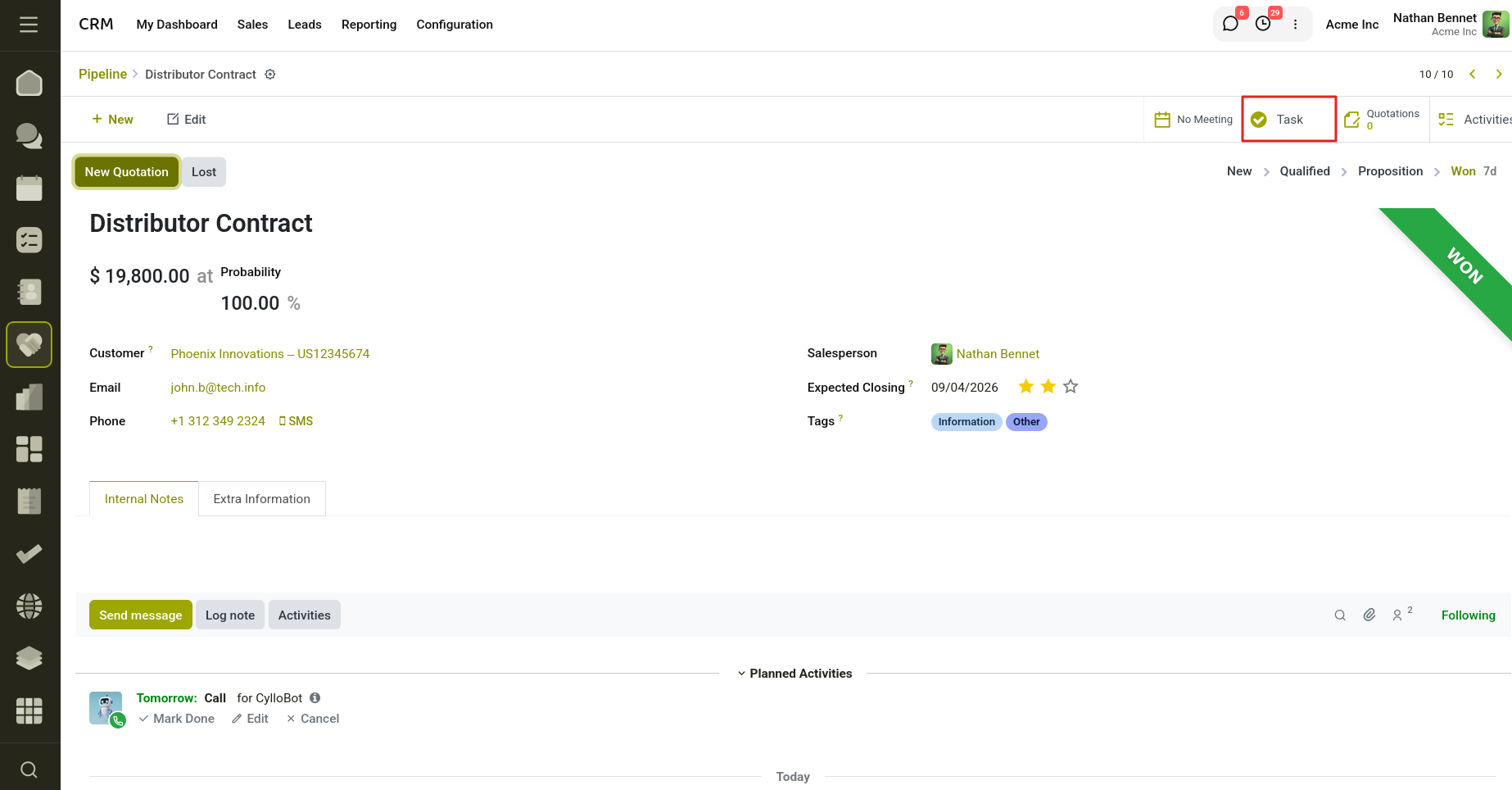
Fig 9.4 — Tasks linked to a lead.
9.2 CRM Survey
CRM Survey feature allows users to create, manage, and link surveys directly with CRM leads and opportunities. This feature can be enabled from the Settings menu and helps collect customer information, feedback, and responses directly within the CRM workflow.
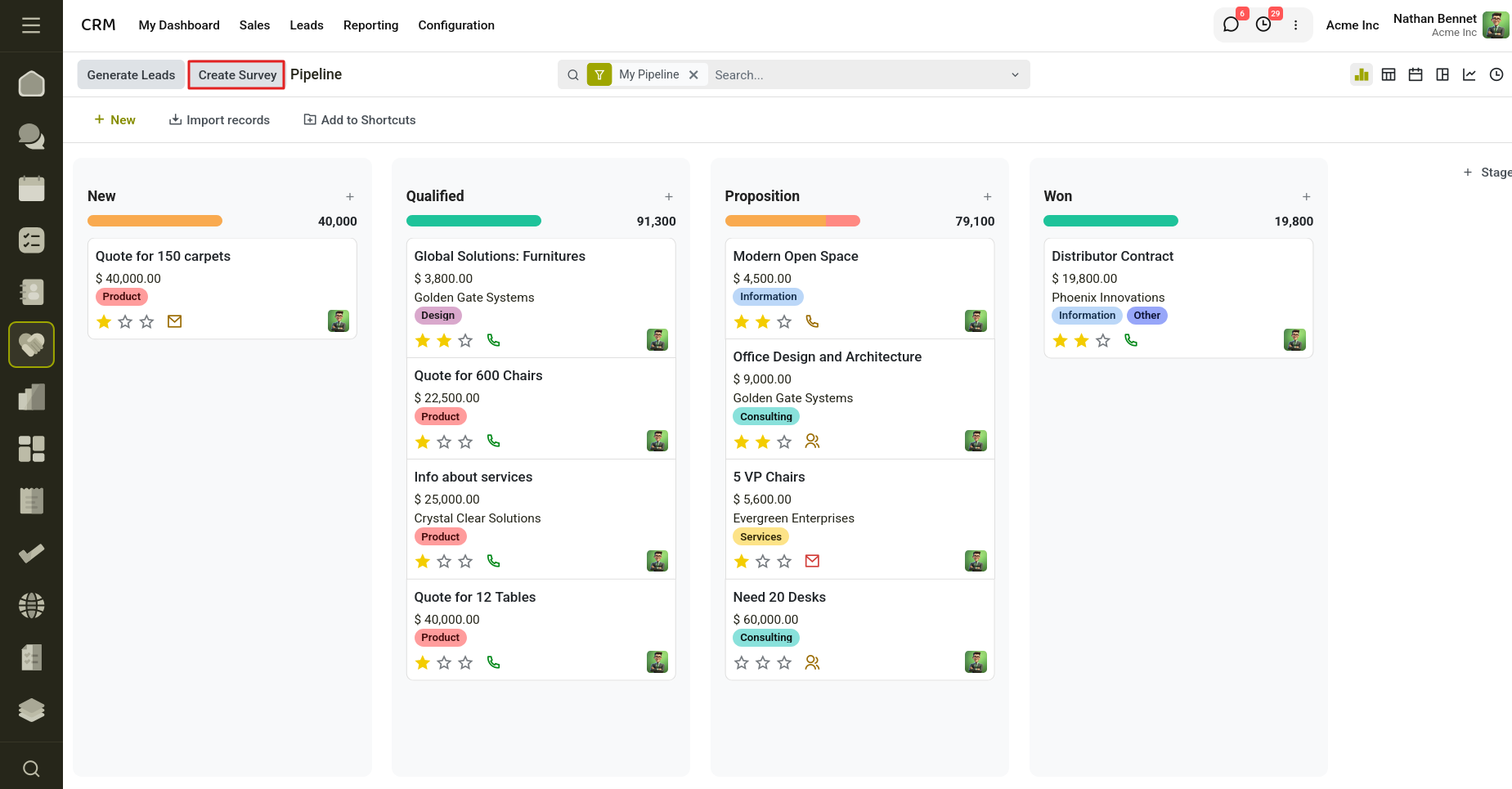
Fig 9.5 — Create Survey button from Sales Pipeline.
Navigate to CRM → Configuration → Settings.
Enable the CRM Survey feature and click Save.
Open a Lead or Opportunity from the CRM pipeline.
Click the Create Survey button available in the lead or opportunity from kanban view.
The survey creation form opens with:
- The CRM Lead automatically linked.
- The Survey Title automatically populated using the lead name.
Configure the survey as required and click Save.
After the survey is created, access it anytime from the Survey smart button available on the corresponding CRM lead or opportunity.
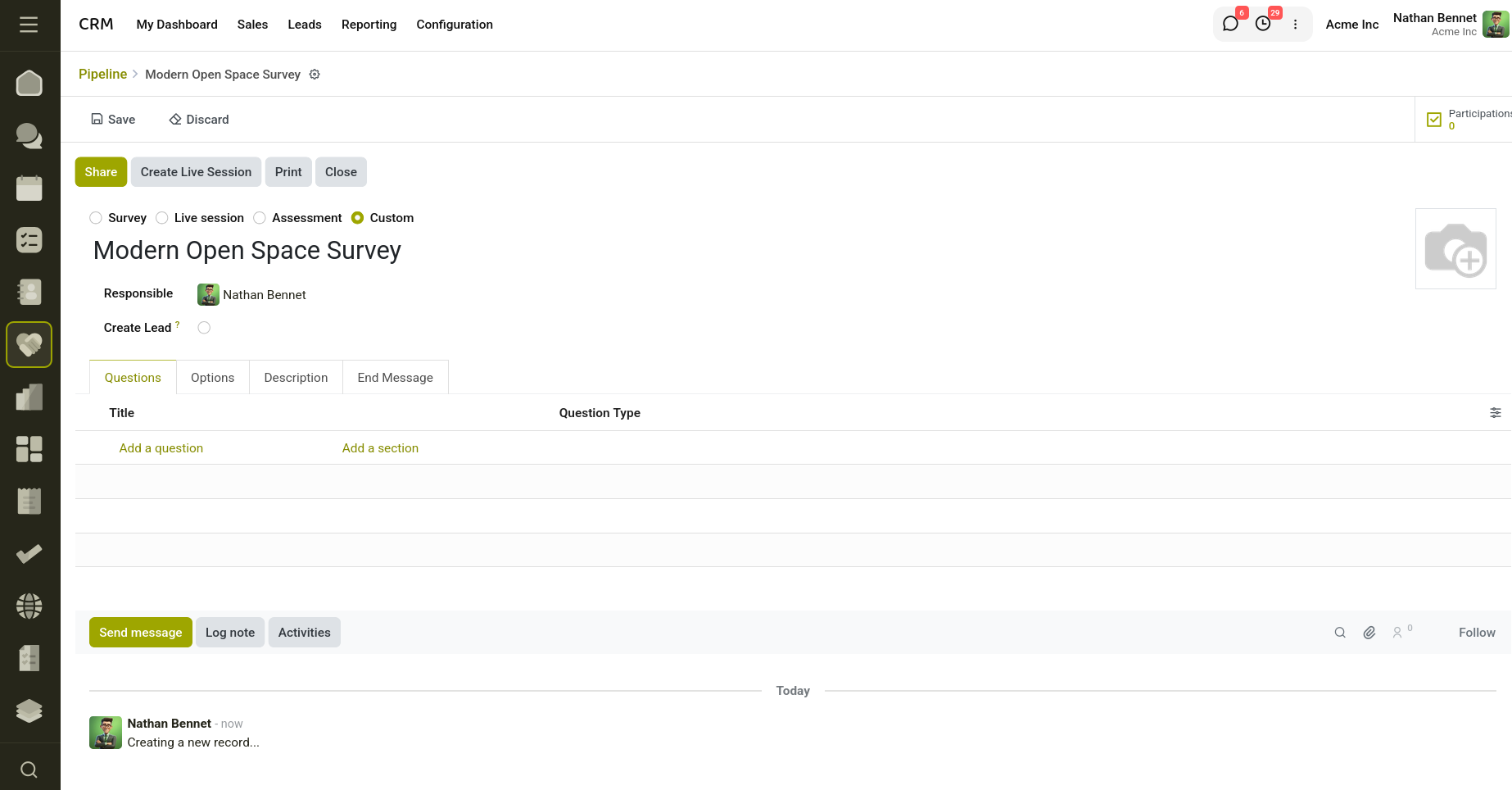
Fig 9.6 — Survey creation form.
Survey Field Mapping and Lead Creation
Cyllo CRM Survey allows survey questions to be mapped directly to CRM lead fields, enabling survey responses to automatically update lead information. In addition, surveys can be configured to create new CRM opportunities upon submission, simplifying lead generation and ensuring that customer information is captured accurately within the CRM system.
- Open the required Survey and create or edit a survey question.
- Select the appropriate Question Type.
- In the Lead Field option, choose the CRM field to which the survey response should be mapped.
- The system automatically displays only compatible CRM fields based on the selected question type.
- Repeat the mapping process for additional survey questions as required.
- Save the survey questions.
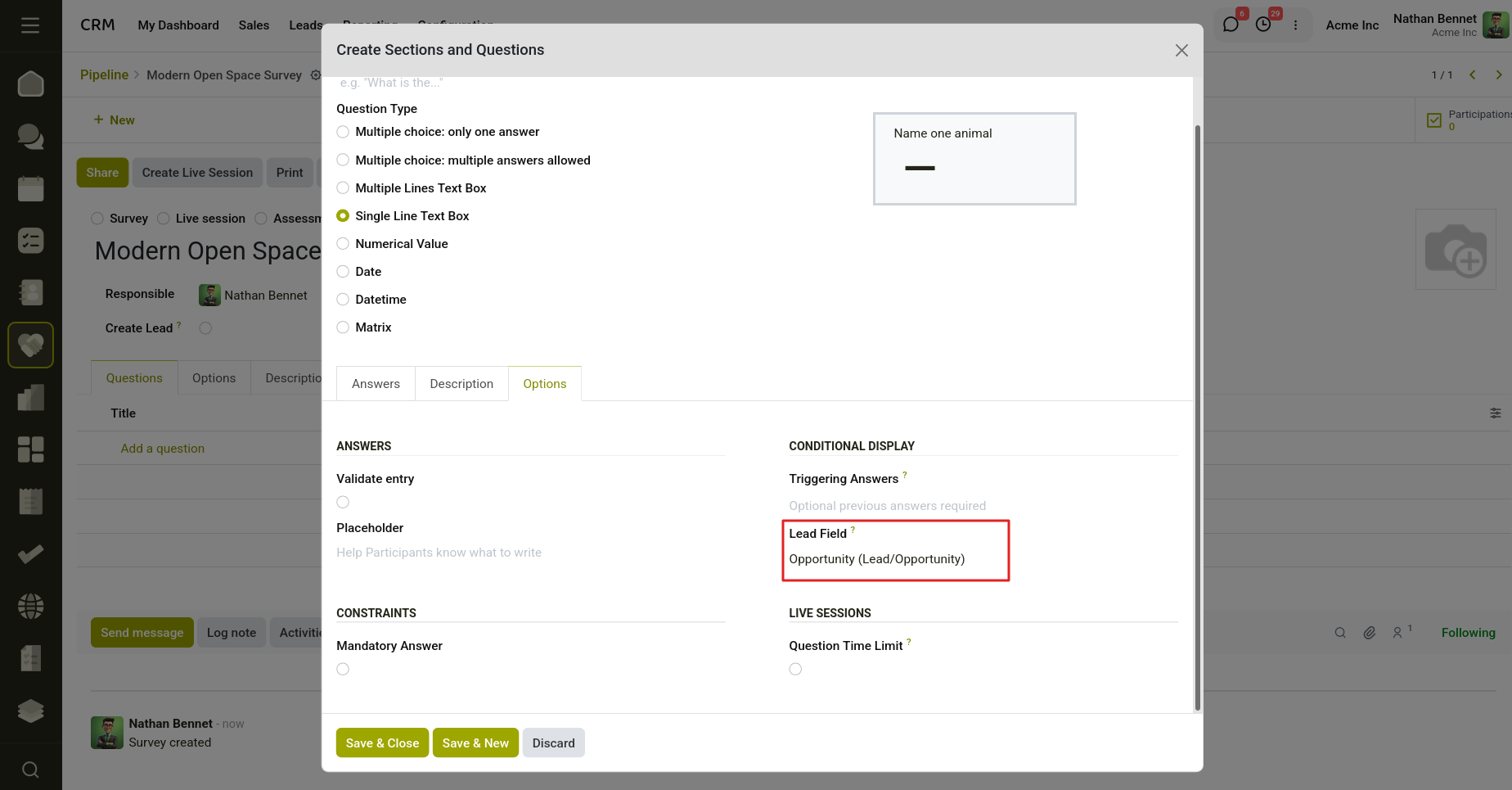
Fig 9.7 — Survey questions can be mapped to compatible CRM lead.
Automatic Lead Creation
- Open the survey form.
- Enable the Create Lead option.
- Save the survey.
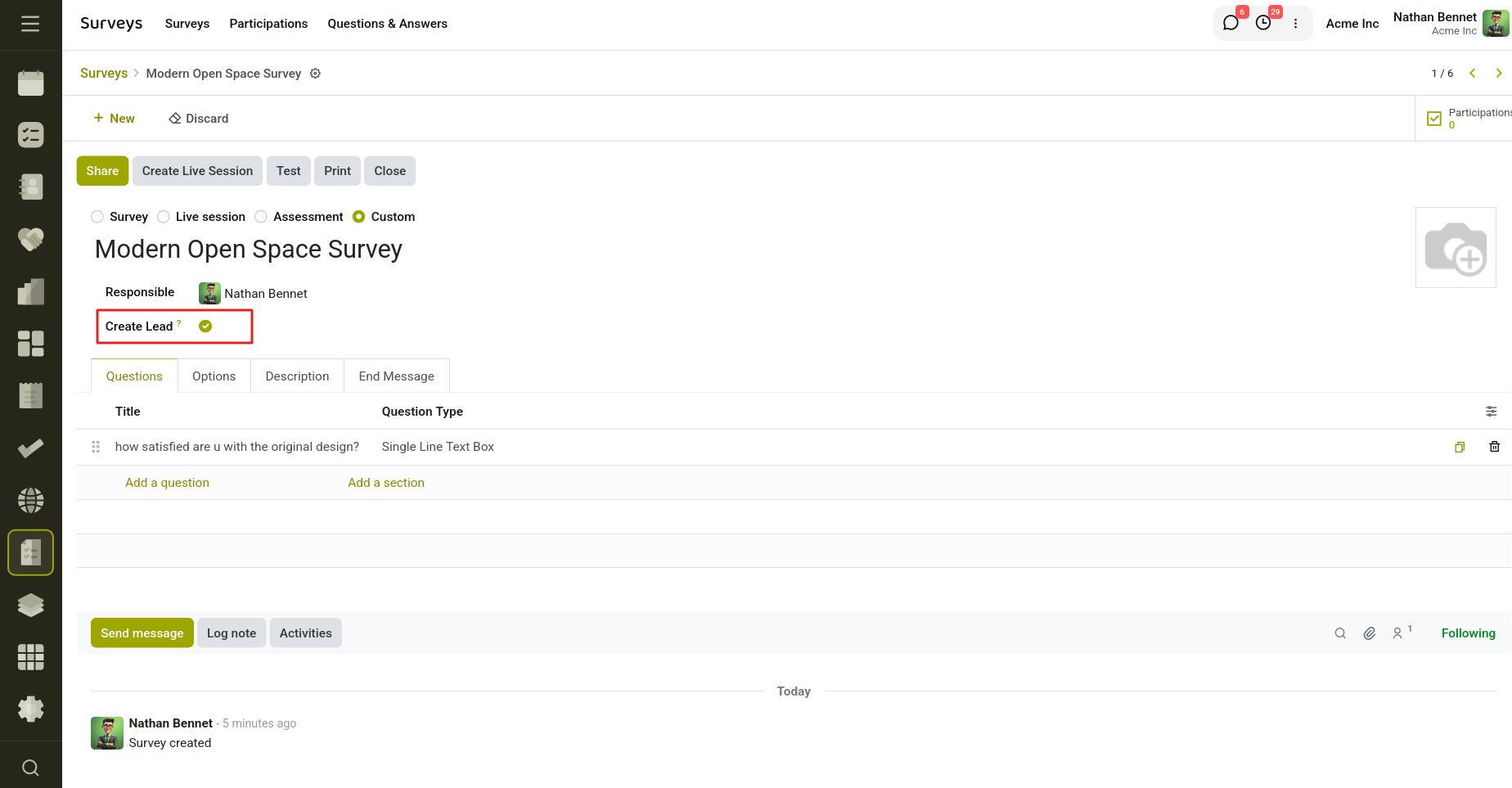
Fig 9.8 — Enable the Create Lead option.
Share the survey with customers.
When a respondent submits the survey, the system automatically:
- Creates a new CRM Opportunity.
- Maps the submitted responses to the configured CRM lead fields.
- Populates the lead with the collected customer information.
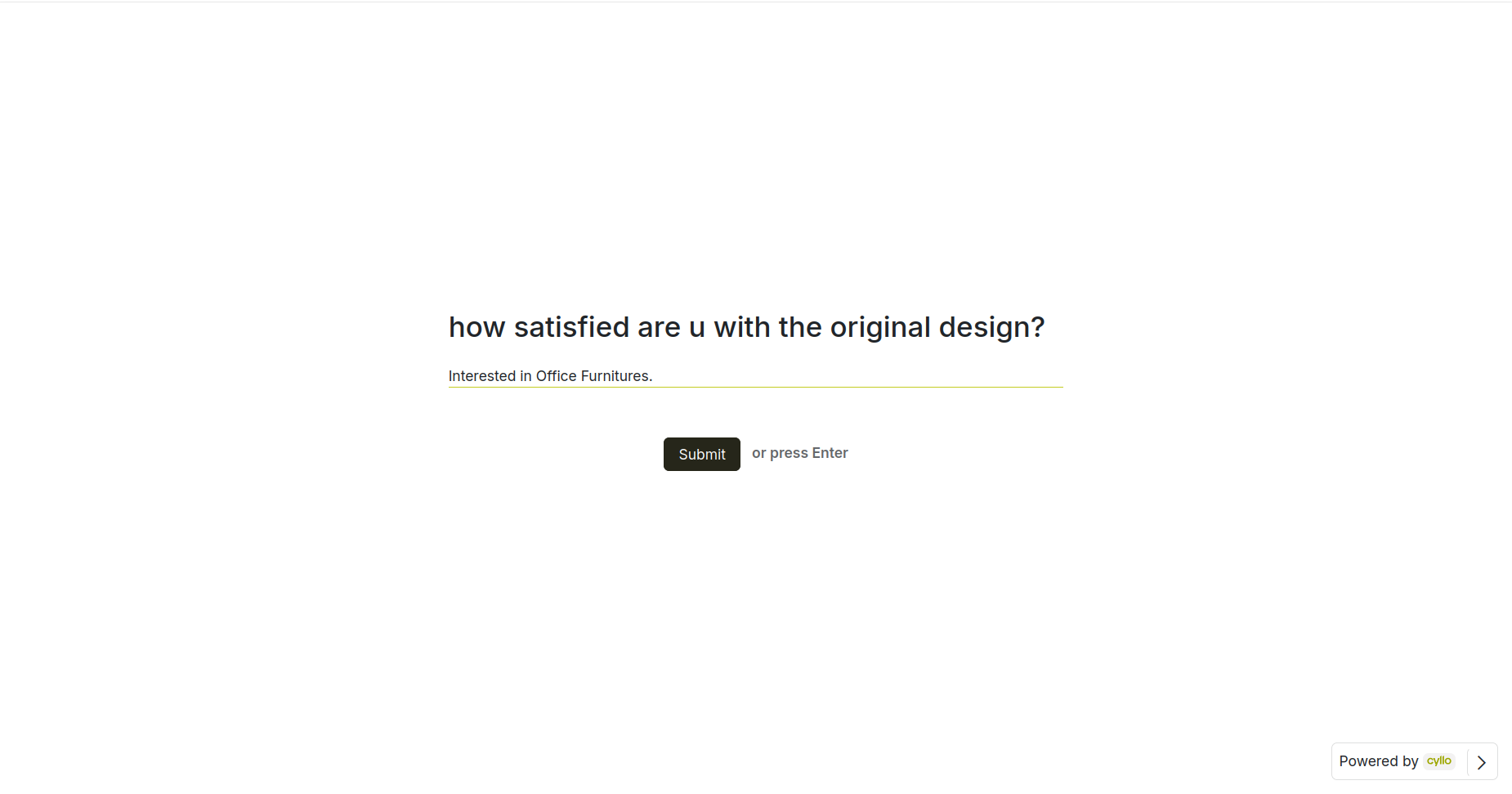
Fig 9.9 — Survey Submission.
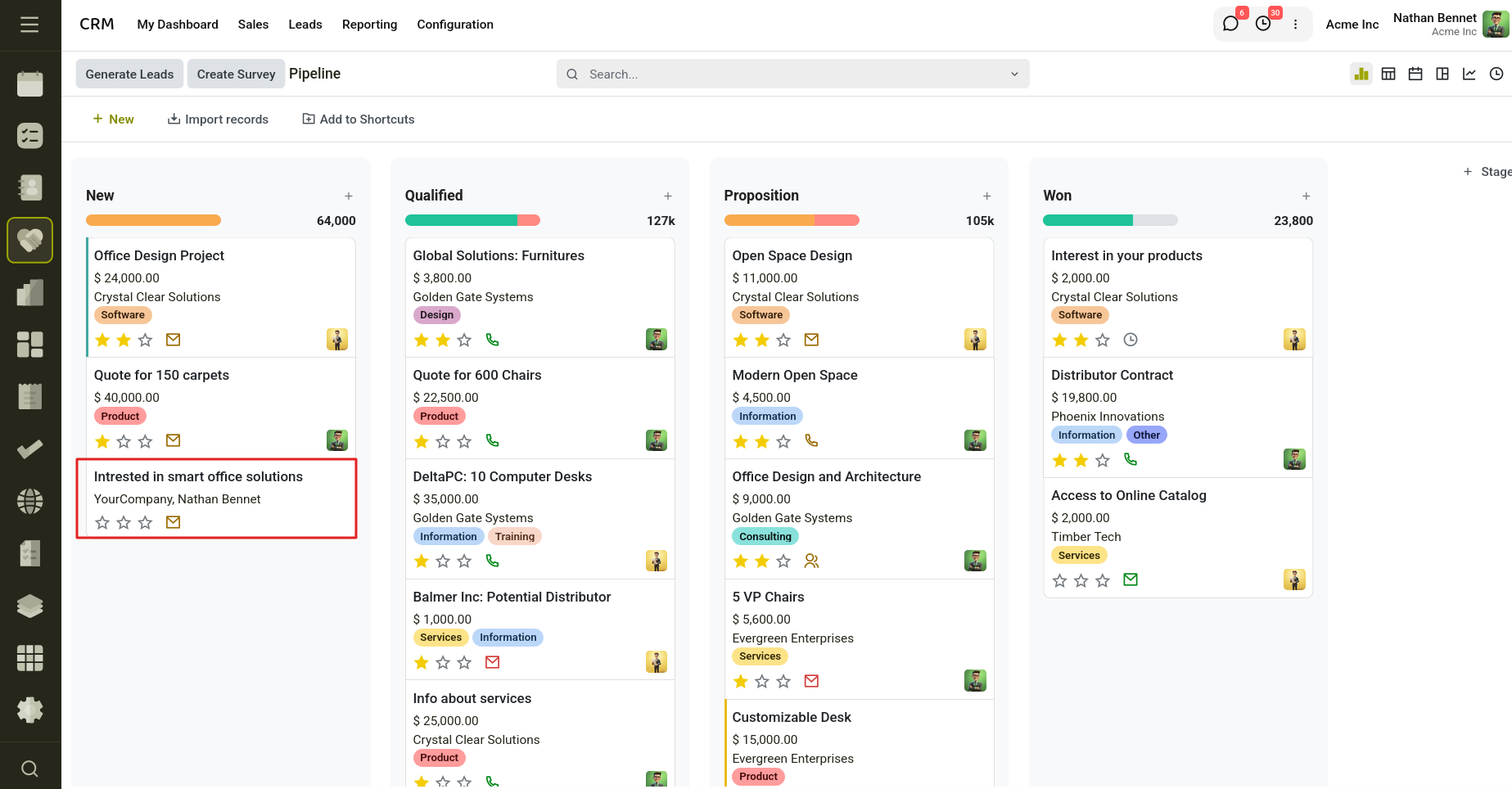
Fig 9.10 — Newly created Lead from Survey.
A dedicated Survey menu is available under CRM → Configuration, allowing users to manage surveys configured for CRM lead creation. From this menu, users can view, edit, and maintain all surveys associated with the CRM workflow.
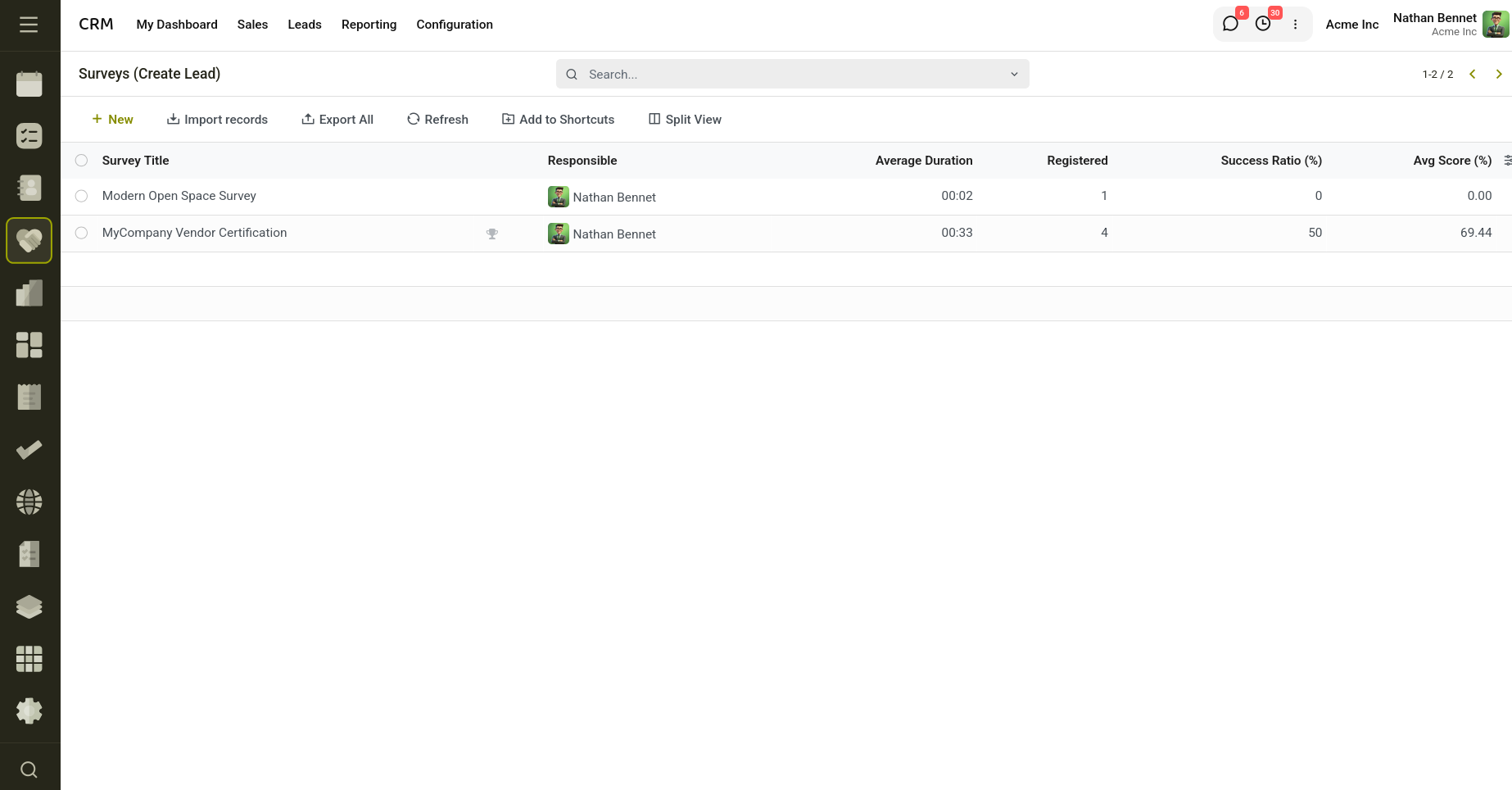
Fig 9.11 — Leads created from Survey under Survey menu.
9.3 CRM Zoom Meet Integration
Cyllo Zoom feature allows users to integrate Zoom meetings directly with the calendar workflow and can be enabled from the Settings menu. This feature helps users create and manage Zoom meetings automatically from calendar events without manually switching between platforms.
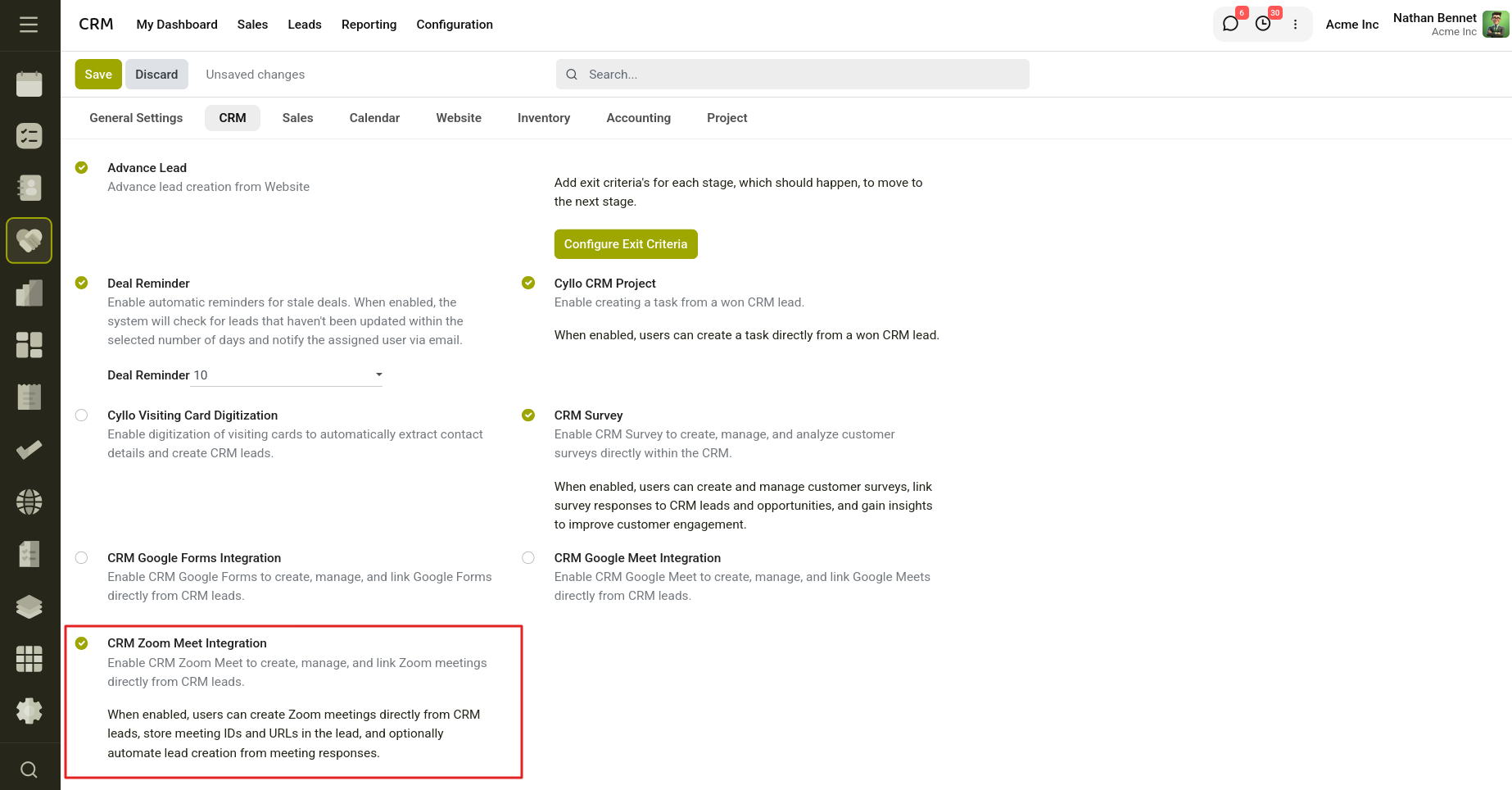
Fig 9.12 — Enable Zoom Integration from Settings.
Once enabled, Zoom can be configured from the Calendar application. Users can provide the required Zoom credentials and meeting configuration details to establish the connection between the system and Zoom.
After the credentials are configured, users can create calendar events with Zoom meeting support. While creating an event, users can enable the Zoom meeting option and add attendees to the event.The system automatically retrieves and stores meeting details including the meeting link, meeting ID, and meeting password. These details are available directly within the calendar event, allowing users and attendees to access meeting information easily.
9.4 CRM Google Meet Integration
Google Meet Integration feature allows users to create and manage Google Meet meetings directly from calendar events and can be enabled from the Settings menu. This feature helps users streamline meeting scheduling and maintain synchronization between the system and Google Meet.
Once enabled, Google Meet can be configured. Users can enter the required Google credentials and integration details to establish the connection between the system and Google services.
After completing the configuration, users can create calendar events with Google Meet support. While creating an event, users can enable the Google Meeting option and add attendees to the event.
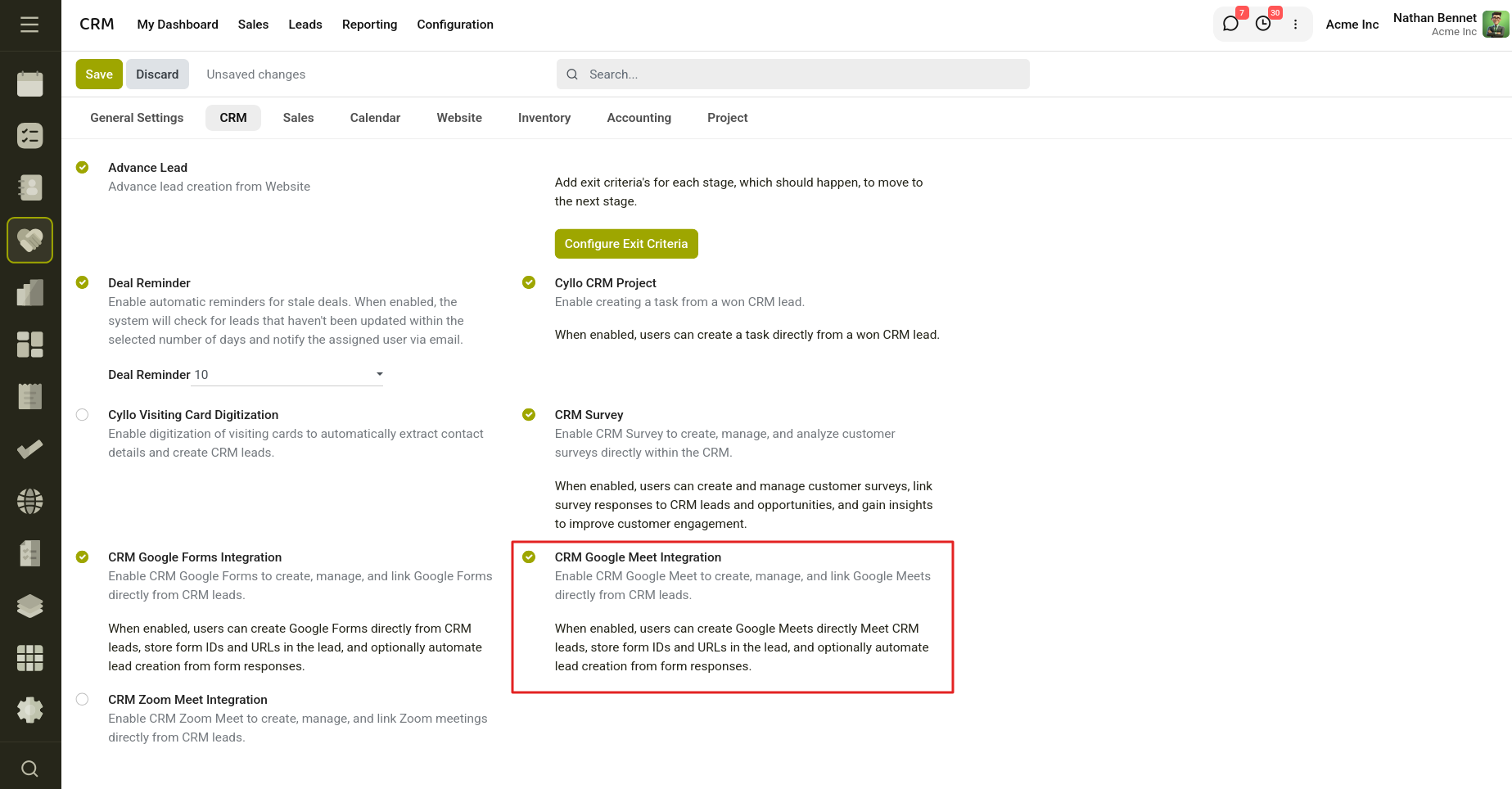
Fig 9.13 — Enable Google Meet Integration from Settings.
When the event is saved, the system automatically communicates with Google services and creates a corresponding Google Meet meeting using the event information.
9.5 Visiting card Digitization
Cyllo Visiting Card Digitization feature allows users to digitize business or visiting cards and automatically convert them into structured contact records within the system. This feature helps eliminate manual data entry and simplifies the process of creating contacts and CRM opportunities from business cards.
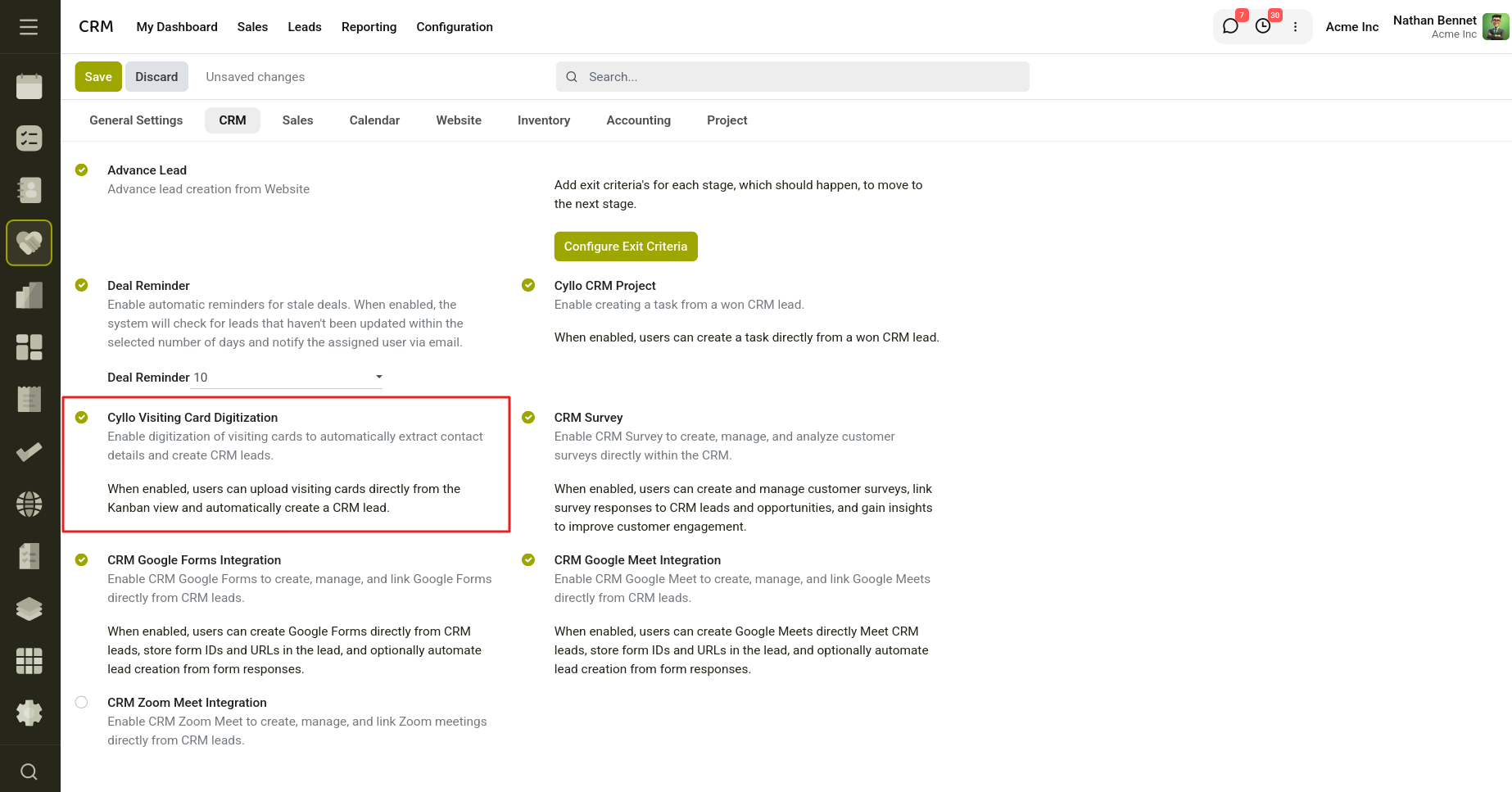
Fig 9.14 — Enable Visiting Card Digitization from Settings.
Once enabled, a Business Card button becomes available in CRM lead views, including list and kanban views. Clicking on this button opens the visiting card upload wizard where users can upload one or multiple business card files in image or PDF format
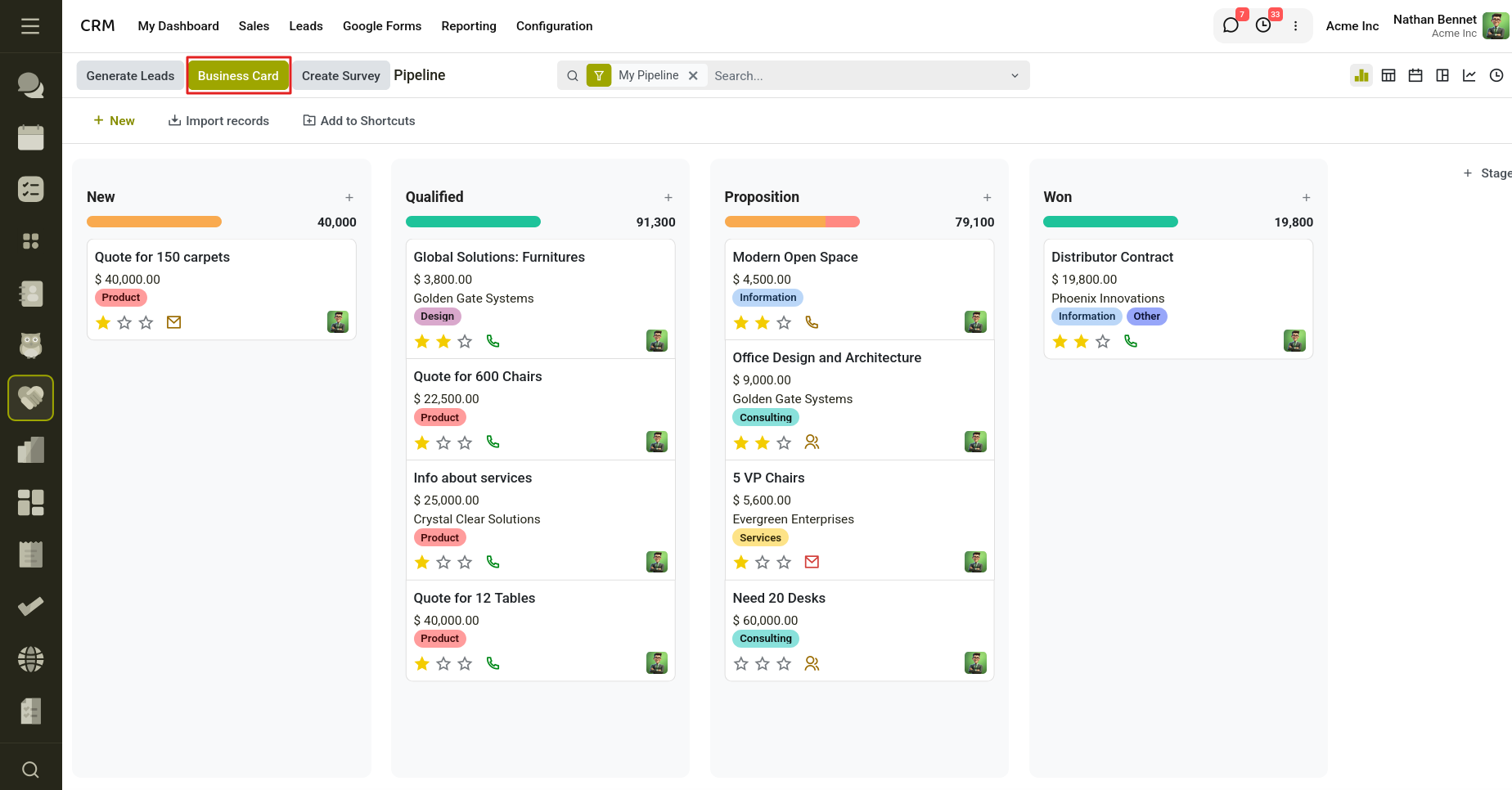
Fig 9.15 — Business Card Button on the kanban view.
The upload wizard provides a Digitization Type option where users can choose the extraction method. Users can either select Manual mode, which uses OCR technology for text extraction, or Use AI mode, which uses AI-based processing for improved data extraction and recognition accuracy.
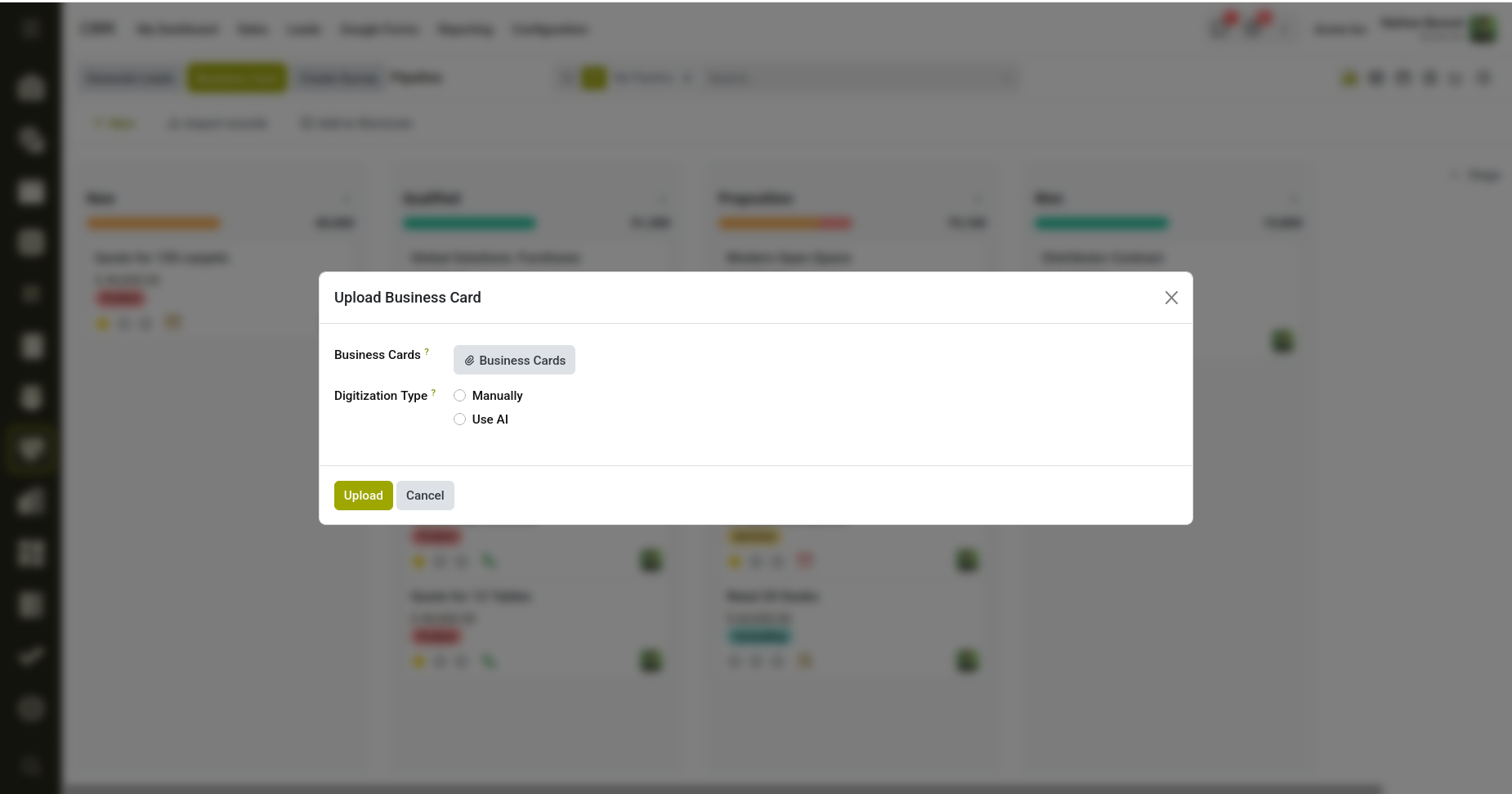
Fig 9.16 — Business Card configuring Wizard.
After uploading the business cards and selecting the extraction type, click on the Upload button. The system processes each uploaded card and extracts relevant
information such as:
- Name
- Designation
- Company
- Phone number
- Email address
The extracted information is automatically converted into contact records in the system. If multiple cards are uploaded, multiple contacts are created simultaneously. The system also validates and processes extracted values before creating the records.
When contacts are created through visiting card digitization, the system automatically creates a corresponding CRM opportunity linked to the generated contact. This helps convert collected business card information directly into potential sales opportunities without additional manual steps.
9.6 CRM Google Form Integration
CRM Google Form Integration feature allows users to create and manage Google Forms directly from the CRM application and automatically convert submitted responses into CRM opportunities. This feature helps simplify customer data collection and automates lead generation without requiring manual entry.
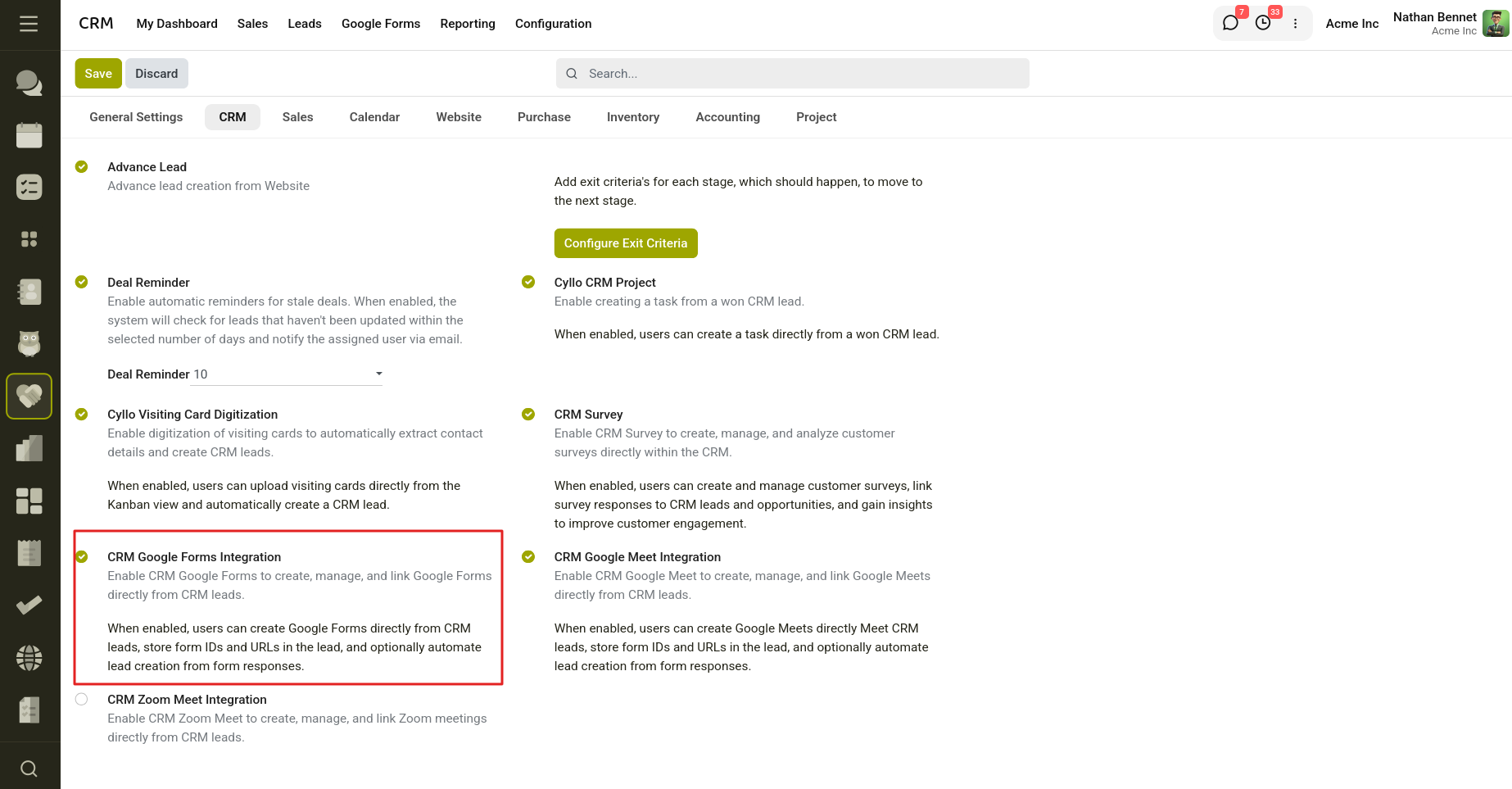
Fig 9.17 — Enable Google Form Integration from Settings
Once configured with Google credentials, a dedicated Google Forms menu becomes available within CRM. Users can create forms directly from the system by specifying the form title and adding required questions.
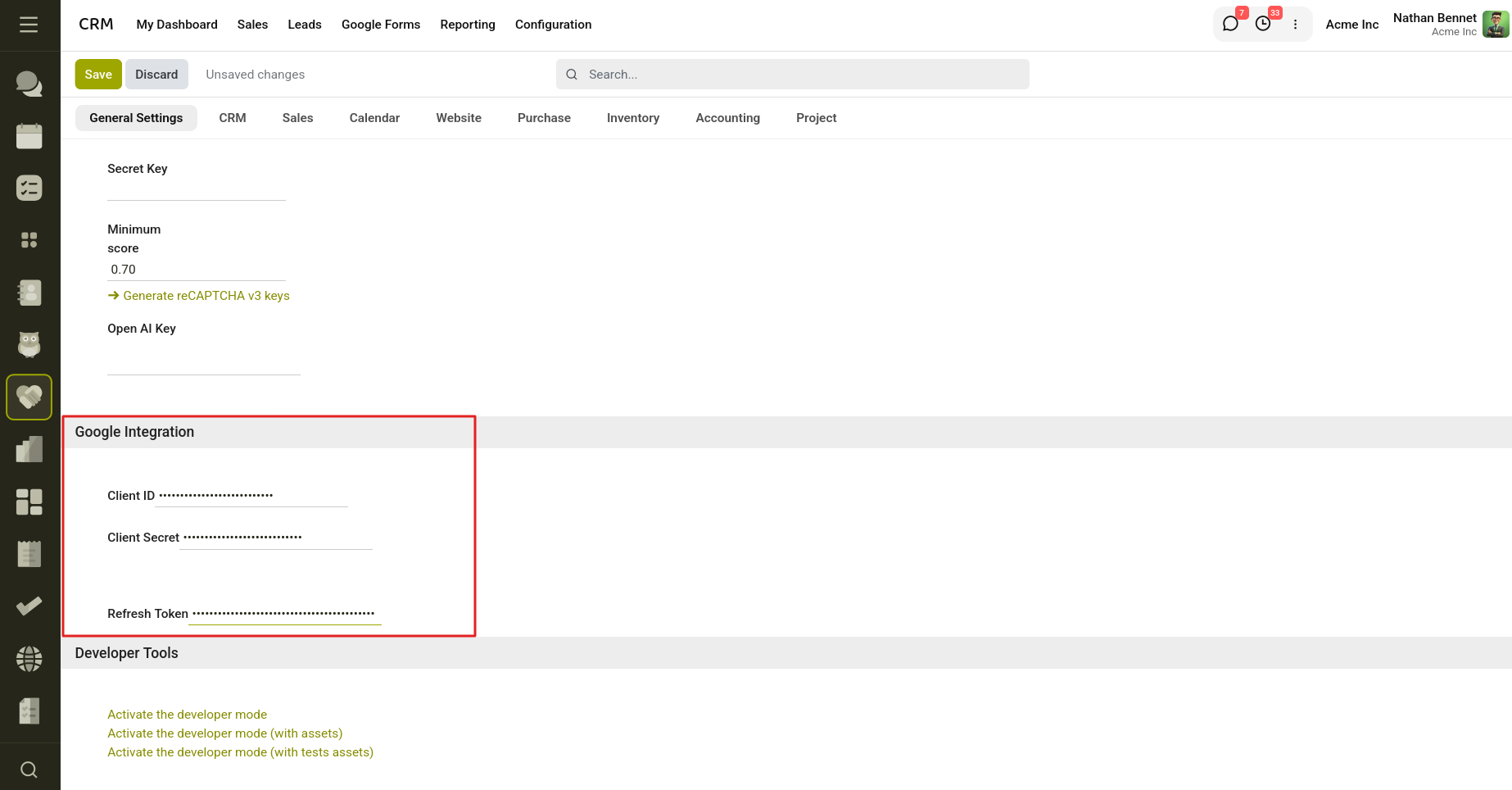
Fig 9.18 — Enter the Google Credentials under Google Integration setting.
Each question can be mapped to CRM lead fields using the CRM Field option. This mapping allows responses from Google Forms to populate corresponding CRM fields automatically when leads are created.
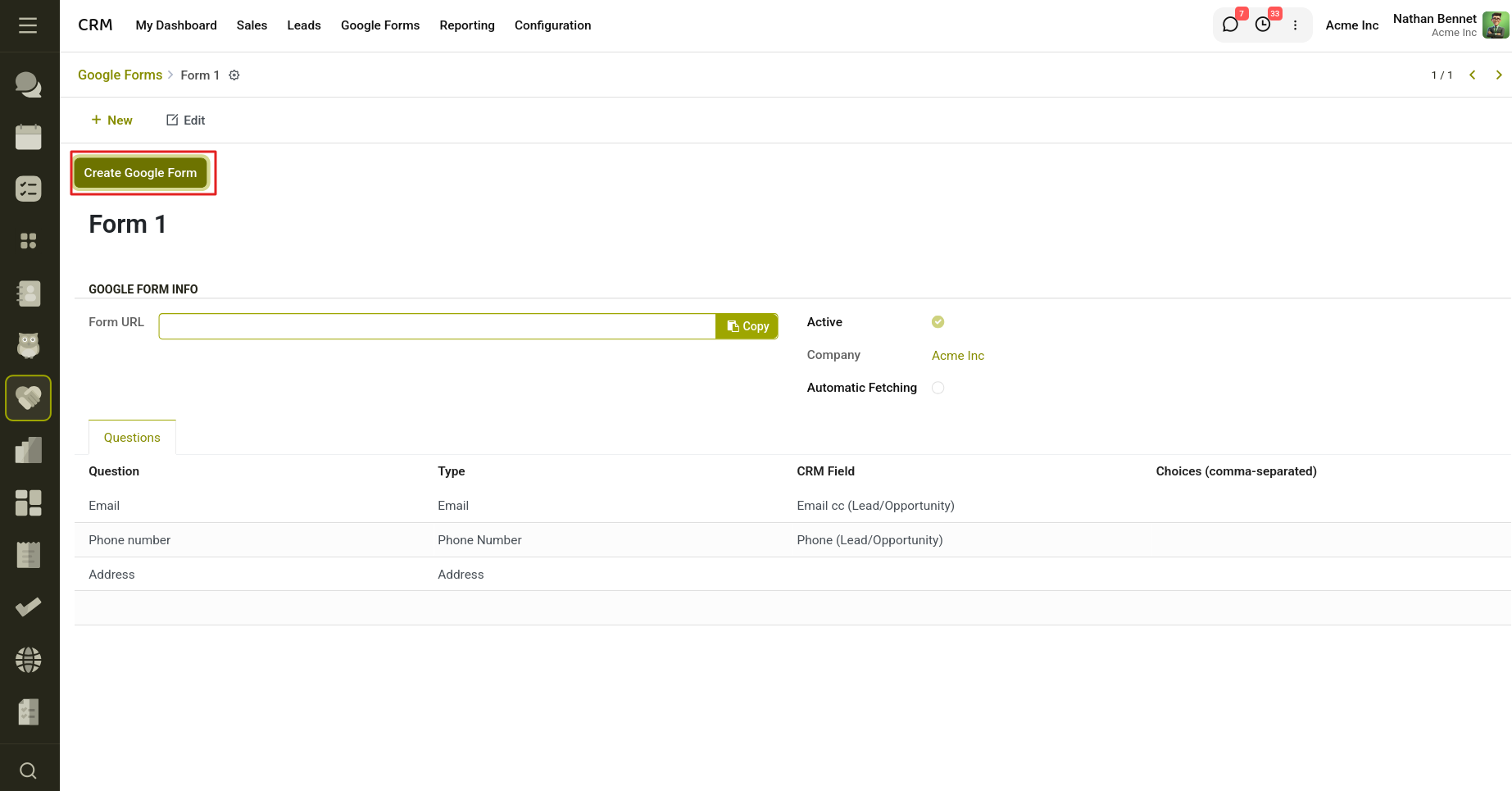
Fig 9.19 — Map the questions to CRM fields.
After completing the form configuration, click on the Create Google Form button. The system automatically communicates with Google Forms and creates the corresponding Google Form with all configured questions. Once generated, the public form URL is automatically stored and displayed in the system.
When customers submit responses through the Google Form, users can click on Fetch Responses to CRM to retrieve submitted responses and automatically create CRM opportunities. The system maps response values to corresponding CRM fields and populates lead information automatically.The feature also provides an Automatic Fetching option. When enabled, the system periodically retrieves new responses through scheduled actions and automatically generates CRM opportunities without requiring manual intervention.
10. Reports
10.1 Pipeline Analysis
The Pipeline Analysis report (CRM > Reporting > Pipeline) lets you analyze your pipeline by any dimension — stage, salesperson, team, expected revenue, or date range. Use it to:
- Identify where deals are getting stuck.
- Compare pipeline health across periods.
- Drill down into specific stages to see individual opportunities.
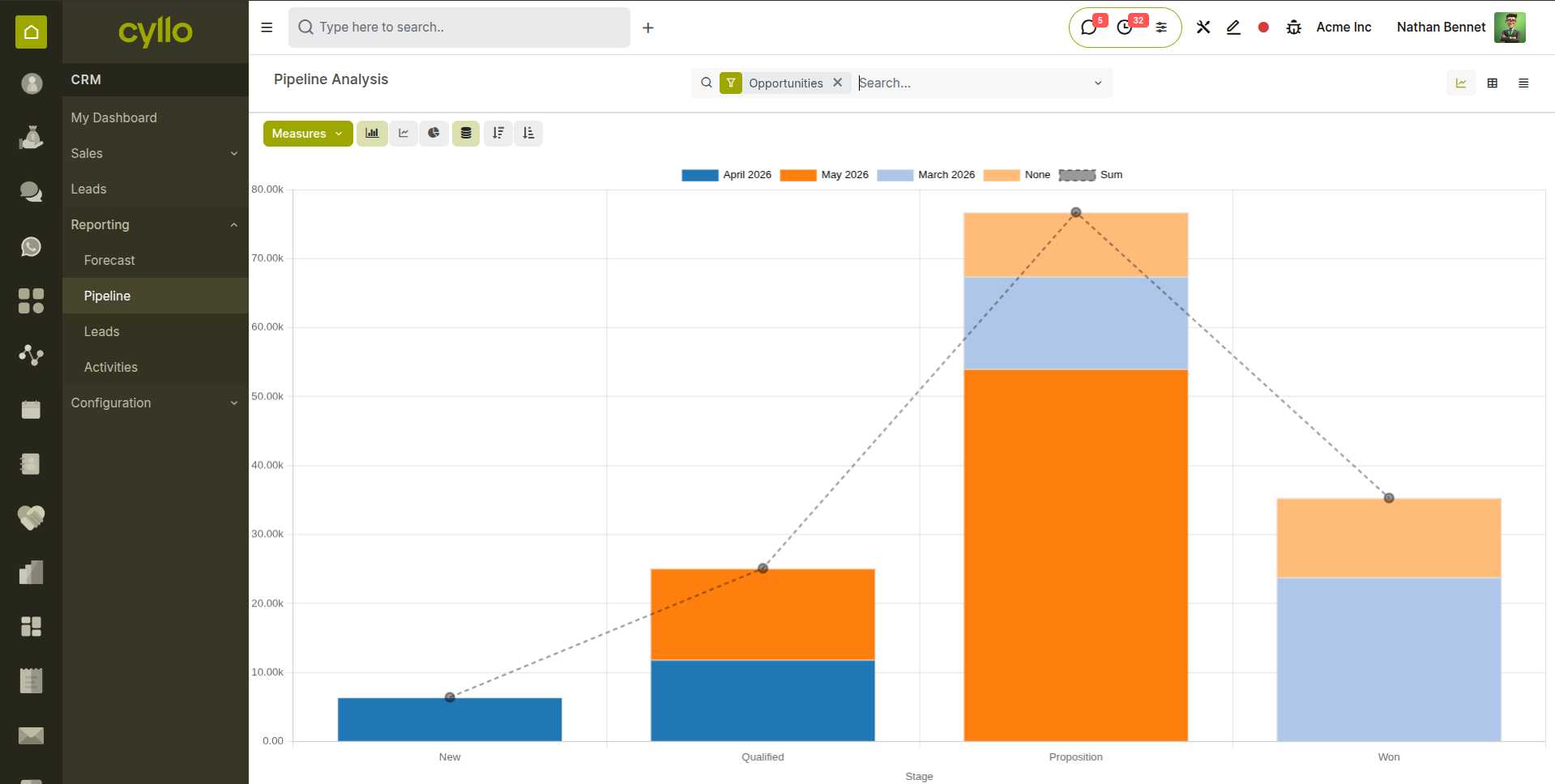
Fig 10.1 — Pipeline Analysis: bar chart grouped by stage, with filter options visible on the left side
10.2 Forecasted leads
The Forecast report projects future revenue based on all open opportunities, weighted by their probability. It answers the question: 'How much business can we realistically expect to close in the next 30, 60, or 90 days?'
Note
Forecast accuracy depends directly on how up-to-date your opportunity data is. Encourage your team to keep Expected Revenue, Close Date, and Probability updated on every open deal.
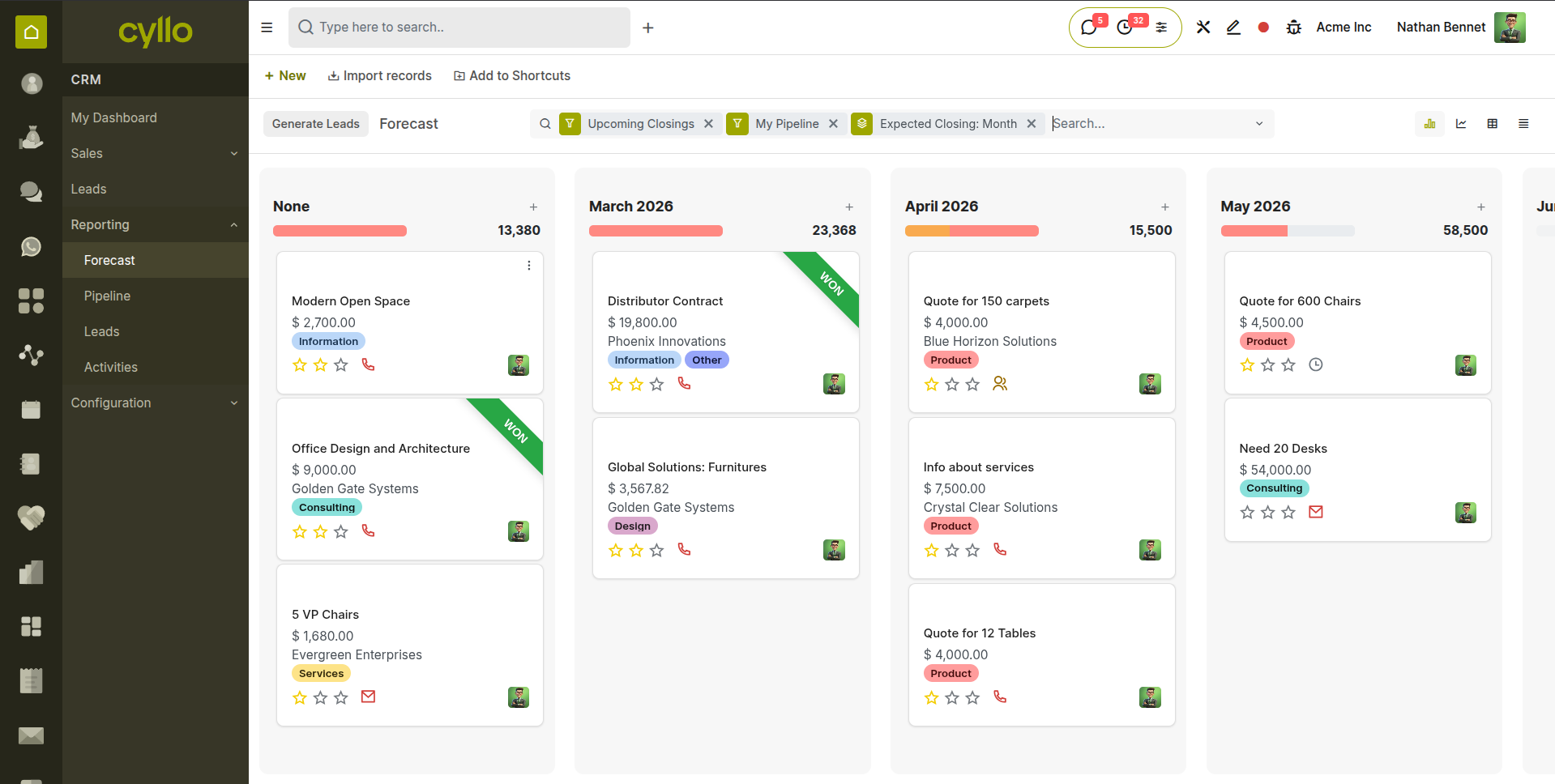
Fig 10.2 — Revenue Forecast report: timeline chart showing weighted revenue by month
10.3 Activity Report
The Activity Report shows a breakdown of all CRM activities — calls logged, emails sent, meetings held — by salesperson and time period. Use it to:
- Monitor sales activity levels across the team.
- Identify underperforming activity patterns before they affect revenue.
- Track follow-up completion rates.
10.4 Leads Analysis
In the Cyllo CRM module, the Leads reporting platform enables users to access reports for leads generated across various channels. This functionality facilitates insightful analysis of leads, aiding in informed decisions to enhance lead creation operations through advanced reporting features.
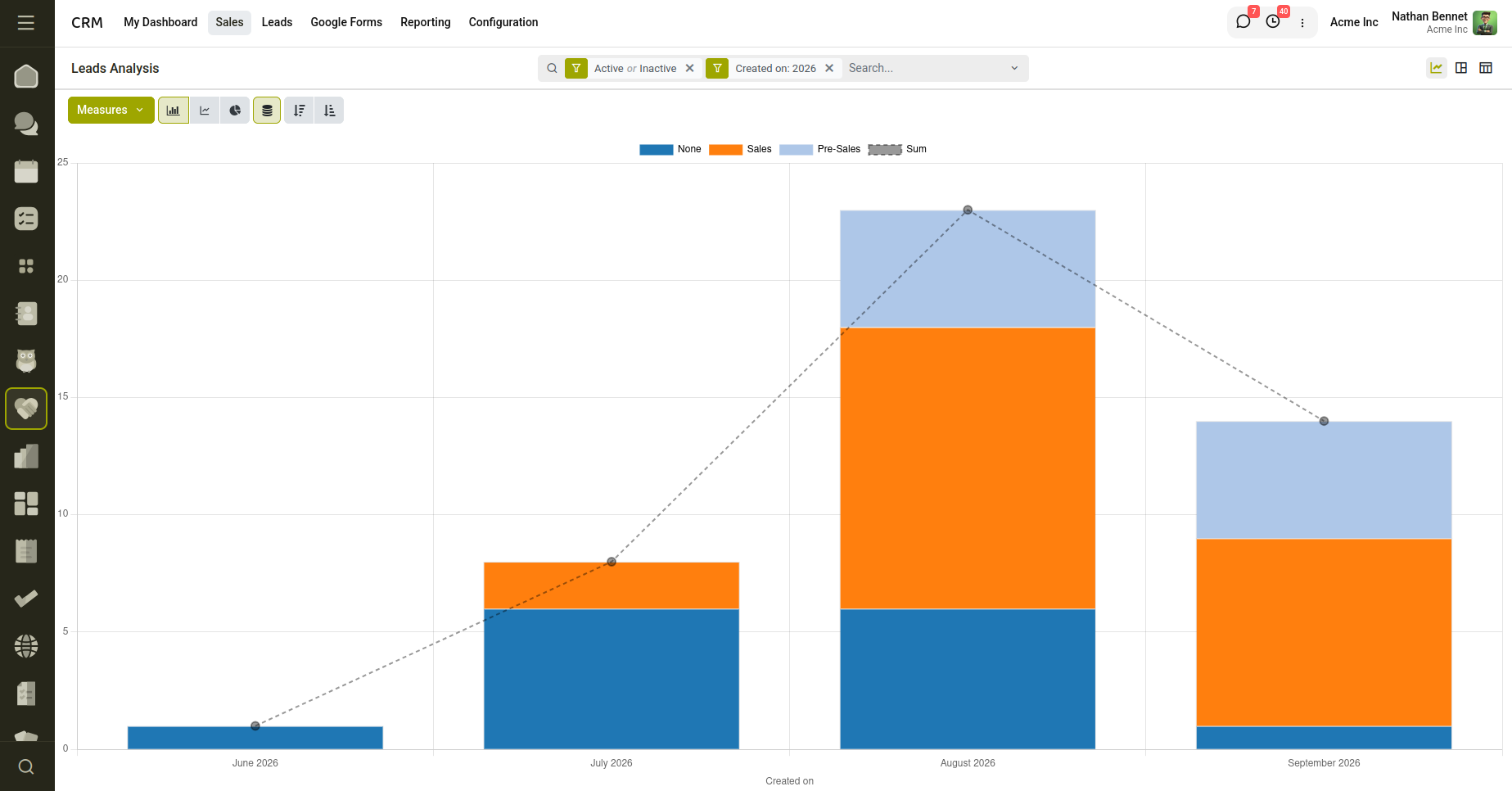
Fig 10.3 — Lead Analysis.
10.5 Subscription Report
Users can get the report of the leads for the period intervals . They can set the domain to filter the leads data which they want on the report and also select the fields they want to display in the report.
- Navigate to CRM → Configuration → Subscription Report.
- Click New to create a subscription report.
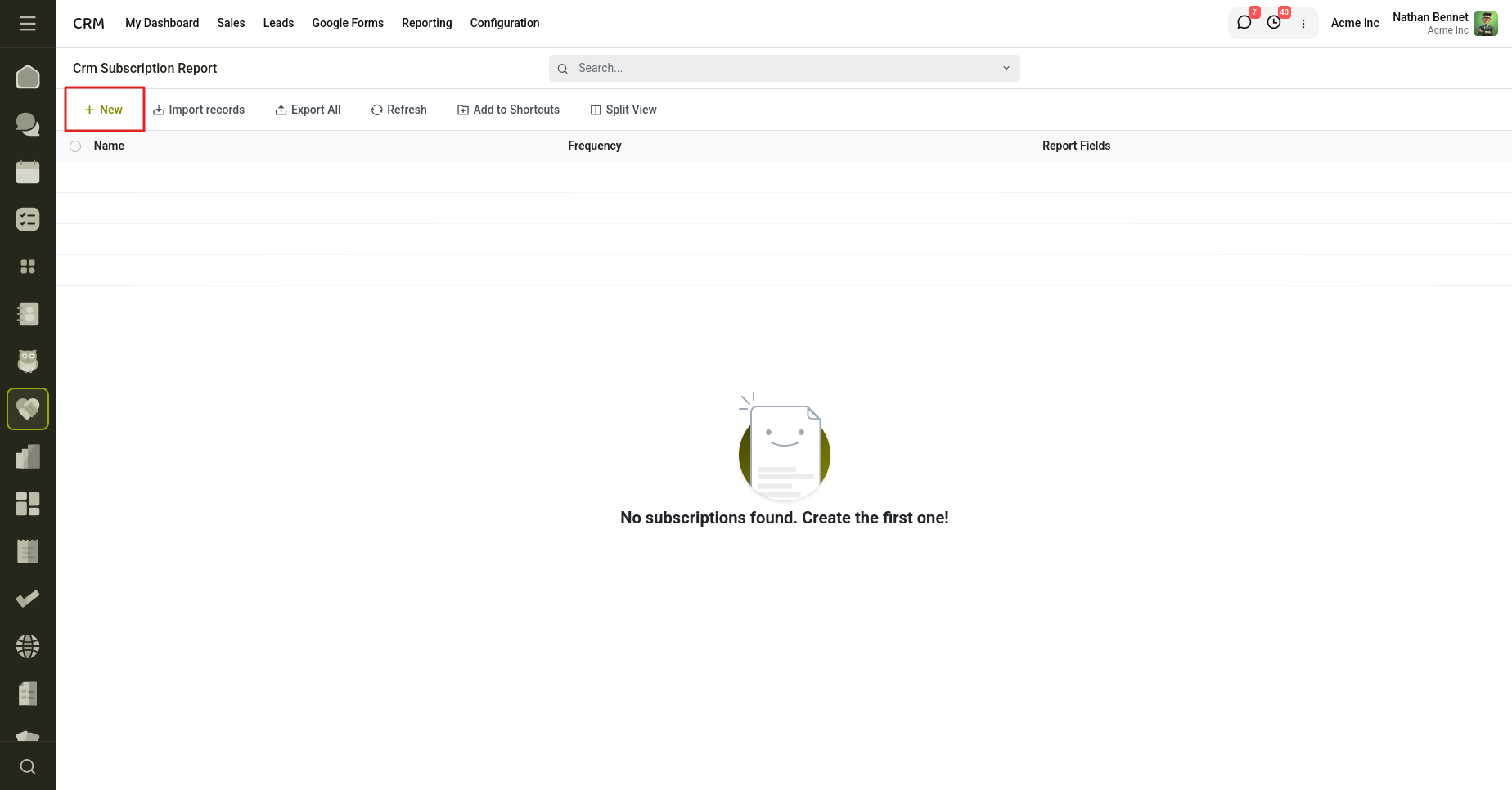
Fig 10.4 — Create new Subscription Report.
- Enter the Report Name.
- Select the report Frequency as Weekly, Monthly, or Yearly.
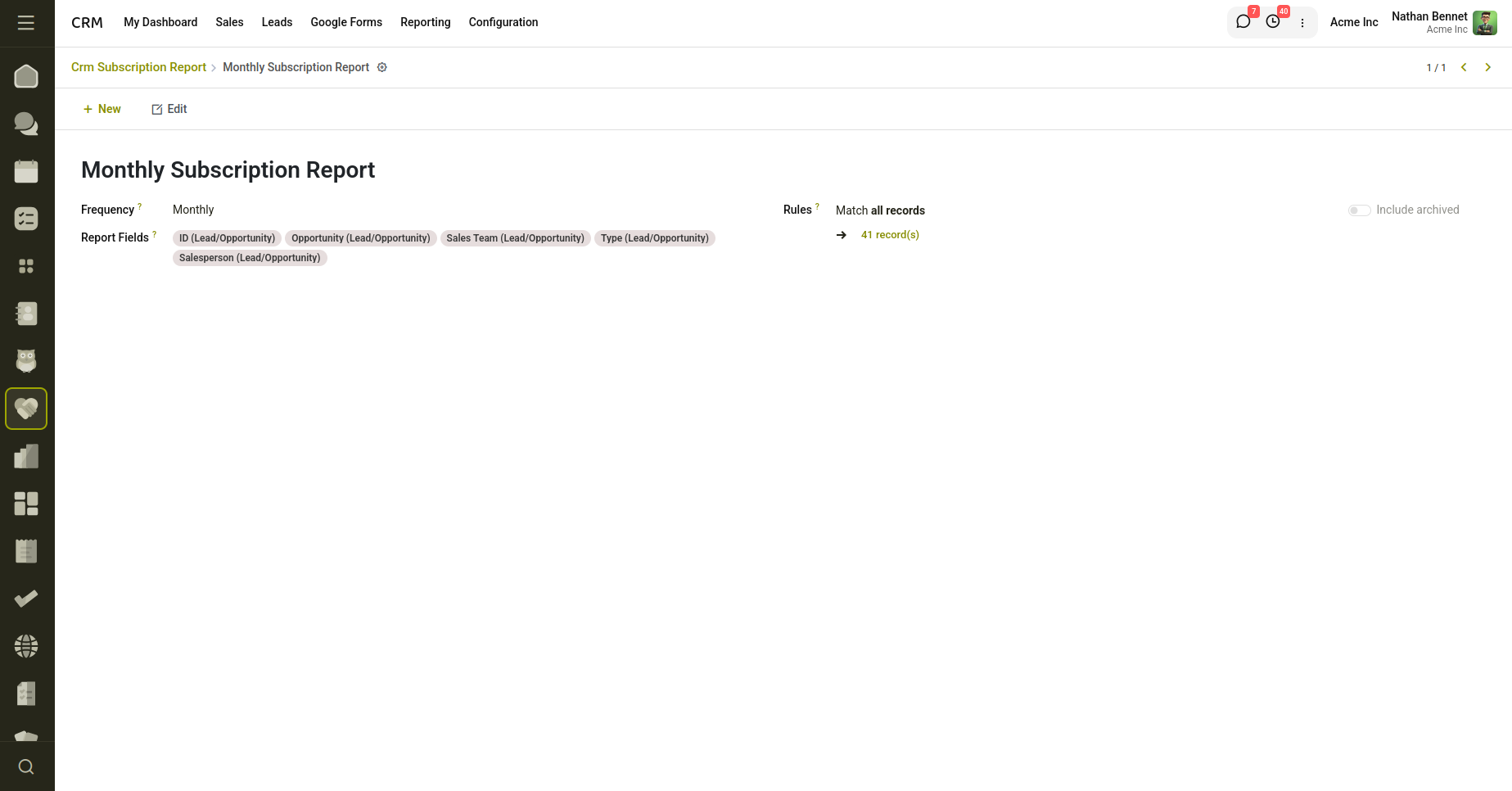
Fig 10.5 — Configure the Report.
- Choose the Report Fields to determine which lead information should appear in the report. The fields are displayed in the same order they are selected.
- Configure the Rules to define the domain for filtering lead records.
- Click Save to create the subscription report.
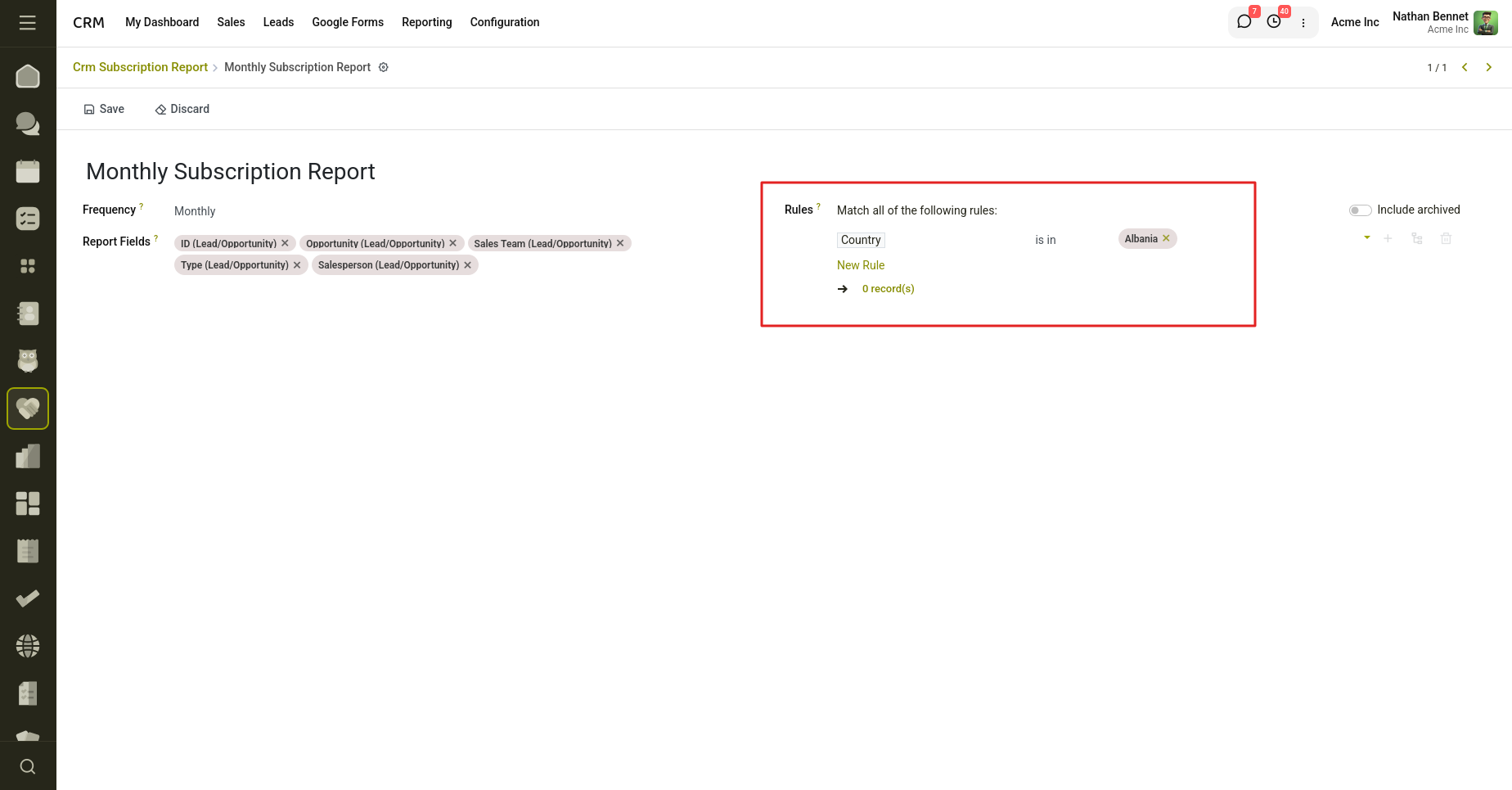
Fig 10.6 — Configure the Rules.
- Once the report is saved, the system automatically creates a Scheduled Action to generate and send the report according to the configured schedule.
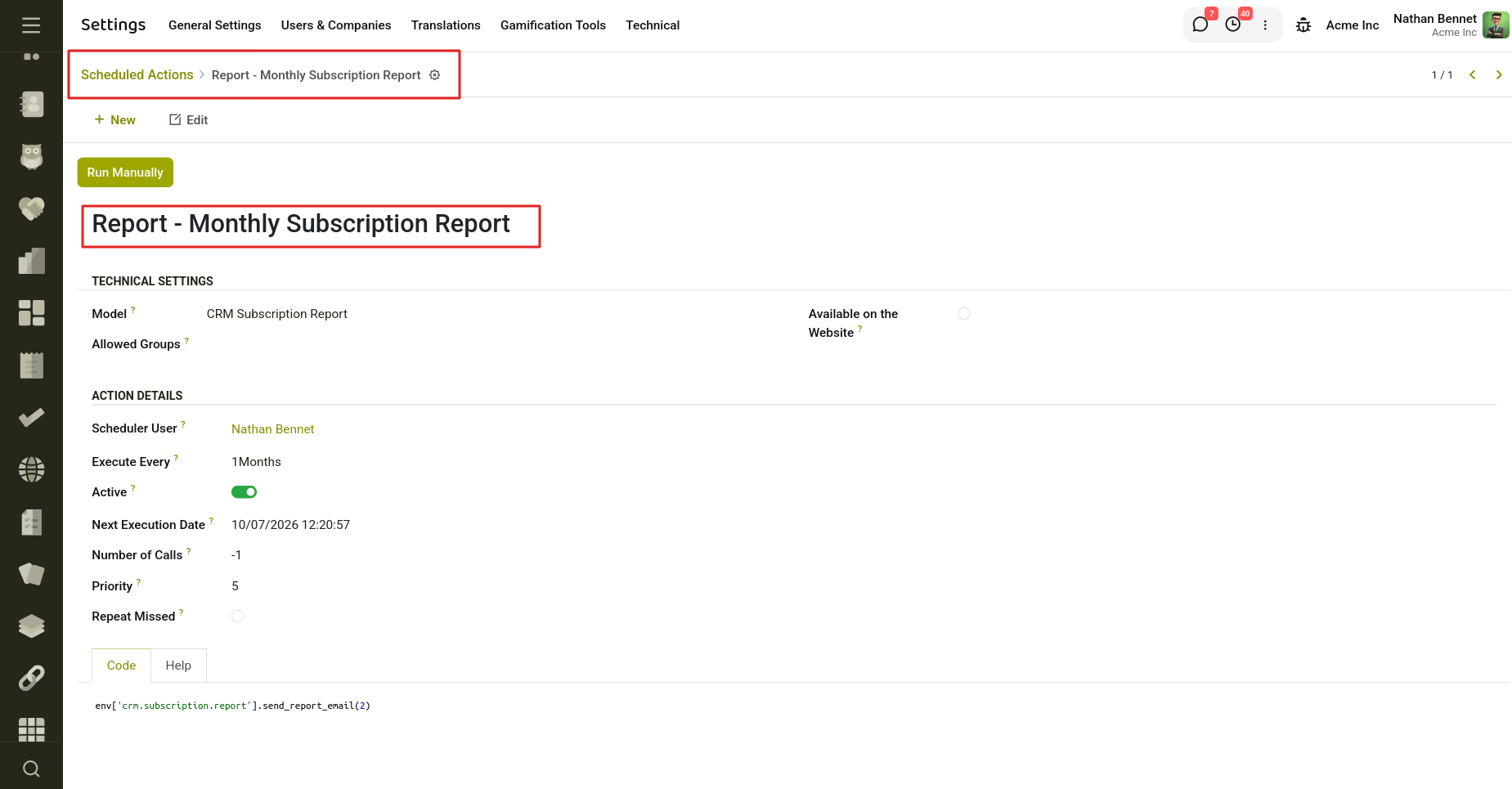
Fig 10.7 — A scheduled action is automatically created.
For example, if we create a Subscription Report with a weekly frequency set to Monday at 10 AM, the report will be generated the following Monday at 10 AM. If the frequency is later changed, the report generation time will also adjust accordingly.
For the very first report, data from all leads (based on the applied rules) will be included. From the second report onward, it will only include the leads that have changed between the last report time and the current scheduled report time.