

Cyllo Email configuration Documentation
Introduction
Email is central to Cyllo ERP's communication architecture. Every customer invoice sent, every overdue payment reminder, every purchase order confirmation, and every system notification travels through the email configuration set up by the administrator. Correct email configuration ensures that outgoing documents reach customers and suppliers reliably, that incoming replies from customers are captured automatically in the correct chatter thread, and that automated notifications from modules such as Accounting, CRM, and Purchase are delivered promptly.
This guide is written for Cyllo system administrators and IT managers responsible for configuring, maintaining, and troubleshooting email in a Cyllo ERP instance. It covers outgoing mail (SMTP), incoming mail (IMAP/POP3), email aliases, catchall and bounce handling, email templates, mass mailing settings, and step-by-step configuration for the most common email providers — Gmail/Google Workspace, Microsoft 365/Outlook, SendGrid, and Amazon SES.
1. Overview of Email Configuration
1.1. How Email Works in Cyllo
Cyllo ERP handles two distinct email flows that must be configured separately:
- Outgoing email (SMTP): All emails sent from Cyllo — invoices, notifications, follow-up reminders, purchase orders, CRM leads — are dispatched through a configured outgoing mail server using the SMTP protocol. The administrator configures one or more SMTP servers, and Cyllo routes outgoing mail through the highest-priority available server.
- Incoming email (IMAP/POP3): Replies from customers and suppliers, as well as new emails sent to Cyllo aliases, are fetched from a configured inbox via IMAP or POP3 on a scheduled basis. Cyllo processes each retrieved message, matches it to the relevant document (invoice, sales order, CRM lead), and appends it to that document's chatter for a complete communication record.
These two flows are independent. A typical deployment configures a dedicated outgoing SMTP relay (such as SendGrid or Amazon SES) for high-volume transactional email, and a separate IMAP mailbox for incoming replies. Both can use the same domain — for example, outgoing from noreply@company.com via SMTP, and incoming on info@company.com via IMAP.
1.2. Email Configuration Dashboard
All email settings are accessible from a single location in the Technical menu, which is available when developer mode is enabled. For most day-to-day administration tasks — such as adding a new alias or changing the outgoing server — developer mode is not required.
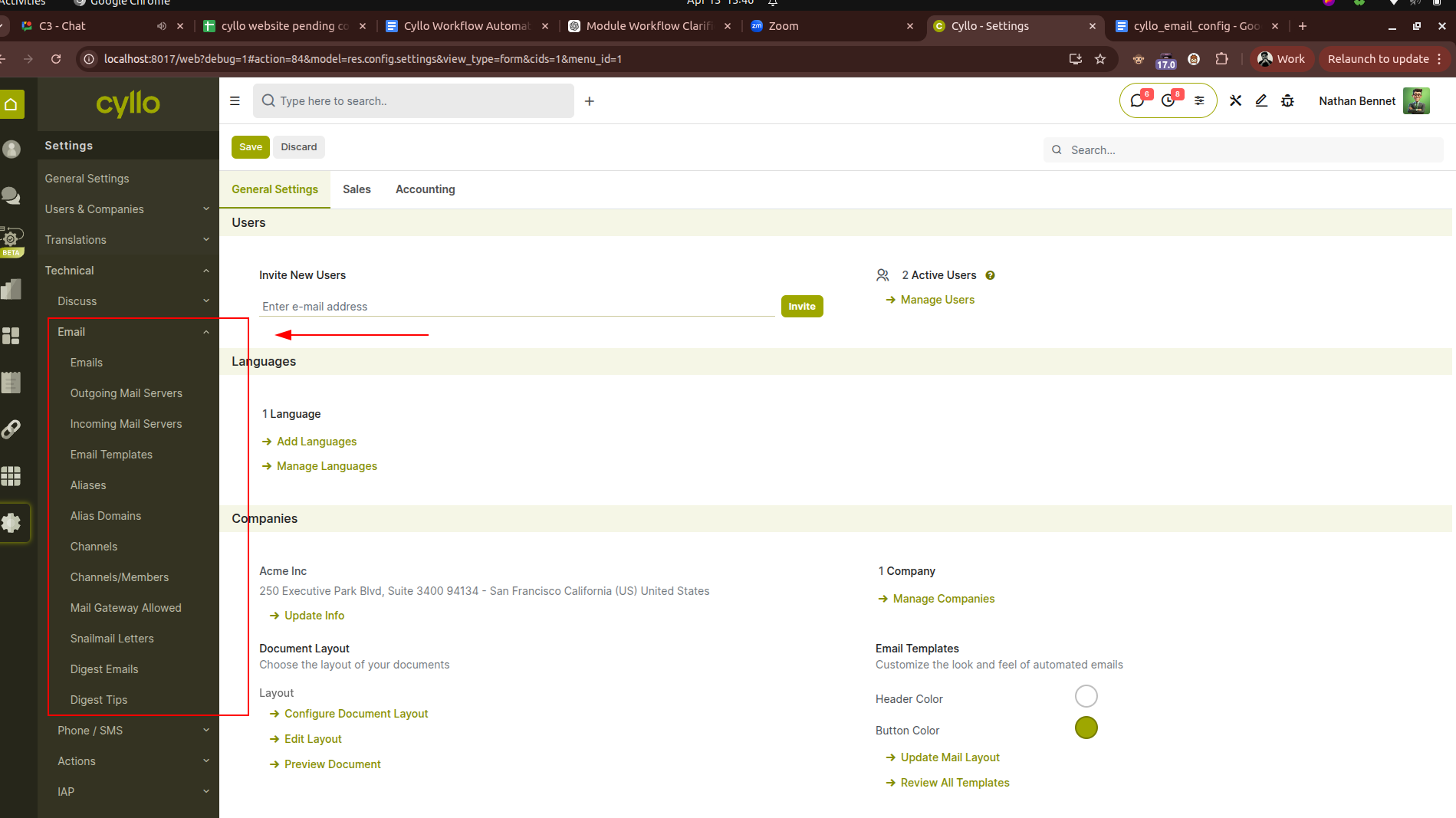
Fig 1.1 — General settings
Key configuration paths:
- Outgoing mail servers: Settings → Technical → Email → Outgoing Mail Servers
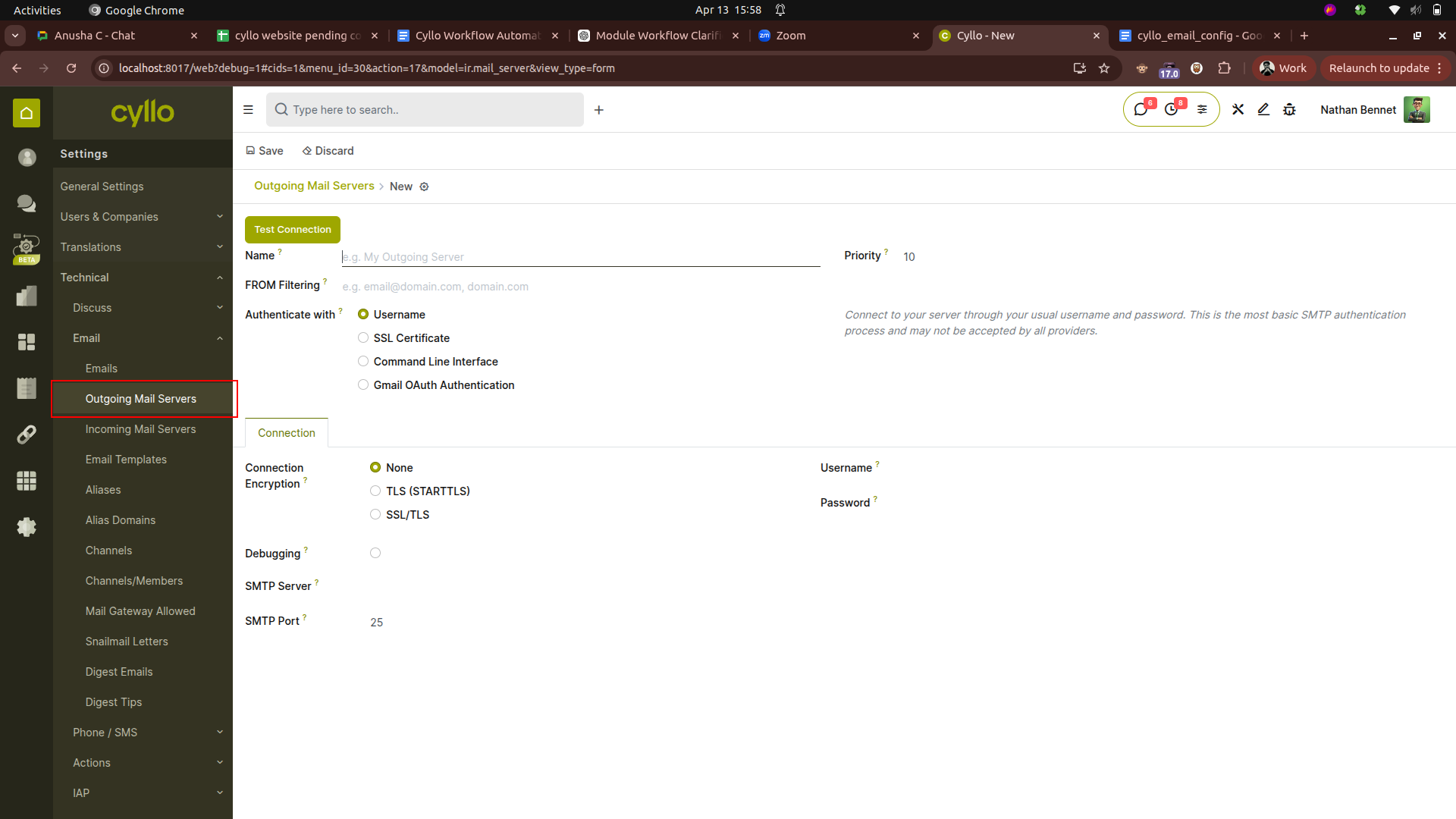
Fig 1.2 — Outgoing Mail servers form view
- Incoming mail servers: Settings → Technical → Email → Incoming Mail Servers
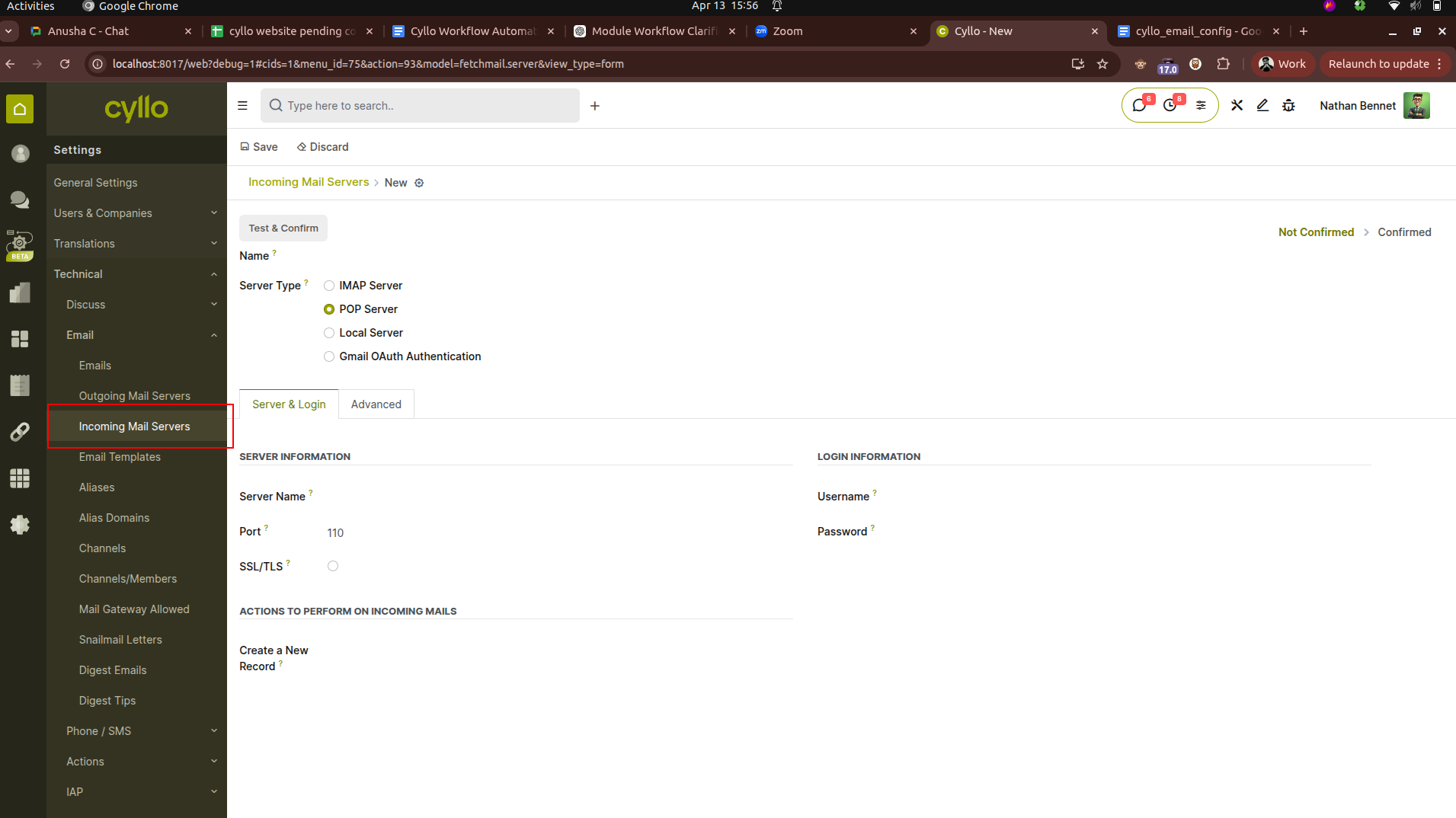
Fig 1.3 — Incoming mail server form view
- Email aliases: Settings → Technical → Email → Aliases (or per-model alias settings)
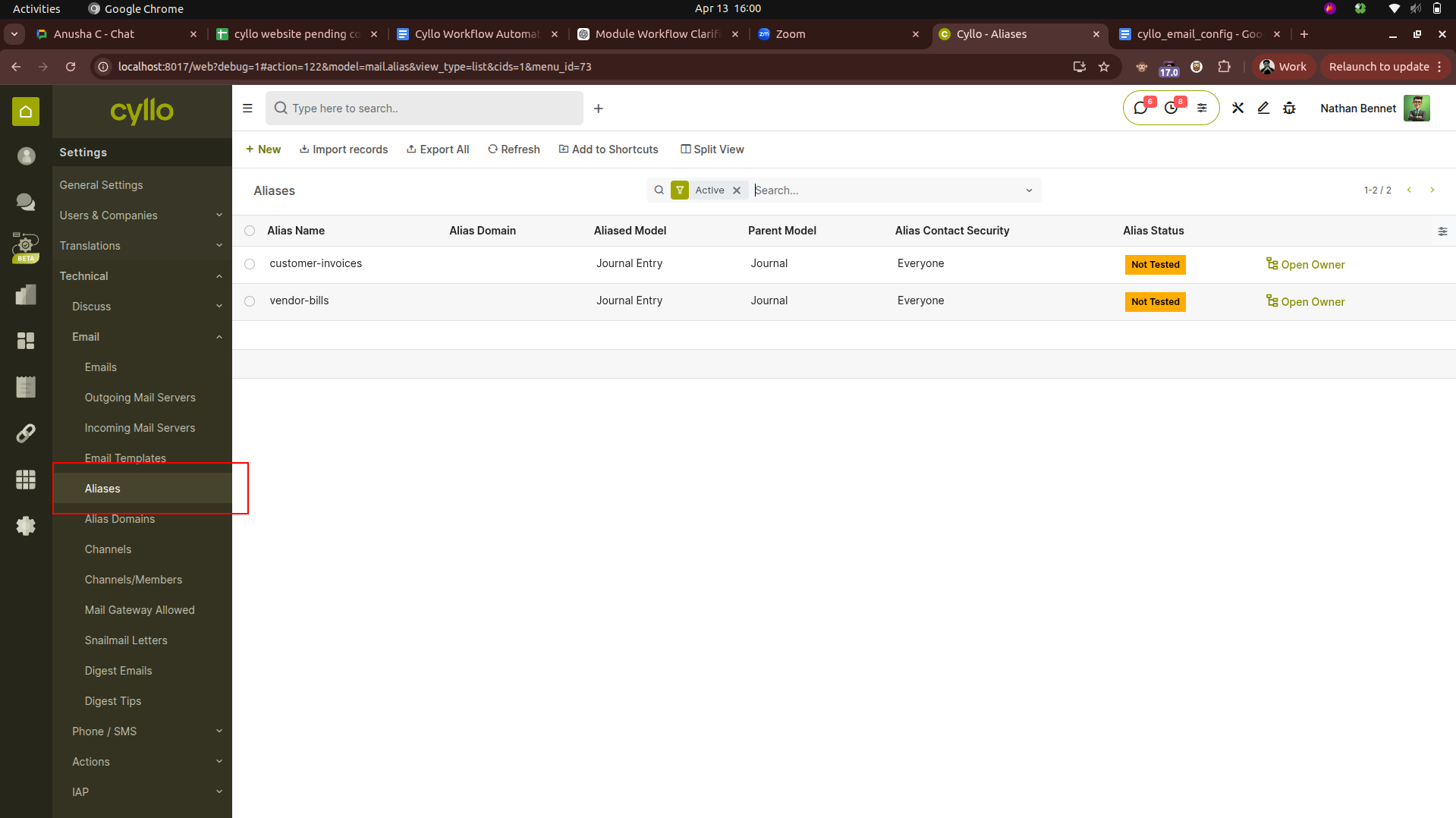
Fig 1.4 — Email aliases list view
- Alias domain: Settings → General Settings → Discuss → Alias Domain
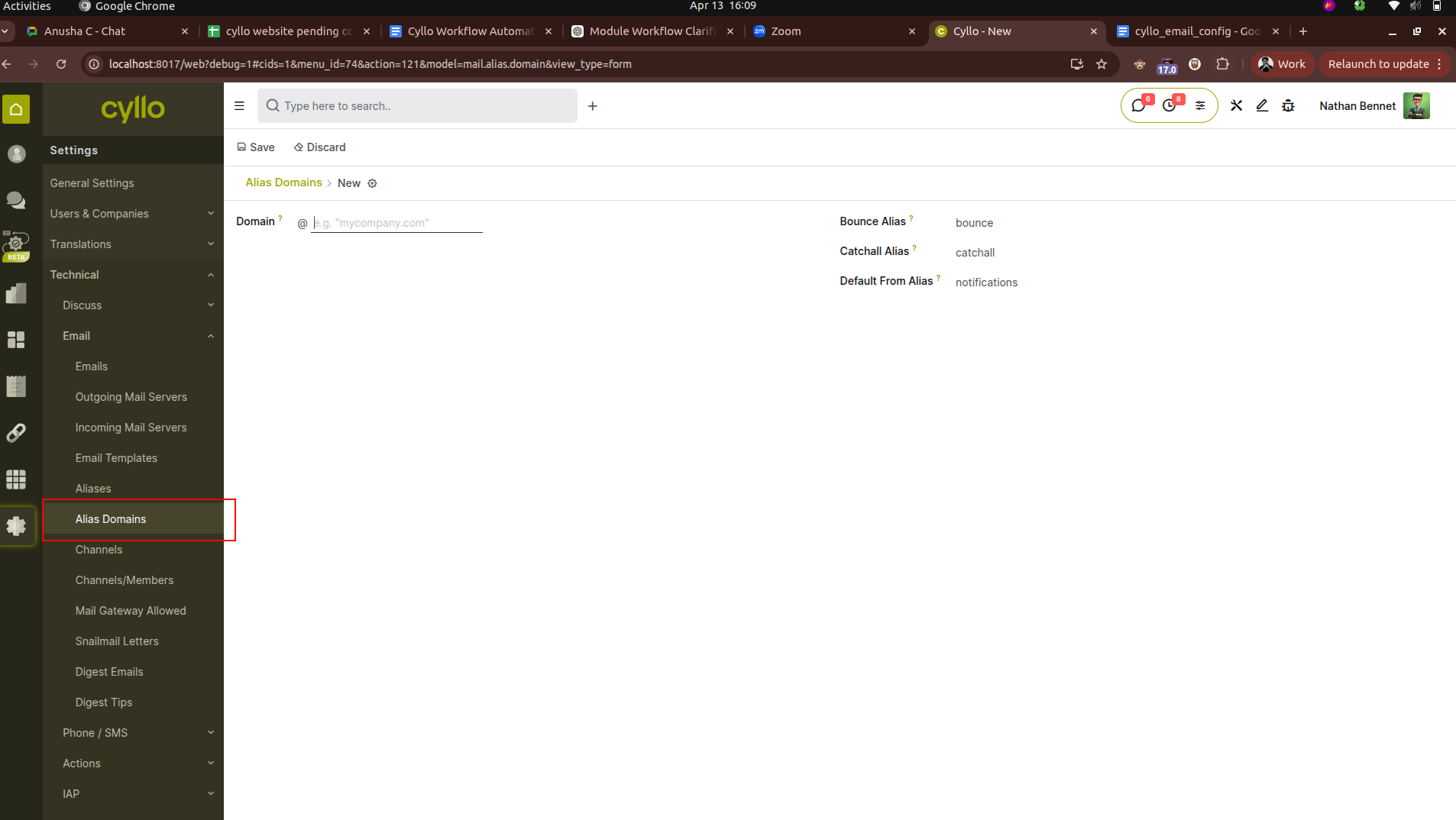
Fig 1.5 — Alias Domains form view
- Email templates: Settings → Technical → Email → Templates
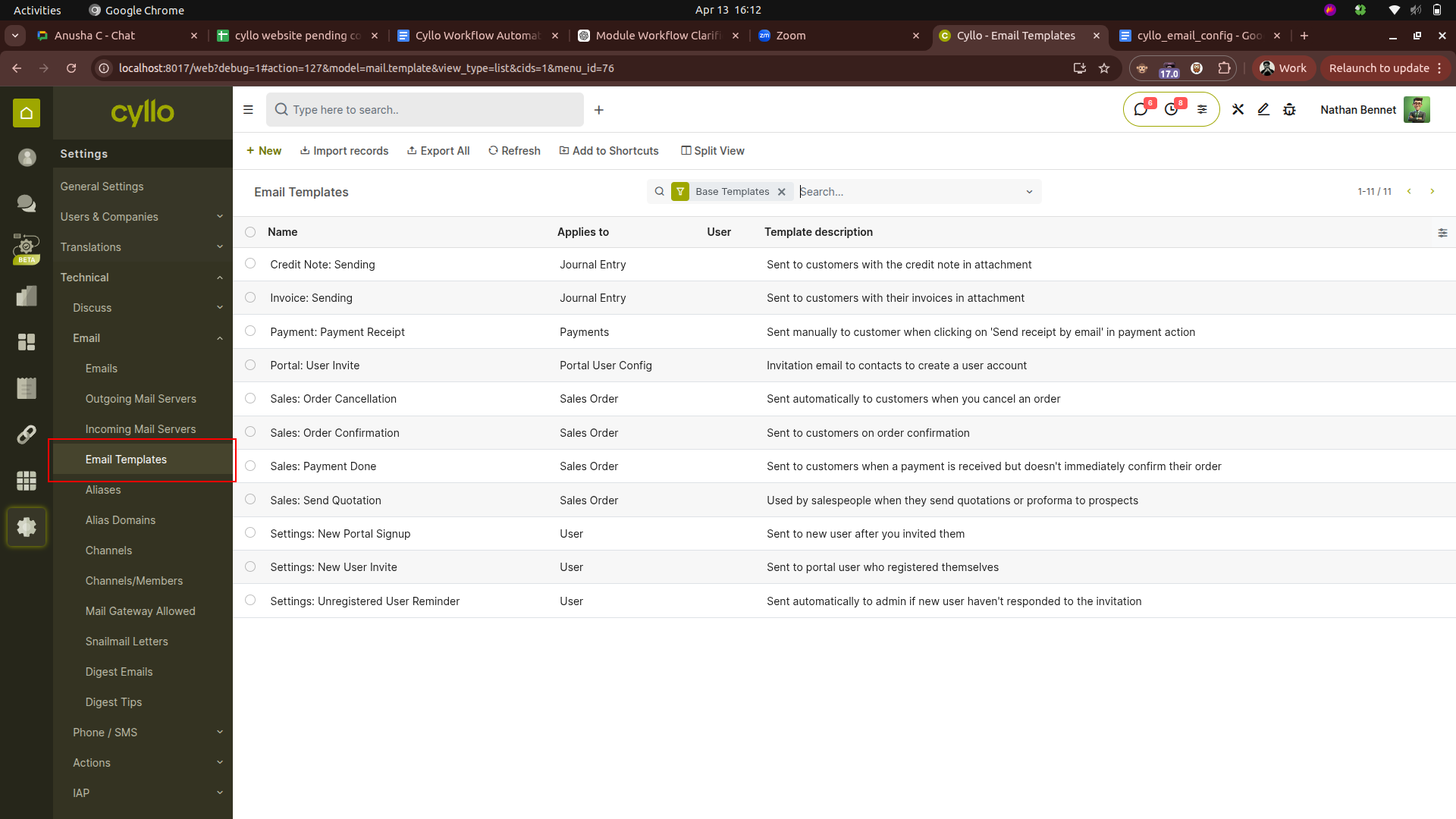
Fig 1.6 — Email Templates List view
- Mail queue: Settings → Technical → Email → Emails (outgoing mail queue)
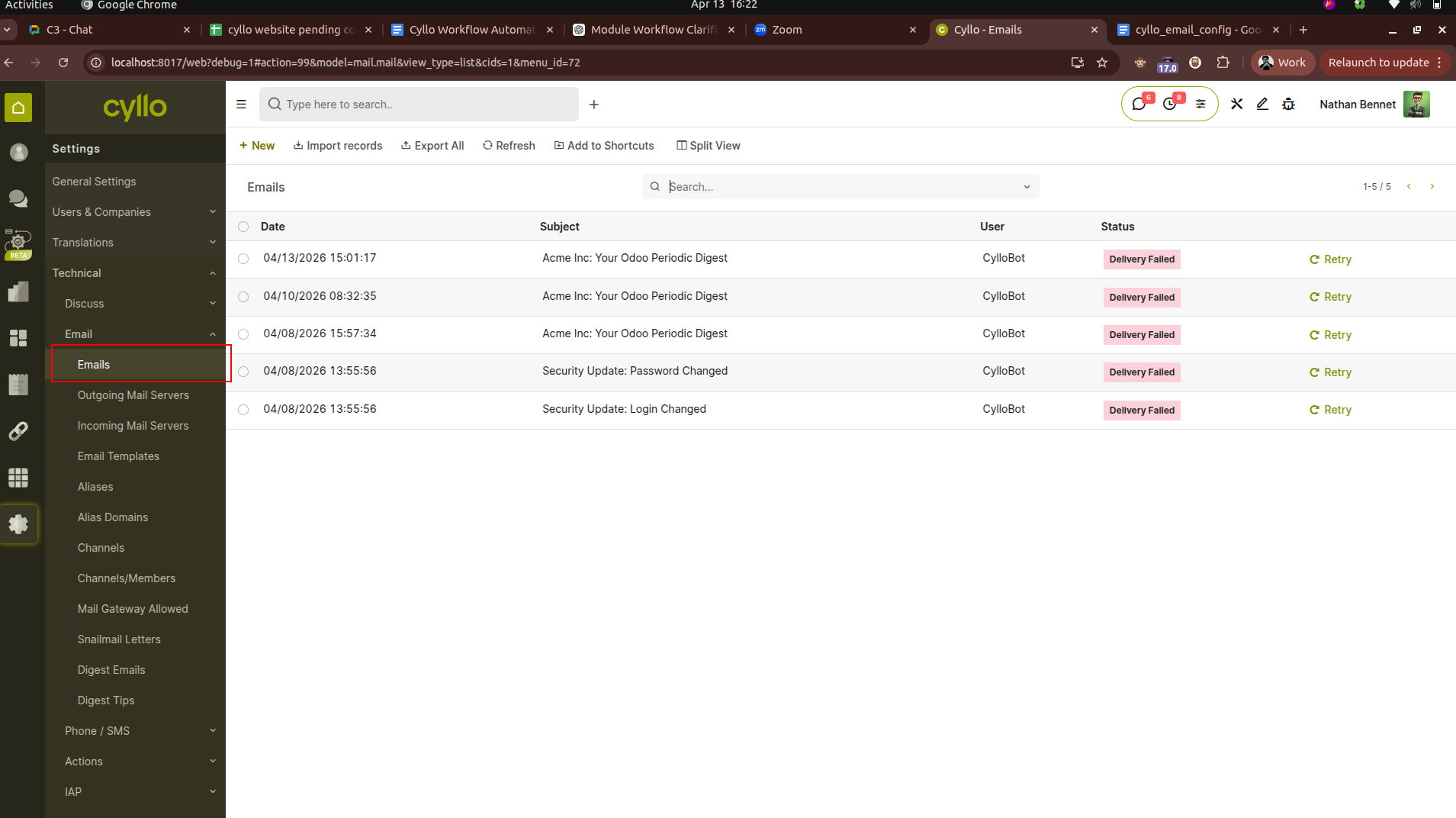
Fig 1.7 — Email outgoing queue
2. Outgoing Mail Server (SMTP)
2.1. Configuring an Outgoing Mail Server
The outgoing mail server is the SMTP relay through which Cyllo sends all emails. At least one outgoing mail server must be configured before Cyllo can send any email. Multiple servers can be configured — for example, a primary relay and a fallback — with priority controlling which server is used first.
- Go to Settings → Technical → Email → Outgoing Mail Servers.
- Click New to add a new server.
- Enter the Description — a clear internal label identifying this server (e.g. Google Workspace SMTP, SendGrid Primary, Microsoft 365 Relay).
- Enter the SMTP Server — the hostname of the outgoing mail server (e.g. smtp.gmail.com, smtp.sendgrid.net, smtp.office365.com).
- Set the SMTP Port — determined by the connection security method selected (see Section 2.2).
- Set the Connection Security — SSL/TLS, STARTTLS, or None (see Section 2.2 for guidance).
- Enter the Username — the email address or API username used to authenticate with the SMTP server.
- Enter the Password — the SMTP password, app password, or API key.
- Set the Priority — a lower number means higher priority. Cyllo uses the highest-priority available server for all outgoing mail.
- Click Save, then click Test Connection to verify the server is reachable and credentials are correct
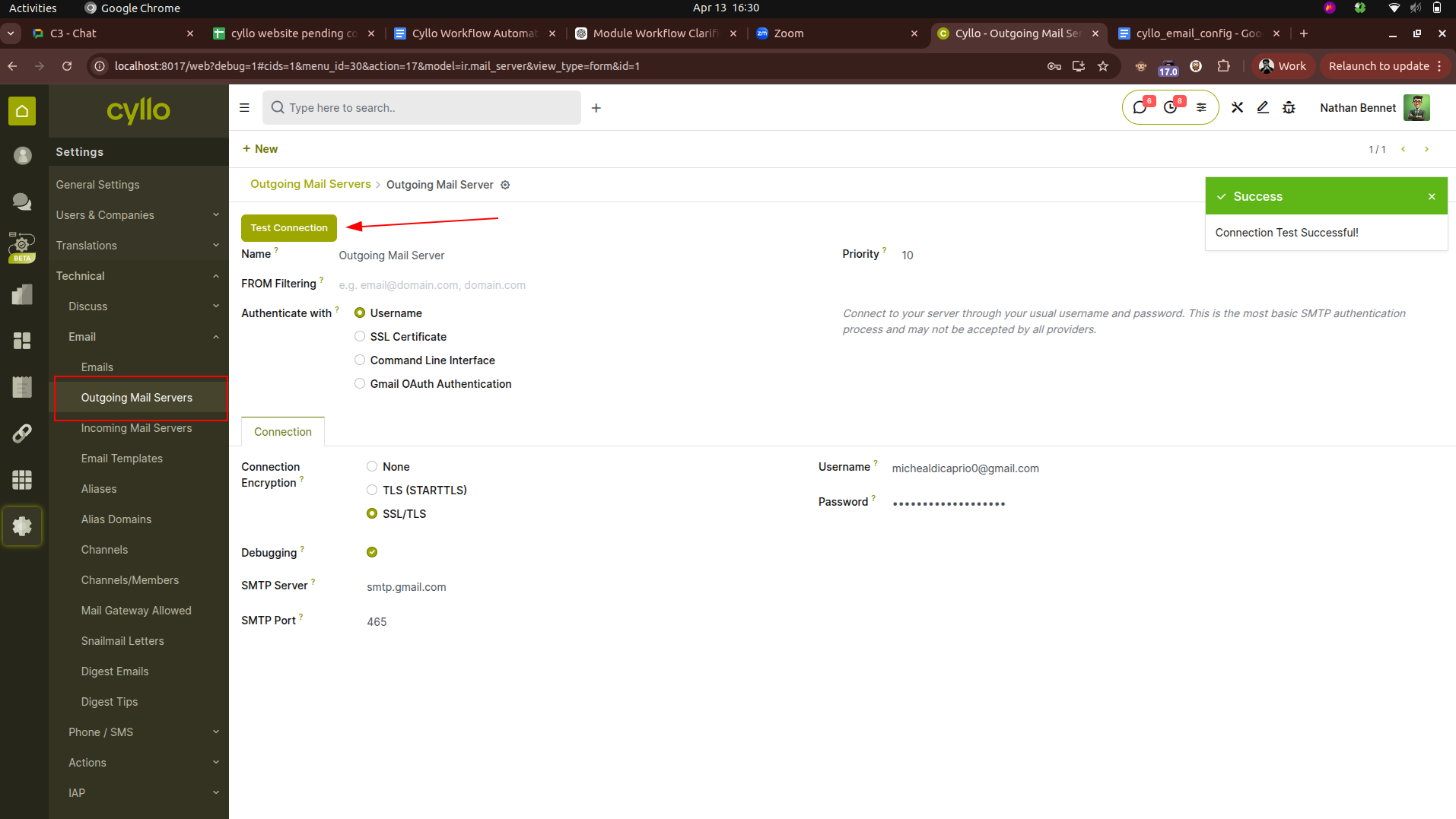
Fig 2.1 — Outgoing Mail Server form — Description, SMTP Server, Port, Connection Security, Username, Password, and Priority fields; Test Connection button
| Field | Description |
|---|---|
| Description | Internal label for this server. Not visible to email recipients. |
| SMTP Server | Hostname of the mail relay (e.g. smtp.gmail.com). Do not include smtp:// prefix. |
| SMTP Port | Port number. Automatically updated when Connection Security is changed. Standard values: 465 (SSL/TLS), 587 (STARTTLS), 25 (None — not recommended). |
| Connection Security | Encryption method for the SMTP connection. Always use SSL/TLS or STARTTLS. Plain (None) sends credentials unencrypted and should only be used on secured internal networks. |
| Username | The login credential for the SMTP server — typically the sending email address or, for API-based relays like SendGrid, the API username (often 'apikey'). |
| Password | The SMTP password. For Gmail, use an App Password rather than your Google account password. For SendGrid, use the API key. |
| Priority | Numeric priority. Cyllo always uses the server with the lowest priority number first. Set to 10 for primary, 20 for fallback. |
| From Filter | Optional. If set, this server is only used when the sender address matches this domain or email address — useful when multiple servers serve different sending domains. |
WARNING
Never use Connection Security: None for production mail servers accessible over the internet. SMTP credentials transmitted without encryption can be intercepted. Always use SSL/TLS (port 465) or STARTTLS (port 587).
2.2. Connection Security Options
The Connection Security setting controls how the connection between Cyllo and the SMTP server is encrypted. Choose the option required by your email provider — using the wrong setting is the most common cause of SMTP connection failures.
| Security Type | Port | When to Use |
|---|---|---|
| SSL/TLS | 465 | Connection is encrypted from the first byte. Required by Gmail, most Google Workspace and consumer providers. The most secure option. |
| STARTTLS | 587 | Connection starts unencrypted and upgrades to TLS after the initial handshake. Required by Microsoft 365/Outlook and many corporate mail servers. |
| None | 25 | No encryption. Only use on fully isolated internal networks. Never use over the internet — credentials and email content are transmitted in plain text. |
2.3. Testing the Outgoing Connection
After saving an outgoing mail server configuration, always test the connection immediately to confirm the server is reachable, the port is open, and the credentials are accepted. A failed test indicates either a network issue (firewall blocking the port), an incorrect hostname, or invalid credentials.
- Open the outgoing mail server record.
- Click Test Connection. Cyllo attempts to connect to the SMTP server using the configured settings.
- If the test succeeds, a green confirmation message is displayed: 'Connection Test Successful'.
- If the test fails, the error message describes the failure — common errors include 'Connection timed out' (firewall or wrong port), 'Authentication failed' (wrong credentials), or 'Certificate verification failed' (SSL certificate issue on the server).
TIP
If the connection test fails with 'Authentication failed' and you are using Gmail, ensure that 2-factor authentication is enabled on the Google account and that you are using a Gmail App Password (generated at myaccount.google.com/apppasswords) rather than the regular account password. Google no longer allows direct SMTP login with a standard account password.
2.4. Priority & Fallback Servers
Cyllo supports multiple outgoing mail servers simultaneously. This enables a primary/fallback configuration — if the primary server is unavailable or returns a connection error, Cyllo automatically falls through to the next server in priority order. This ensures outgoing mail is not lost if a single relay experiences downtime.
- Set the primary server Priority to 10.
- Set the fallback server Priority to 20 (or any higher number).
- If a From Filter is set on the primary server, only emails from addresses matching that filter use the primary. All others are routed to the next server.
- To restrict a specific server to a single outbound domain, set the From Filter to the domain (e.g. @company.com). Emails from a different domain (e.g. a subsidiary) can then be routed through a different server.
Note
If no outgoing mail server is configured, Cyllo falls back to using a default Odoo/Cyllo shared mail relay. This fallback relay is not suitable for production use — deliverability is limited, sending volume is capped, and the From address may be rewritten. Always configure a dedicated outgoing mail server for any production instance.
3. Incoming Mail Server (IMAP/POP3)
3.1. Configuring an Incoming Mail Server
Incoming mail servers allow Cyllo to fetch emails from a mailbox and process them automatically. Each retrieved email is matched to an existing record in Cyllo (by the alias address it was sent to) or creates a new record (e.g. a new CRM lead or helpdesk ticket). The chatter on the matched document receives the incoming email as a message, creating a complete communication thread.
- Go to Settings → Technical → Email → Incoming Mail Servers.
- Click New.
- Enter the Name — an internal label for this inbox (e.g. Main Inbox — support@company.com).
- Select the Server Type — IMAP (recommended) or POP3.
- Enter the Server — the hostname of the mail server (e.g. imap.gmail.com, outlook.office365.com).
- Set the Port — 993 for IMAP with SSL, 143 for IMAP with STARTTLS, 995 for POP3 with SSL.
- Enable SSL/TLS if the provider requires encrypted connection (all modern providers do).
- Enter the Username and Password — the login credentials for the mailbox.
- Set the Fetch Interval — how frequently Cyllo polls this mailbox for new messages (in minutes). Default is 5 minutes.
- Click Save, then click Test & Confirm to verify the connection and activate the server.
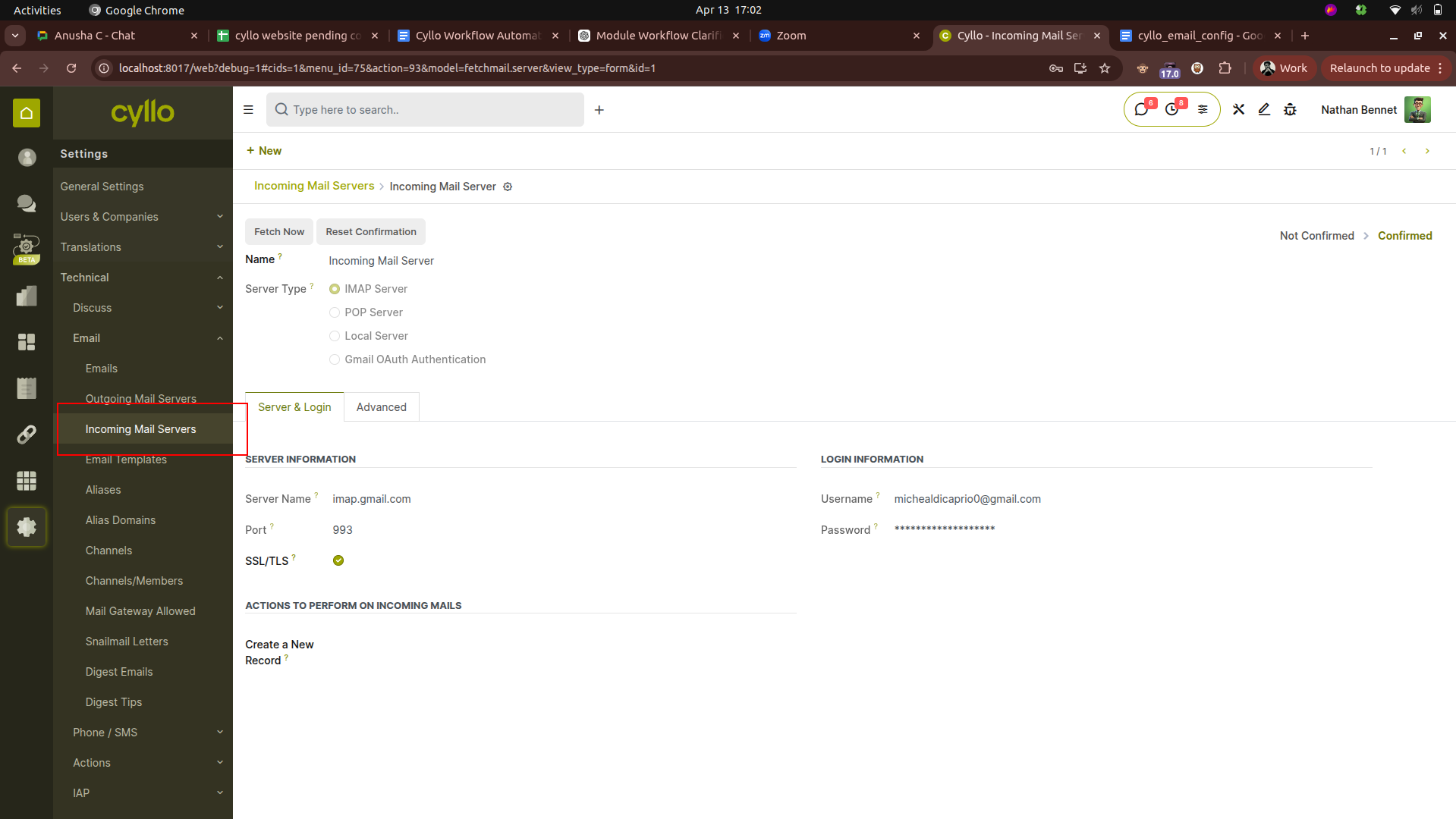
Fig 3.1 — Incoming Mail Server form — Name, Server Type (IMAP), Server, Port, SSL toggle, Username, Password, and Fetch Interval fields; Test & Confirm button
| Field | Description |
|---|---|
| Server Type | IMAP is strongly preferred over POP3. IMAP leaves messages on the server and tracks read/unread state; POP3 deletes messages after download, making troubleshooting and re-processing impossible. |
| Server | IMAP/POP3 hostname. For Gmail: imap.gmail.com. For Microsoft 365: outlook.office365.com. |
| Port | 993 = IMAP with SSL/TLS (recommended). 143 = IMAP with STARTTLS. 995 = POP3 with SSL. |
| SSL/TLS | Enable for all production configurations. All major email providers require encrypted incoming connections. |
| Username | The full email address of the mailbox (e.g. info@company.com). |
| Password | The mailbox password or, for Gmail, a Google App Password. |
| Fetch Interval | How often (in minutes) Cyllo checks this inbox for new messages. Lower intervals increase responsiveness but add server load. 5–15 minutes is typical for customer-facing inboxes. |
| Keep Originals | When enabled (IMAP only), processed messages are not marked as read or moved — they remain in the inbox. Disable in production to prevent re-processing old messages. |
3.2. Fetch Interval & Automation
Email fetching from incoming mail servers is handled by Cyllo's scheduler (cron jobs). The fetch interval set on each incoming mail server controls how frequently the scheduler polls that particular inbox. Intervals are defined in minutes — a value of 5 means Cyllo checks the inbox every 5 minutes.
TIP
For high-volume customer service or sales inboxes, set the fetch interval to 1 or 5 minutes. For low-volume administrative mailboxes (e.g. a purchasing alias), 30 minutes is sufficient. Very frequent polling on large mailboxes can affect instance performance — find a balance based on your volume and responsiveness requirements.
To manually trigger an immediate fetch without waiting for the next scheduled run:
- Open the incoming mail server record.
- Click Fetch Now. Cyllo immediately polls the inbox and processes any new messages.
- Check Settings → Technical → Email → Emails to review the newly fetched messages and their processing status.
3.3. Email Routing & Aliases
When Cyllo retrieves an incoming email, it determines which document or model the email belongs to by examining the To address. If the To address matches a configured alias (e.g. sales@company. com → CRM pipeline, support@company. com → Helpdesk tickets), the email is routed to that model.
The routing logic follows this sequence:
- Check if the To address matches a configured alias → route to that alias's model.
- Check if the email contains a reply-to reference (the hidden thread ID Cyllo embeds in outgoing emails) → append to the existing document's chatter.
- If neither match, send to catchall for manual review or create a new record depending on configuration.
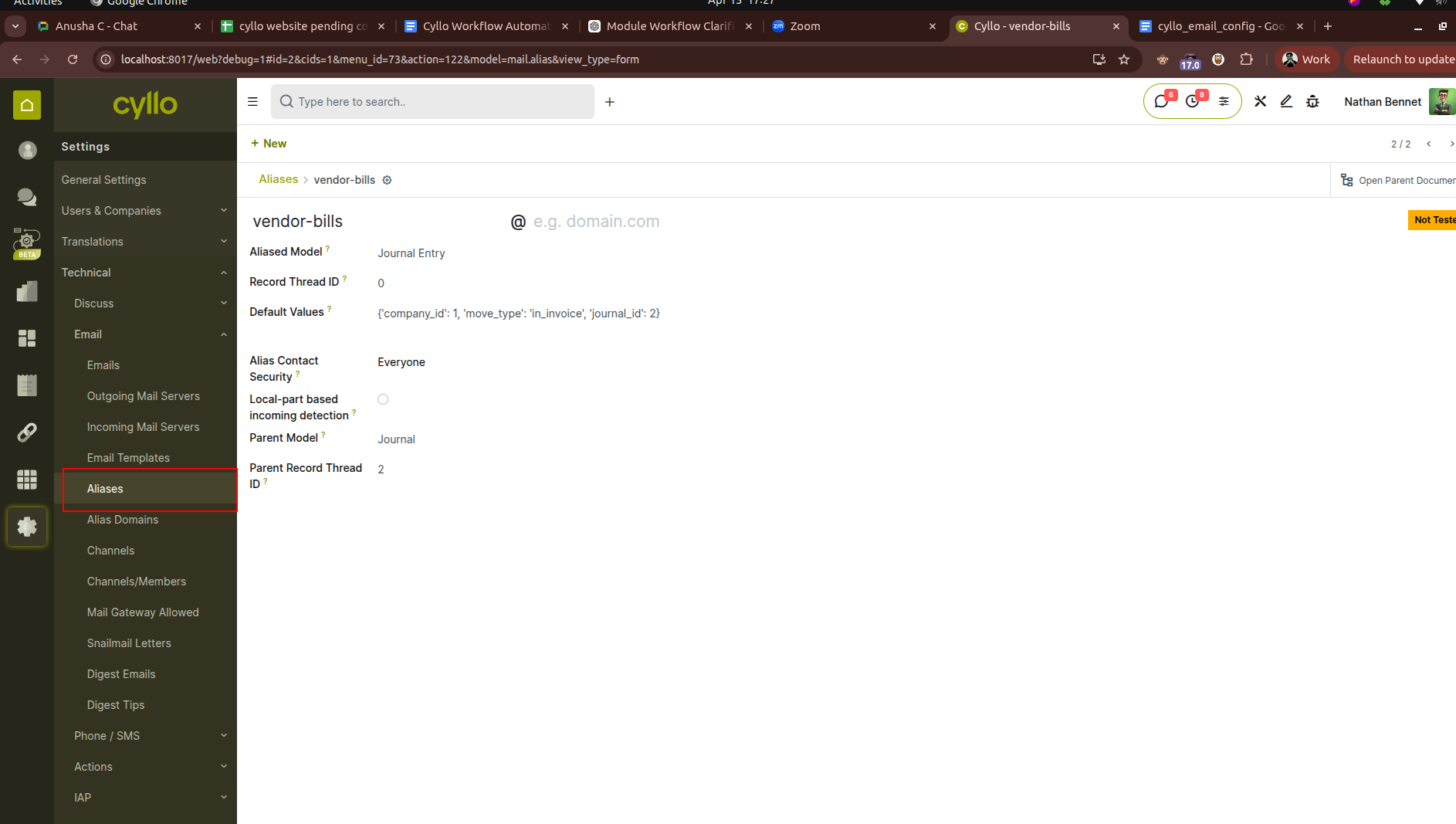
Fig 3.2 — Email Alias form view
Note
Cyllo embeds a unique thread reference (e.g. reply+token@company. com) in the Reply-To header of all outgoing emails. When a customer replies to an invoice email, their reply carries this reference back to Cyllo, allowing automatic matching to the correct invoice record even if the customer changes the subject line.
4. Email Aliases
4.1. Creating & Managing Aliases
Email aliases are named email addresses (e.g. sales@company. com, support@company. com, hr@company. com) that map incoming emails to specific Cyllo models and operations. When an email arrives at an alias address, Cyllo automatically creates a new record in the associated model — for example, a new CRM lead, a helpdesk ticket, or a vendor bill.
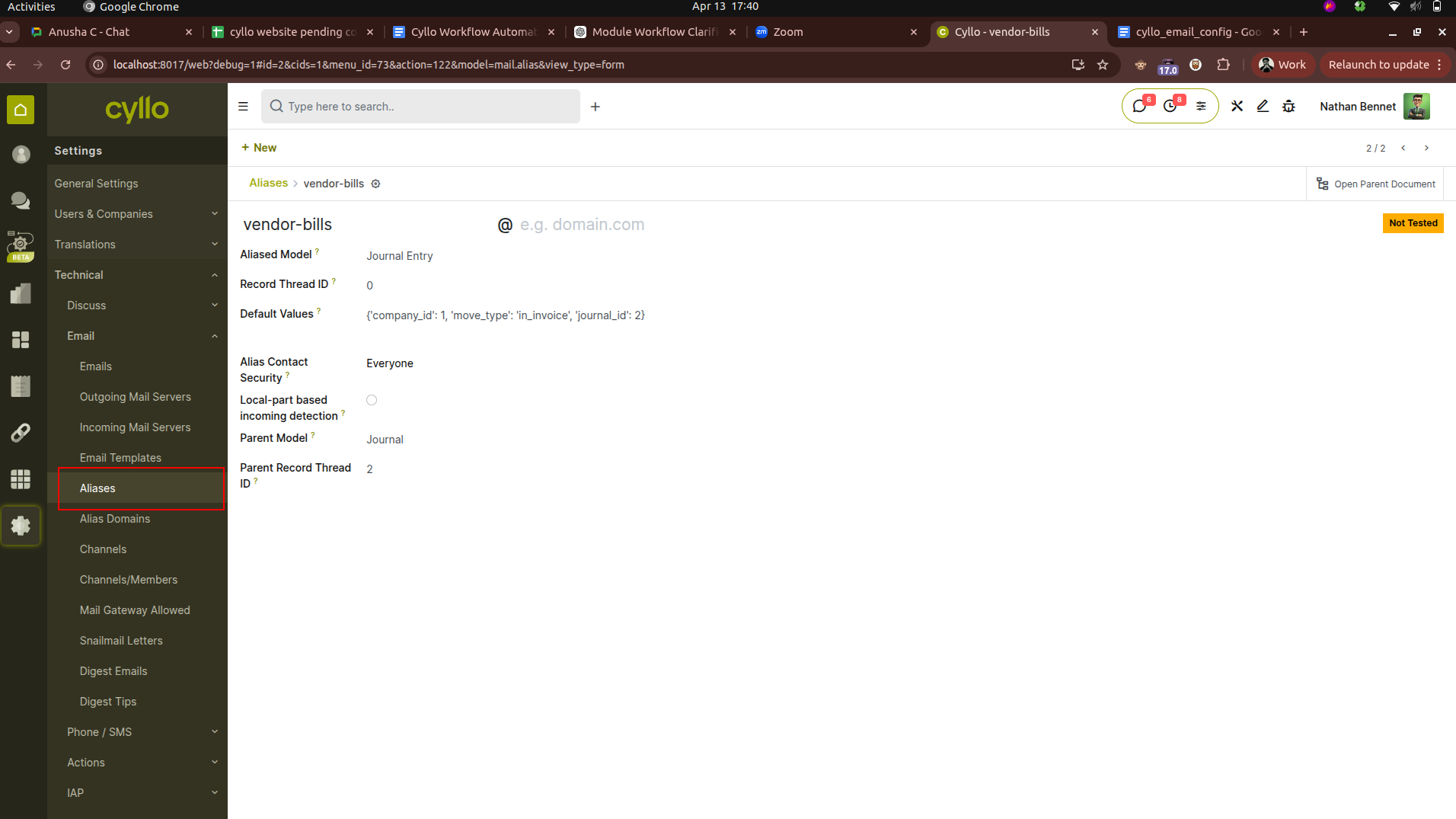
Fig 4.1 — Email alias form view
Aliases are configured at the model level — each module that supports email aliasing provides its own alias configuration screen. However, all aliases can also be viewed and managed centrally.
Viewing All Aliases
- Enable Developer Mode: Settings → General Settings → Developer Tools → Activate Developer Mode.
- Go to Settings → Technical → Email → Aliases.
- The list shows all configured aliases with their Alias Name, Alias Domain, Destination Model, and Default Values.
Creating an Alias for CRM (Sales Enquiries)
- Go to CRM → Configuration → Settings.
- In the Email Alias field, enter the local part of the alias address (e.g. sales — the full address will be sales@yourdomain. com).
- Click Save. Emails sent to sales@yourdomain. com now automatically create new CRM leads.
Creating an Alias for Helpdesk (Support Tickets)
- Go to Helpdesk → Configuration → Teams.
- Open the helpdesk team (e.g. Customer Support).
- In the Email Alias field, enter the alias local part (e.g. support).
- Click Save. Emails to support@yourdomain. com now create helpdesk tickets in this team.
Creating an Alias for Vendor Bills (Accounting)
- Go to Accounting → Configuration → Settings.
- Under the Incoming Emails section, enter the alias for vendor bill receipt (e.g. bills).
- Click Save. Supplier invoices forwarded to bills@yourdomain. com are auto-created as draft vendor bills.
Note
Use clear, function-specific alias names that customers and suppliers can intuitively use: invoices@ or bills@ for AP, orders@ for purchase, support@ for helpdesk, careers@ for recruitment. Avoid generic aliases like info@ as they cannot be automatically routed to a single model.
4.2. Alias Domains
The alias domain is the domain part appended to all alias addresses (@company. com). It must be configured before aliases can be used. All aliases in a Cyllo instance share a single alias domain.
- Go to Settings → General Settings.
- Under the Discuss section, find the Alias Domain field.
- Enter your domain (e.g. company.com — without the @ sign).
- Click Save. After saving, all configured aliases will be fully formed — for example, an alias with local part sales and domain company. com becomes sales@company. com. Ensure that the MX records for this domain point to a mail server you control, and that incoming mail for all alias addresses is delivered to the inbox configured in the incoming mail server.
WARNING
The alias domain must match the domain you control and have set up in DNS. Emails sent to aliases at a domain your mail server does not receive will never reach Cyllo. Work with your DNS administrator to ensure all alias addresses are covered by the domain's MX records, or set up catch-all delivery at the mail server level.
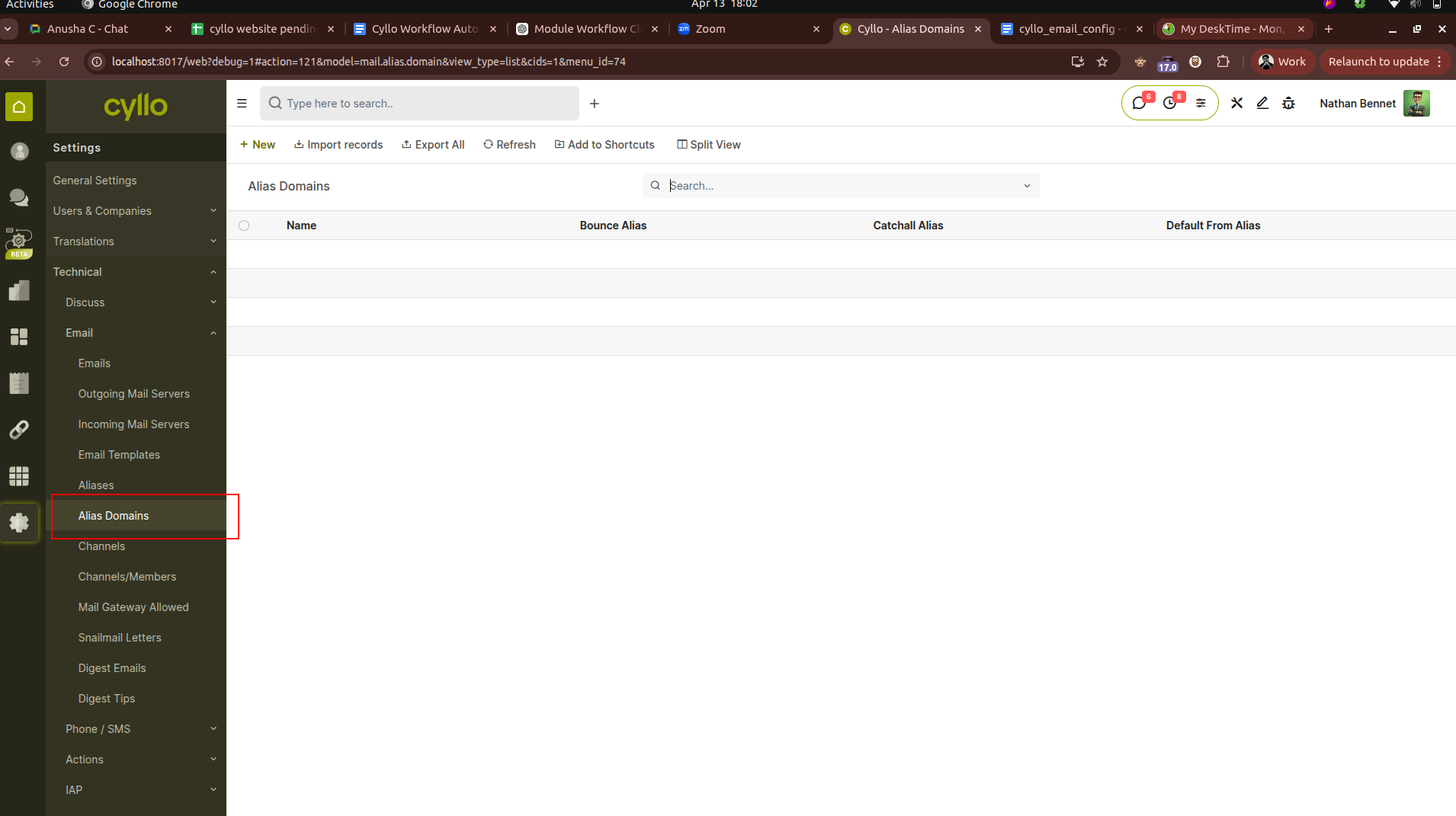
Fig 4.2 — Email domain list view
5. Email Templates
5.1. Creating Email Templates
Email templates define the pre-formatted content of emails sent from specific Cyllo documents — customer invoices, purchase orders, sales order confirmations, payment reminders, and more. Each template is associated with a specific model and can include dynamic placeholders that automatically fill in document-specific data (customer name, invoice number, due date, etc.) when the email is sent.
- Go to Settings → Technical → Email → Templates.
- Click New.
- Enter the Template Name — a clear internal label (e.g. Customer Invoice Email, Purchase Order to Vendor, Payment Reminder — Level 1).
- Set the Applies To (Model) — select the Cyllo model this template is used with (e.g. Invoice (account.move), Sales Order (sale.order)).
- Enter the Subject — the email subject line. Use dynamic placeholders to include document-specific data (see Section 6.2).
- In the Body tab, write the email body. Use the HTML editor for formatting, or switch to code view for direct HTML editing. Insert placeholders using the dynamic expression syntax.
- Optionally, set a Default Recipients field to control who receives the email by default (e.g. the customer on the invoice, the vendor on the purchase order).
- Under the Email Configuration tab, set the From address — either a fixed address (e.g. invoices@company. com) or a dynamic expression (e.g. the company email).
- Click Save.
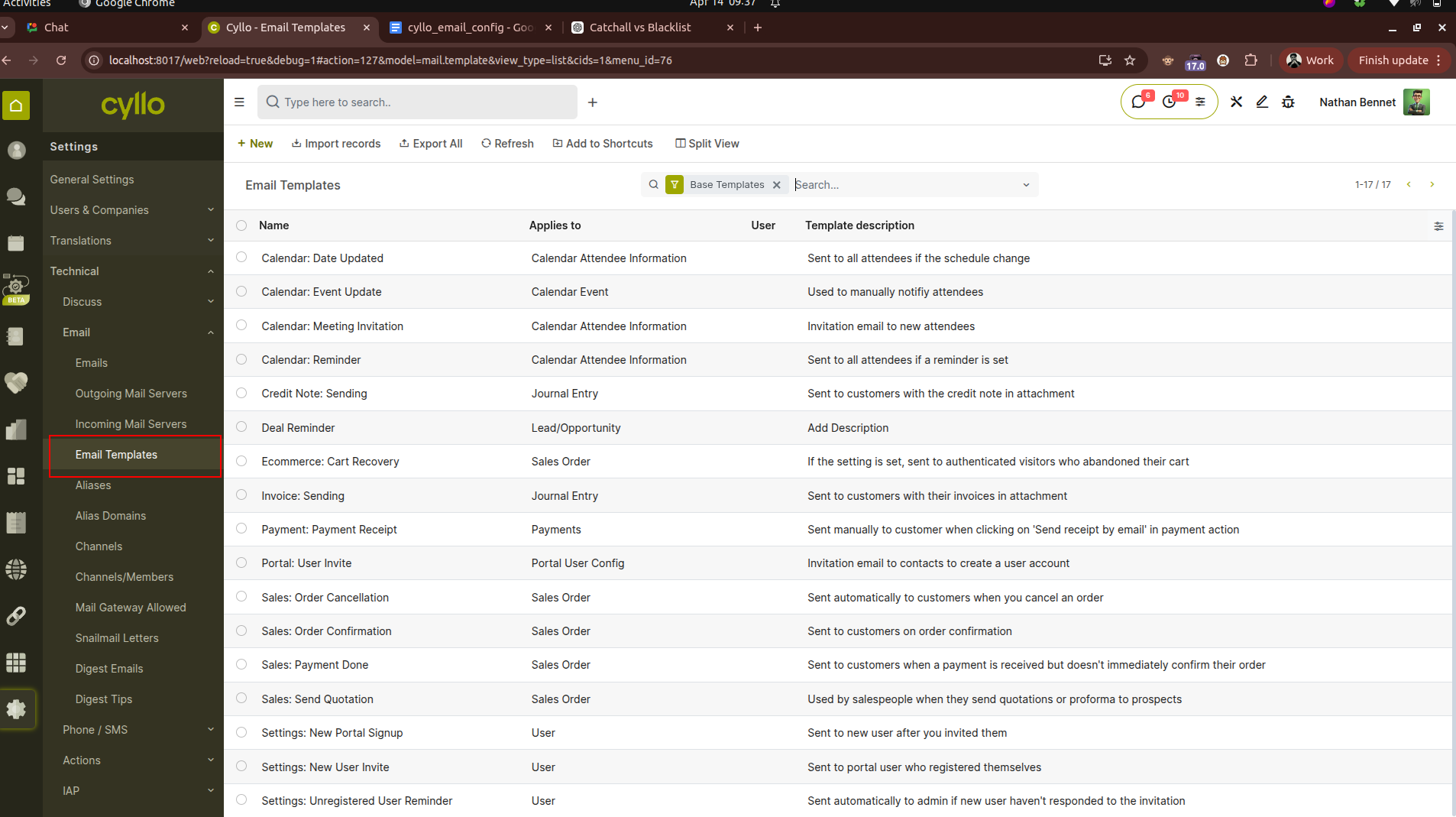
Fig 5.1 — Email template list view
5.2. Dynamic Placeholders & Variables
Email templates use Jinja2 template syntax to embed dynamic values from the source document. These placeholders are resolved at send time and replaced with the actual field values from the specific record being emailed.
Template Placeholders (Merge Fields)
| Placeholder Example | What It Renders |
|---|---|
| ( object.name ) | The name/reference of the current document (e.g. INV/2026/00042). |
| (object.partner_id.name ) | The customer or vendor's display name (e.g. Acme Corporation). |
| (object.invoice_date_due) | The invoice due date in the default date format. |
| (object.amount_total) | The total amount of the invoice or order. |
| (object.company_id.name) | The company name as configured in Cyllo settings. |
| (object.user_id.name) | The salesperson or responsible user's name. |
| (ctx.get('default_company_id')) | Dynamic company context variable — useful for multi-company templates. |
5.3. Assigning Templates to Documents
Most Cyllo modules have default email templates pre-configured. When a user clicks Send & Print on a customer invoice or Confirm on a purchase order, the relevant template is automatically used to compose the email. Administrators can change which template is used for each document type.
Changing the Default Invoice Email Template
- Go to Accounting → Configuration → Settings.
- Under the Customer Invoices section, find the Default Invoice Email Template field.
- Select the template to use as default for all customer invoice emails.
- Click Save.
Assigning Templates Per Follow-up Level
- Go to Accounting → Configuration → Management → Follow-up Levels.
- Open a follow-up level (e.g. 15 days overdue).
- In the Email Template field, select the follow-up email template to use at this level.
- Click Save. Overdue invoices reaching this follow-up level will use this template for reminder emails.
6. Mass Mailing & Notifications
6.1. Transactional vs. Mass Email Cyllo handles two categories of outgoing email, and it is important to configure and route them appropriately:
| Email Type | Examples | Routing Recommendation |
|---|---|---|
| Transactional | Customer invoices, payment reminders, purchase order confirmations, system notifications, password resets | Route through primary SMTP server. Use a reputable relay (SendGrid, SES, Mailgun) for reliable delivery and SPF/DKIM alignment. |
| Mass mailing | Marketing newsletters, promotional campaigns, mass announcements sent from the Email Marketing module | Configure a separate outgoing mail server with higher priority specifically for mass mailings, or use a dedicated mass email service. Keep transactional and mass email on separate IP addresses to protect transactional delivery reputation. |
To route mass emails through a specific server, set the From Filter on the mass mailing SMTP server to match the sending address used for campaigns (e.g. newsletter@company. com). All emails from that address will use that server, while standard transactional email continues through the primary server.
6.2. Notification Settings
Cyllo allows control over how internal system notifications and chatter messages are delivered — either as full email messages sent to users' external inboxes, or as internal Cyllo notifications only. This prevents inboxes from being overwhelmed by system-generated messages.
- Go to Settings → General Settings → Discuss.
- In the External Email Servers section, review the notification handling options.
- For each user, go to Settings → Users & Companies → Users, open the user record, and set the Notification field under the Preferences tab:
- Handle by Emails: All chatter notifications, mentions, and direct messages are delivered to the user's external email inbox.
- Handle in Cyllo: Notifications appear only in the Cyllo inbox (the bell icon and Discuss module). No external email is sent.
TIP
For large teams where users work primarily within Cyllo, setting notifications to 'Handle in Cyllo' significantly reduces outgoing email volume and keeps external inboxes cleaner. Reserve 'Handle by Emails' for users who need to respond to Cyllo communications when away from the system, such as senior managers or remote staff.
7. Common Provider Configurations
7.1. Gmail / Google Workspace
Gmail and Google Workspace SMTP requires an App Password for authentication. Direct login with a Google account password is no longer permitted for SMTP access.
Prerequisites
- 2-Step Verification must be enabled on the Google account.
- An App Password must be generated at myaccount.google.com → Security → App Passwords.
| Setting | Value |
|---|---|
| SMTP Server | smtp.gmail.com |
| SMTP Port | 465 |
| Connection Security | SSL/TLS |
| Username | your-email@gmail. com (or @yourdomain. com for Workspace) |
| Password | 16-character App Password generated from Google Account settings |
Incoming Mail (IMAP)
| Setting | Value |
|---|---|
| Server | imap.gmail. com |
| Port | 993 |
| SSL/TLS | Enabled |
| Username | your-email@gmail. com |
| Password | 16-character App Password |
7.2. Microsoft 365 / Outlook
Microsoft 365 uses STARTTLS on port 587 for SMTP. Modern Auth (OAuth 2.0) may be required if Basic Auth has been disabled in your Microsoft 365 tenant — check with your M365 administrator.
| Setting | Value |
|---|---|
| SMTP Server | smtp.office365.com |
| SMTP Port | 587 |
| Connection Security | STARTTLS |
| Username | your-email@yourdomain. com |
| Password | Microsoft 365 account password (or app password if MFA is enforced) |
Incoming Mail (IMAP)
| Setting | Value |
|---|---|
| Server | outlook.office365. com |
| Port | 993 |
| SSL/TLS | Enabled |
| Username | your-email@yourdomain. com |
| Password | Microsoft 365 account password |
7.3. SendGrid
SendGrid is a dedicated email delivery service suitable for high-volume transactional email. It provides SMTP relay access using an API key as the password. SendGrid is recommended for production Cyllo deployments sending more than a few hundred emails per day.
| Setting | Value |
|---|---|
| SMTP Server | smtp.sendgrid.net |
| SMTP Port | 587 |
| Connection Security | STARTTLS |
| Username | apikey (literal string — not your SendGrid login) |
| Password | Your SendGrid API key (begins with SG.) |
7.4. Amazon SES
Amazon Simple Email Service (SES) is a cost-effective, high-deliverability SMTP relay suitable for Cyllo deployments hosted on AWS or requiring high-volume email sending. SES requires domain verification before sending.
| Setting | Value |
|---|---|
| SMTP Server | email-smtp.[region].amazonaws.com (e.g. email-smtp.eu-west-1.amazonaws.com) |
| SMTP Port | 587 |
| Connection Security | STARTTLS |
| Username | SES SMTP username (generated in AWS SES console — distinct from IAM key ID) |
| Password | SES SMTP password (generated in AWS SES console — not the IAM secret) |
8. Troubleshooting
8.1. Common Issues & Solutions
| Issue | Likely Cause | Solution |
|---|---|---|
| Outgoing emails not sent | No outgoing mail server configured, or all servers are failing | Check Settings → Technical → Email → Outgoing Mail Servers. Verify at least one server is active. Click Test Connection on each server. |
| SMTP authentication failed | Wrong credentials, or App Password required (Gmail/M365 with MFA) | Re-enter credentials. For Gmail, generate and use an App Password. For M365, check if Basic Auth has been disabled. |
| Connection timed out | Firewall blocking SMTP port (465 or 587) | Check that the Cyllo server's outbound firewall rules allow TCP connections to the SMTP server on the configured port. Ask your network team to whitelist the destination IP/hostname and port. |
| Incoming mail not fetching | Incorrect IMAP settings or fetch scheduler not running | Check the incoming mail server configuration. Click Fetch Now manually. Verify the Cyllo scheduler (cron) is running in Settings → Technical → Automation → Scheduled Actions. |
| Emails not routed to correct document | Alias not configured or alias domain mismatch | Verify the alias exists in Settings → Technical → Email → Aliases. Confirm the alias domain in General Settings matches your actual email domain. |
| Bounce emails not processed | Bounce alias inbox not configured or bounce address not receiving NDRs | Confirm the bounce@ address is deliverable and pointed to the configured incoming mail server. Verify the mail server's MX record accepts bounce@yourdomain. com. |
| Email template rendering fails | Invalid placeholder expression in subject or body | Open the template and check all expressions. Use the expression helper to confirm field names. Send a test email to review rendering errors. |
| Customer not receiving invoice | Partner email invalid or partner marked with bounce flag | Open the customer record. Check for the red invalid email icon. Correct the email address and remove the invalid flag. Re-send the invoice. |
8.2. Checking the Mail Queue
All outgoing emails generated by Cyllo pass through an internal mail queue before dispatch. Emails that fail to send remain in the queue in a failed state and can be retried or inspected for error details.
- Enable Developer Mode: Settings → General Settings → Developer Tools → Activate Developer Mode.
- Go to Settings → Technical → Email → Emails.
- The list shows all queued and sent emails with their Status (Sent, In Progress, Exception, Cancelled).
- Filter by Status = Exception to see all failed emails.
- Open a failed email to read the Error Message — this describes the SMTP error returned by the server.
- Click Retry to attempt re-sending the failed email after resolving the underlying issue.
- To re-send all failed emails at once, select all Exception records and click Action → Retry.
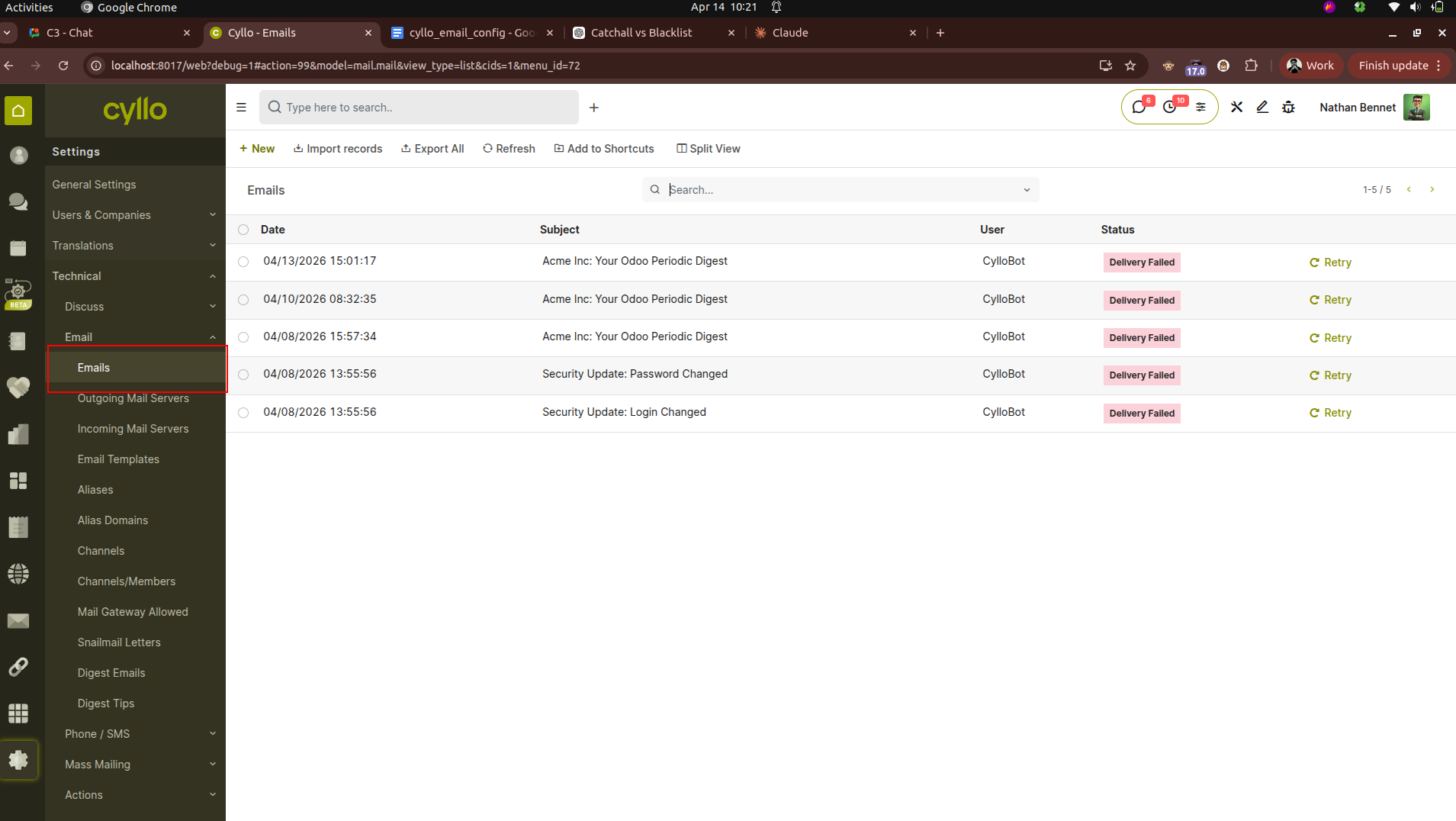
Fig 8.1 — Email Outgoing queue
8.3. Delivery Failures & Bounces
Even when Cyllo successfully hands off an email to the SMTP relay, the relay or the receiving mail server may reject or bounce it. These delivery failures are returned to the configured bounce address and processed by Cyllo automatically. Understanding delivery failure codes helps diagnose and resolve issues:
| Bounce Code | Meaning | Action Required |
|---|---|---|
| 550 5.1.1 | Recipient email address does not exist | Correct the email address on the partner record. Remove the invalid email flag after correction. |
| 550 5.7.1 | Message rejected — spam policy or blacklisting | Check if the sending IP is on a blacklist (use MXToolbox). Ensure SPF, DKIM, and DMARC are correctly configured for the sending domain. |
| 421 / 450 | Temporary failure — receiving server busy or unavailable | Cyllo's mail relay will retry. Monitor the queue. If persistent, the recipient's mail server may be experiencing issues. |
| 535 5.7.8 | Authentication credentials rejected by SMTP relay | Re-enter SMTP credentials. For Gmail, regenerate the App Password. For SendGrid, check the API key is valid and has mail send permission. |
| 530 5.7.0 | Must issue STARTTLS first | Connection Security is set to None but the server requires STARTTLS. Change to STARTTLS and set port to 587. |