

Cyllo Product Lifecycle Management (PLM) Documentation
Introduction
Cyllo’s Product Lifecycle Management (PLM) module helps manufacturing teams manage product changes, BOM revisions, engineering updates, and document tracking throughout the product lifecycle. The PLM module ensures that all modifications to products, operations, and Bills of Materials are properly tracked and version-controlled before being used in production. This helps organisations maintain accurate production data, reduce manufacturing errors, and improve coordination between engineering and production teams.
The module includes Engineering Change Orders (ECOs), BOM versioning, and document management. Users can create and manage multiple product revisions, compare BOM changes, attach technical documents, and monitor the impact of engineering modifications on manufacturing operations. While the PLM module itself does not include a built-in approval workflow, organisations that require structured approval processes can integrate it with the Cyllo Approval module to manage validation and approval stages for engineering changes and product revisions.
1. Engineering Change Orders (ECO)
1.1 Engineering Change Orders
Engineering Change Orders (ECOs) are used to manage and track modifications to products or Bills of Materials (BOMs) before those changes become effective in production. ECOs help maintain revision history, ensure controlled product updates, and provide traceability for engineering modifications.
In Cyllo PLM, the behaviour of an ECO depends on the selected ECO Type. If the ECO Type is set to Product, users can select a product and make changes directly to the product information. Applying the ECO, updates the product version automatically. If the ECO Type is set to BOM Change, users can select a Bill of Materials. Clicking Start Revision creates a new BOM revision in an unarchived state, allowing modifications to be made without affecting the active BOM. Once the changes are completed and the ECO is applied, the original BOM is archived automatically and the revised BOM becomes the active version.
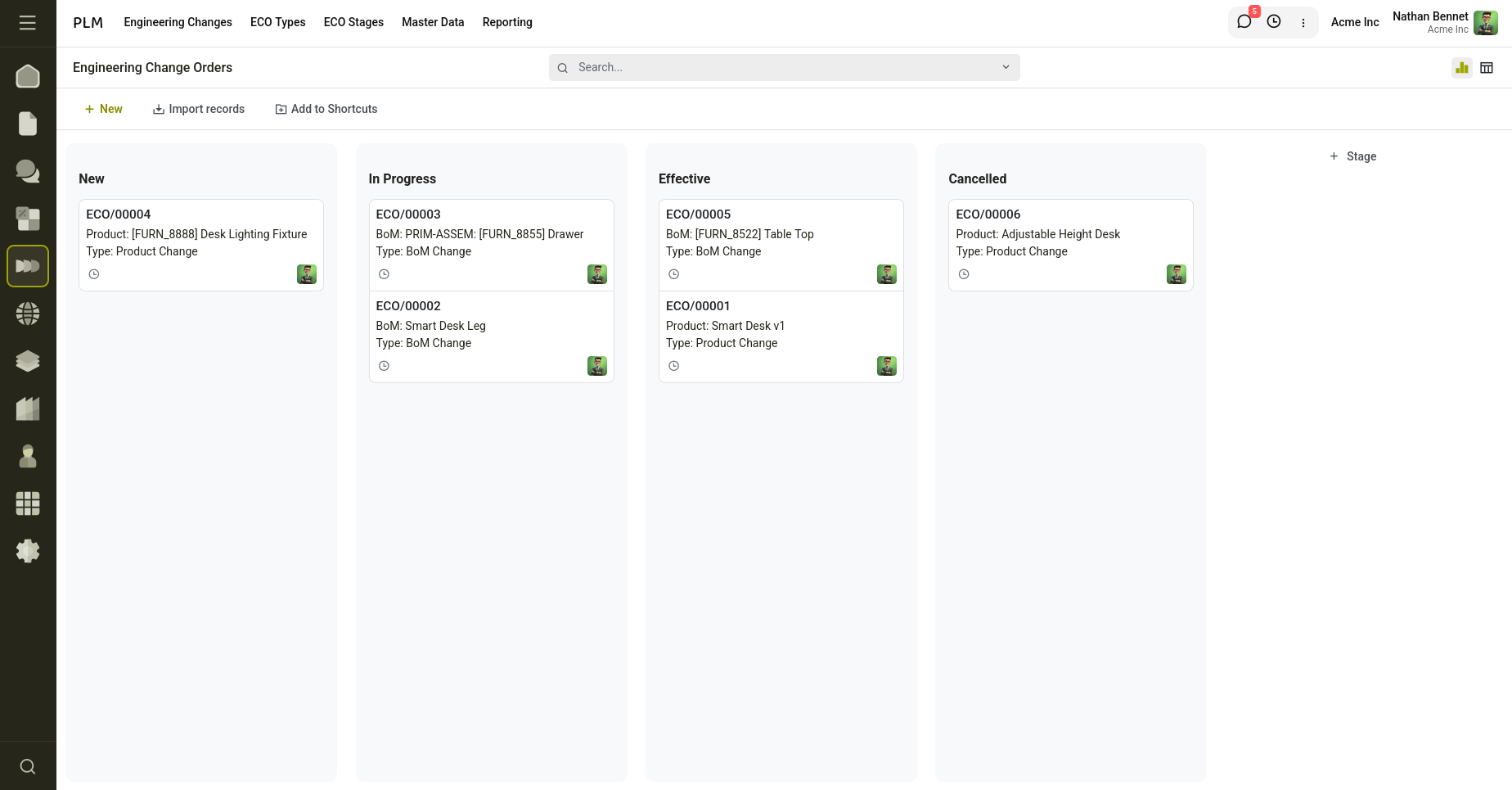
Fig 1.1 — Engineering Change Order Kanban view with stages.
How to Create an ECO:
- Go to PLM → Engineering Changes→ New
- Select the ECO Type
- If ECO Type is Product, select the Product
- If ECO Type is BOM Change, select the BOM
- Assign Responsible User
- Add Description of the changes made
- Click Start Revision to create the editable revision
- Make the required changes
- Click Apply Changes to activate the revision
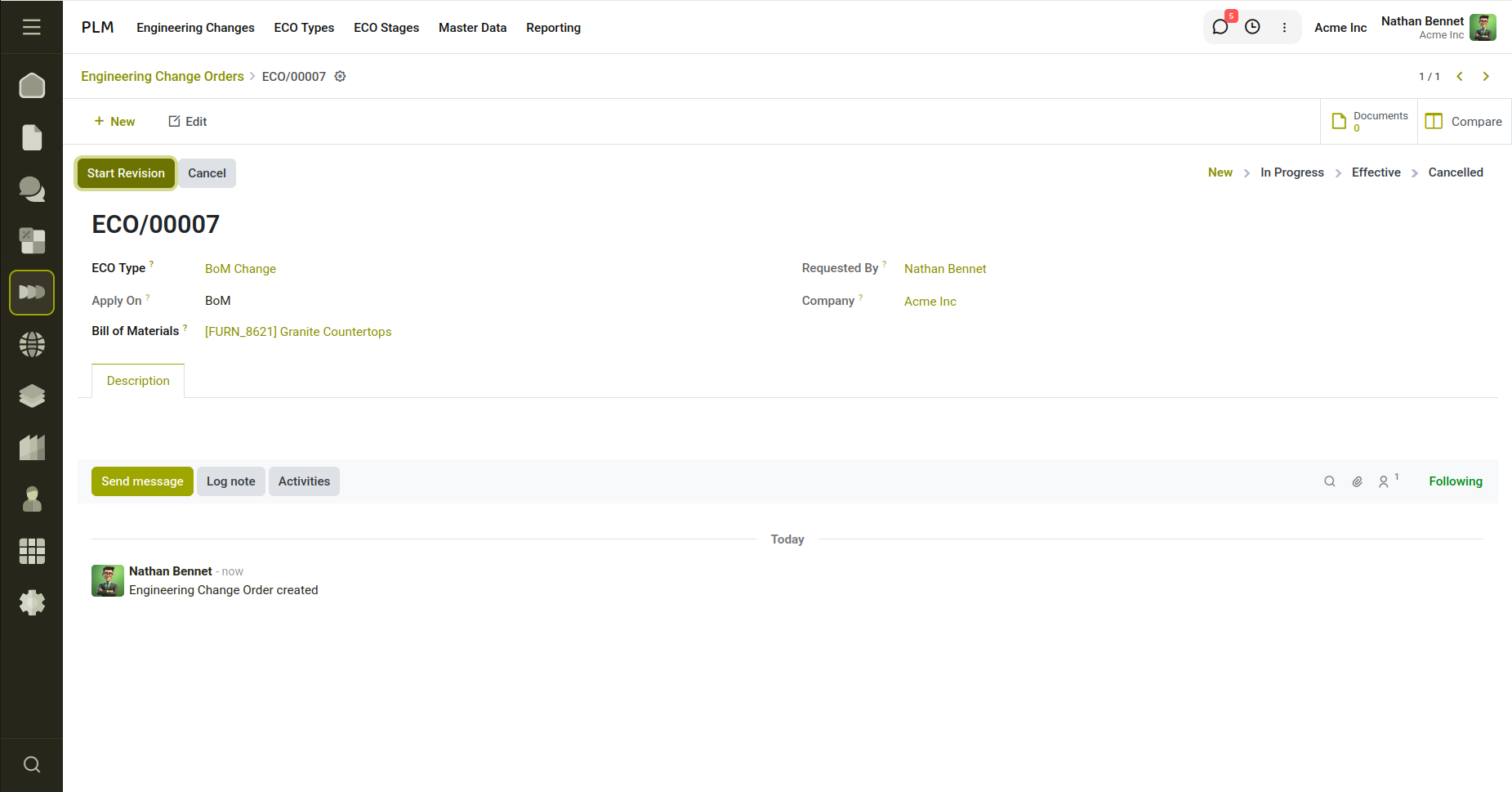
Fig 1.2 — Engineering Change Order form view.
Key Fields:
ECO Type: Defines whether the ECO applies to a Product or BOM Product: Product affected by the revision BOM: Bill of Materials being revised Responsible: User managing the ECO Stage: Current state of the ECO Description : A note of changes made to Product/Bom
1.2 ECO Stages
ECO Stages define the workflow states through which an Engineering Change Order progresses during its lifecycle. Stages in Cyllo PLM are dynamic and can be configured based on the organisation’s engineering process.
At least one Progress stage, one Done stage, and one Cancelled stage must exist in the workflow configuration. These stages determine how the ECO behaves and whether further modifications are allowed.
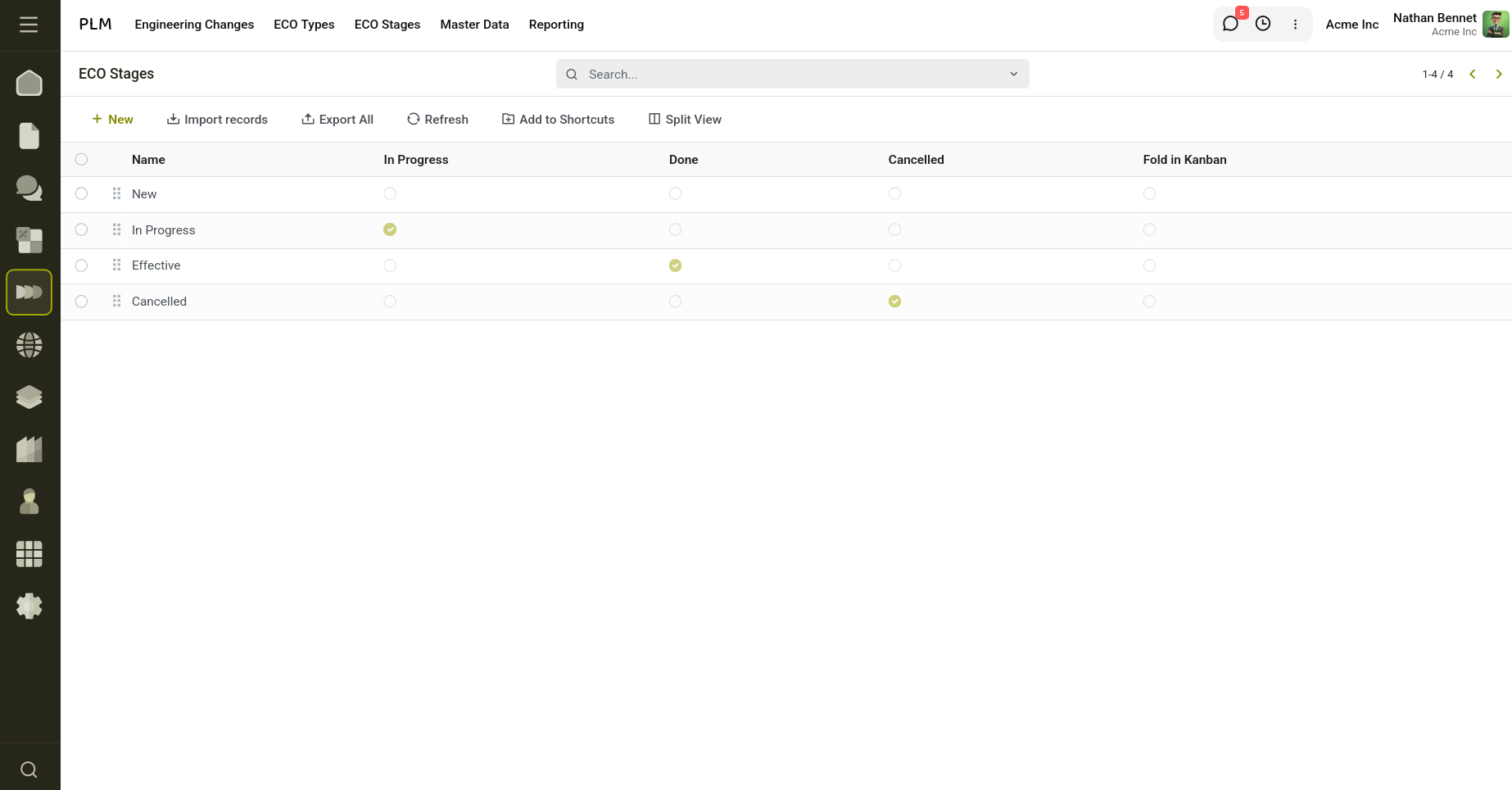
Fig 1.3 — Engineering Change Order stages.
How to Configure ECO Stages:
- Go to PLM → ECO Stages
- Create or edit stages
- Configure whether the stage represents:
- In Progress
- Done
- Cancelled Save the stage configuration
Key Fields
Stage Name: Name of the workflow stage Is Progress Stage: Indicates the ECO is currently active and editable Is Done Stage: Marks the ECO as completed and effective Is Cancelled Stage: Marks the ECO as cancelled Folded in Kanban: Collapses the stage in kanban view
Stage Rules
- At least one Progress stage is required
- At least one Done stage is required
- At least one Cancelled stage is required
- A stage marked as Done cannot also be marked as Cancelled
- A stage marked as Cancelled cannot also be marked as Done
- ECOs in Done or Cancelled stages cannot be moved back to an active progress stage
1.3 ECO Types
ECO Types define the category and behaviour of an Engineering Change Order. They help organise different kinds of engineering changes and determine whether the ECO applies to a Product or a Bill of Materials (BOM).
Users can create multiple ECO Types based on organisational requirements, such as BOM Change or Product Update. The selected type controls which records can be revised during the ECO process.
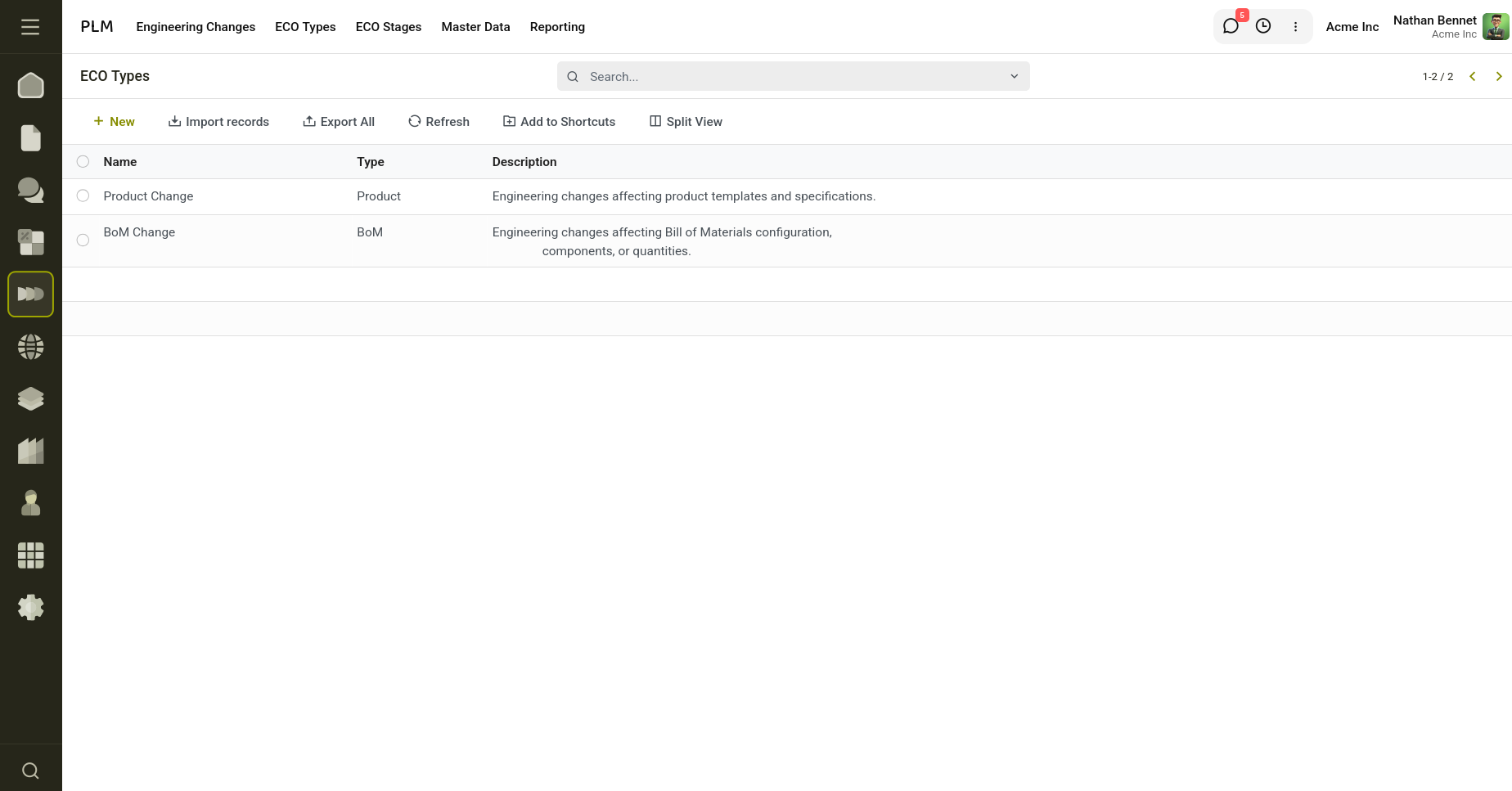
Fig 1.4 — Engineering Change Order Types.
How to Configure ECO Types:
- Go to PLM → ECO Types
- Click New
- Enter the ECO Type Name
- Select the Type:
- Product
- BOM
- Add a Description explaining the purpose of the ECO Type
- Save
Key Fields
Name: Name of the ECO Type, such as BOM Change or Product Revision Type: Defines whether the ECO applies to a Product or BOM Description: Additional explanation or purpose of the ECO Type
2. Version Control
2.1 BOM Version
Cyllo PLM allows multiple revisions of a Bill of Materials (BOM) to be managed while maintaining complete historical traceability. BOM revisions are controlled through Engineering Change Orders (ECOs), ensuring that production changes are properly tracked and previous versions remain preserved for reference.
When an ECO with the type BOM Change is created, users can select the BOM that requires modification. Clicking Start Revision automatically creates a new duplicate BOM in an unarchived state while the original BOM remains active. Users can then make the required changes to components, quantities or operations , within the revised BOM without affecting ongoing manufacturing operations.
Once the ECO is applied, Cyllo automatically archives the original BOM and activates the revised BOM as the current production version. The BOM version is updated automatically to reflect the revision change, ensuring that future Manufacturing Orders use the latest active BOM while historical production records continue referencing the previous archived versions.
2.2 Product Version
Cyllo PLM also supports version control for products through Engineering Change Orders. When an ECO with the type Product is created, users can select the product that requires modification and make changes directly to the product information.
After clicking Start Revision, the product enters revision mode, allowing updates to fields such as product name, specifications, internal reference, attributes, or related configuration details. Once the changes are completed and the ECO is applied, Cyllo automatically updates the product version to reflect the new revision.
2.3 Revision Comparison
Cyllo PLM provides a Compare smart button within revisions to help users identify changes made between previous and revised records. Clicking the Compare button opens a comparison wizard that displays the modified values in Before and After columns.
If the selected ECO Type is BOM, the comparison wizard displays changes made to the Bill of Materials, including components, quantities and operations.
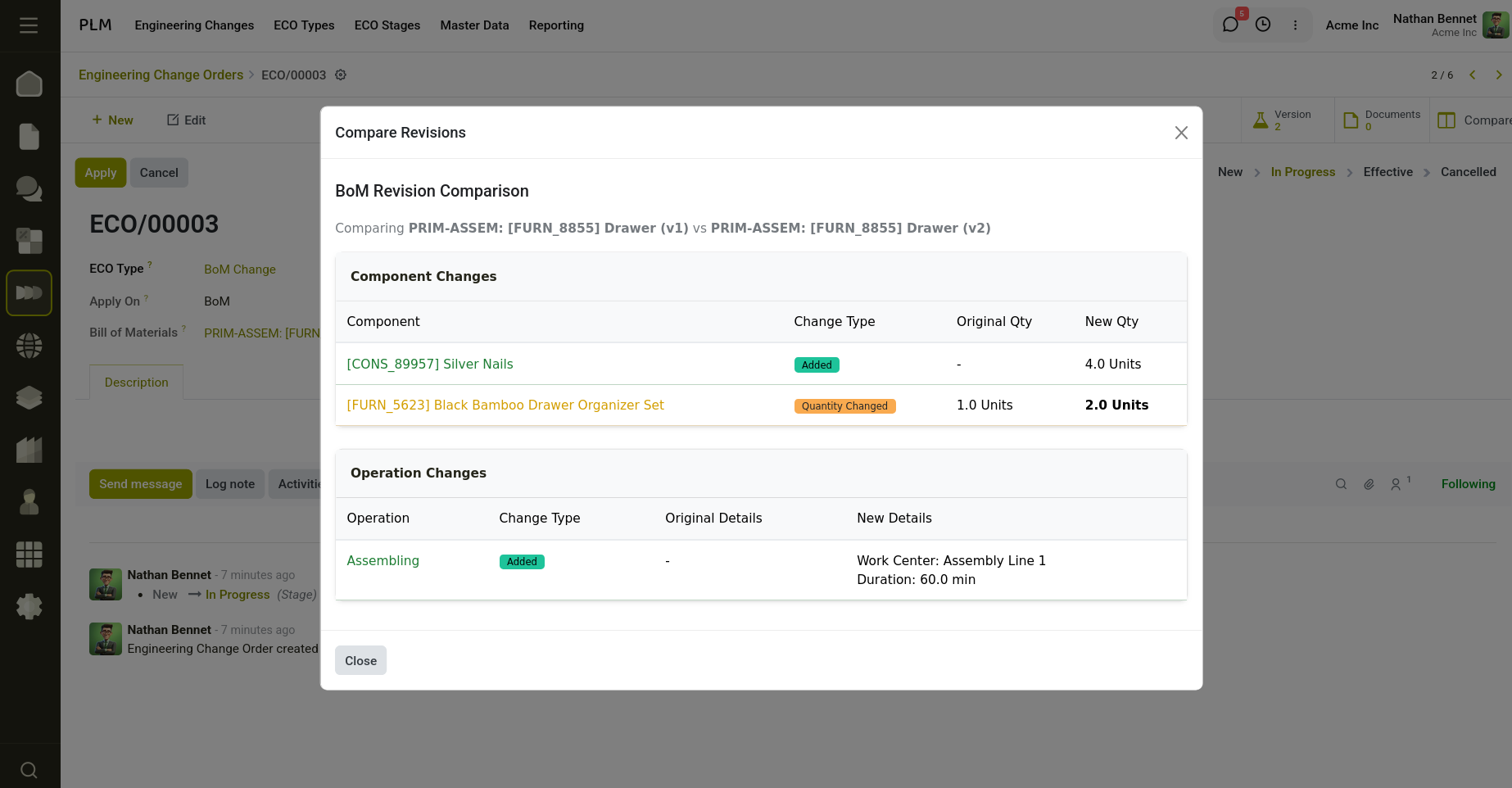
Fig 2.1 — Revision comparison of Bill of Materials
If the selected ECO Type is Product, the comparison wizard displays changes made to the product information, such as product name, internal reference, attributes, and other product configuration details.
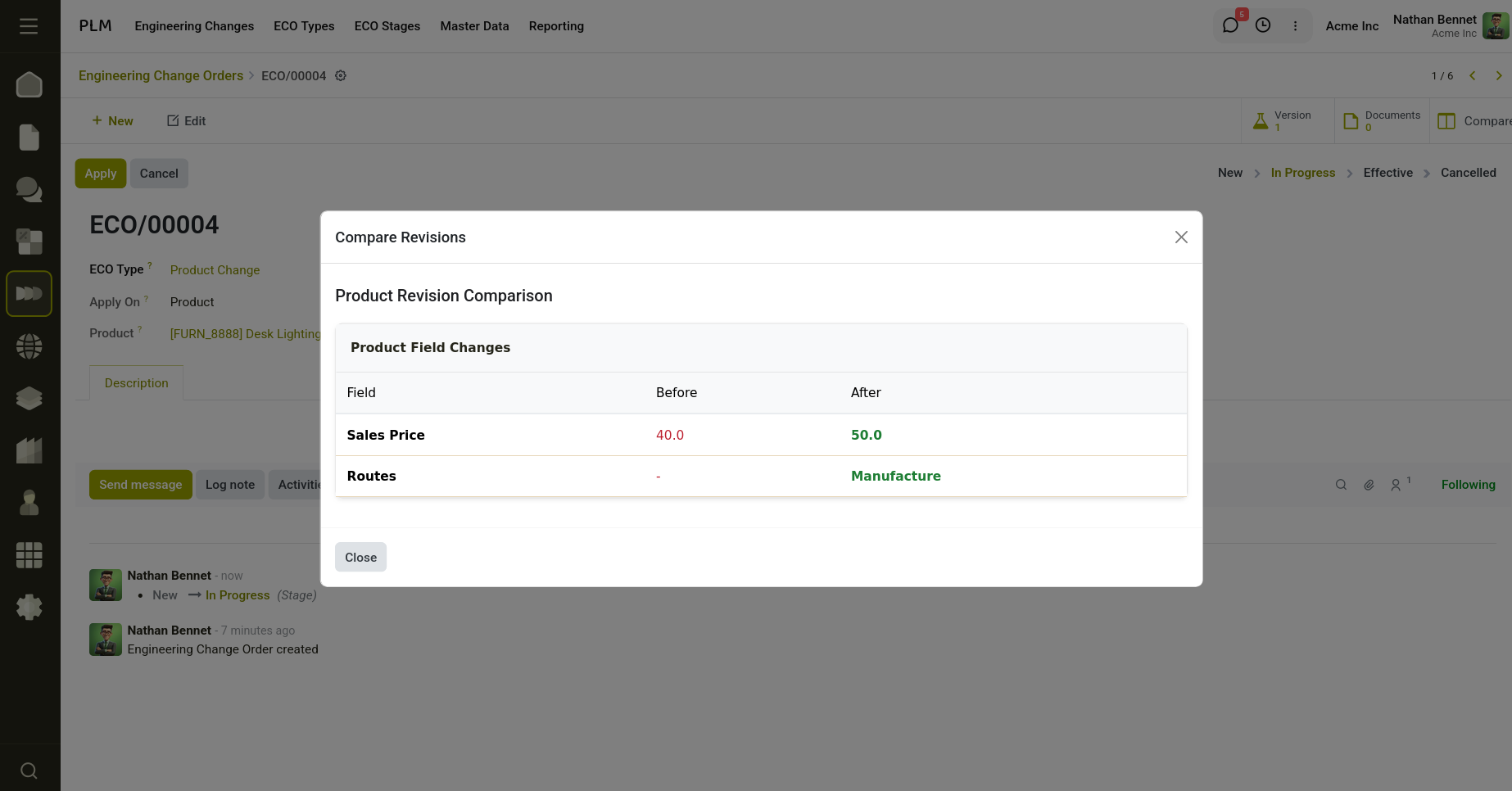
Fig 2.2 — Revision comparison of Product
3. Reporting
3.1 Product ECO Analysis
The Product ECO Analysis report provides analytical insights into Engineering Change Orders related to product revisions and updates. The report helps organisations monitor the number of ECOs created for products, track engineering modifications, and analyse revision activities across different products and companies.
The analysis view supports multiple reporting formats such as Graph, Pivot, and List views, allowing users to visualise product revision trends and engineering activities more effectively. Users can apply filters, group records, and use measures to analyse ECO data based on products, responsible users, companies, or stages.
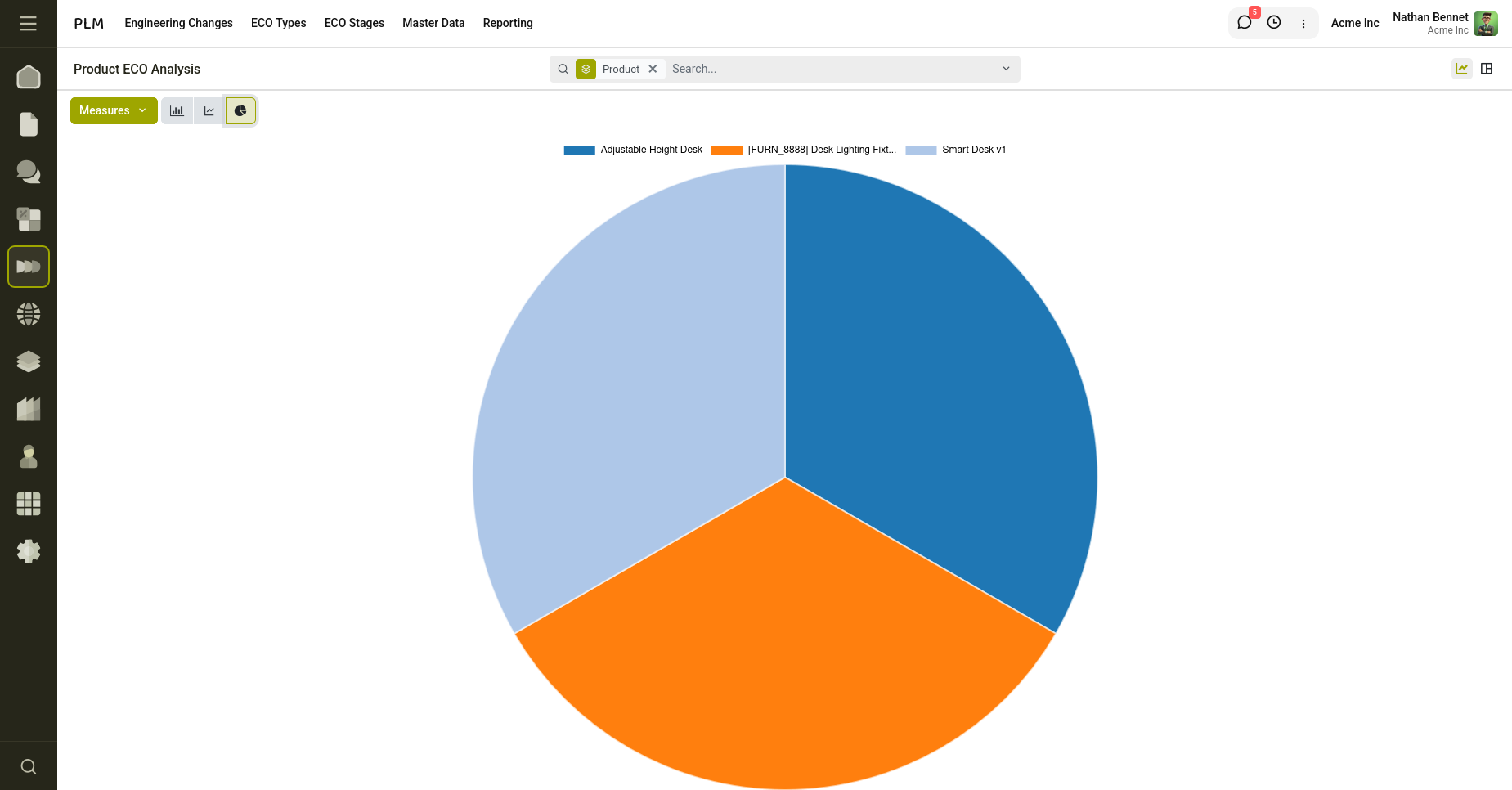
Fig 3.1 — Product ECO Analysis Report
How to Access the Product ECO Analysis Report:
- Go to PLM → Reporting → Product ECO Analysis
- Select the preferred reporting view
- Apply filters or grouping options
3.2 BOM ECO Analysis
The BOM ECO Analysis report provides analytical insights into Engineering Change Orders related to Bill of Materials (BOM) revisions and manufacturing structure changes.
The analysis view supports multiple reporting formats such as Graph, Pivot, and List views, enabling users to visualise BOM revision activities and engineering trends more effectively. Users can apply filters, grouping options, and measures to analyse ECO records based on BOMs, responsible users, companies or stages.
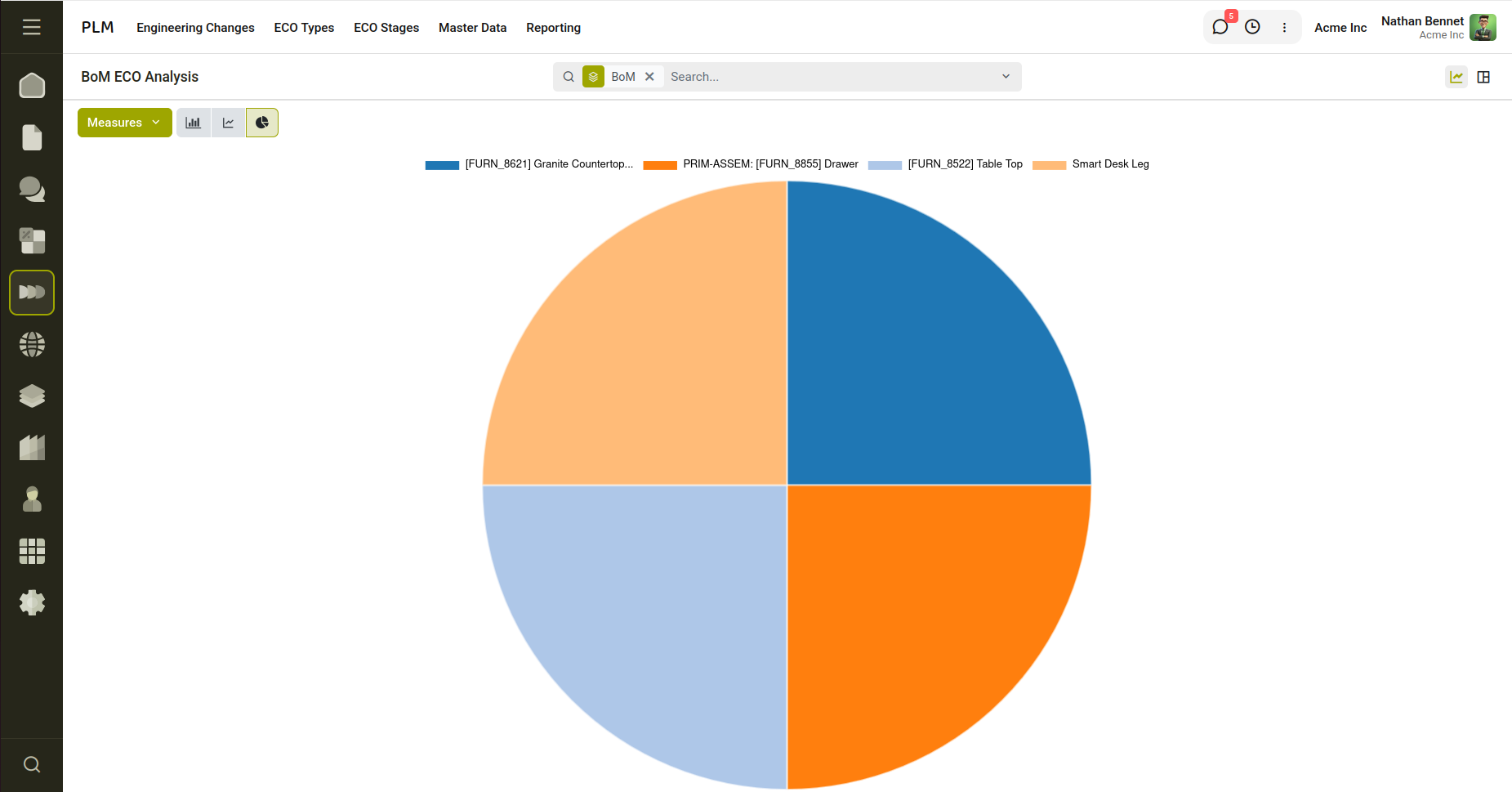
Fig 3.2 — Bill of Materials ECO Analysis Report
How to Access the BOM ECO Analysis Report:
- Go to PLM → Reporting → BOM ECO Analysis
- Select the preferred reporting view
- Apply filters or grouping options