

Cyllo Plan to Produce deliver Documentation
Introduction
The Plan-to-Produce-Deliver workflow in Cyllo covers the end-to-end operational cycle that begins when a production need is identified — whether triggered by a sales order, a reorder rule, or a manual plan — and ends when finished goods are delivered to the customer. This workflow spans three core modules: Manufacturing (MRP), Inventory, and Sales, all operating on a shared real-time database. Cyllo connects every stage of this cycle automatically. A confirmed sales order triggers demand signals in MRP; manufacturing orders draw components from inventory; completed production moves stock to outgoing locations; and delivery orders close the loop with the customer. No manual handoffs or data re-entry are needed across these stages. The result is a fully traceable, audit-ready flow from production plan to customer delivery.
1. Production Planning
This section covers how production requirements are identified, planned, and converted into actionable manufacturing orders.
1.1 Creating a Manufacturing Order (MO)
A Manufacturing Order (MO) is the primary document that authorizes and tracks production of a finished product. MOs can be created manually or generated automatically when demand arises from a sales order or reorder rule.
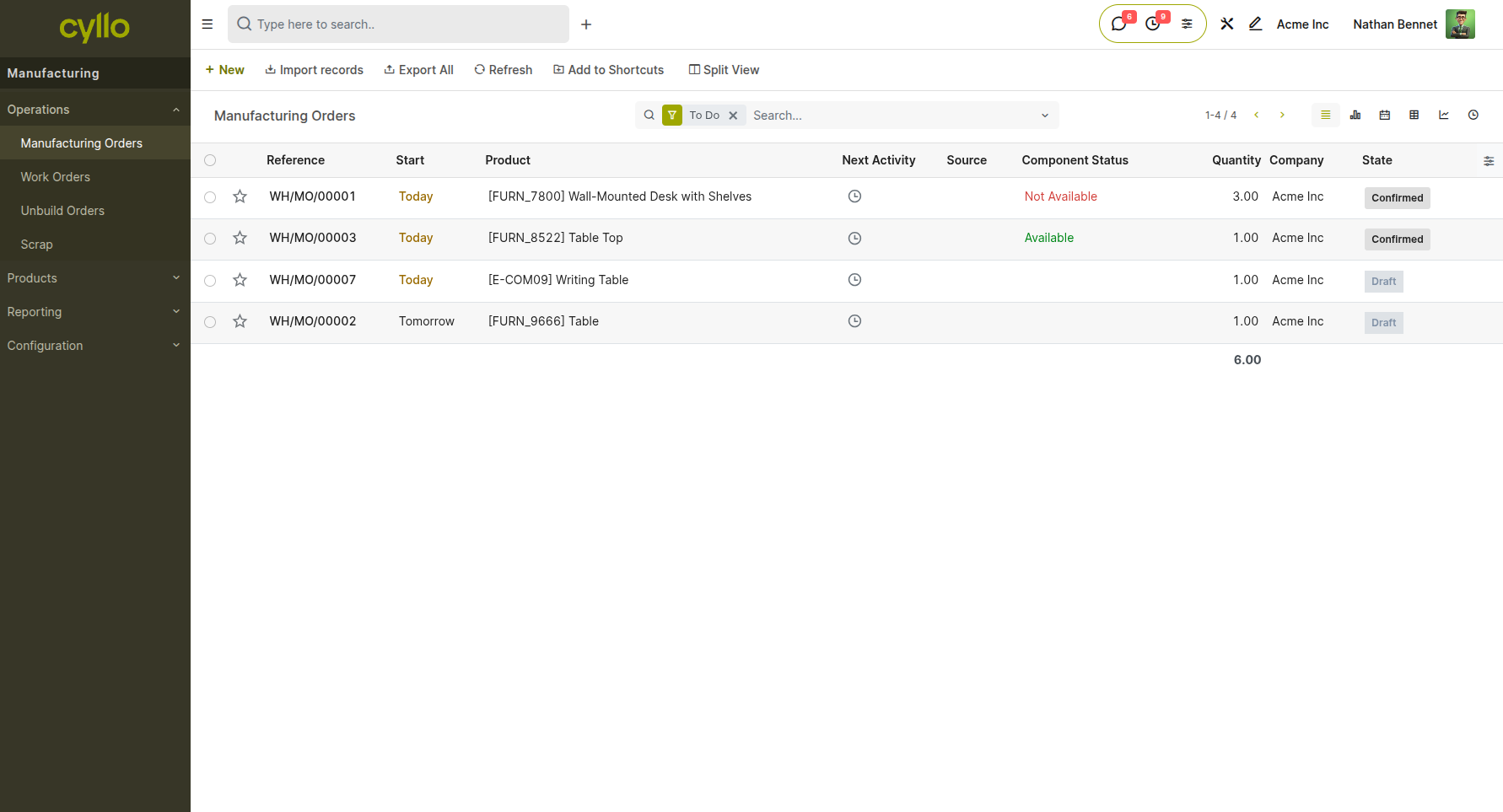
Fig 1.1 — Manufacturing Order list view with To-do filter (Status in Draft, Confirmed)
How to create a Manufacturing Order:
- Go to Manufacturing → Operations → Manufacturing Orders
- Click New
- Select the product to manufacture and set the planned quantity
- Set the Bill of Materials (BOM) — Cyllo auto-fills components based on the selected BOM
- Set the Scheduled Date for production
- Click Confirm to move the MO from Draft to Confirmed status
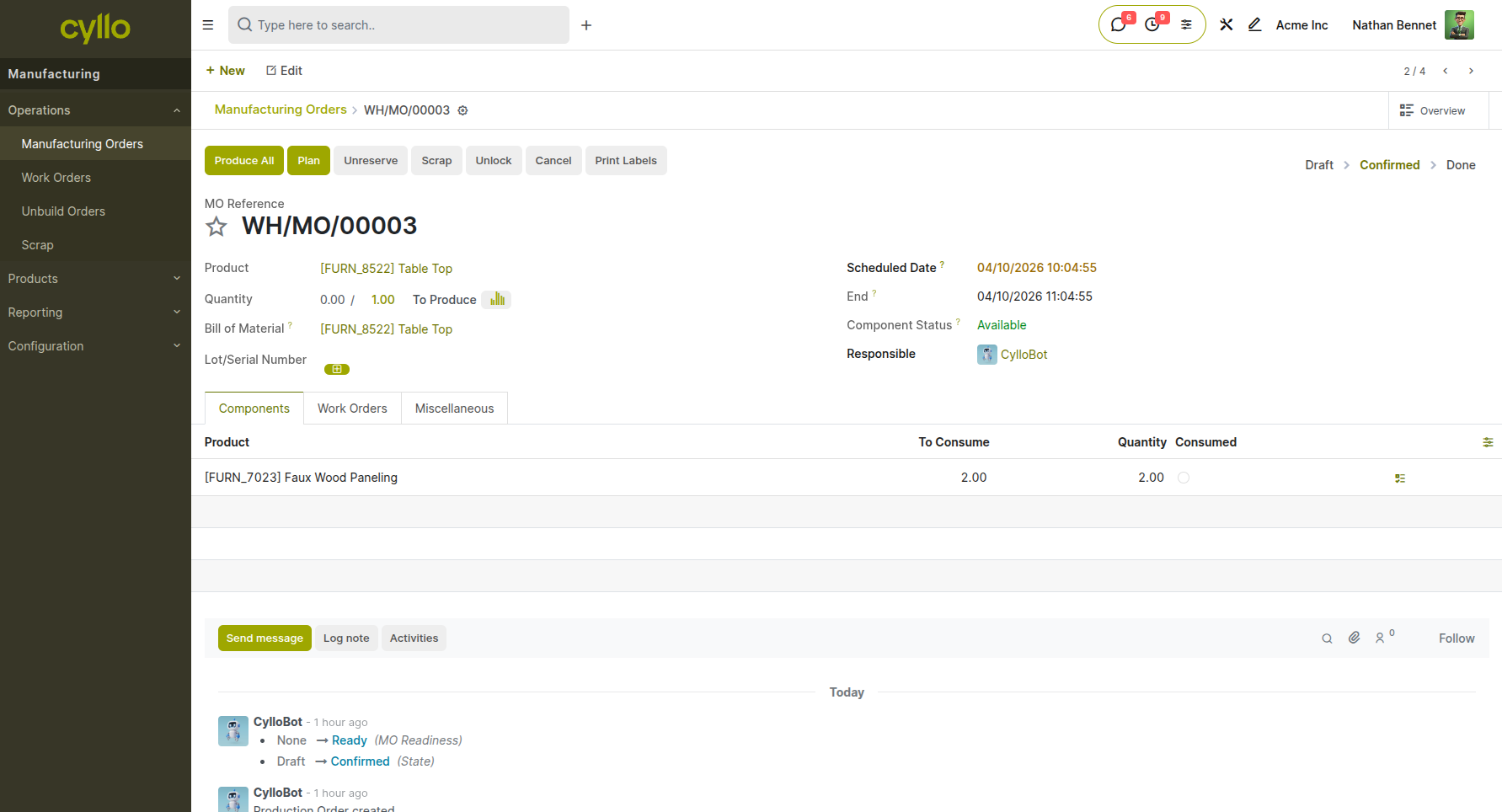
Fig 1.2 — Manufacturing Order form showing product, BOM, components, and work order tabs
Key Fields
- Product: The finished good to be produced
- Bill of Materials: The production blueprint defining required components and operations
- Quantity: The number of units to produce in this run
- Scheduled Date: The planned start date; used for capacity and material planning
- Responsible: The user or team accountable for this production run
Note
When a sales order is confirmed for a product set to "Manufacture on Demand," Cyllo automatically generates a draft MO and links it to the sales order, eliminating the need for manual creation.
1.2 Bill of Materials (BOM)
A Bill of Materials defines the components, quantities, and operations required to produce one unit of a finished product. It acts as the production blueprint for every MO that references it.
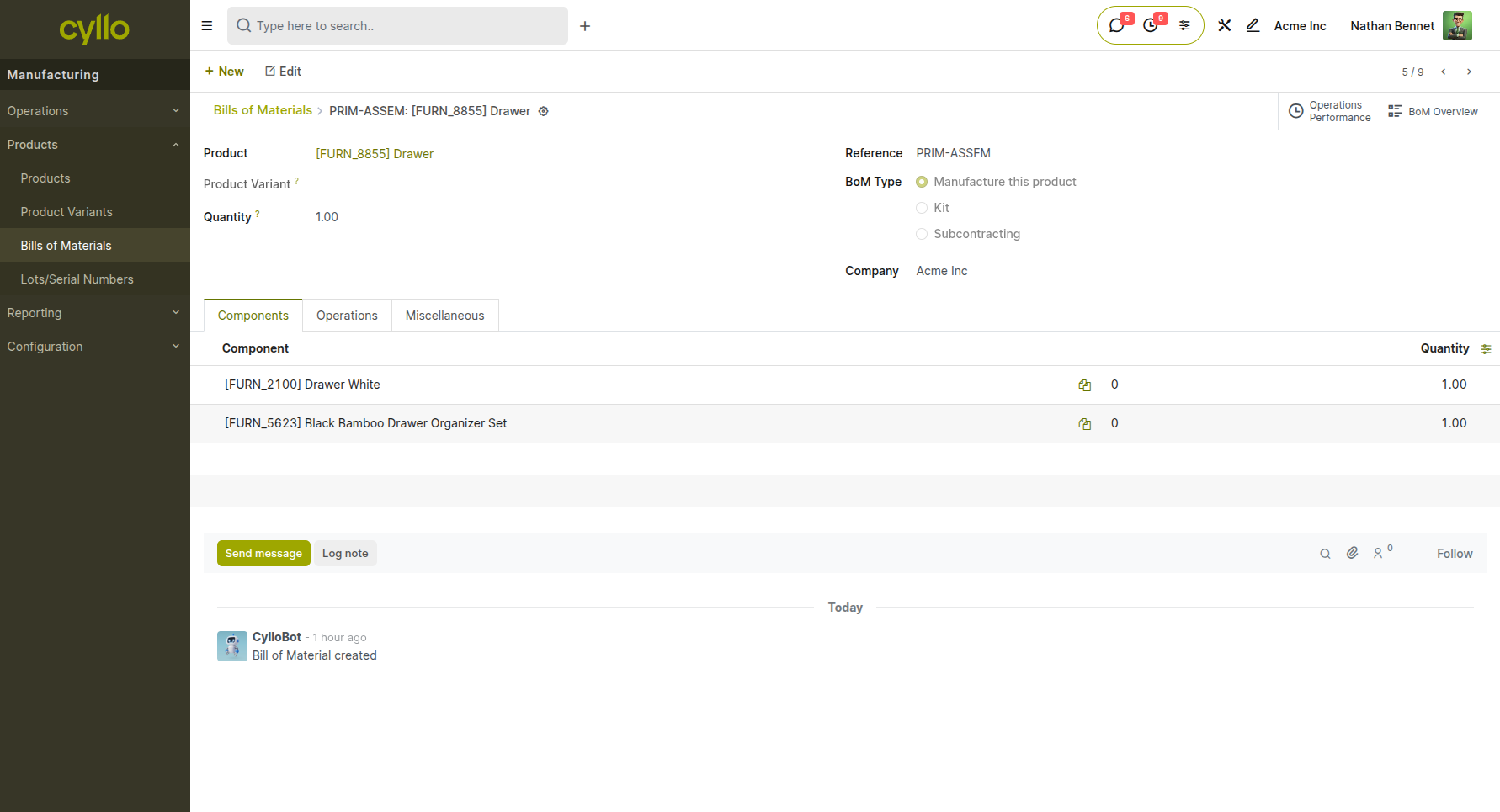
Fig 1.3 — BOM form showing product, BOM type, components list, and operations tab
How to create a Bill of Materials:
- Go to Manufacturing → Products → Bills of Materials
- Click New
- Set the finished product and quantity produced per BOM
- In the Components tab, add each raw material or sub-assembly with its required quantity
- Optionally add Operations in the Operations tab for work center routing
- Save the BOM
Note
Cyllo supports multi-level BOMs. If a component is itself a manufactured product, its own BOM is pulled in automatically during production planning.
1.3 Work Orders and Work Centers
Work Orders define the individual operations to be performed during production, and Work Centers represent the machines, teams, or stations where those operations are carried out. Together they provide real-time visibility into shop-floor execution.
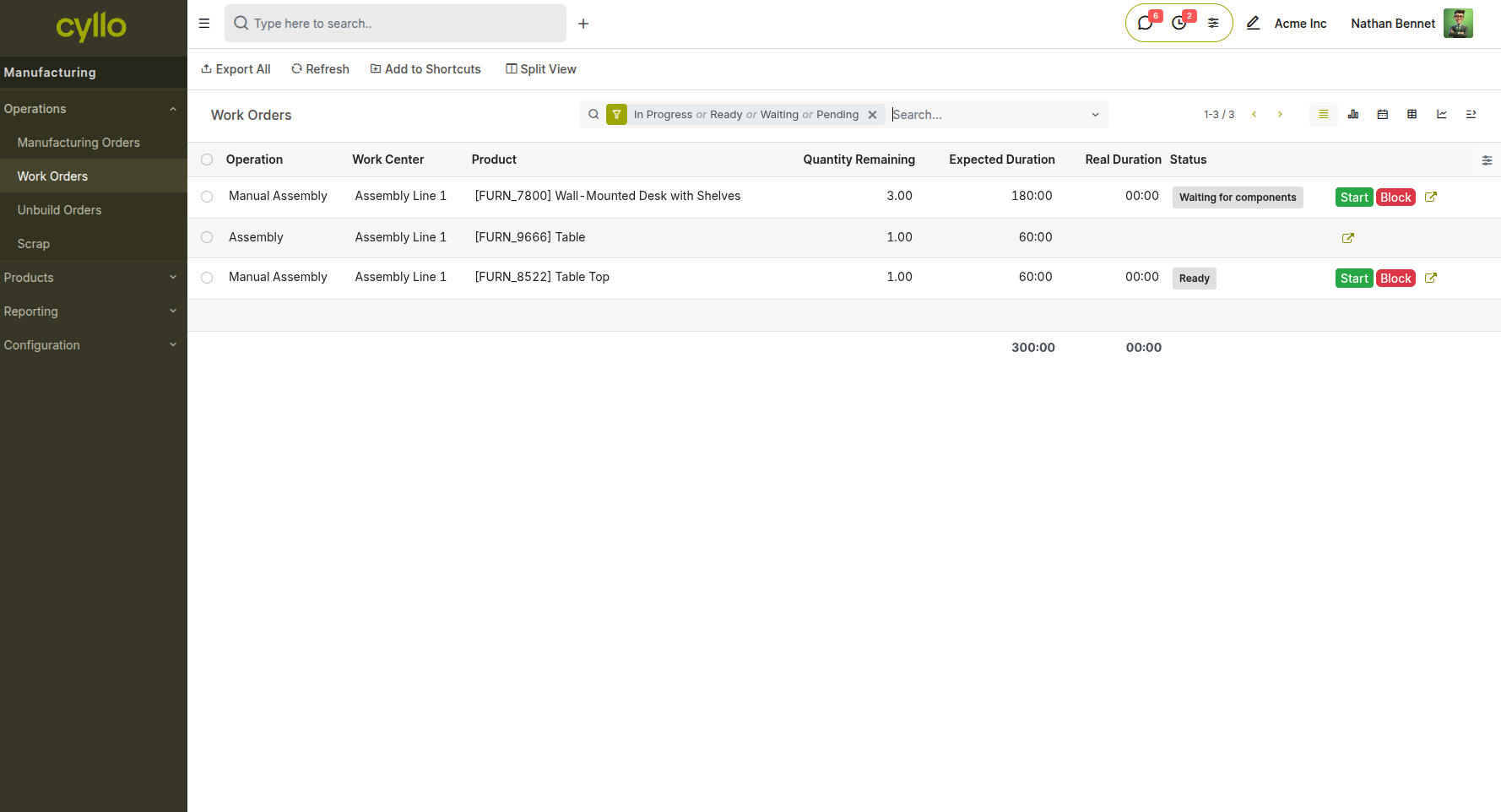
Fig 1.4 — Work Order list within an MO showing operation name, work center, duration, and status
How to manage Work Orders:
- Open a Confirmed Manufacturing Order
- Navigate to the Work Orders tab
- Each operation from the BOM appears as a work order line with assigned work center and estimated duration
- Click a work order to open it and start execution; set the actual duration and mark as Done when complete
- View planned vs. actual execution on the Gantt timeline: go to Manufacturing → Operations → Work Orders → Gantt view Key Fields
- Operation: The task to be performed (e.g., Assembly, Painting, Quality Check)
- Work Center: The station or team assigned to this operation
- Duration (Expected): Estimated time to complete
- Scheduled Start / End: Planned window on the production timeline
Note
Work Order Dependencies can be configured so that a subsequent operation cannot begin until its predecessor is marked complete — preventing out-of-sequence production.
1.4 Production Scheduling (Gantt View)
Cyllo provides a visual Gantt-style planning timeline for work orders across all active manufacturing orders. This allows production managers to allocate capacity, identify bottlenecks, and reschedule operations with drag-and-drop controls.
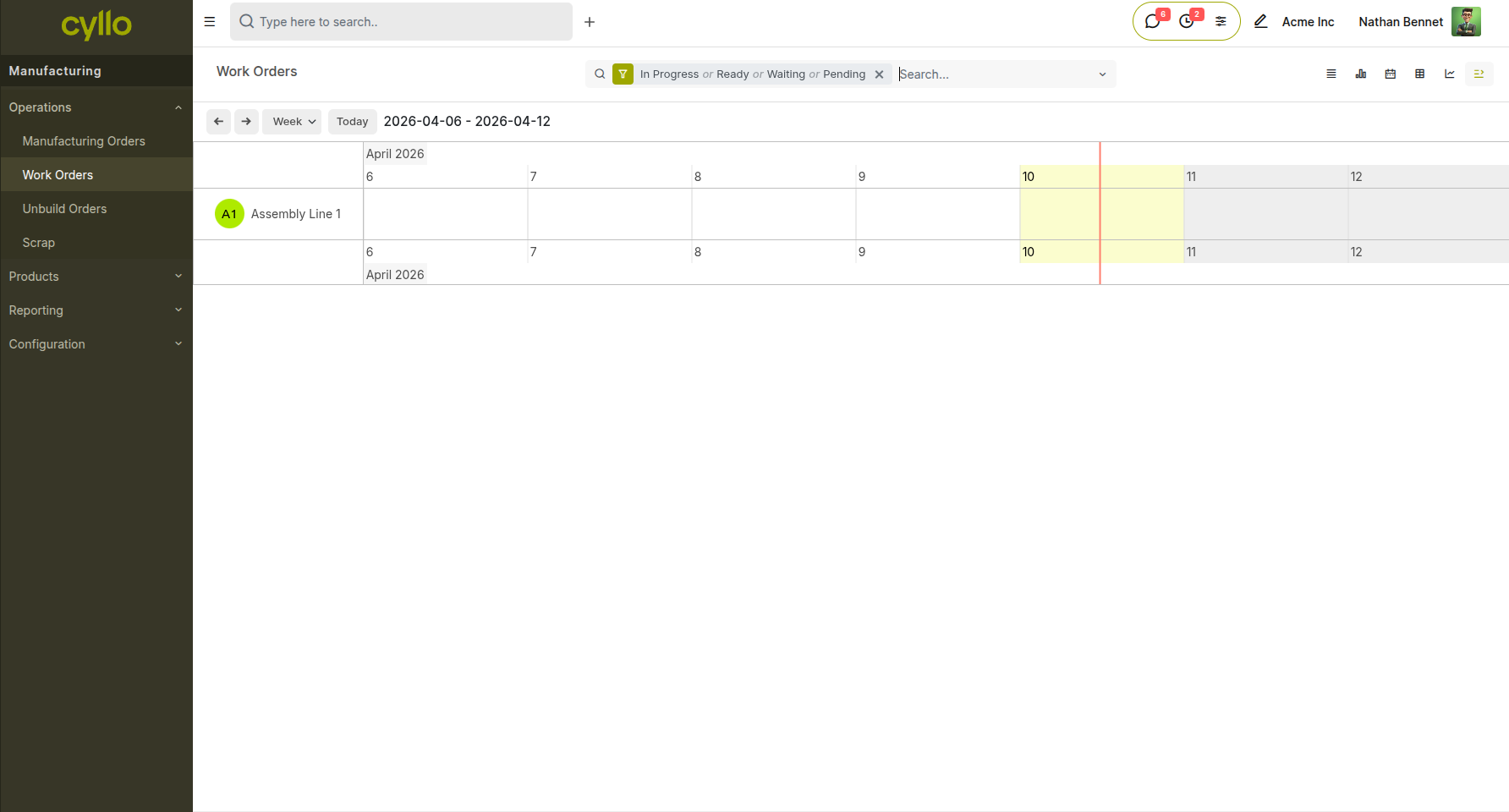
Fig 1.5 — Work Order Gantt view showing operations across multiple work centers by day and week
How to access the production schedule:
- Go to Manufacturing → Operations → Work Orders
- Switch to the Gantt view using the view toggle in the top-right corner
- Use the Day / Week toggle to change the planning horizon
- Drag and drop work order blocks to reschedule operations across time slots or work centers
2. Material Management
This section covers how raw materials and components are sourced, reserved, and consumed during the production process.
2.1 Component Availability and Reservation
Before production begins, Cyllo checks the availability of all components required by the MO. Components are reserved from stock when the MO is confirmed, giving warehouse teams clear visibility into what is needed and when.
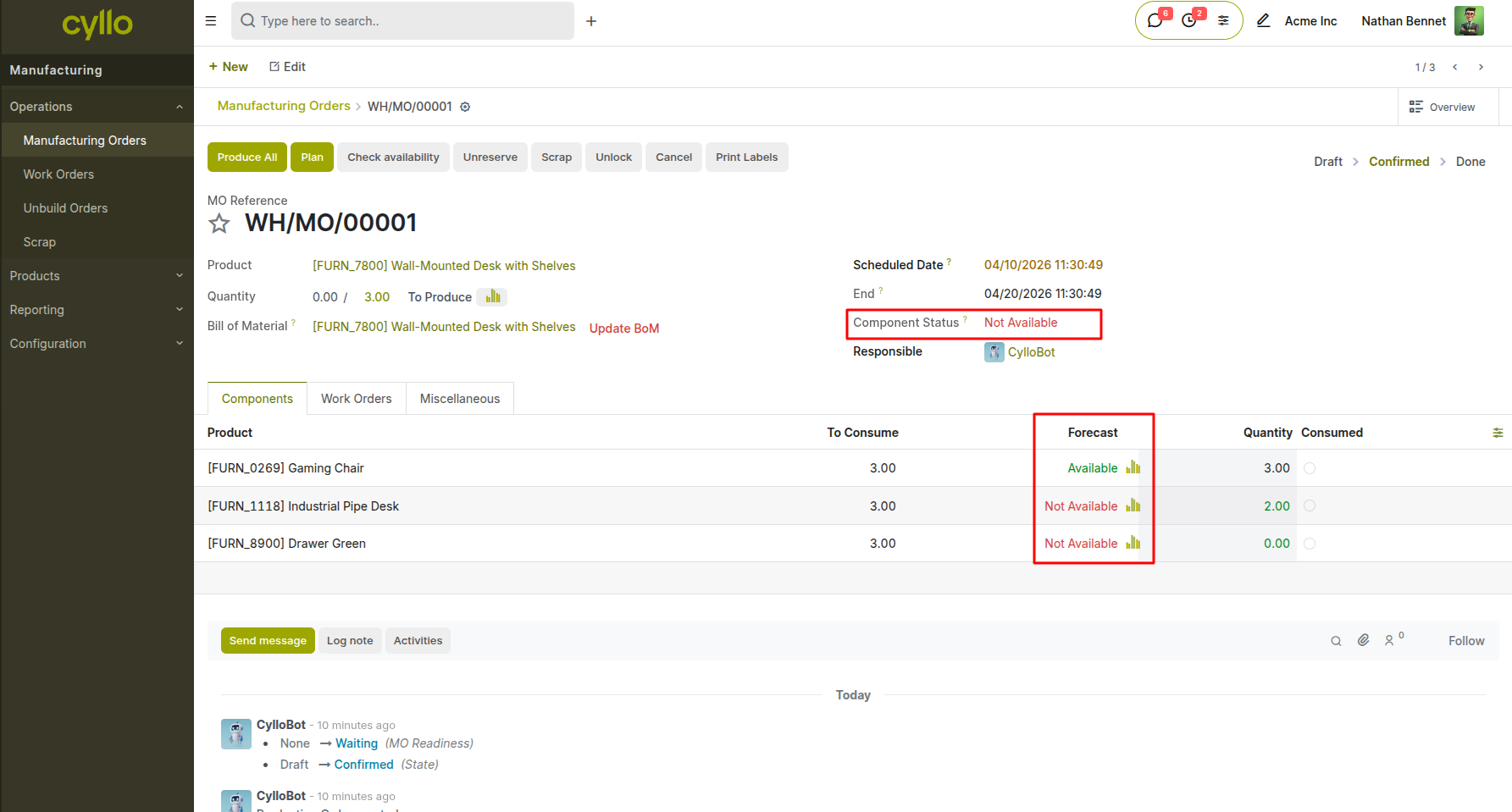
Fig 2.1 — MO form showing the Components tab with availability indicators (green = available, red = shortage)
How to check and reserve components:
- Open a Confirmed Manufacturing Order
- Navigate to the Components tab
- Each component shows current stock quantity and availability status
- Click Check Availability to attempt automatic reservation from on-hand stock
- If a shortage exists, Cyllo highlights the deficit quantity in red
Note
If components are insufficient, you can trigger a purchase order directly from the MO by clicking the Buy smart button that appears when stock falls short.
2.2 Allocation Report
The Allocation Report allows you to allocate finished products from a Manufacturing Order to specific sales orders. Once enabled, an Allocation smart button appears directly on the MO, giving production teams the ability to link completed or in-progress production output to pending customer demand.
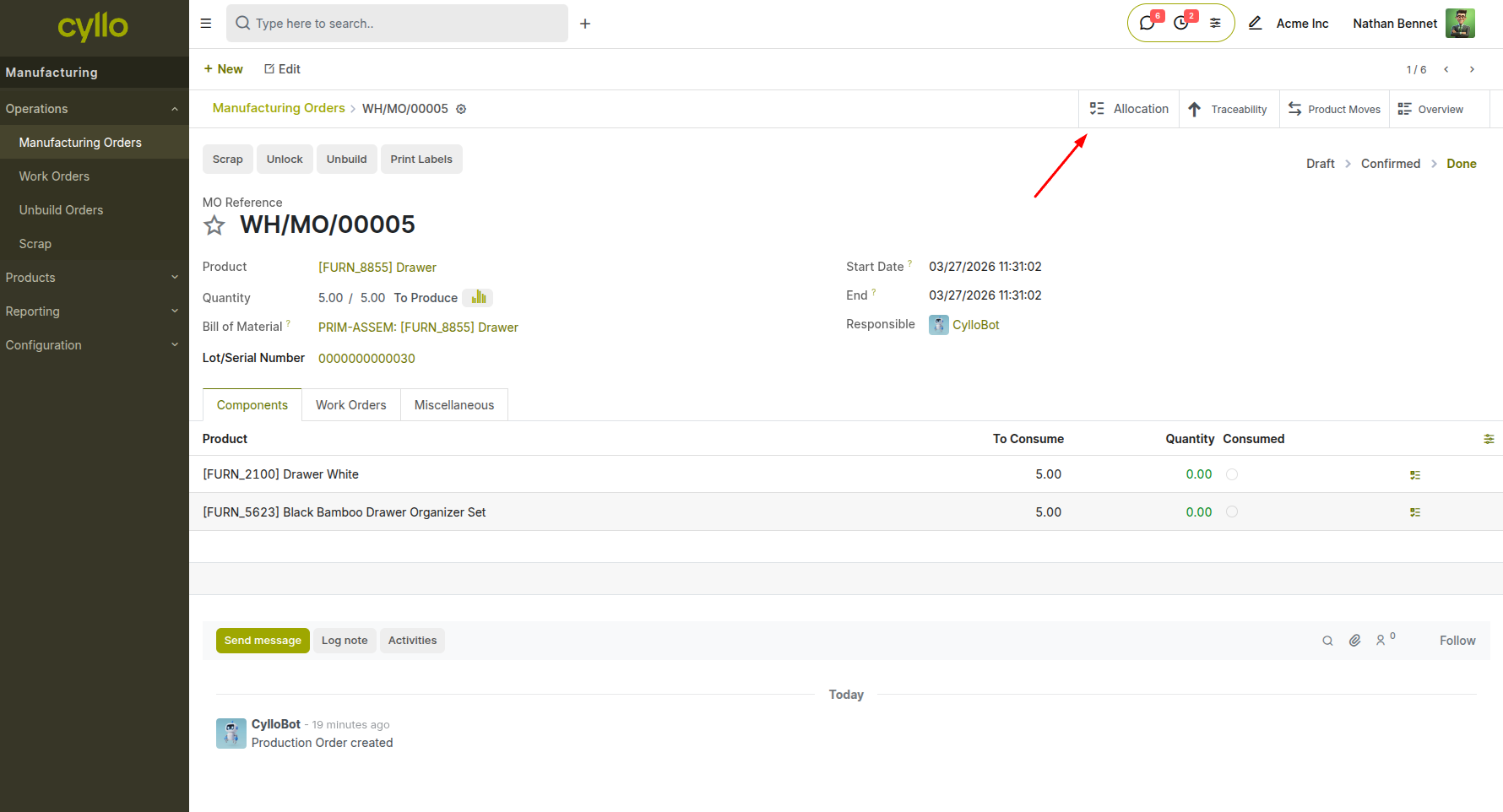
Fig 2.2 — Manufacturing Order form showing the Allocation smart button at the top after the feature is enabled
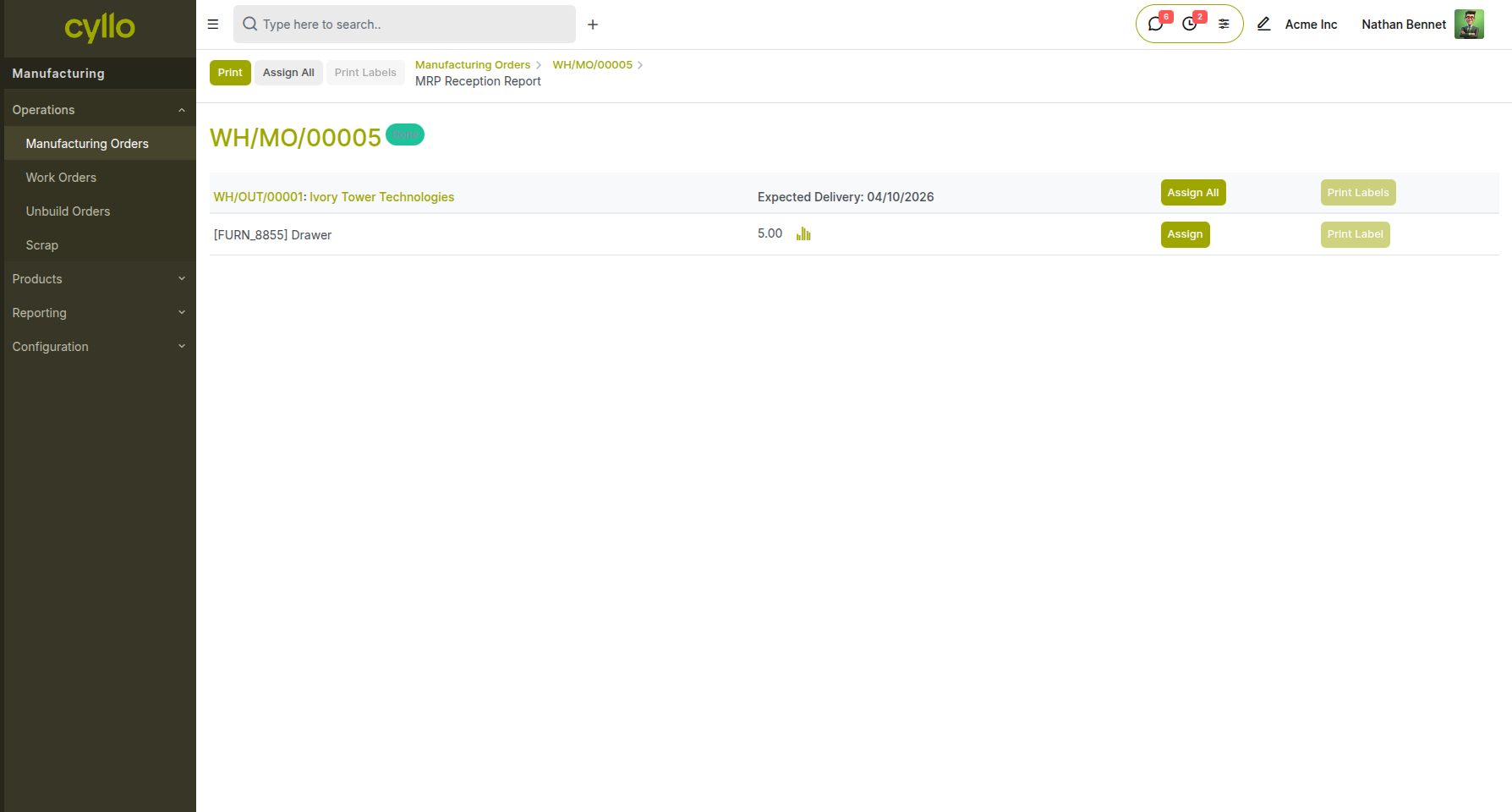
Fig 2.3 — Allocation interface showing move records with assign button.
Enabling the feature:
- Go to Manufacturing → Configuration → Settings
- Enable Allocation Report for Manufacturing Orders
- Save the settings
How to use the Allocation Report:
- Open the relevant Manufacturing Order
- Click the Allocation smart button that appears at the top of the MO
- Assign the finished product quantity to the specific sales order(s) that require it
- Save — Cyllo links the production output to the selected demand, ensuring the right customer receives the right stock
Note
This feature is particularly useful when the same finished product is demanded by multiple sales orders simultaneously and production output needs to be deliberately directed to a specific order rather than fulfilled on a first-come basis.
2.3 Subcontracting
When a component or assembly is outsourced to an external vendor, Cyllo manages the entire subcontracting flow — sending components to the vendor, receiving the finished sub-assembly, and updating stock valuation automatically.
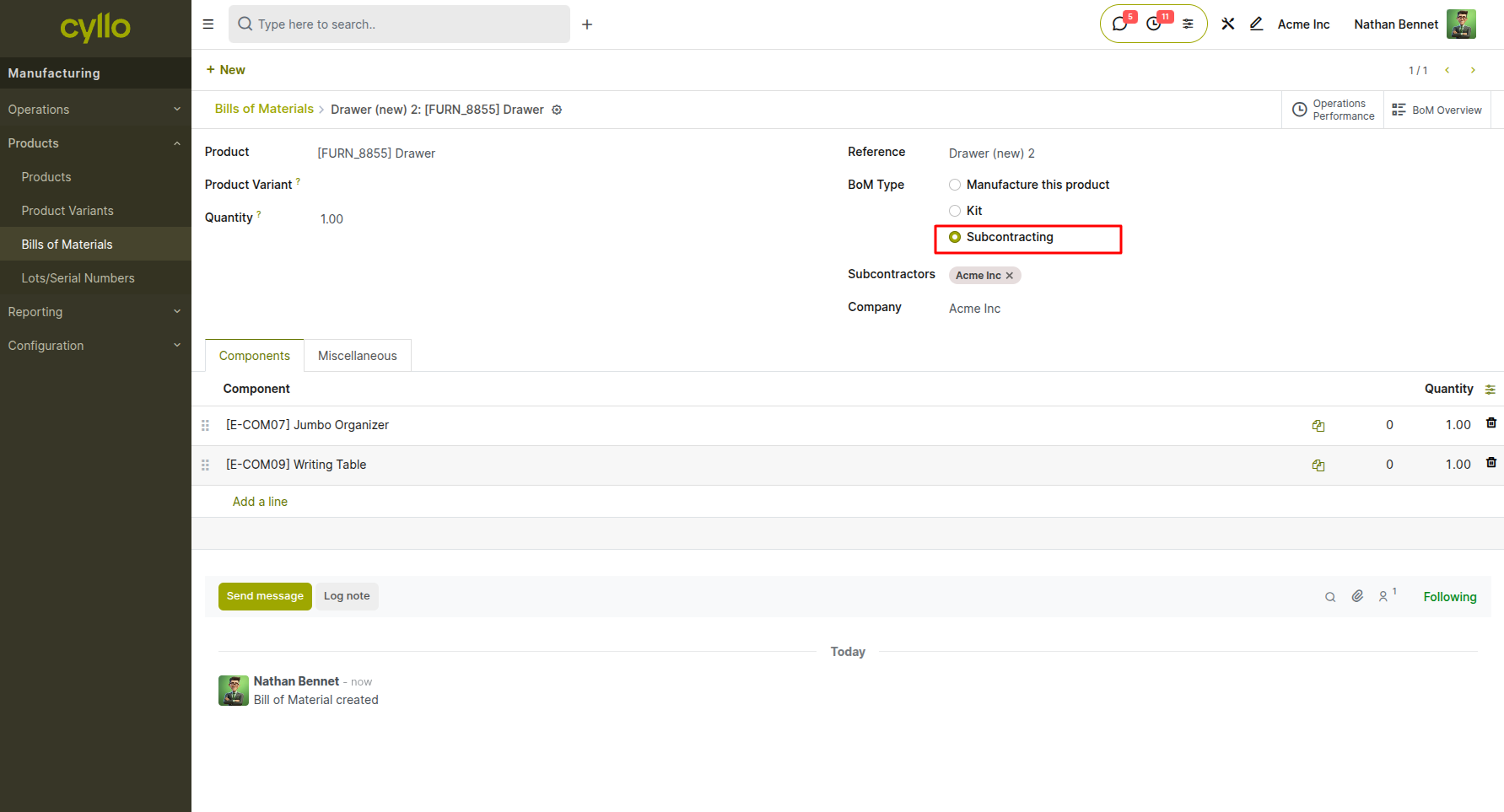
Fig 2.4: Subcontracting MO form showing vendor, components to send, and receipt of finished assembly
Enabling the feature:
- Go to Manufacturing → Configuration → Settings
- Enable Subcontracting
- Save the settings
How to set up and use subcontracting:
- On the BOM of the sub-assembly, set the BOM type to Subcontracting and select the subcontractor vendor
- When an MO requires this component, Cyllo automatically generates a subcontracting purchase order
- A delivery order is created to send raw components to the vendor
- Upon receipt of the finished assembly, a receipt document closes the loop and updates stock
3. Production Execution
This section covers how manufacturing orders are executed on the shop floor, including quality control and handling of secondary outputs.
3.1 Producing Against a Manufacturing Order
Executing an MO involves recording the actual quantities produced, confirming component consumption, and marking work orders as complete. Cyllo updates stock levels in real time as production progresses.
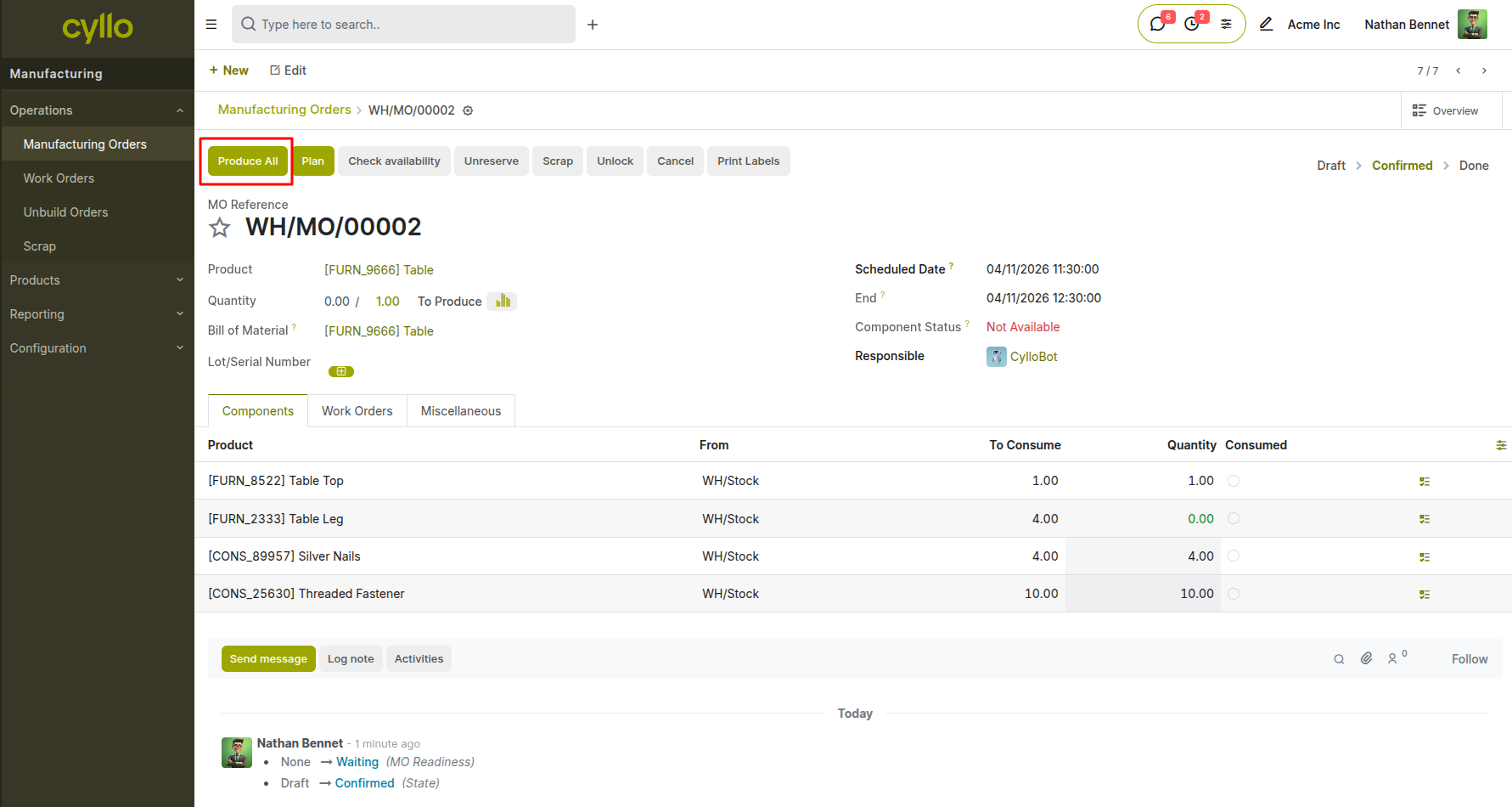
Fig 3.1 — MO execution form showing the Produce All button, quantity field, lot/serial number, and component consumption lines
How to record production:
- Open a Confirmed Manufacturing Order
- Click Produce All(or set qty in the quantity field at the top)
- Enter the actual quantity produced
- Assign a Lot or Serial Number if traceability is configured for the product
- Review the component consumption lines — adjust quantities if actual usage differed
- Click Validate to confirm production; Cyllo moves finished goods into stock and reduces component quantities
3.2 By-Products
If the manufacturing process generates secondary outputs in addition to the primary finished product, these are recorded as by-products. Cyllo adds the by-product quantities to stock automatically when the MO is validated.
Fig 3.2 — MO form showing the By-Products tab with product, quantity, and destination location
How to configure by-products:
- On the BOM, navigate to the By-Products tab
- Add each secondary product with its expected quantity and unit of measure
- When the MO is validated, Cyllo creates a separate stock move for each by-product and adds it to the designated location
3.3 Unbuild Orders
An Unbuild Order reverses a manufacturing order — disassembling a finished product back into its component parts and returning those components to stock. This is used for product returns, rework scenarios, or kit disassembly.
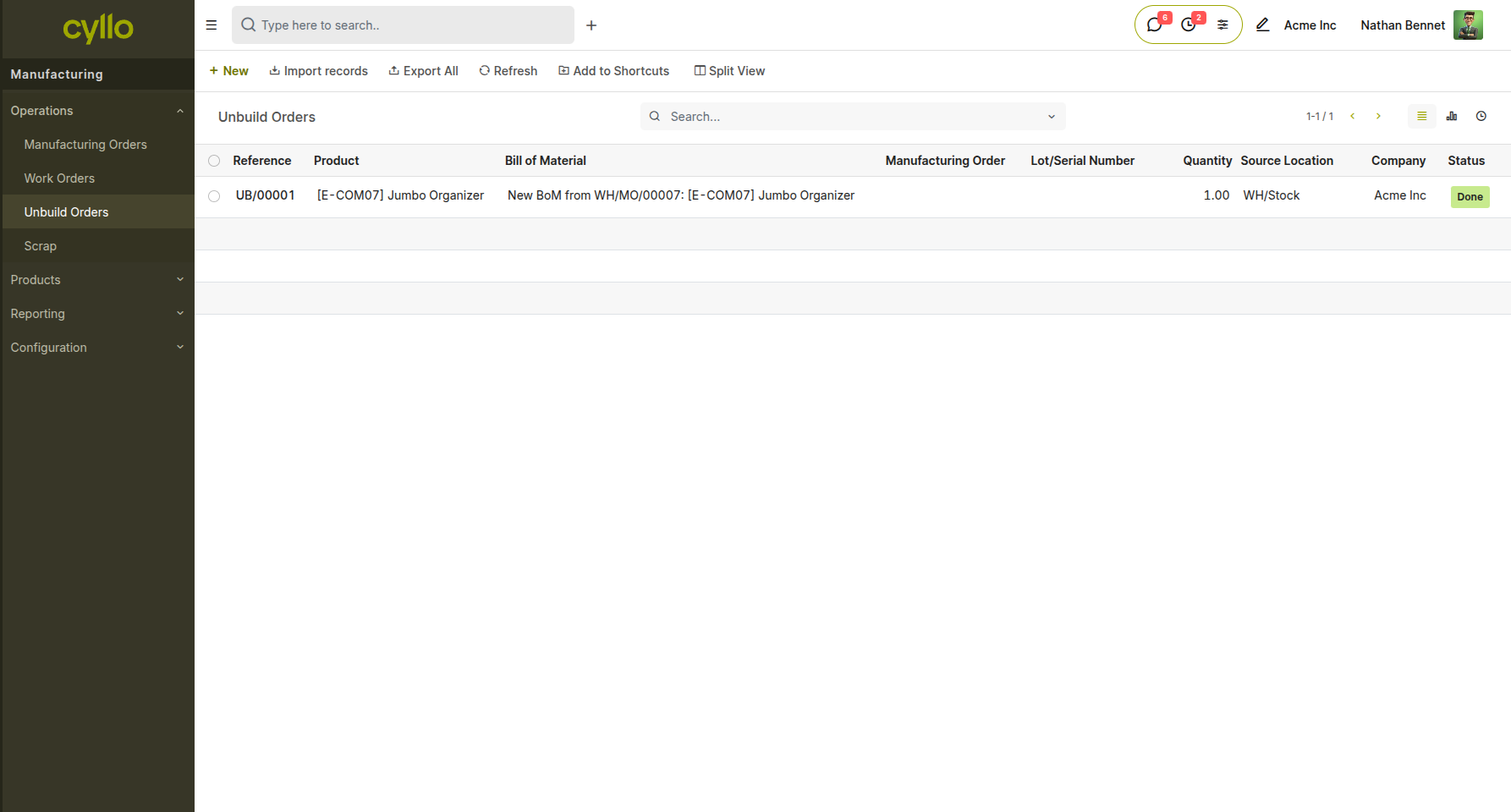
Fig 3.3 — Unbuild Order form showing the finished product, quantity, BOM, and resulting component moves
How to create an Unbuild Order:
- Go to Manufacturing → Operations → Unbuild Orders
- Click New
- Select the finished product and the quantity to disassemble
- Confirm the BOM to be used for the reverse calculation
- Click Unbuild — Cyllo removes the finished goods from stock and returns the component quantities
4. Delivery to Customer
This section covers how finished goods are picked, packed, and dispatched to customers following the completion of production.
4.1 Delivery Orders
Once production is complete and finished goods are in stock, delivery orders manage the outbound shipment to customers. Delivery orders are generated automatically from confirmed sales orders and linked to the corresponding order for full traceability.
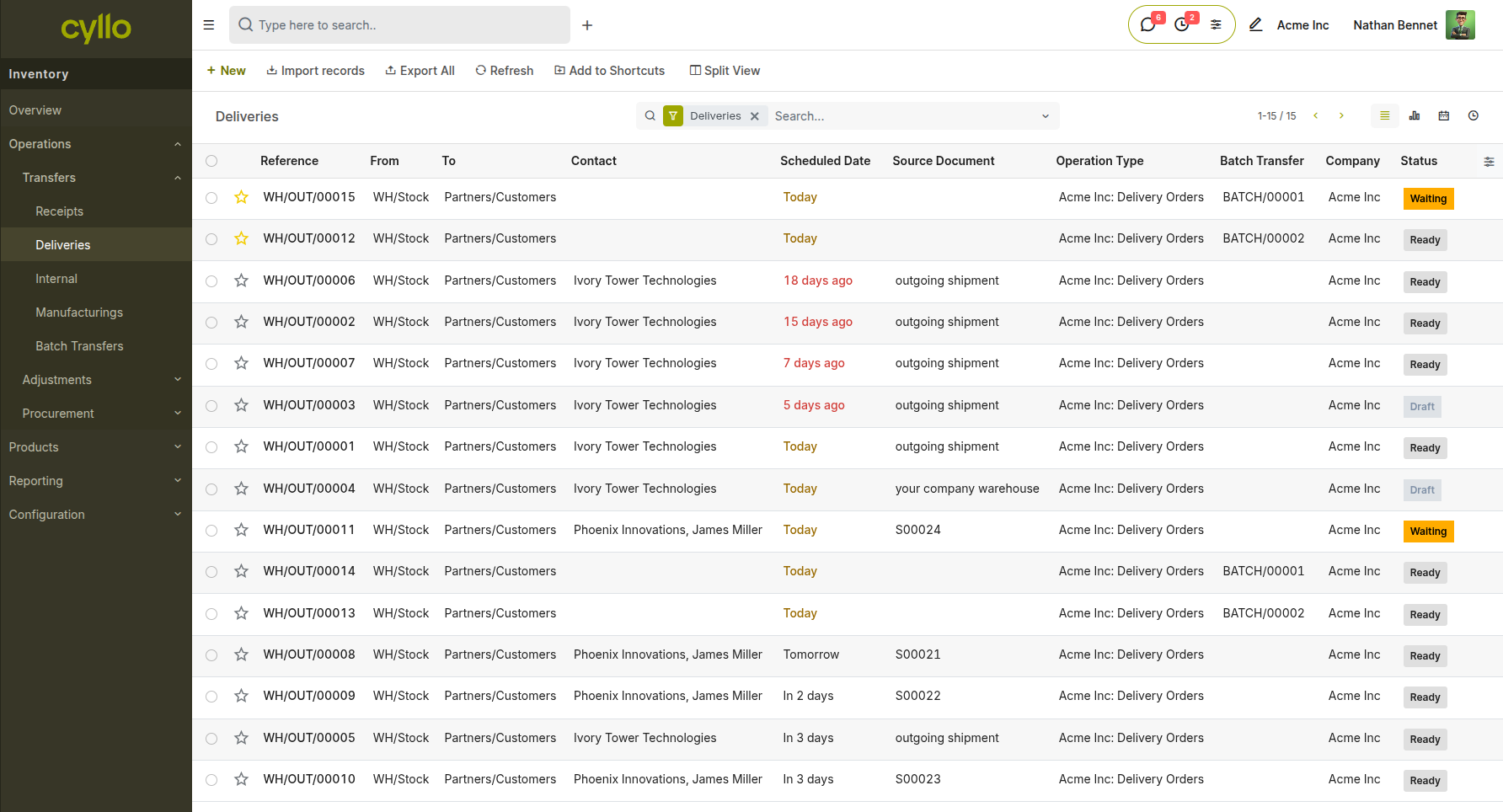
Fig 4.1 — Delivery Order list view with status indicators (Ready, Waiting, Done) and linked sales order reference
How to process a Delivery Order:
- Go to Inventory → Operations → Transfers and filter by operation type Delivery Orders, or open the delivery directly from the linked Sales Order via the smart button
- Review the products, quantities, and destination address
- Click Check Availability to reserve stock for the delivery
- Click Validate when goods have been physically dispatched; Cyllo updates stock levels and marks the delivery as Done
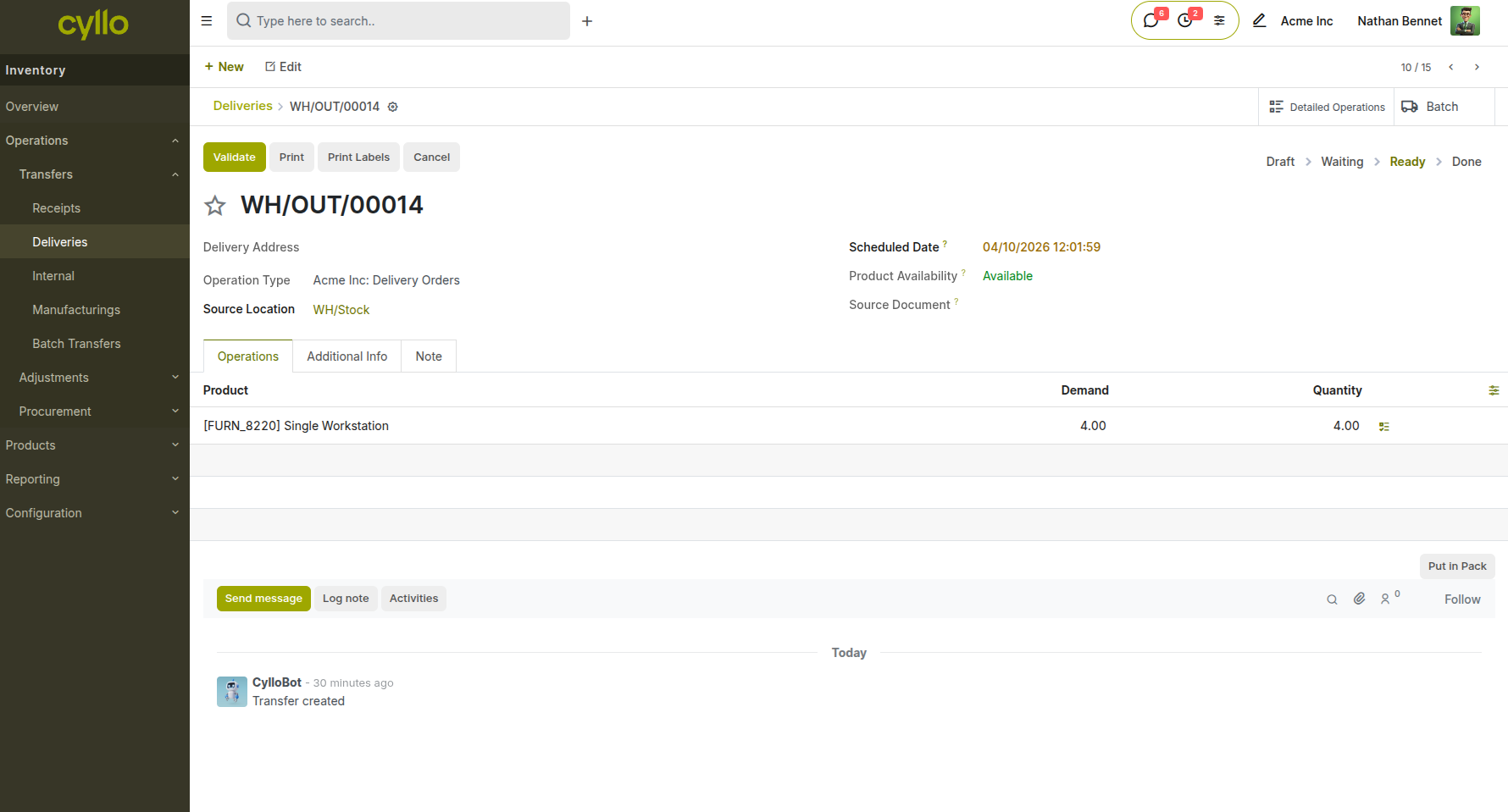
Fig 4.2 — Delivery Order form showing product lines, lot/serial tracking, carrier, and shipping address
Key Fields
- Source Document: The linked sales order number for full traceability
- Scheduled Date: The committed delivery date
- Carrier: The shipping method or logistics partner
- Tracking Reference: Carrier tracking number for customer communication
4.2 Multi-Step Delivery Routes (Pick → Pack → Ship)
For warehouses that require intermediate steps before dispatch, Cyllo supports multi-step delivery routes. The most common configuration is a three-step flow: Pick (retrieve goods from storage), Pack (consolidate into shipment boxes), and Ship (dispatch to customer).
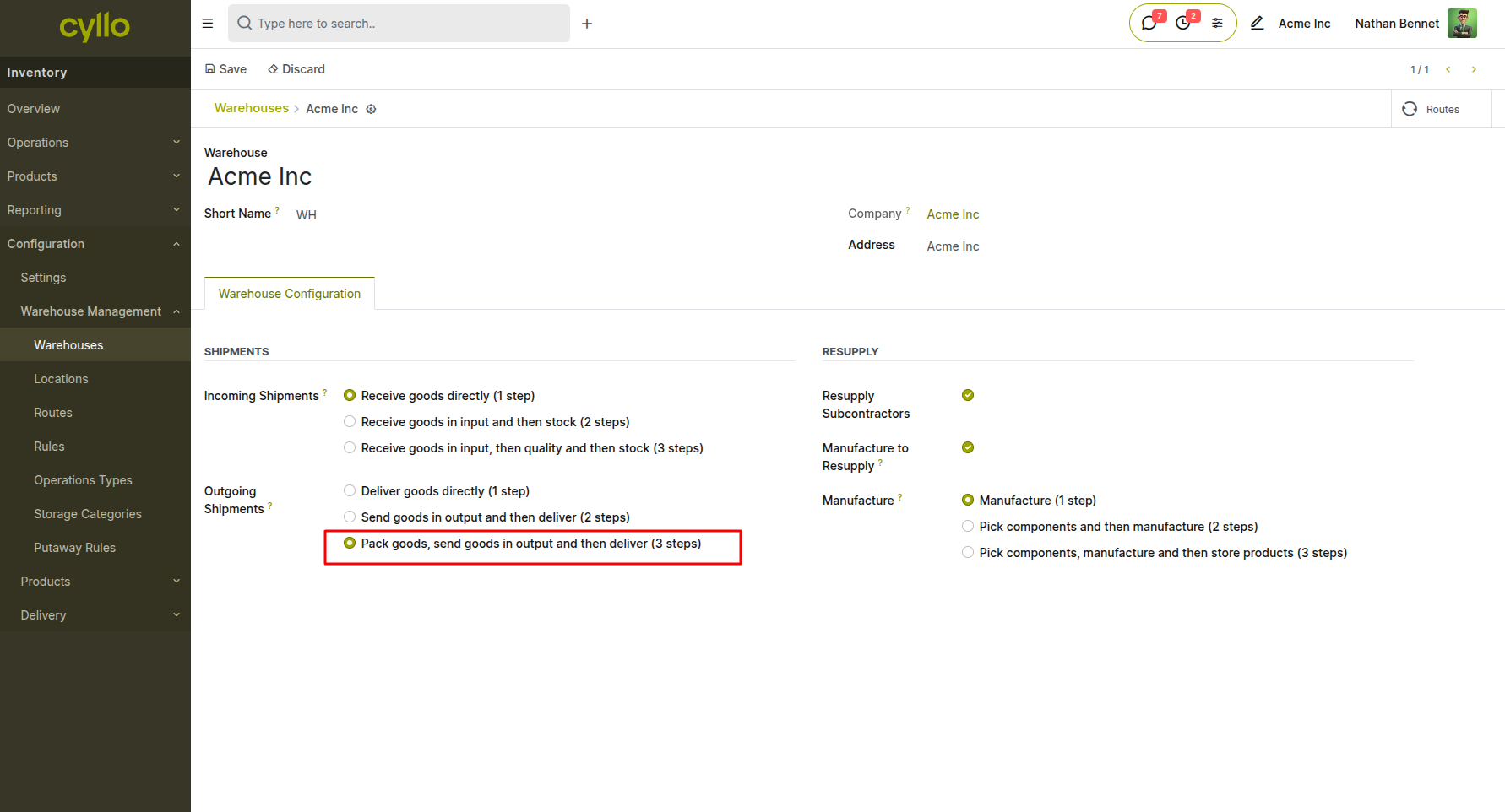
Fig 4.3 — Warehouse configuration screen showing delivery route options (1-step, 2-step, 3-step)
How to enable multi-step delivery:
- Go to Inventory → Configuration → Warehouses
- Select the warehouse and set the Outgoing Shipments route to Pick + Pack + Ship (3 steps)
- Save; Cyllo will now generate three separate transfer operations for each outgoing delivery
How the flow works:
- A confirmed sales order generates a Pick Order, a Pack Order, and a Delivery Order in sequence
- Validate the Pick Order once goods are retrieved from storage locations
- Validate the Pack Order once goods are packed and staged at the shipping dock
- Validate the Delivery Order once the shipment departs; stock and sales order status update automatically
4.3 DHL Shipping Integration
Cyllo's DHL Connector allows shipping labels to be generated and shipments to be tracked directly from the delivery order, without switching to an external portal.
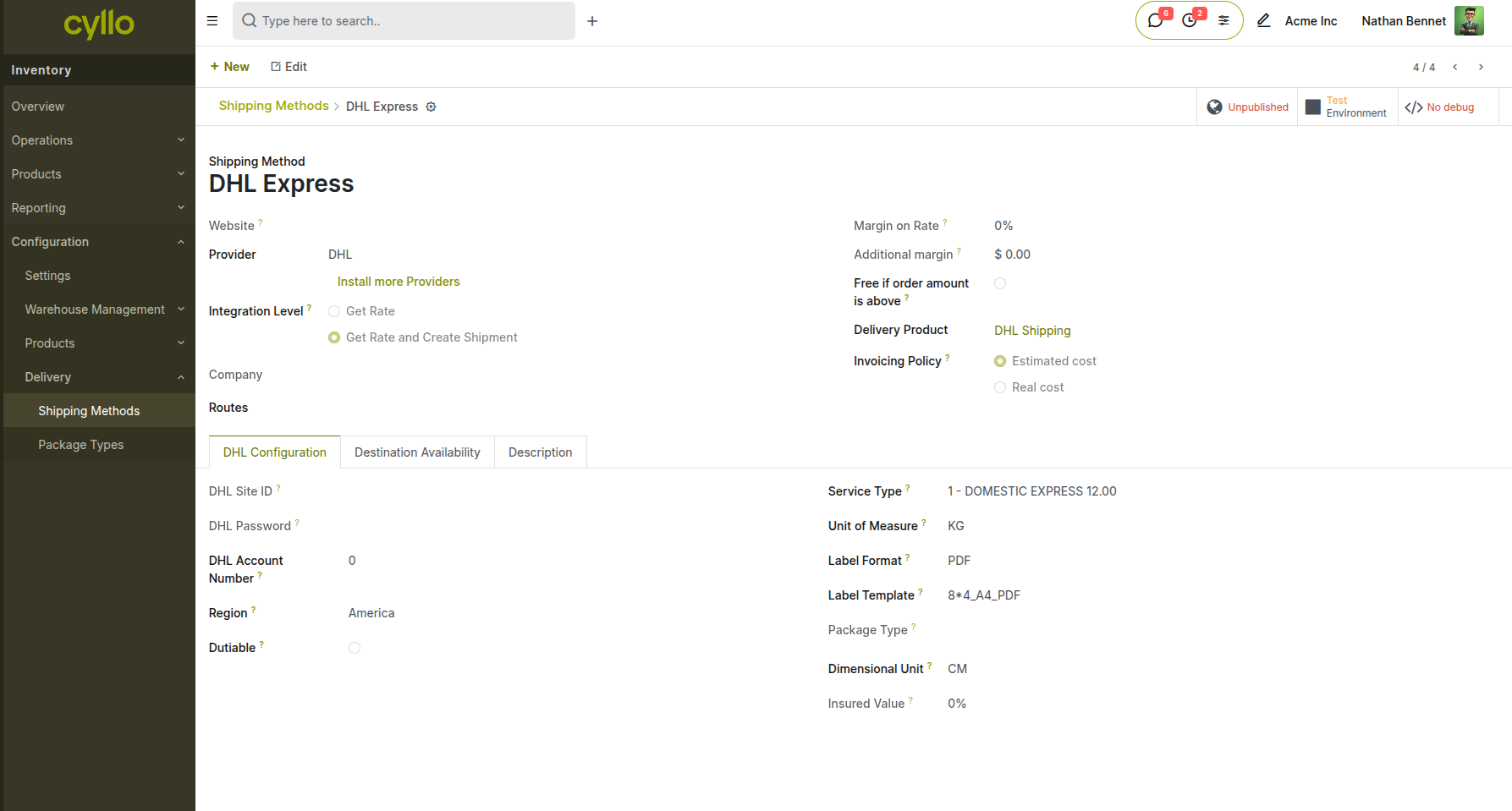
Fig 4.4 — Delivery Order form showing the DHL carrier section with label generation button and tracking number field
How to use DHL shipping:
- Ensure the DHL Connector is configured under Inventory → Configuration → Delivery → Shipping Method ,Select DHL and set your DHL API credentials
- On the Delivery Order, select DHL as the carrier
- Enter package weight and dimensions
- Click Generate Label — Cyllo calls the DHL API and attaches the label to the delivery record
- The tracking number is saved automatically and can be shared with the customer via the portal or email
5. Traceability and Reporting
This section covers the tools Cyllo provides to trace products through the Plan-to-Produce-Deliver cycle and report on production and delivery performance.
5.1 Lot and Serial Number Traceability
Cyllo supports full lot and serial number traceability across the entire production and delivery chain. Every component consumed and every finished good produced or shipped can be traced by lot or serial number through a single traceability report.
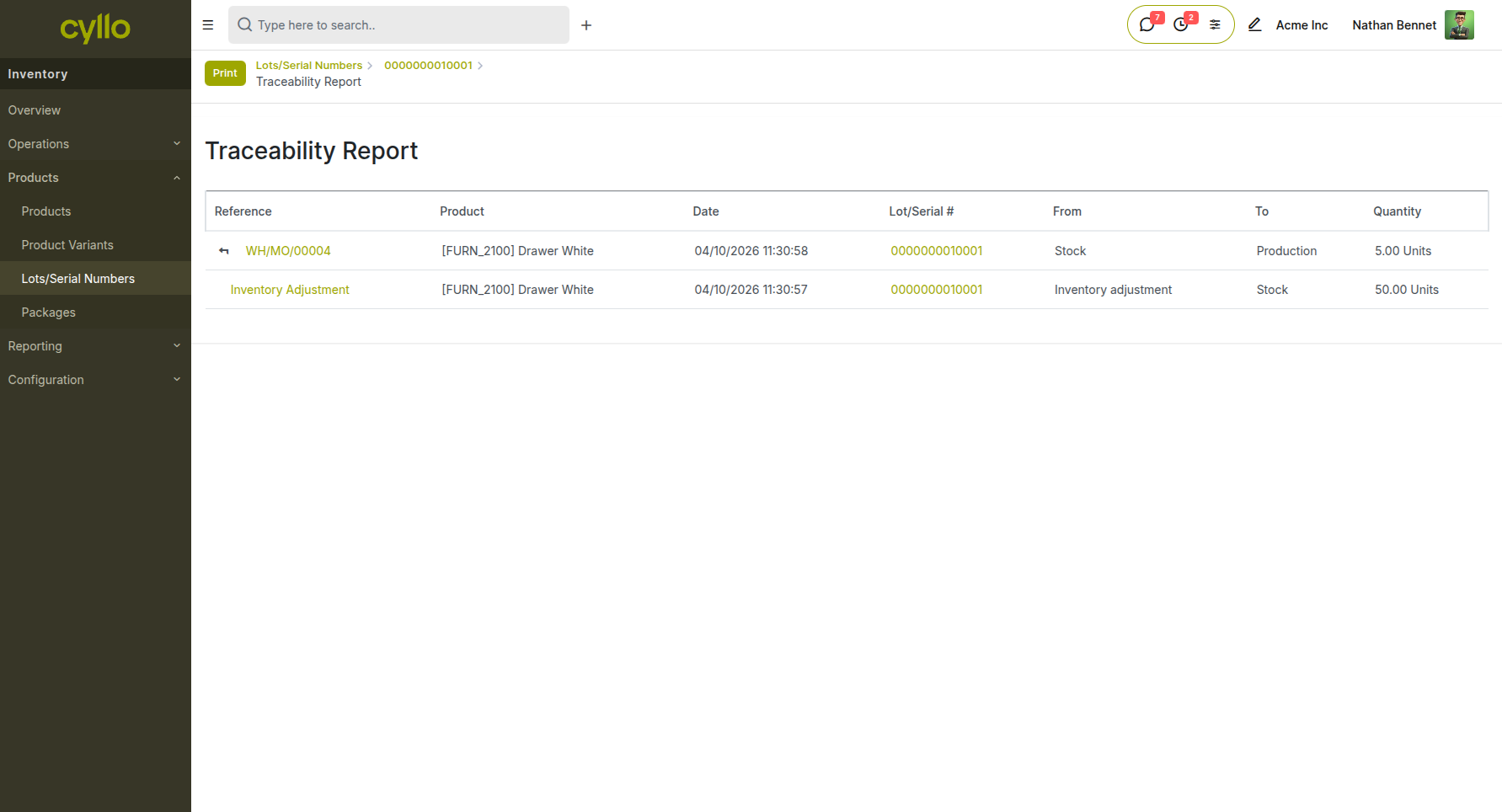
Fig 5.1 — Traceability report showing the upstream and downstream movements of a lot number across receipts, MOs, and delivery orders
How to access the traceability report:
- Go to Inventory → Products → Lots/Serial Numbers
- Open the lot or serial number record
- Click the Traceability smart button to view the complete movement history — from incoming receipt through production through delivery
5.2 Manufacturing Reporting
Cyllo provides built-in reporting for monitoring production efficiency, component usage, and work center performance.
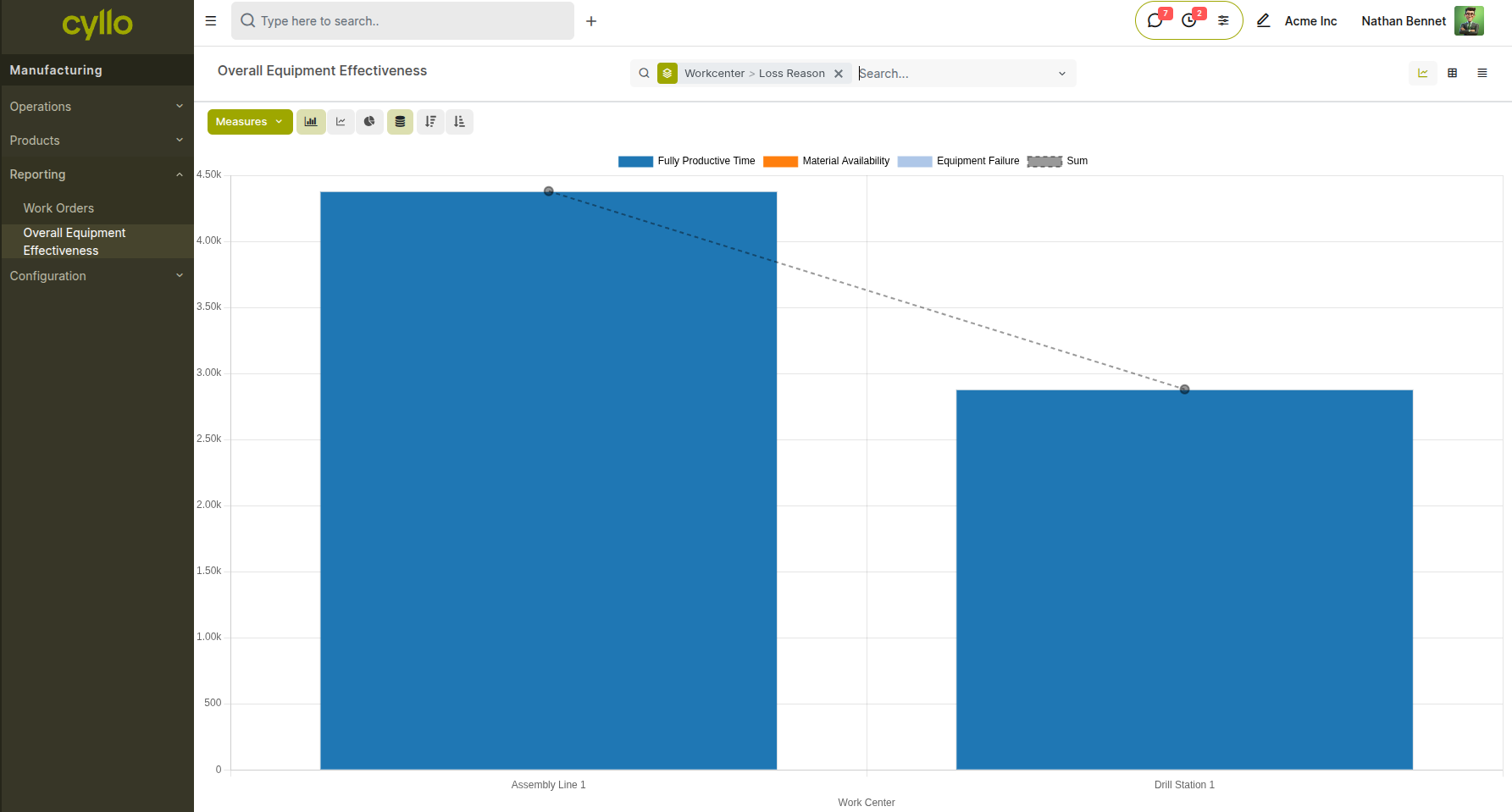
Fig 5.2 — Manufacturing reporting overall equipment effectiveness
Available manufacturing reports:
- Go to Manufacturing → Reporting to access:
- Production Analysis — completed vs. planned quantities by product and date
- Work Center Analysis — actual vs. expected duration by work center and operation
- Allocation Report — component demand vs. availability across active MOs
- Scrap Analysis — quantities and reasons for scrapped components or products