

Cyllo Approvals Documentation
Introduction
The Cyllo Approvals module provides a flexible and configurable approval workflow system that can be applied to any business process within the ERP. Instead of hardcoding approvals for specific documents, users can create approval rules for different models such as Purchase Orders, Sales Orders, Invoices, Expenses, Asset Requests, Leave Requests, or any custom business document.
Administrators can define approval rules by selecting a target model, configuring trigger conditions, assigning approvers or approval groups, and specifying the action that requires approval. When users perform a configured action, such as confirming a Purchase Order, the system automatically checks the approval rules and displays an approval-required notification. An approval request is then generated and routed to the designated approver for review.
1. Approval Rules
Approval Rules define when an approval is required and who is responsible for approving it. Rules can be configured for any business document or model within the system, allowing organizations to enforce approval policies across multiple processes such as Purchase Orders, Sales Orders, Invoices, Expenses, Assets, and custom modules.
When a user performs a configured action, such as clicking a button, changing a document status, or executing a server action, the system checks the applicable approval rules. If approval is required, an approval request is automatically generated and assigned to the designated approver or approval group.
Rule Types
The module supports three types of approval triggers:
- Button Approval Triggers approval when a specific button is clicked.
Example:
- Purchase Order → Confirm Order
- Sales Order → Confirm
- Invoice → Post
- State Change Approval Triggers approval when a document moves to a specific state or stage.
Example:
- Opportunity moved to "Won"
- Task moved to "Done"
- Asset moved to "Disposed"
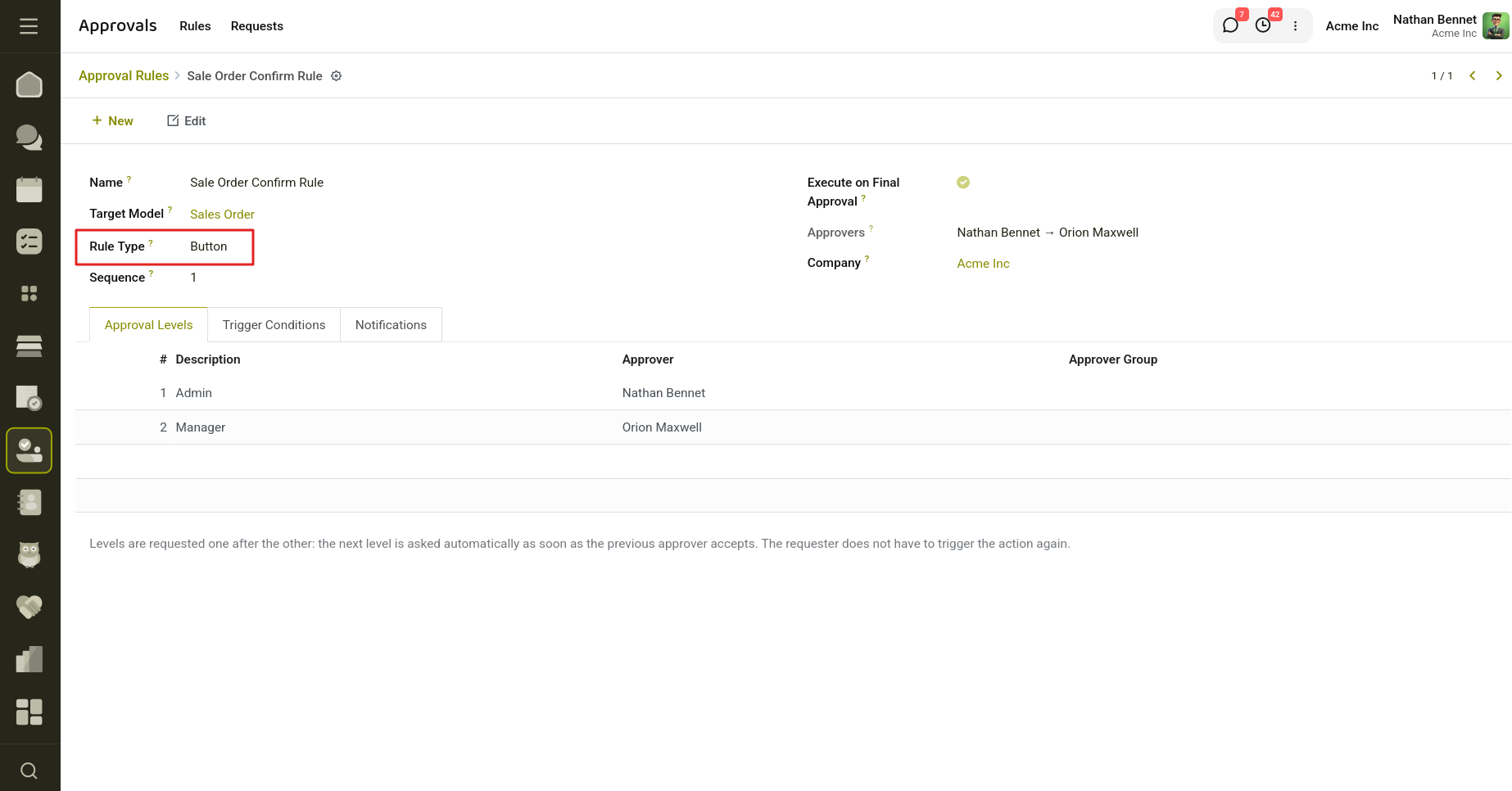
Fig 1.1 — Create Rules based on button, state or server.
How to Create an Approval Rule
- Navigate to Approvals → Rules.
- Click New.
- Enter the Rule Name.
- Select the Target Model where the approval process should be applied.
- Choose the Rule Type: Button, State Change, Server Action
- Assign an Approver or an Approver Group.
- Configure the trigger based on the selected rule type:
- Select a button for Button approvals.
- Select a state field and target state for State Change approvals.
- Select a server action for Server Action approvals.
- Optionally configure additional filter conditions and notification settings.
- Click Save.
After saving, the approval rule becomes active. Whenever a configured action is performed on the selected model, the system creates an approval request and sends it to the assigned approver before the action can be completed.
Key Fields
- Name – Descriptive name of the approval rule.
- Target Model – Business document or model where the approval rule will be applied.
- Rule Type – Defines what action triggers the approval process.
- Approver – User responsible for reviewing and approving requests.
- Approver Group – User group whose members are authorized to approve requests.
- Company – Company to which the approval rule belongs.
- Domain (Additional Filters) – Conditions that determine which records the rule applies to.
- Allow Comment – Allows users to add comments when creating approval requests.
- Notify Email – Enables email notifications for approval activities.
- Notify on Request – Sends an email when an approval request is created.
- Notify on Approval – Sends an email when a request is approved.
- Notify on Rejection – Sends an email when a request is rejected.
After creating a Quotation, clicking the Confirm Order button triggers the approval rule configured for the Sale Order model. Instead of immediately confirming the order, the system displays an approval request wizard, informing the user that approval is required before the action can proceed.
When the user clicks Create in the wizard, an approval request is automatically generated and assigned to the configured approver or approver group. The request appears in the Approval Requests menu with a status of Pending, where the approver can review the related Sale Order, view request details, and either approve or reject the request. Once approved, the Sale Order can proceed through the confirmation process according to the configured approval workflow.
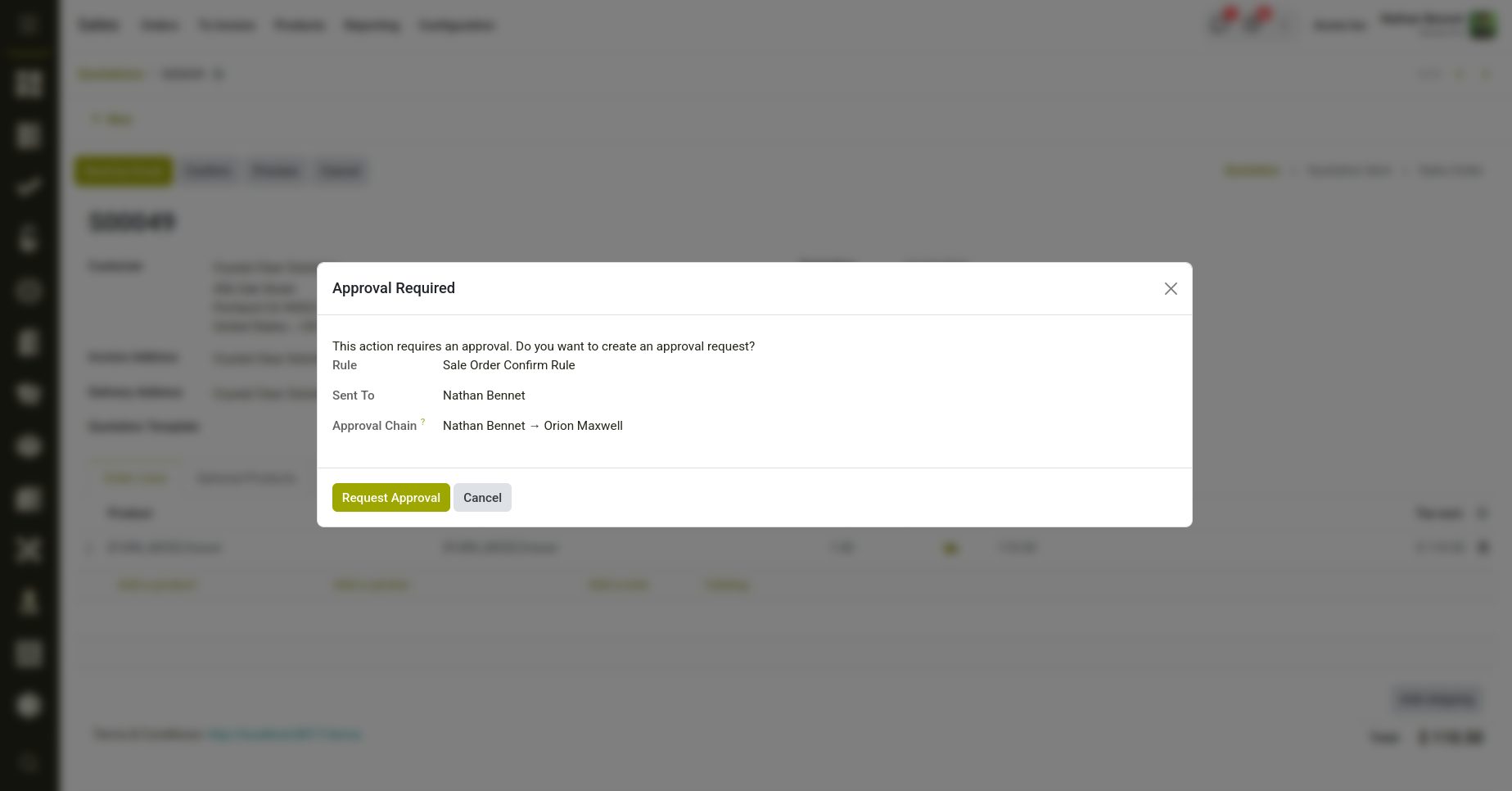
Fig 1.2 — Trigger the rule for approval when clicking confirm Sale order.
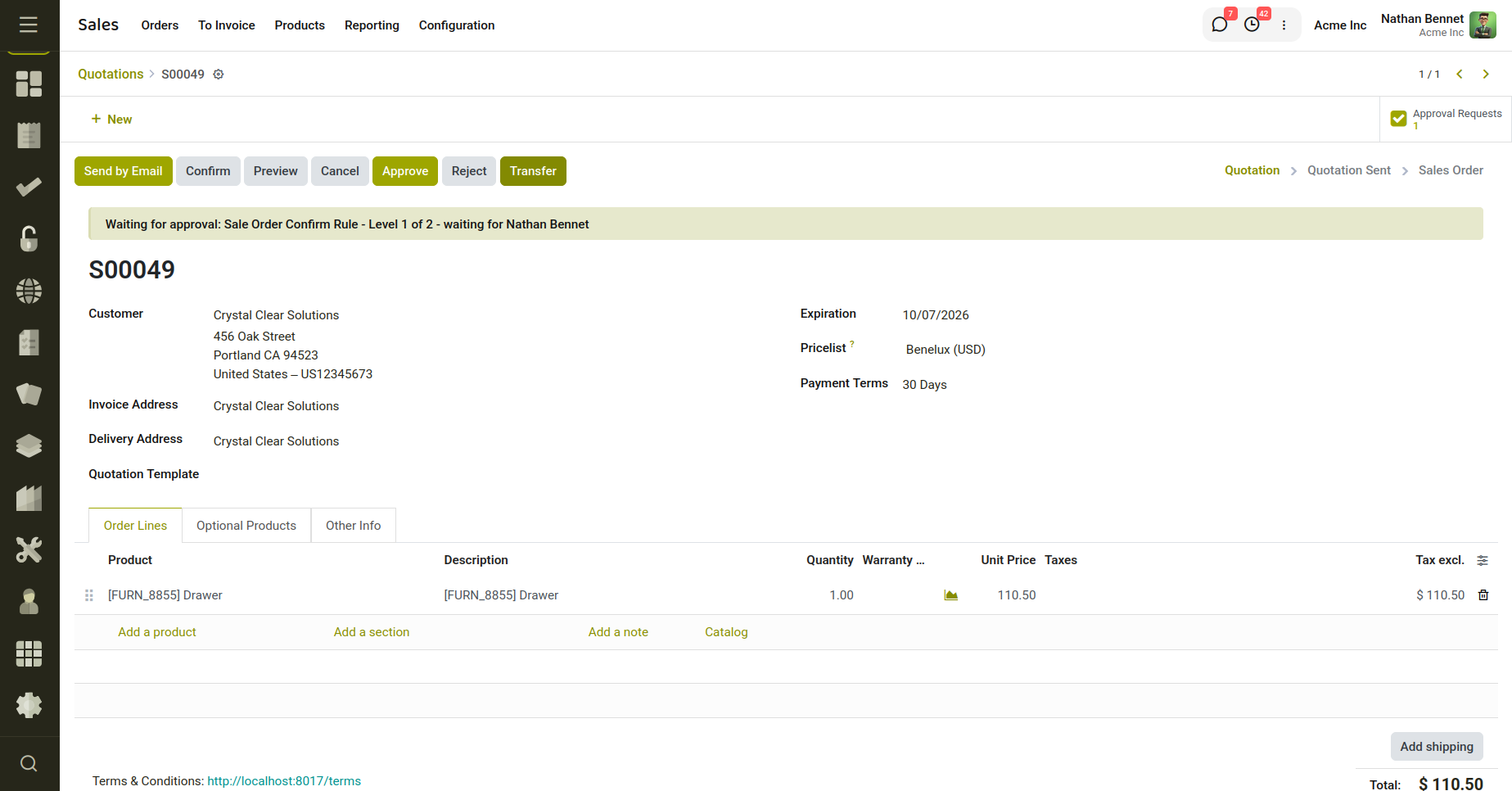
Fig 1.3 — Multi-Level approval request created for the Sale order.
2. Approval Requests
Approval Requests are automatically generated whenever a user performs an action that requires approval based on a configured approval rule. Each request serves as a record of the approval process, linking the source document, requester, approver, and approval status in a single location.
Approvers can review pending requests, access the related business document, add notes, and either approve or reject the request. The module maintains a complete history of approval activities, ensuring transparency and accountability throughout the approval workflow.
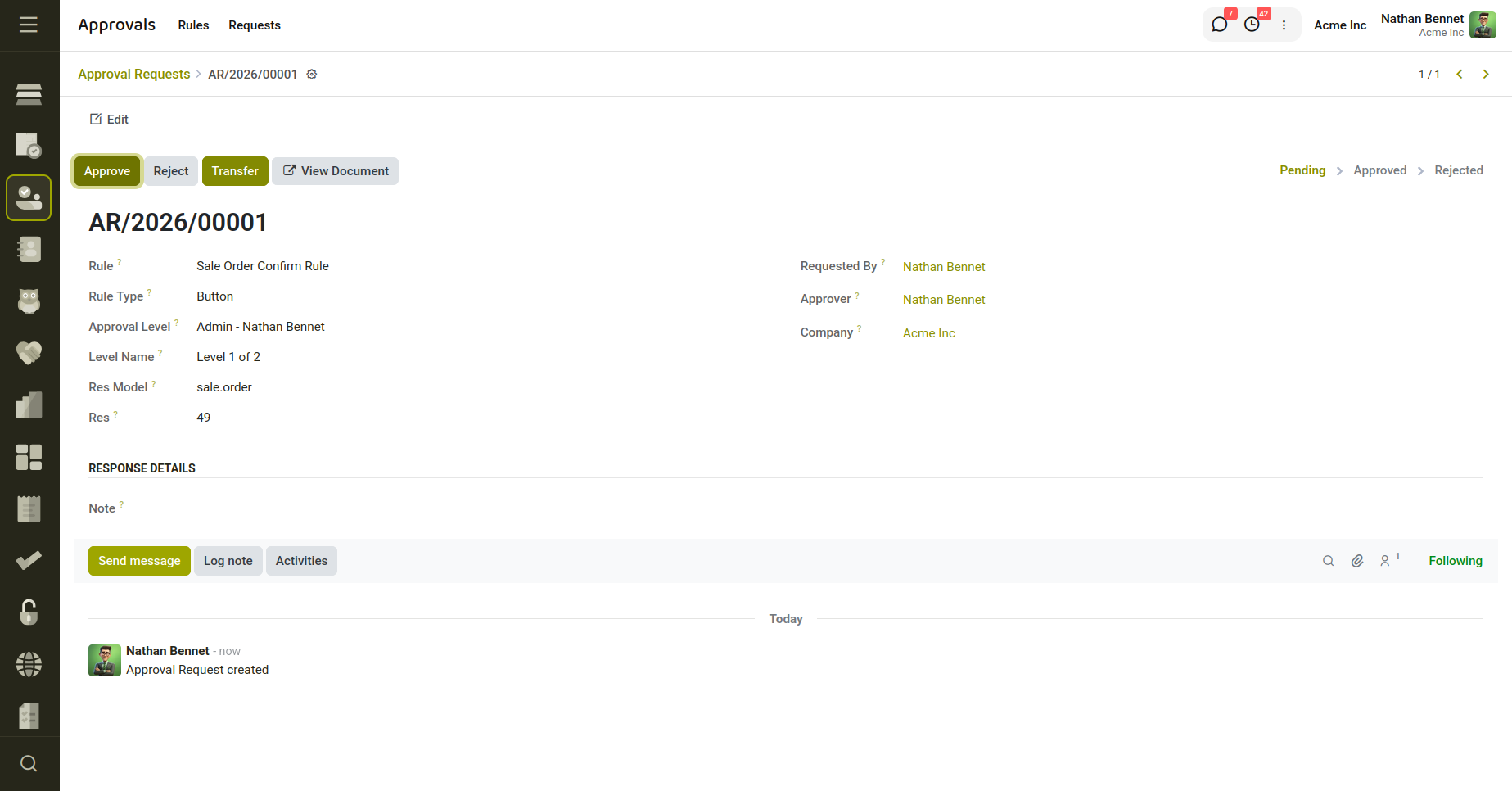
Fig 2.1 — Approval request with accept, reject and transfer buttons.
How Approval Requests Are Created
- Navigate to Approvals → Requests.
- Open the approval request with the Pending status.
- Review the request details, related document, and any comments provided by the requester.
- Click View Document to open the source record if additional verification is required.
- Select one of the following actions:
- Approve to approve the request.
- Reject to reject the request.
- Transfer to assign the request to another approver.
- If approved, the request status changes to Approved.
- If rejected, the request status changes to Rejected.
- The requester is notified of the approval decision if email notifications are enabled.
- After approval, the user can proceed with the action that required approval, such as confirming a Sale Order, changing a document state, or executing a server action.
Key Fields
- Rule – Approval rule that triggered the request.
- Rule Type – Type of approval trigger associated with the request (Button, State Change, or Server Action).
- Requested By – User who initiated the approval request.
- Approver – User assigned to review and approve the request.
- Company – Company associated with the approval request.
- Source Model – Technical model name of the related business document.
- Status – Current state of the approval request.
- Note – Additional comments, approval remarks, or rejection reasons.