

Cyllo Audit Log Documentation
Introduction
The Audit Log System (technical name cyllo_auditlog) is a monitoring module that records create, update, delete, and optionally read activity on any Odoo model. It is designed for administrators who need to answer the question “who changed what, and when” across business data, user accounts, and security settings. Auditing is driven entirely by Audit Rules. Nothing is tracked until a rule is created and activated for a specific model. Each rule controls which operations are captured, which fields are tracked, which users are subject to tracking, and how long the resulting logs are kept.
1. Audit Log
1.1 Key Features
- Rule-based auditing scoped to one model per rule, with company-aware visibility.
- Field-level tracking: track every field, a specific list of fields, or every field except an excluded list.
- User-based tracking filters: all users, specific users, all except specific users, or members of selected groups, with an optional advanced domain filter.
- Session and HTTP request correlation, so a log entry can be traced back to the browser session and request that produced it.
- Per-rule retention policy with both an automatic daily cleanup job and a manual “Clear now” action.
- Graph and pivot reporting views for trend analysis across models, operations, and time.
1.2 Assigning Access
Access is granted through two groups, found under Settings → Users → Groups, in the Audit Log category:
- Audit Log Manager — full configuration access: create and edit rules, run manual cleanups, and view all logs, sessions, and HTTP requests.
- Audit Log Users — read-only access to Logs, Sessions, HTTP Requests, and the Log Report. This group has no access to Audit Rules.
2. Configuring Audit Rules
Navigate to Audit → Rules (Manager access required) to open the rule list. Click New to create a rule, or open an existing rule to edit it.
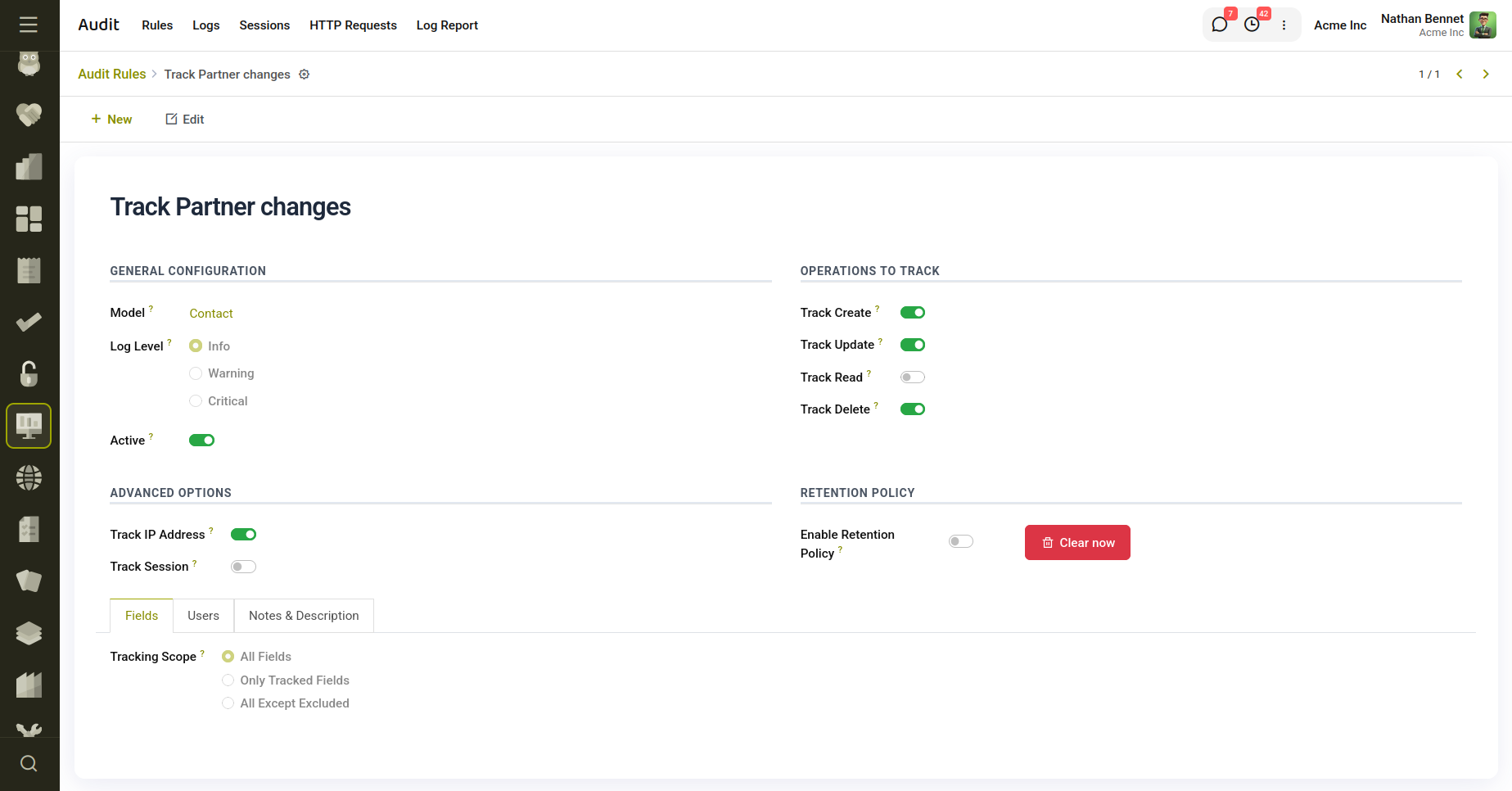
Fig 2.1 — Audit Rule Creation.
2.1 General Configuration
- Rule Name - A free-text label for the rule, shown throughout the list and reporting views.
- Model - The single Odoo model this rule audits. Required, and cannot reference transient (wizard) models.
- Log Level - Info, Warning, or Critical — a severity tag carried onto every log this rule produces, used for visual emphasis (badges and ribbons) in the log list and form.
- Sequence - Ordering priority among rules; visible only with developer mode (Settings → General Settings → Developer Tools).
- Active - Disables the rule without deleting it. Inactive rules stop producing new logs but existing logs are kept.
2.2 Operations to Track
Four toggles control which kinds of events this rule logs:
- Track Create - Logs every new record created on the model.
- Track Update - Logs field-level changes on write operations.
- Track Read - Logs read access (form opens, list/grid loads, name searches). Generates significantly more volume than the other three — the form displays an on-screen warning when enabled.
- Track Delete - Logs record deletion, before the record is removed.
2.3 Field-Level Tracking
The Fields tab controls how much detail is captured on write operations, using the Tracking Scope option:
- All Fields — every changed field is recorded (subject to a small built-in exclusion list of technical fields such as write_date and message_has_error).
- Only Tracked Fields — limits logging to the fields listed in Tracked Fields.
- All Except Excluded — logs every field except those listed in Excluded Fields.
2.4 User Selection
The Users tab decides whose actions this rule applies to, via User Selection:
- All Users - Every non-portal, non-public user is tracked (the superuser, user ID 1, is always excluded regardless of this setting).
- Specific Users - Only the users listed in Users are tracked.
- Exclude Specific Users - All eligible users except those listed in Users are tracked.
- Users by Group - Only members of the groups listed in User Groups are tracked.
2.5 Advanced Options
- Track IP Address — captures the client IP on each log entry, read from the X-Forwarded-For header when present, otherwise the direct remote address.
- Track Session — links each log entry to an Audit Session record for the current web session, creating one if needed.
2.6 Retention Policy and Manual Cleanup
- Enable Retention Policy to have a daily scheduled action (Audit: Log Retention Cleanup, found under Settings → Technical → Scheduled Actions in developer mode) automatically delete logs older than the number of days set in Keep Logs for (Days).
- The Clear now button performs the same cleanup immediately, on demand, after a confirmation prompt.
3. Viewing Audit Logs
Navigate to Audit → Logs to open the log list. Logs are read-only everywhere in the UI; they cannot be created or edited by hand, only generated by rules or removed through retention/cleanup.
3.1 List View
The list shows the date, acting user, audited model, a bold record name, the operation (color-coded: green for create, blue for update, grey for read, red for delete), and the rule's log level badge. Use the built-in filters for Today, This Week, This Month, and each operation or log level, or group by user, model, operation, level, or date.
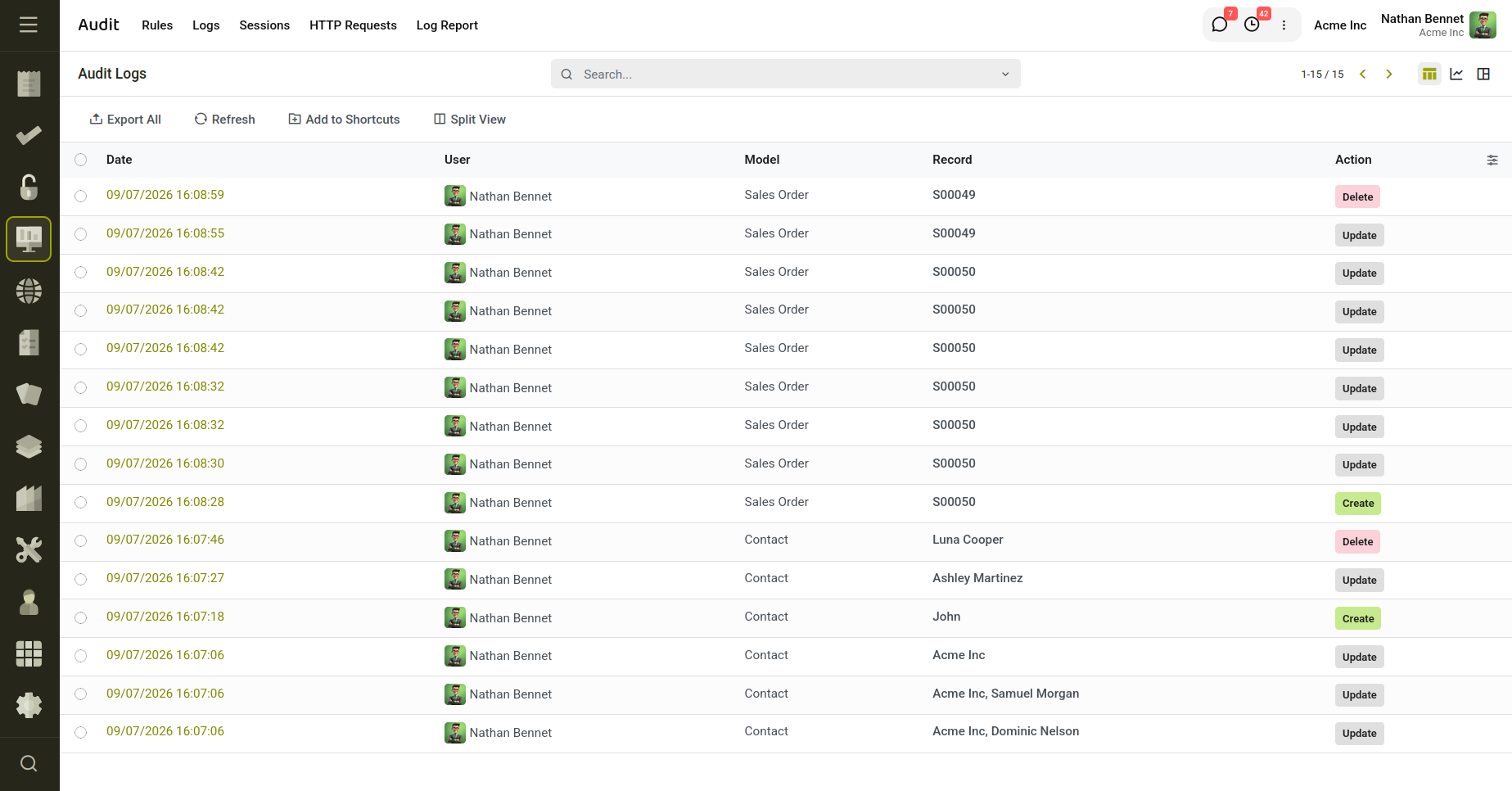
Fig 3.1 — Audit Log Changes.
3.2 Log Detail
Opening a log shows the full execution context: the acting user, IP address, the linked Audit Session and HTTP Request (each one click away), the audited model and record ID, and a Modifications tab.
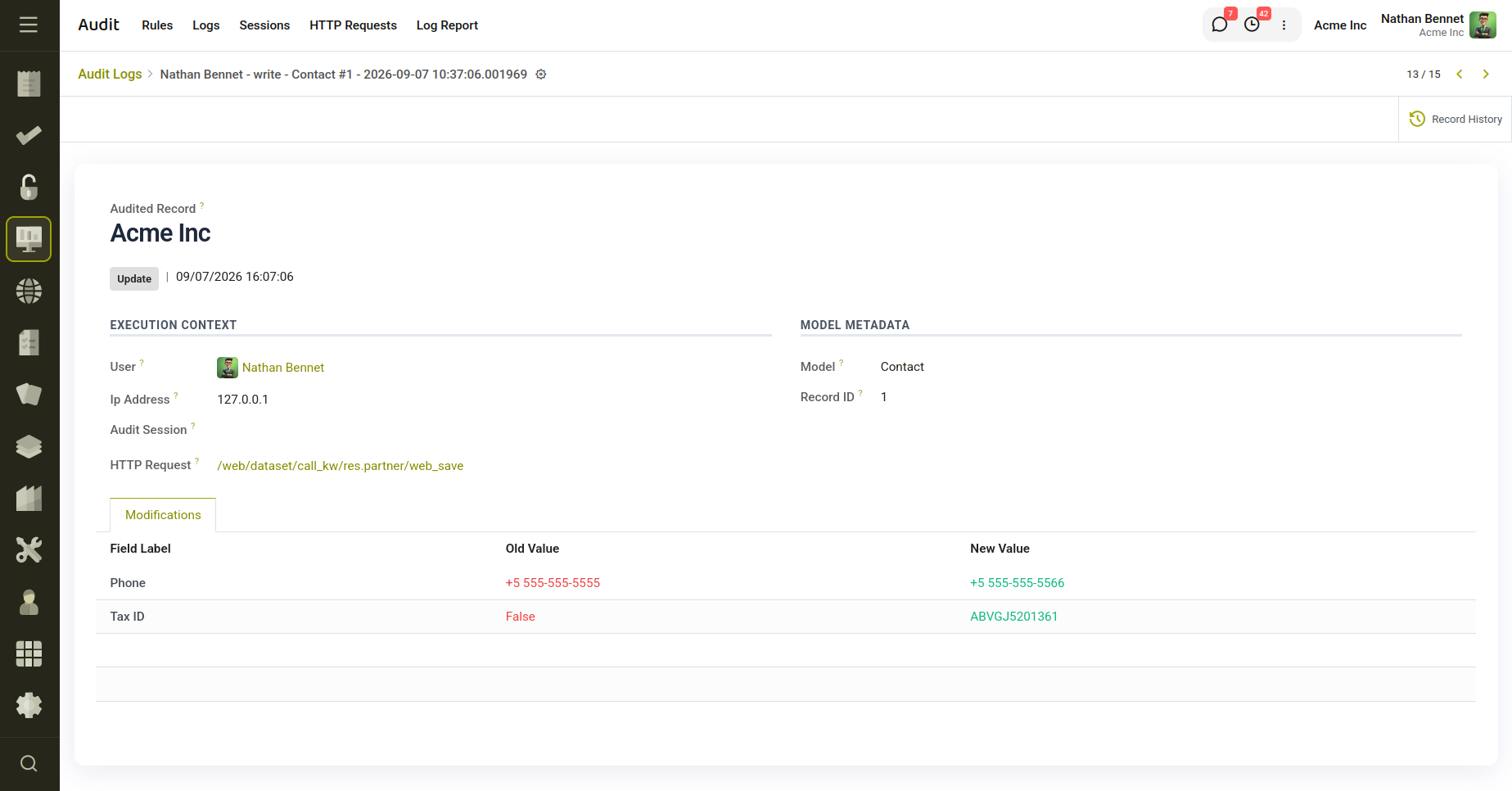
Fig 3.2 — Log detail changes and the user.
For a single-field change, the Modifications tab shows a quick Before/After comparison. For a multi-field write, it instead lists every changed field as a row, with the old and new values shown in red and green respectively. A Record History stat button on both the rule and the log form jumps straight to every log recorded for that specific record.
3.3 Reporting
Audit → Log Report opens graph and pivot views over the same audit.log data — useful for spotting unusual volume by user, model, or day without scrolling through the raw list. The standard list view also exposes Graph and Pivot tabs for the same purpose.
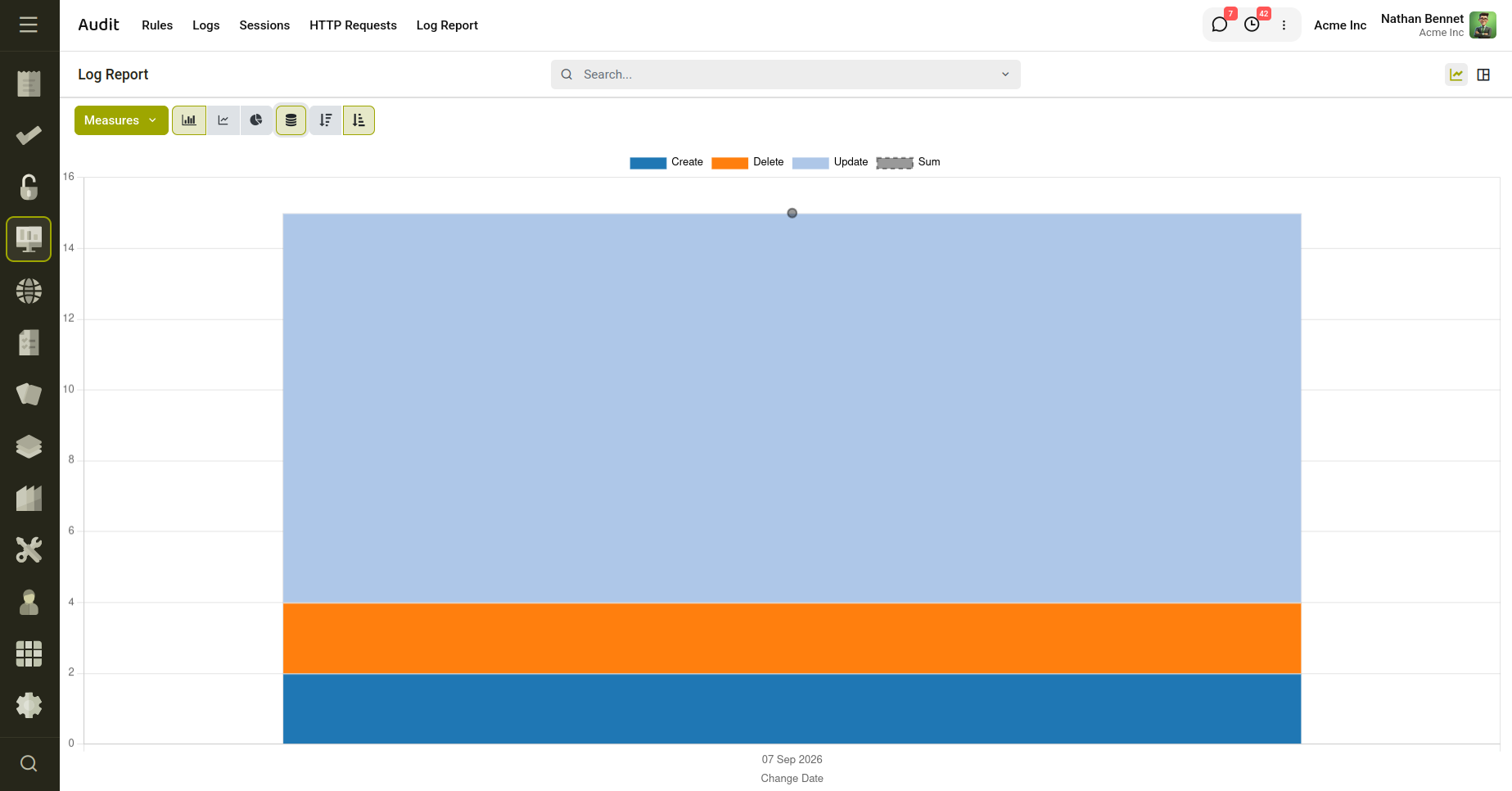
Fig 3.3 — Log Report.
4. User Sessions and HTTP Requests
4.1 User Sessions
Audit → Sessions lists one record per user web session, captured the first time that user triggers session tracking after logging in. A session records the login time, an optional logout time (set when the user explicitly logs out through the standard logout route), IP address, user agent, and a live count of the logs produced during that session. The Is Active indicator is simply the absence of a logout time — a session left open by closing the browser without logging out will continue to show as active until a new session for that user is created. Only sessions belonging to internal users are shown in the default list (portal and public users are excluded).
4.2 HTTP Requests
Audit → HTTP Requests lists the request that was in progress when each audited event occurred: the path, method, response code, linked session, and every Audit Log produced during that request. This view is most useful when tracing a specific change back to the page or API call that caused it.
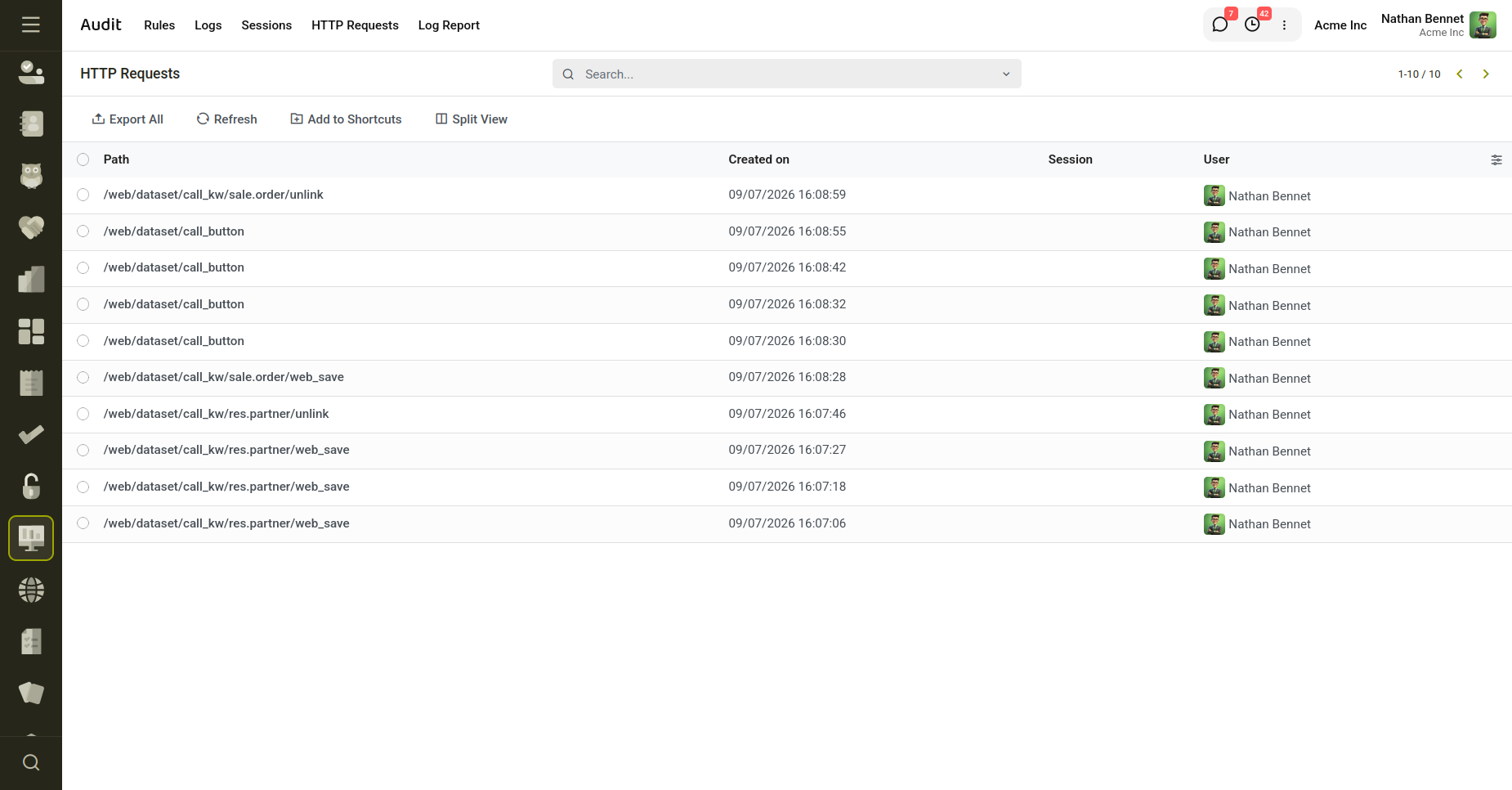
Fig 4.1 — HTTP Requests