

Cyllo Sales Documentation
Introduction
The Sales module is one of the most fundamental components of Cyllo ERP, designed to streamline the entire sales process from quotation to payment. Using this platform, you can create and manage sales orders, generate professional quotations, and track customer transactions efficiently from a single unified interface. It also allows you to handle pricing, discounts, and product configurations through one centralized system.
Because the Sales module is tightly integrated with CRM, Inventory, and Accounting, every action taken — from confirming an order to issuing an invoice — automatically reflects across all connected departments, eliminating manual data transfer and duplication. This makes it significantly easier for the sales department to operate at full capacity without switching between tools.
Cyllo's Sales module provides a comprehensive framework for managing customer orders, controlling pricing strategies, applying tax rules, and monitoring delivery status in real time. All relevant data flows seamlessly through the centralized Cyllo ERP database, ensuring your team always has accurate, up-to-date information to respond quickly to customer needs, close deals efficiently, and maintain a complete record of every quotation, order, and invoice for future reference.
1. Sales Operations
1.1 Sale Order Creation
A Sales Order is the confirmed agreement between your company and a customer to deliver products or services. In Cyllo, sale orders can be created directly or converted from a quotation.
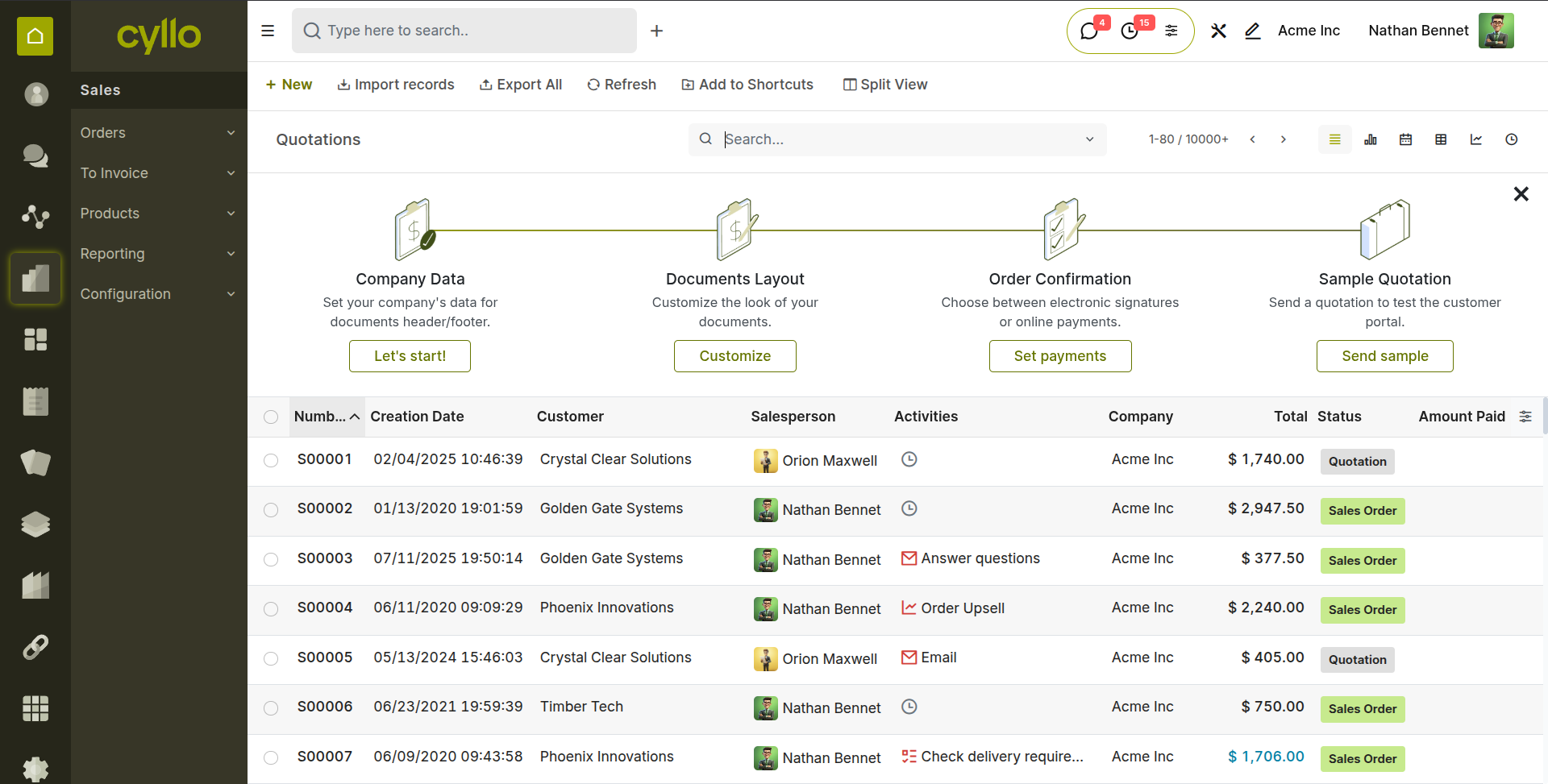
Fig 1.1 — Sales Order list with status indicators
How to Create a Sale Order
- Go to Sales → Orders → Orders → New
- Select the Customer from the dropdown (or create a new one)
- Set the Quotation Date, Expiration Date, and assign a Salesperson from 'Other Info' tab
- Add products in the 'Order Lines' tab — enter product, quantity, and price
- Apply a Pricelist or Discount if required
- Click Confirm Order to convert the quotation to a confirmed Sales Order
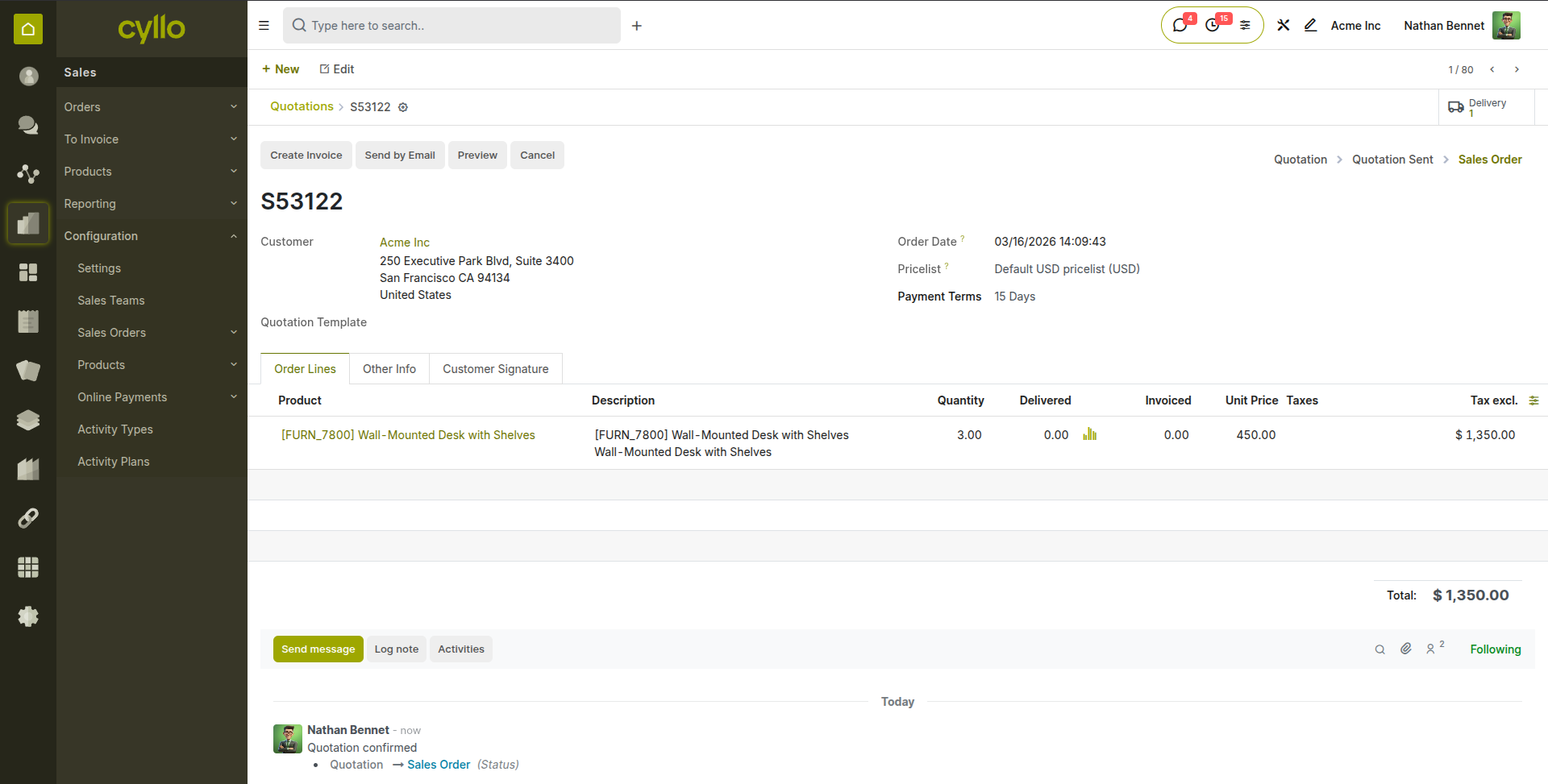
Fig 1.2 — Sales Order form view
Key Fields
- Customer: The contact or company the order is billed and delivered to.
- Order Date: The date the order is created or confirmed.
- Expiration: Deadline after which the quotation is no longer valid.
- Salesperson: The team member responsible for this order.
- Order Lines: Each line represents a product or service with quantity and price.
- Status: Quotation → Sales Order → Locked → Cancelled.
Note
You can set default Salesperson, Sales Team, Payment Terms, Pricelist per customer in Sales → Orders → Customers → Open customer → 'Sales & Purchase' Tab.
1.2 Quotation Templates
Quotation Templates allow you to pre-configure commonly used product combinations, terms, and layouts so salespeople can generate quotes faster without re-entering the same details every time.
How to Create a Quotation Template
- Go to Sales → Configuration → Sales Orders → Quotation Templates
- Click New and give the template a name
- Add default product lines, quantities, and optional products
- Set an Expiration (days) for quotes based on this template
- Save the template
- When creating a new quotation, select the template in the Quotation Template field to auto-fill all lines
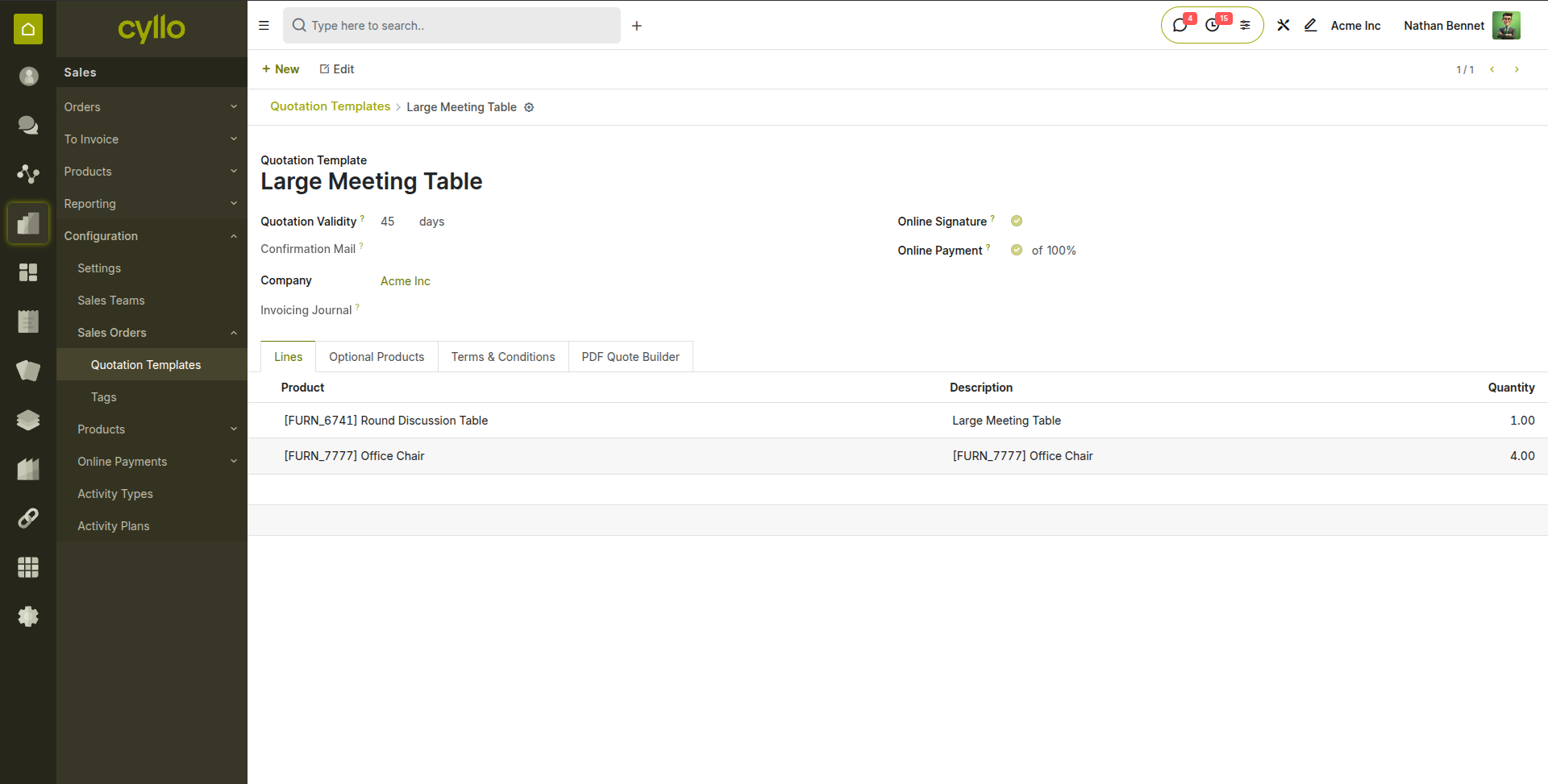
Fig 1.3 — Quotation Template with pre-filled product lines
Note
Quotation templates are especially useful for recurring service packages, subscription setups, or product bundles.
1.3 Discounts
Cyllo supports per-line discounts on any quotation or sales order. You can apply a percentage discount to individual product lines or use global promotion programs.
Enabling Discounts
- Go to Sales → Configuration → Settings
- Under the Pricing section, enable Discounts
- Save settings
- A Discount (%) column will now appear on all order lines
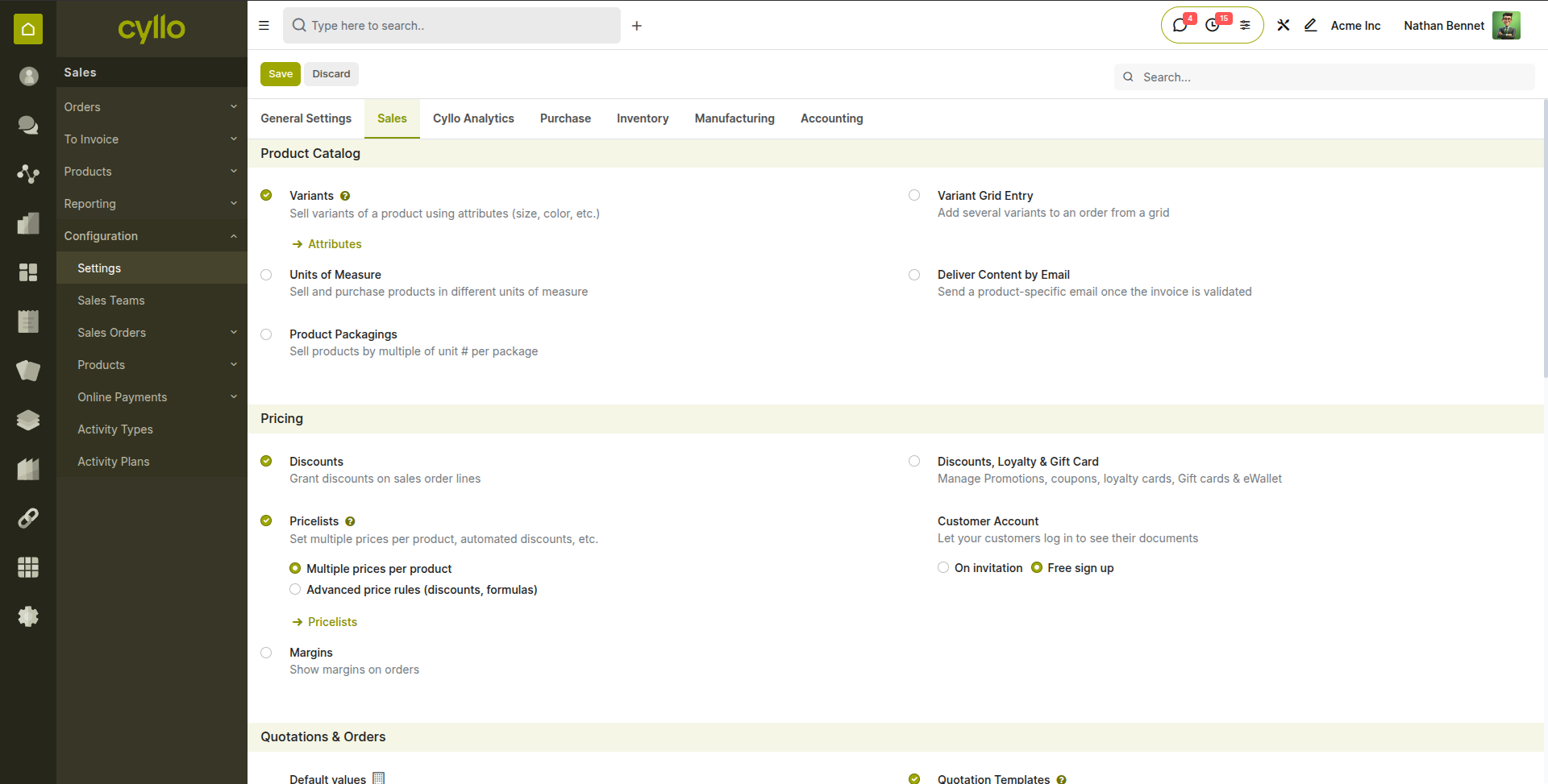
Fig 1.4 — Enabling discounts in Sales Settings
Applying a Discount:
- Open a quotation or sale order
- In the Order Lines tab, enter the discount percentage in the Discount column
- The unit price and subtotal update automatically
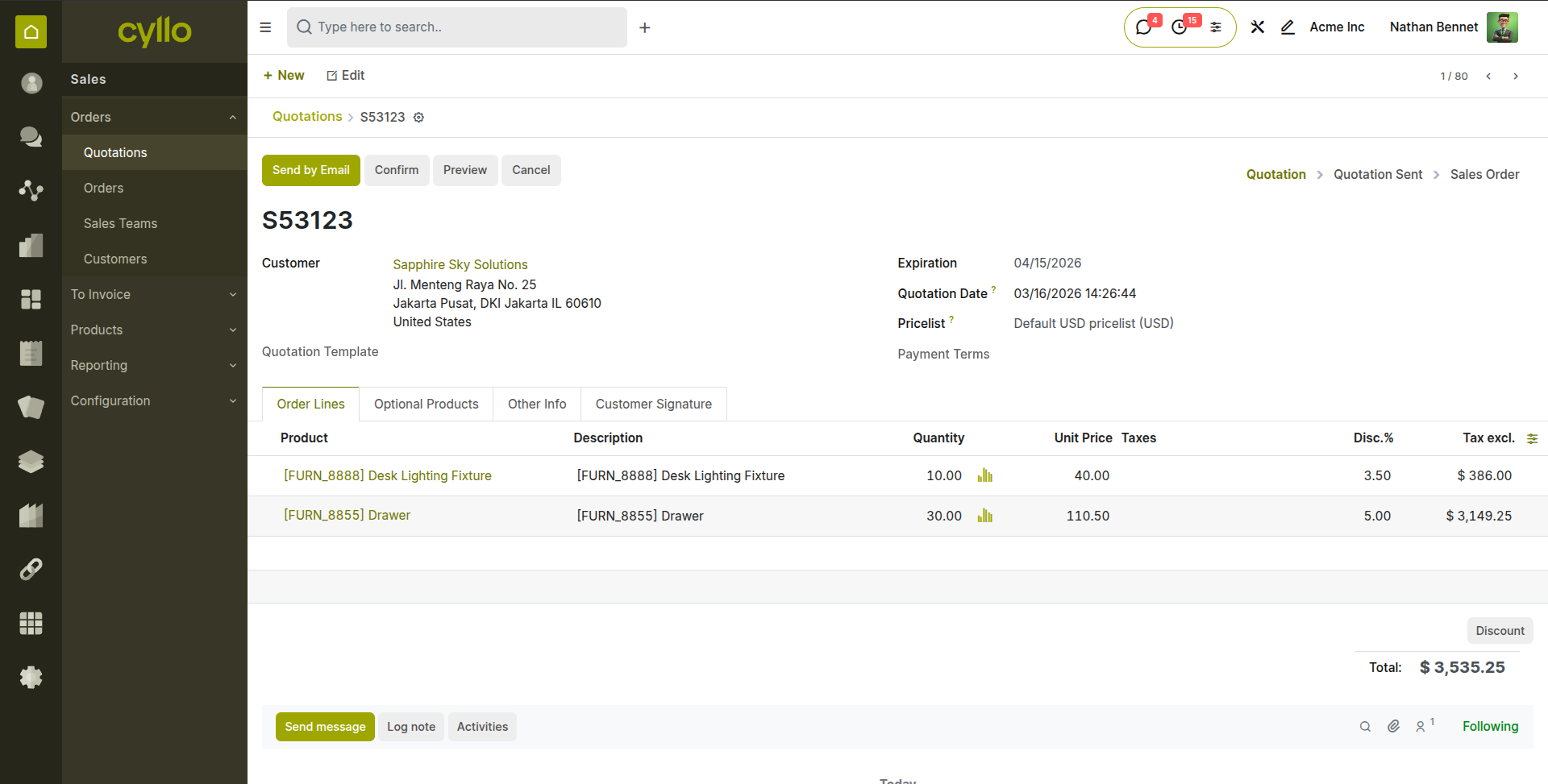
Fig 1.5 — Per-line discount applied on a quotation
Note
Discounts are always shown as a percentage of the unit price. They are visible to the customer on the printed quote.
1.4 Pricelists
Pricelists let you define different pricing rules for different customer groups, currencies, or conditions — such as wholesale pricing, VIP customer rates, or regional pricing.
Enabling Pricelists
- Go to Sales → Configuration → Settings
- Under Pricing, enable Pricelists
- Choose the pricelist strategy:
- Multiple prices per product
- Advanced price rules (discounts, formulas)
- Save settings
Creating a Pricelist
- Go to Sales → Configuration → Pricelists
- Click New
- Enter a Name (e.g., Wholesale Price, USD Export, VIP Customers)
- Set the Currency
- Add pricelist rules: fixed price, percentage discount, or formula-based
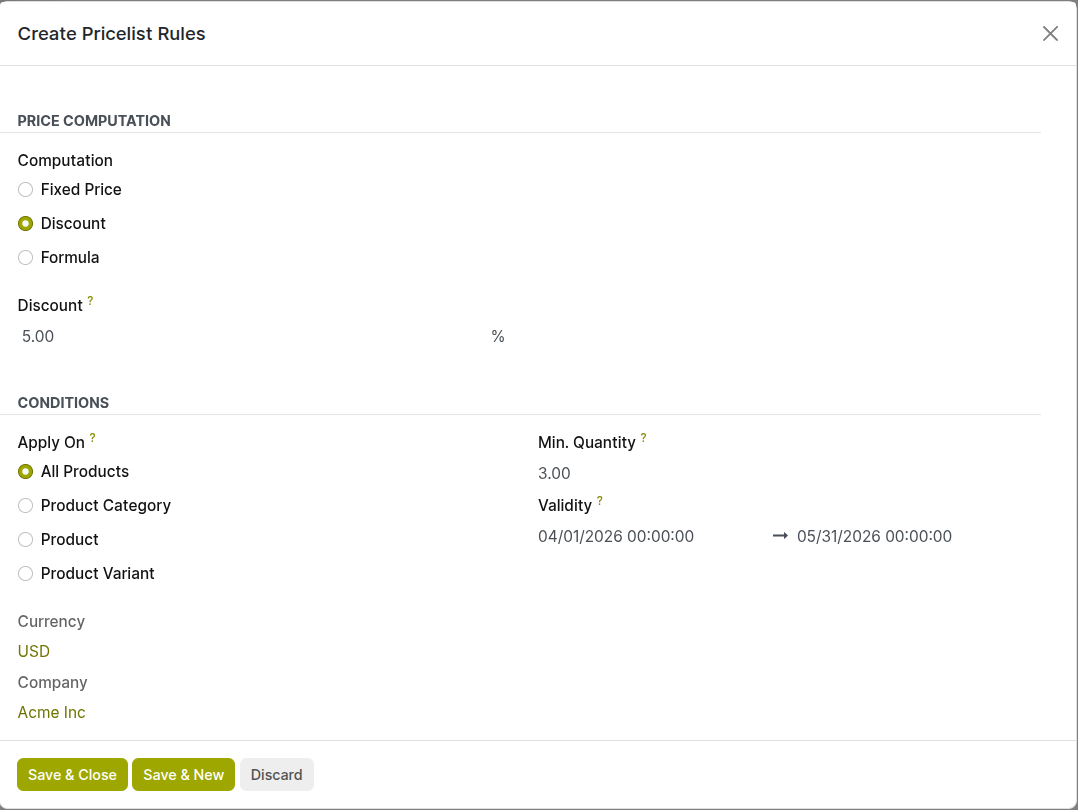
Fig 1.6 — Pricelist rules
- Set conditions: minimum quantity, date range, or product category
- Save and assign to customers or use at the order level
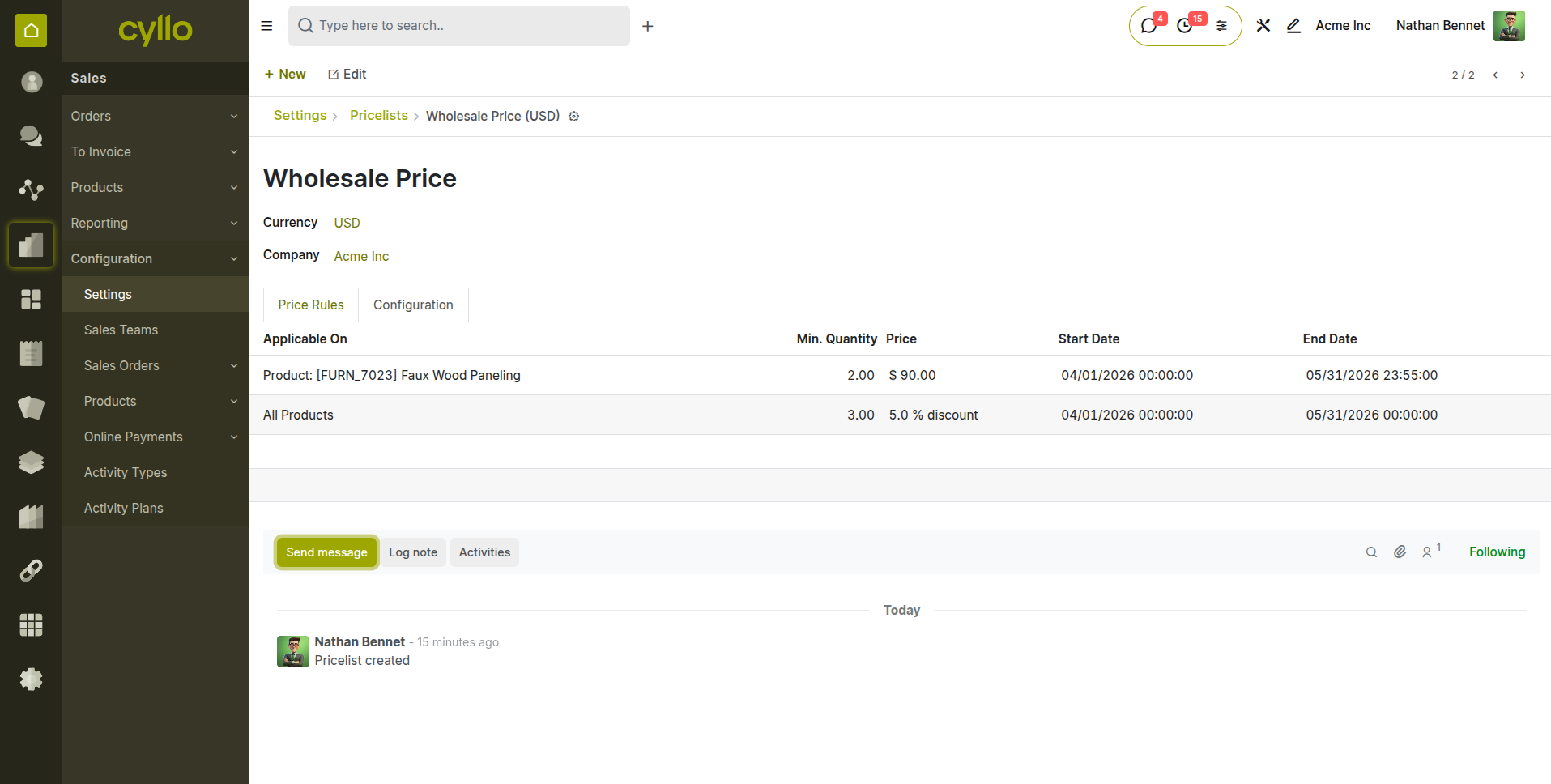
Fig 1.7 — Pricelist with tiered pricing rules
Applying a Pricelist to an Order
- On the Sales Order form, select the Pricelist field
- Prices on order lines update automatically based on the selected pricelist rules
Note
Assign a default pricelist to a customer on their contact form to auto-apply it on every new order.
1.5 PDF Quote Builder
Cyllo's PDF Quote Builder lets you create professional, branded quotation PDFs that can be sent directly to customers. You can add custom headers, footers, terms, and product descriptions.
Printing a Quotation as PDF
- Open a quotation in Sales → Orders → Quotations
- Click Print → Quotation / Order at the top of the form
- A PDF is generated instantly and downloaded
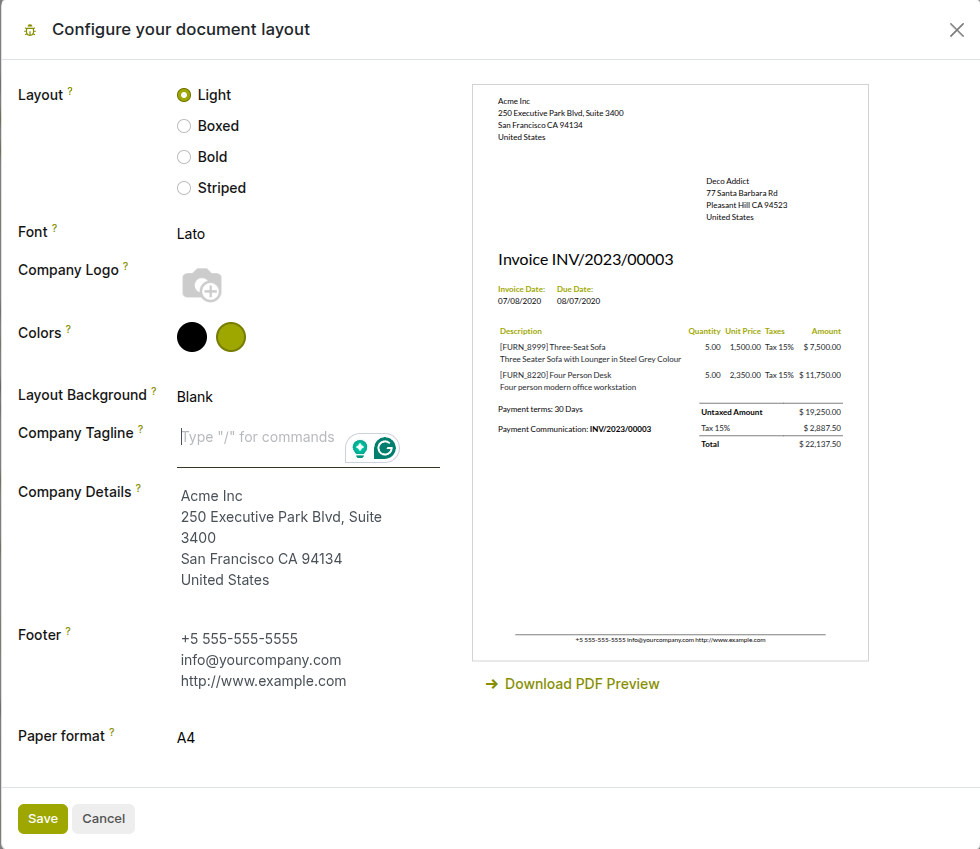
Fig 1.8 — Generated PDF quotation with line items and totals
Customising the Quote Layout:
- Adjust report template in Settings → General Settings → Companies → Configure your document layout
- Set default Header/Footer pages in Sales → Configuration → Settings → Quotations & Orders → PDF Quote builder
Note
The PDF layout inherits your company's branding, logo, and address automatically from the company profile.
1.6 Online Signature
Customers can sign quotations digitally through the Customer Portal without needing to print, sign, and scan. This streamlines order confirmation and reduces turnaround time.
Enabling Online Signature
- Go to Sales → Configuration → Settings
- Under Quotations & Orders, enable Online Signature
- Save settings
How It Works:
- Send the quotation to the customer via email — the email includes a link to the portal
- The customer opens the quote in their portal and reviews it
- They click Sign & Pay (or just Sign) and draw or type their signature
- On confirmation, the quotation is automatically converted to a Sales Order
- Both parties receive an email confirmation with the signed document attached
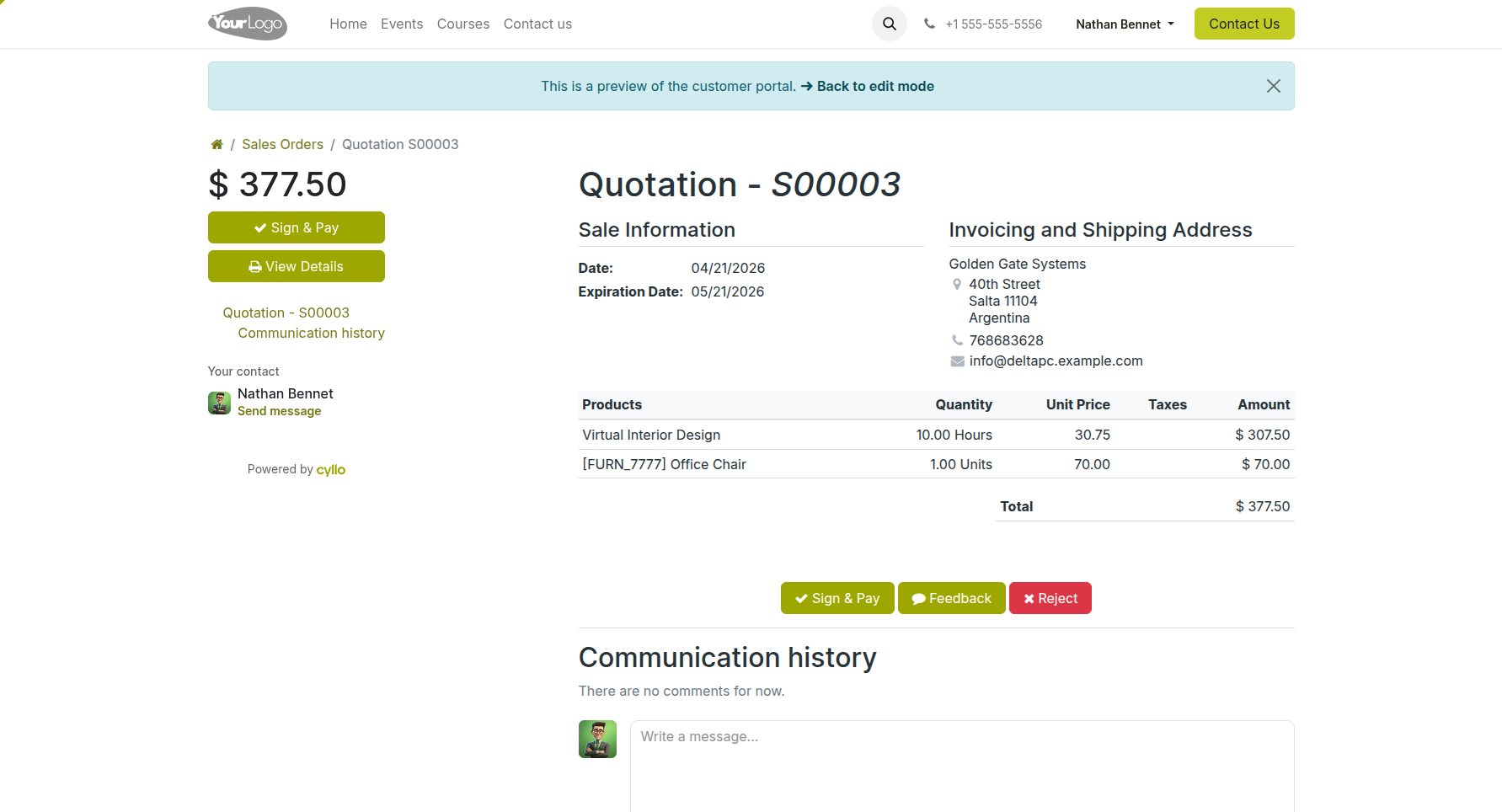
Fig 1.9 — Customer-facing portal with online signature prompt
Note
You can require online signature and/or online payment before confirming an order — configure this per Quotation Template.
1.7 Commission
Sales commissions allow you to track and reward salespeople based on the revenue they generate. Cyllo supports commission tracking via sales targets and team performance reports.
Enabling Commissions
- Go to Sales → Configuration → Settings
- Under Sales Commissions, enable Commissions
- Save settings
Tracking Commissions:
- Each Sales Order is linked to a Salesperson and Sales Team
- Commission targets are managed through Sales → Configuration → Sales Teams
- Sales team performance, invoiced amounts, and targets are visible on the Sales dashboard
Sales Teams Configuration:
- Go to Sales → Configuration → Sales Teams
- Click New or open an existing team
- Assign team members and a Team Leader
1.8 Merge Quotations
Merge Quotations feature allows users to combine multiple quotations into a single quotation, simplifying order management and reducing duplicate sales documents. This feature helps users consolidate products from multiple quotations into one unified Quotation.
Users can select multiple quotations directly from the quotation list view and click on the Merge Quotations option. The system validates the selected quotations before performing the merge operation.
To merge quotations successfully, the selected quotations must satisfy the following conditions:
- At least two quotations must be selected.
- All quotations must belong to the same customer.
- All quotations must belong to the same company.
- All quotations must be in the quotation (Draft) state.
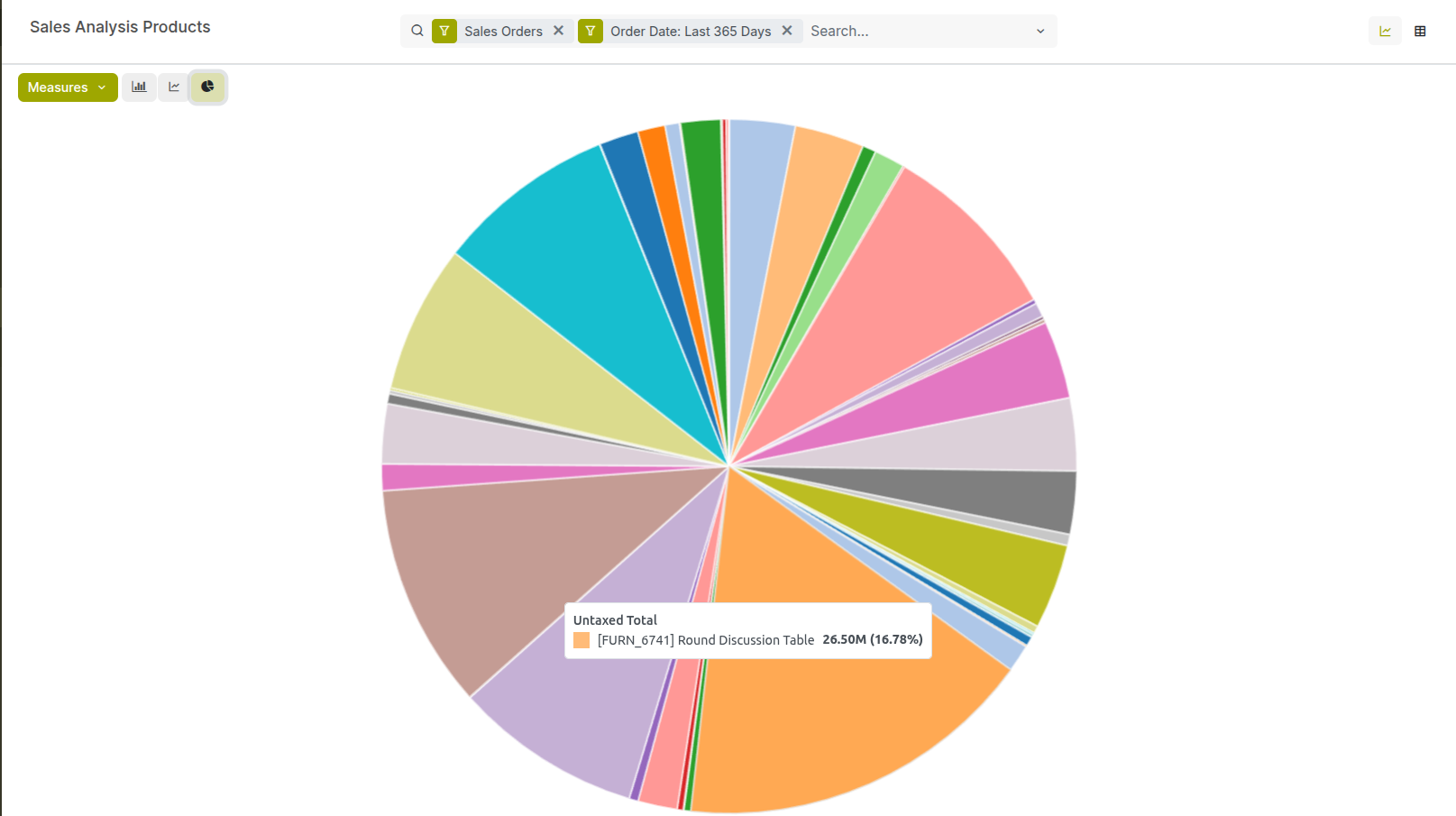
Fig 1.10 — Merge quotations of same customers.
Once the validation is completed successfully, the system automatically creates a new quotation and transfers all products from the selected quotations into the newly generated quotation.After the merge process is completed, the original quotations are automatically removed and the system redirects the user to the newly created quotation form.
2. Invoicing
Cyllo links Sales Orders directly to the Accounting module so invoices are generated from confirmed orders without re-entering data. You can control when and how invoicing happens.
2.1 Orders to Invoice
The Orders to Invoice view shows all confirmed sales orders that are ready to be invoiced — either in full or partially, depending on quantities delivered or milestones reached.
Invoicing a Sales Order:
- Go to Sales → Orders → Orders to Invoice
- Select one or more orders to invoice → Click Action → Create Invoices
OR
Open an order → Click 'Create Invoice' - Review the draft invoice and adjust if needed
- Click Confirm to post the invoice to Accounting
Fig 2.1 — Orders ready for invoicing
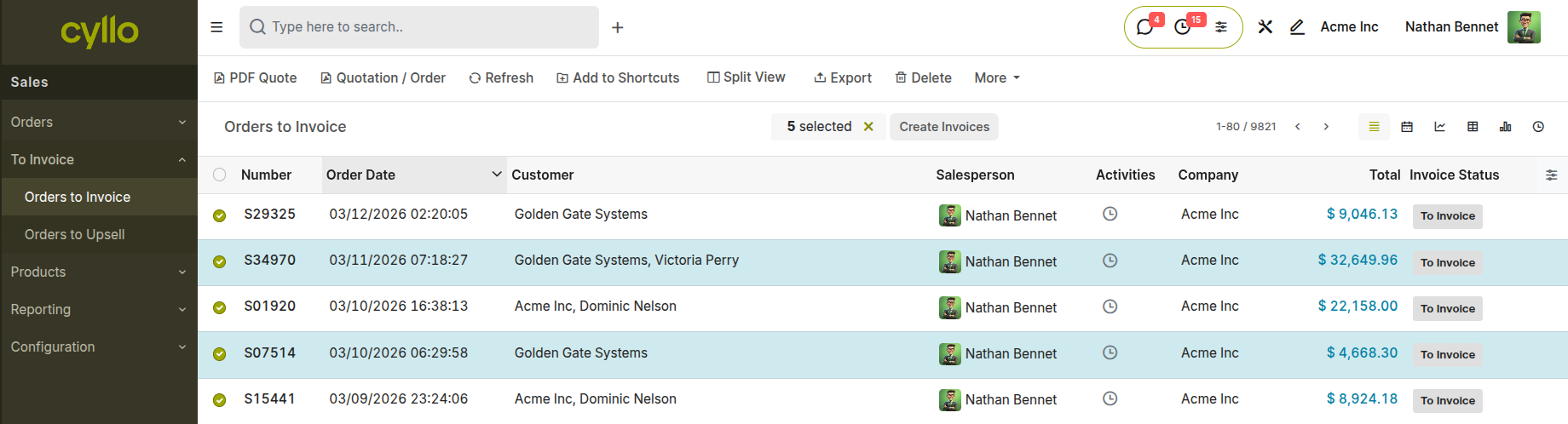
Fig 2.2 — Draft Invoice
2.2 Orders to Upsell
The Orders to Upsell view highlights orders where the delivered quantity exceeds the originally ordered quantity. This gives salespeople an opportunity to update the order and invoice the additional amount.
- Go to Sales → Orders → Orders to Upsell
- Orders appear here when delivered quantity > ordered quantity
- Open the order, update the quantity in the order line to match delivery
- Proceed to invoice the updated order normally
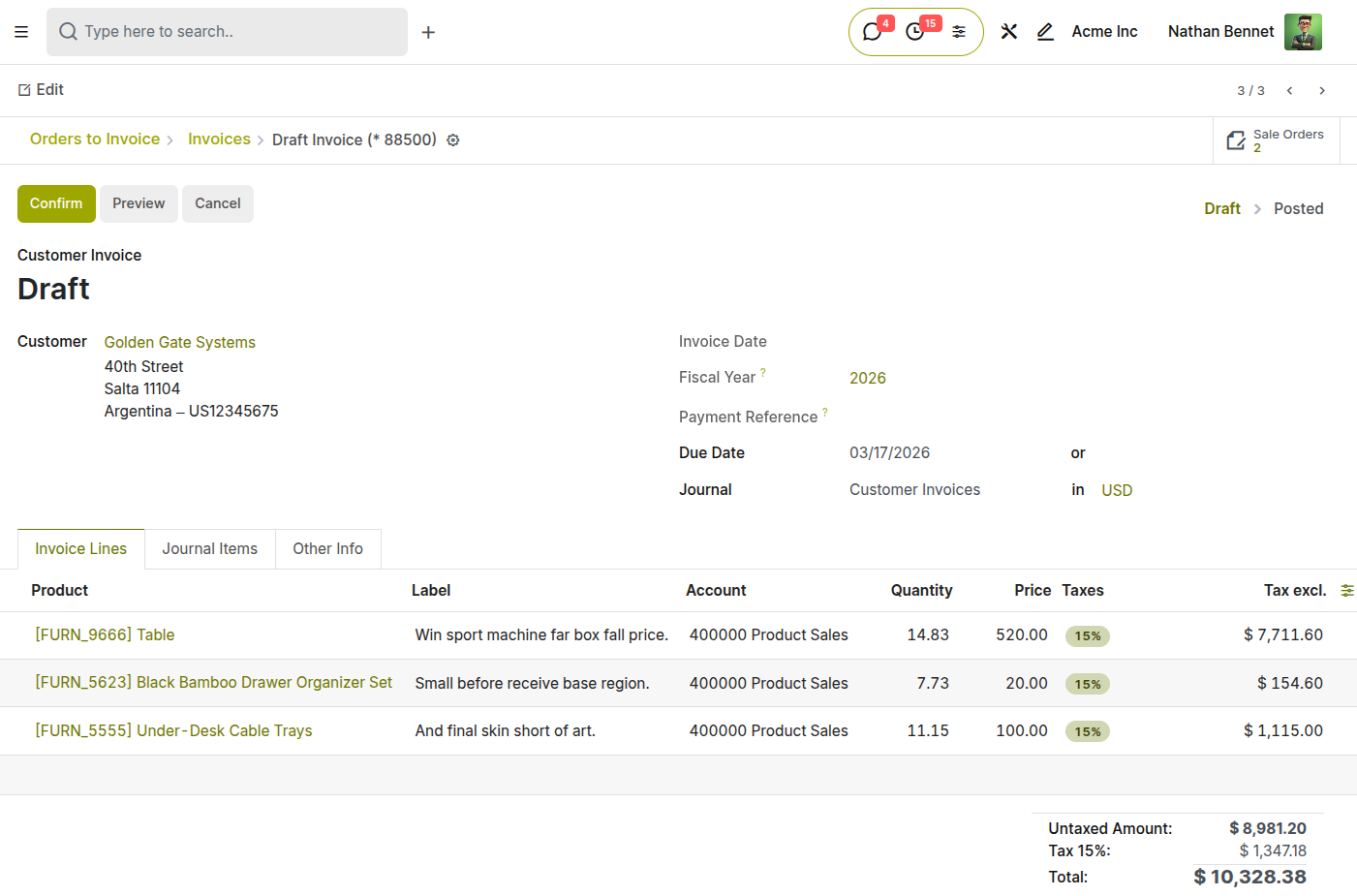
Fig 2.3 — Upsell opportunities list
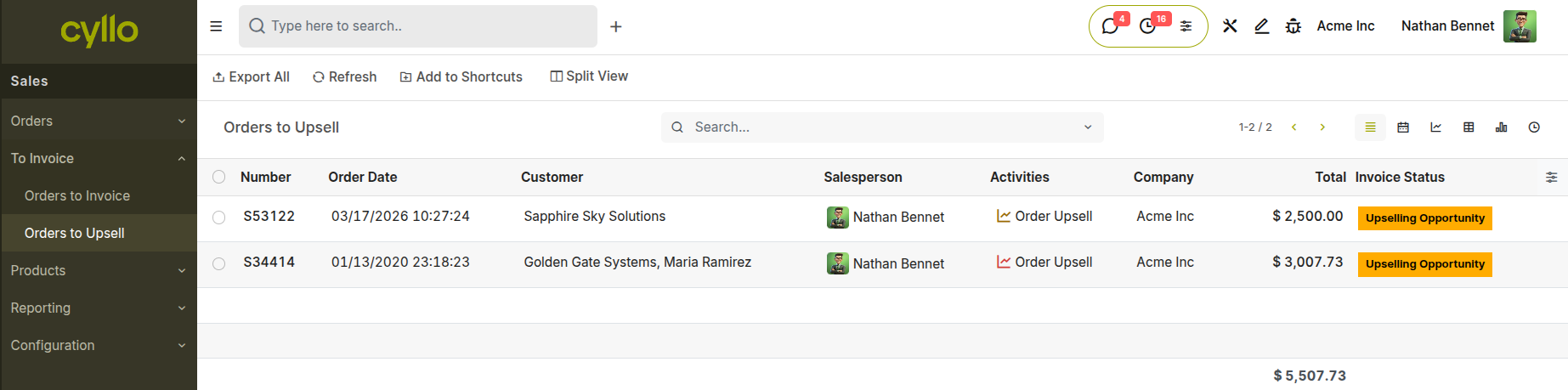
Fig 2.4 — Upsell opportunity form with difference between 'Quantity' & 'Delivered'
2.3 Down Payment
A down payment allows you to invoice a customer for a partial amount upfront before delivering the full order. This is common for large or custom orders.
Creating a Down Payment Invoice:
- Open the confirmed Sales Order
- Click Create Invoice
- In the dialog, select Down Payment
- Choose Fixed Amount or Percentage of the total order value
- Enter the amount or percentage
- Click Create Draft Invoice and then Confirm
- The remaining balance can be invoiced later
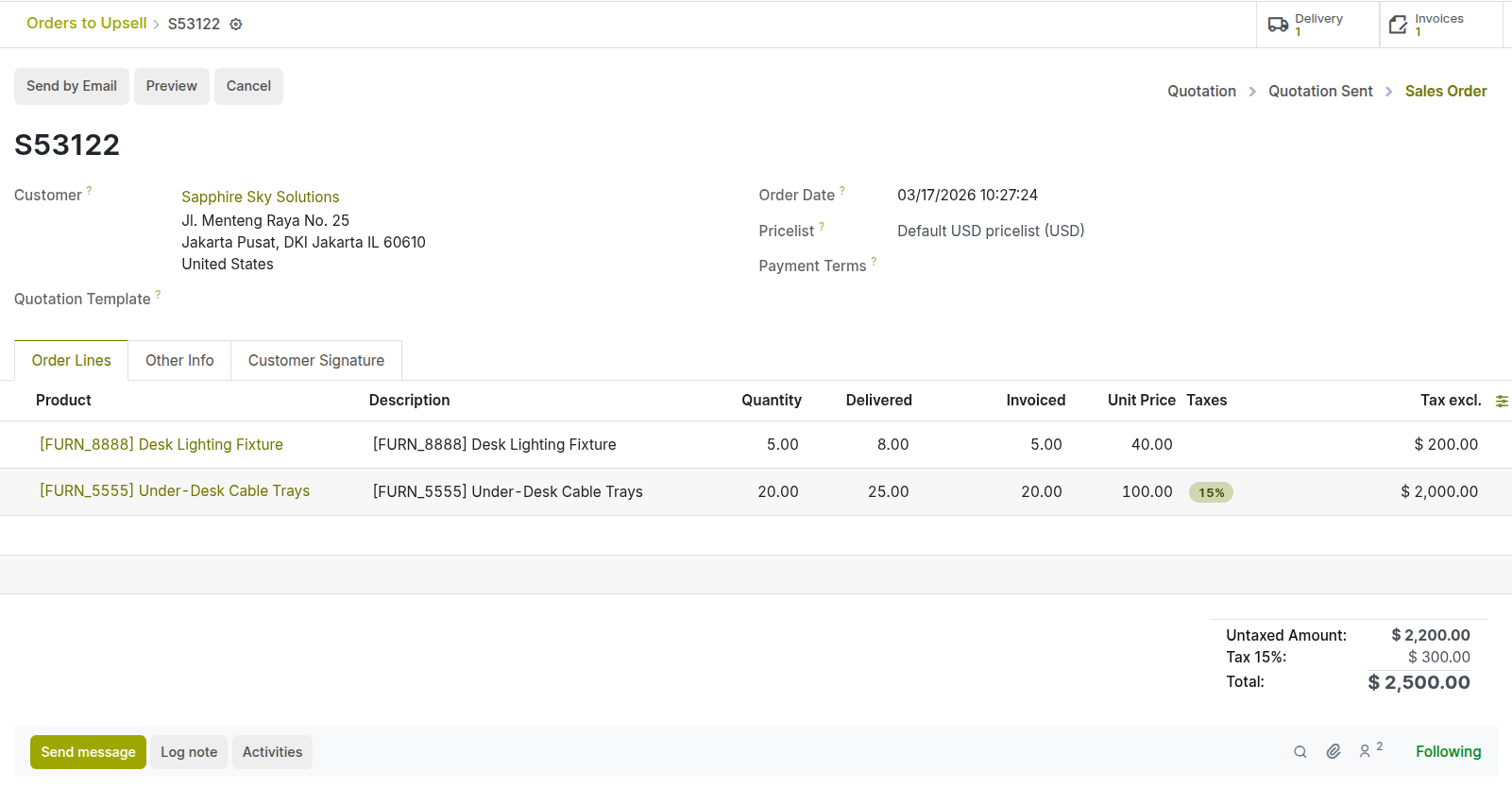
Fig 2.5 — Down payment pop up with fixed amount or percentage options
Note
When the final invoice is created, Cyllo automatically deducts the down payment amount to avoid double charging.
2.4 Invoice Policy
The Invoice Policy determines when a customer is billed — on order confirmation or after delivery. This is set per product and can be overridden at the order level.
Setting Invoice Policy on a Product
- Go to Sales → Products → Products
- Open the product you want to configure
- Click the General Information tab
- Set the Invoicing Policy:
- Ordered Quantities: Invoice as soon as the order is confirmed.
- Delivered Quantities: Invoice only after the delivery is validated.
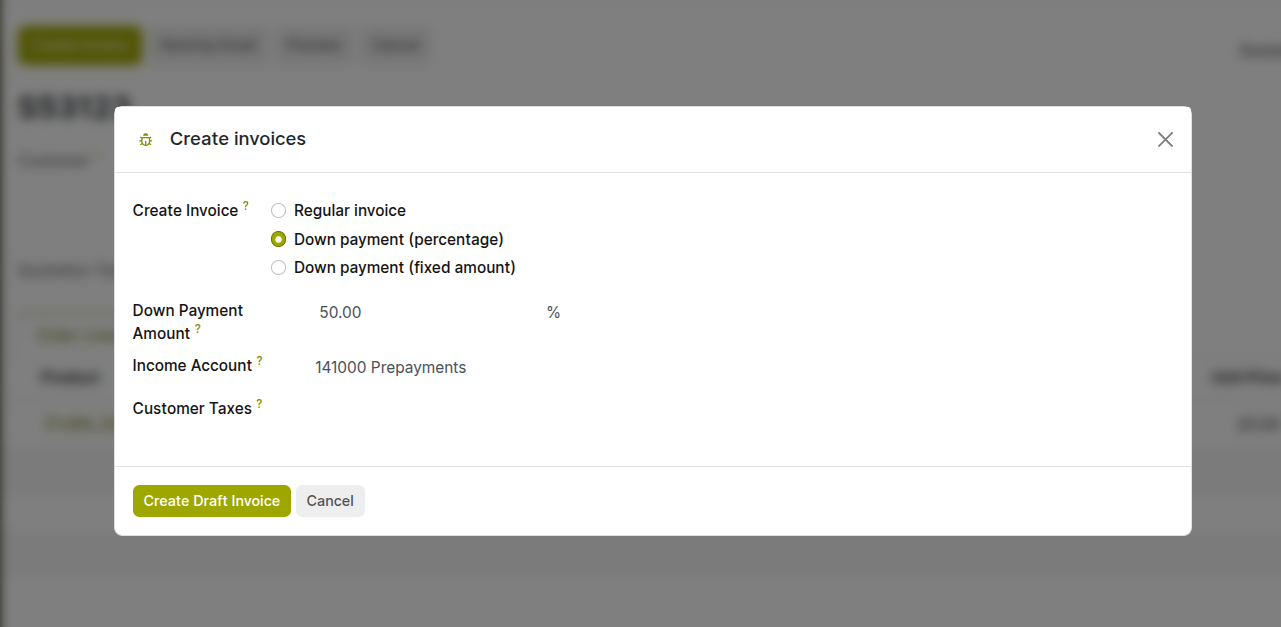
Fig 2.6 — Invoice policy configuration on the product form
2.5 Credit Notes & Refunds
Credit Notes are used to reverse or partially reverse a posted invoice — for example, when a customer returns goods, overpayment occurs, or a billing error needs correction.
Creating a Credit Note:
- Open the posted invoice in Accounting → Customers → Invoices → Select an invoice
- Click Add Credit Note at the top
- Enter the Reason for the credit note
- Select the Reversal Date
- Click Reverse
- Confirm the credit note to post it
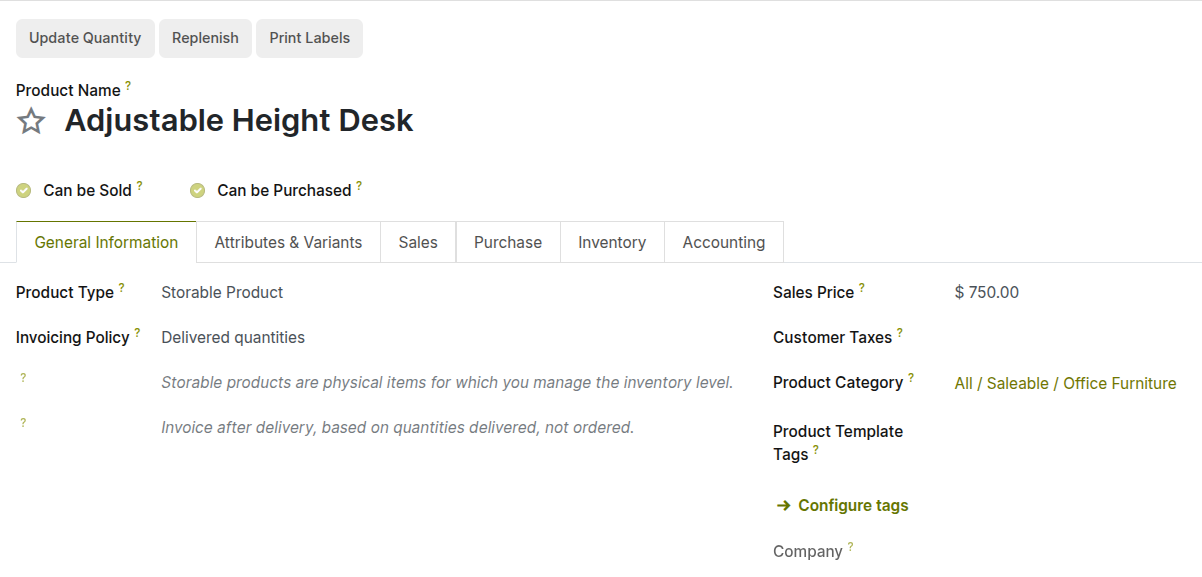
Fig 2.7 — Credit note creation from a posted invoice
2.6 Payment Terms
Payment Terms define when and how a customer is expected to pay — for example, immediate payment, net 30 days, or split payments (50% now, 50% after 30 days).
Creating Payment Terms:
- Go to Accounting → Configuration → Invoicing → Payment Terms → Click New
- Name the payment term (e.g., Net 30, 50/50 Split)
- Add 'due terms' line: percentage or fixed amount with due date rules
- Save and assign to customers or individual invoices
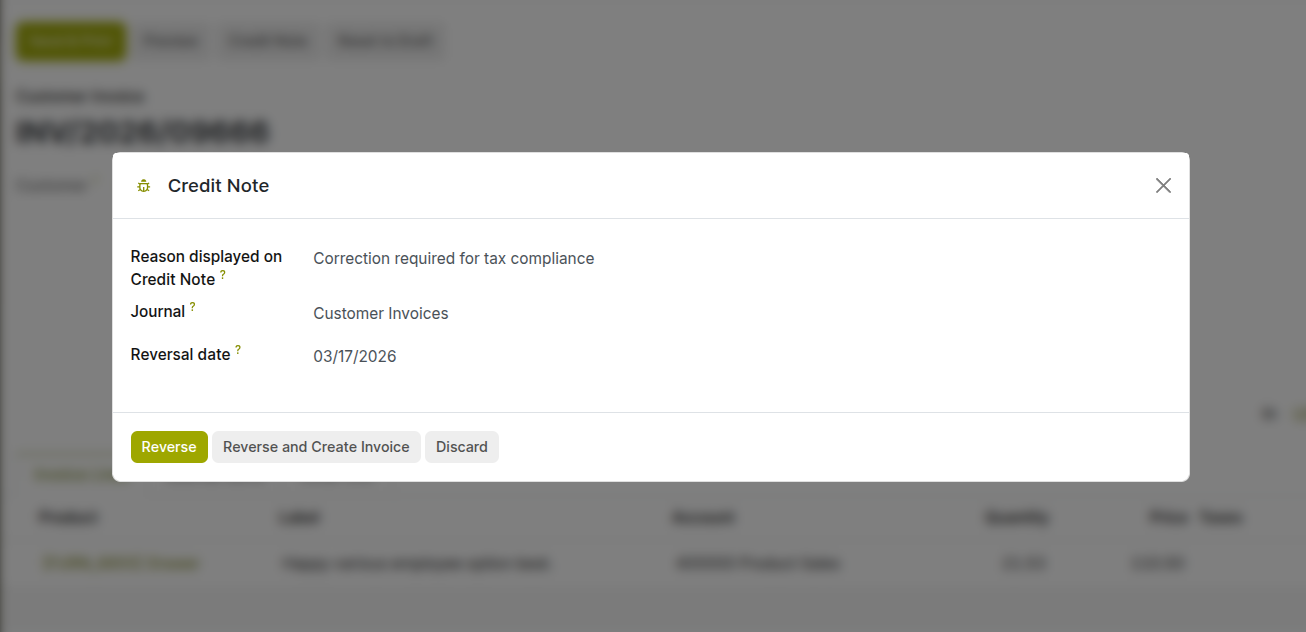
Fig 2.8 — Payment terms with split payment schedule
Note
Assign default payment terms to a customer on their contact form to auto-apply on all invoices.
3. Product Management
Products in Cyllo are shared across Sales, Inventory, Accounting, and eCommerce. A well-configured product record ensures accurate pricing, stock tracking, and invoicing throughout the platform.
3.1 Product Configuration
Each product in Cyllo has a comprehensive form covering sales information, purchase details, inventory settings, and accounting linkage.
Creating a Product:
- Go to Sales → Products → Products → Click New
- Enter the Product Name
- Select the Product Type: Storable Product, Consumable, or Service
- Set the Sales Price and optionally the Cost
- Upload a Product Image
- Configure tabs: Sales, Purchase, Inventory, Accounting
- Save the product
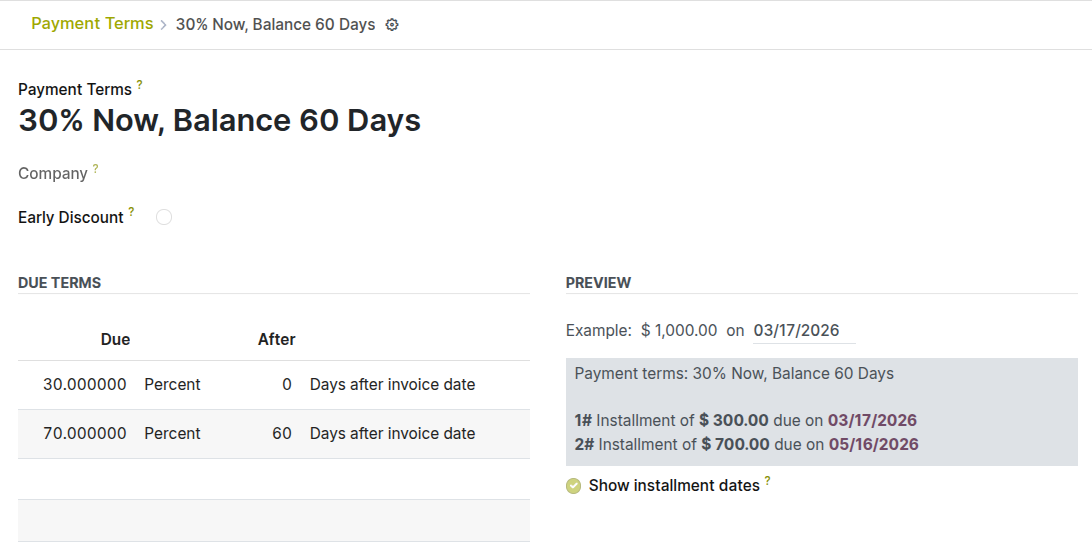
Fig 3.1 — Product form showing general configuration
Product Types:
- Storable Product: Tracked in inventory with stock levels, reordering, and valuation.
- Consumable: Used in operations but not tracked in inventory.
- Service: Intangible — time, consulting, subscription. No stock movements.
3.2 Categories
Product categories help organize your catalog and apply shared settings like account mapping, costing methods, and removal strategies to groups of products.
Managing Product Categories:
- Go to Sales → Configuration → Products → Product Categories
- Click New to create a category
- Enter Category Name and select a Parent Category if needed
- Configure Costing Method: Standard Price, Average Cost (AVCO), or First In First Out (FIFO)
- Set the Inventory Account, Income Account, and Expense Account
- Assign categories to products on the product form (General tab → Category field)
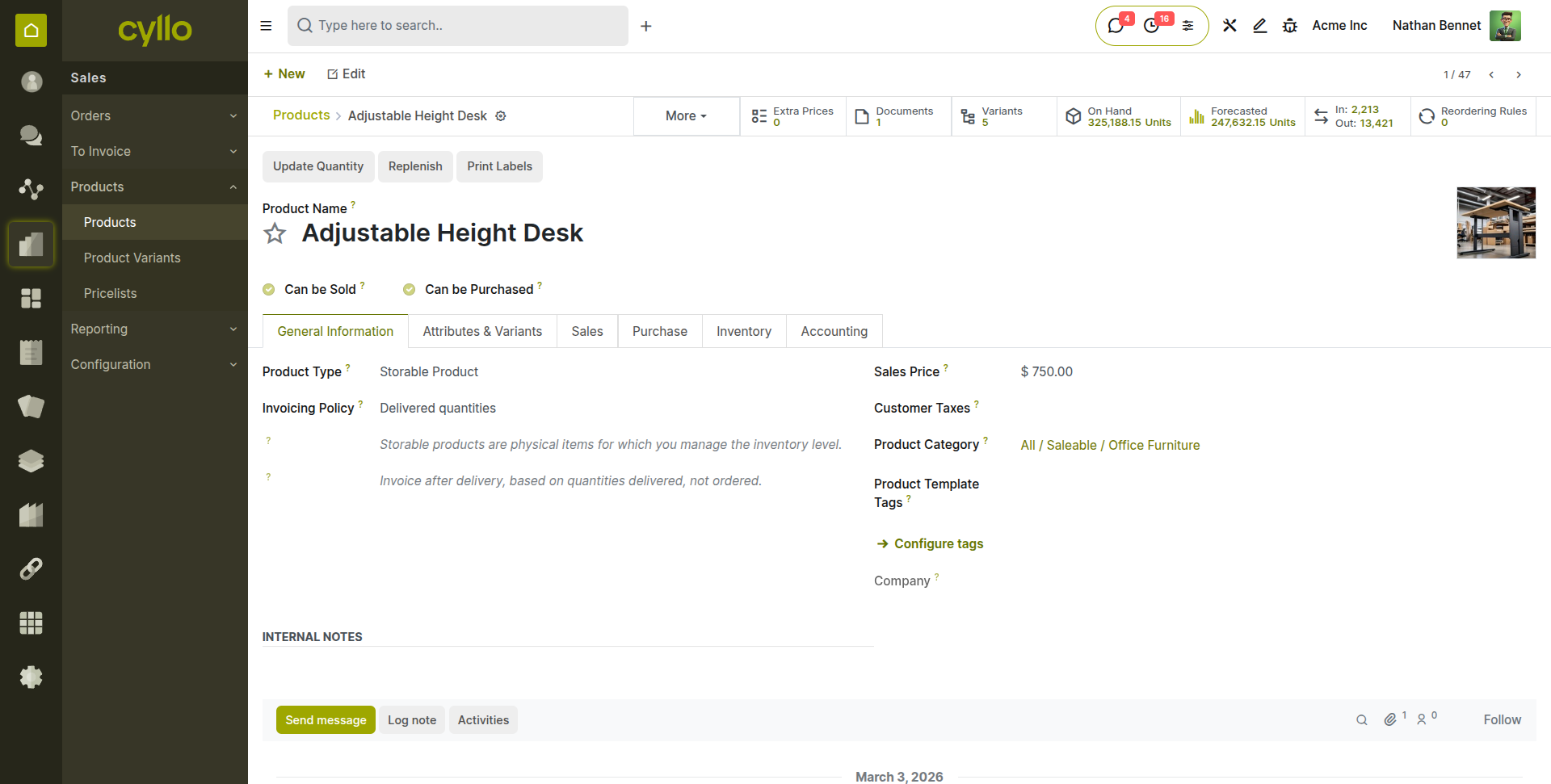
Fig 3.2 — Product category configuration
Note
FIFO and AVCO costing methods update stock valuation automatically with each stock movement.
3.3 Variants
Product Variants allow a single product to exist in multiple configurations — such as different sizes, colours, or materials — without creating separate product records for each.
Enabling Variants:
- Go to Sales → Configuration → Settings
- Under 'Product Catalog', enable Variants
- Save settings
Setting Up Variants:
- Open a product form
- Click the Attributes & Variants tab
- Click Add a line to add an attribute (e.g., Colour, Size)
- Enter the values for each attribute (e.g., Red, Blue, Green)
- Cyllo generates all variant combinations automatically
- Go to Sales → Products → Products Variants → Click on individual variants to set specific prices, barcodes, or images
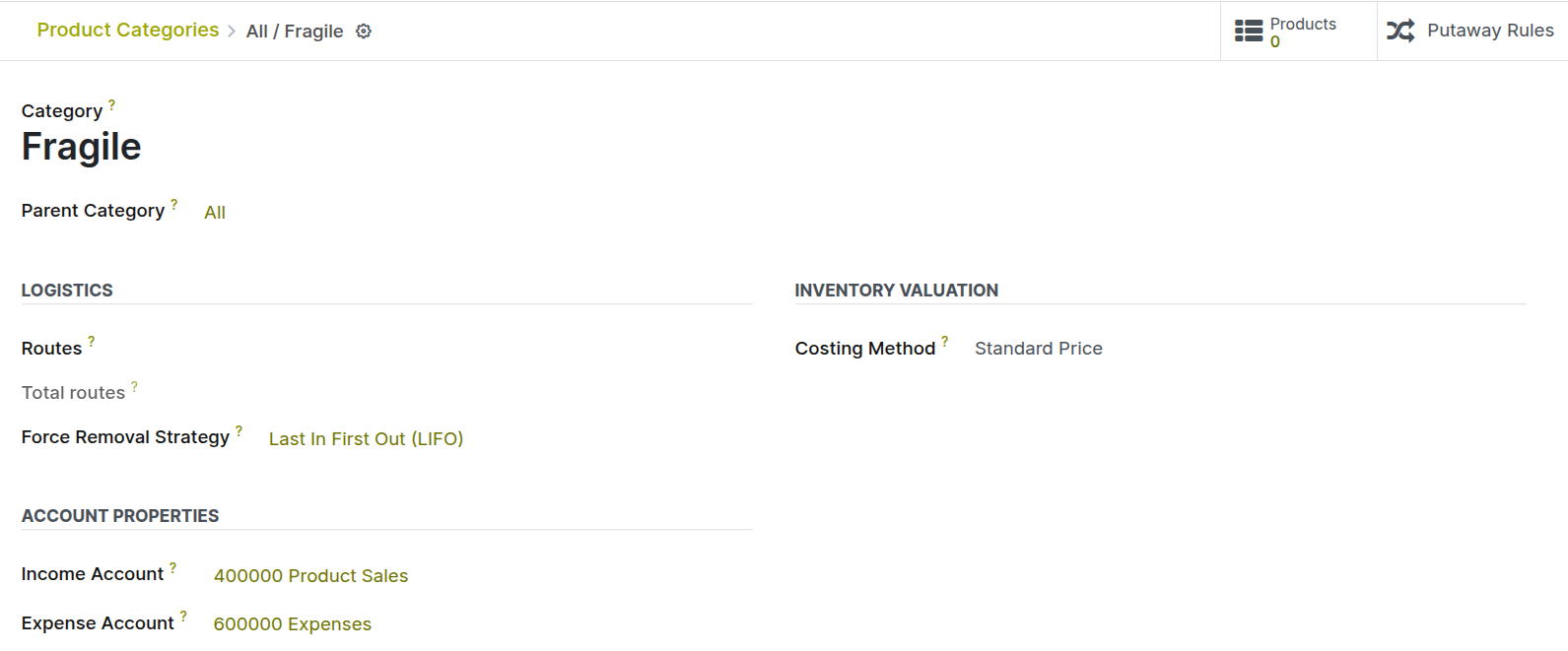
Fig 3.3 — Variant configuration with attribute values
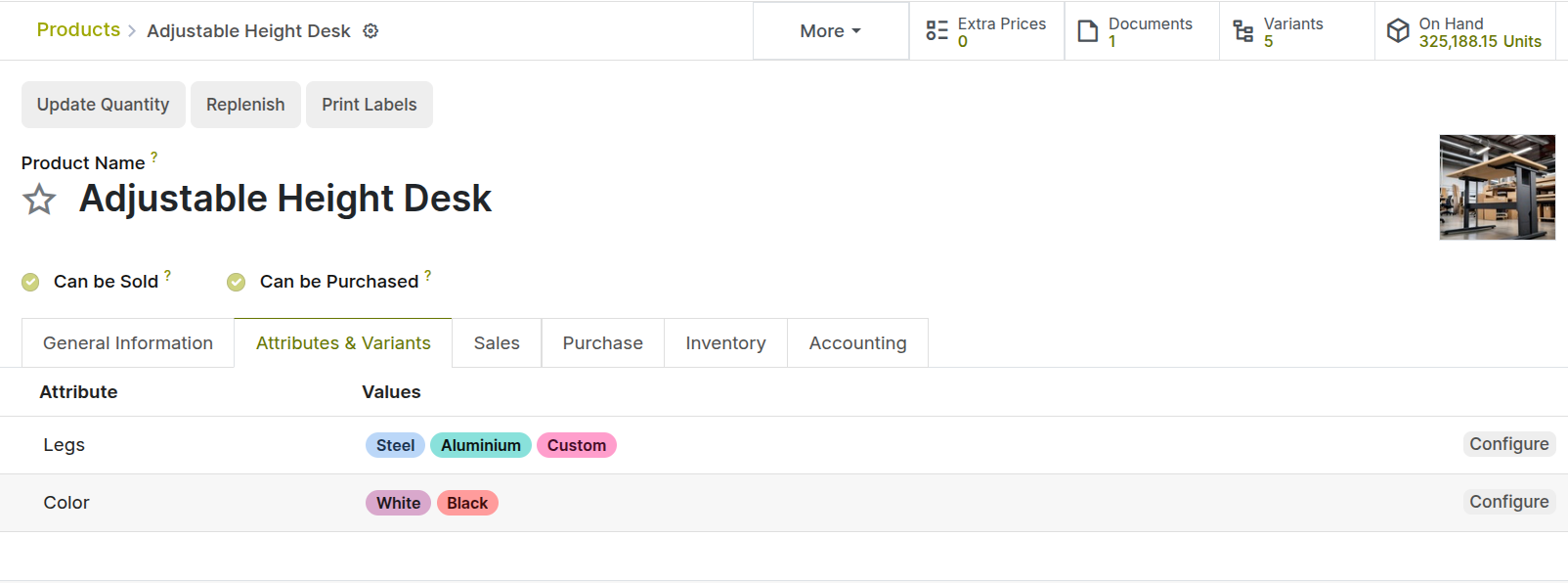
Fig 3.4 — Auto-generated product variant combinations
Note
Each variant has its own barcode, internal reference, and can have a price difference applied.
3.4 Packaging
Product packaging lets you define how products are grouped when sold or shipped — for example, packs of 6, boxes of 12, or pallets of 100 units.
Enabling Packaging:
- Go to Sales → Configuration → Settings
- Enable Product Packagings under Product Catalog
- Save settings
Configuring Packaging:
- Open a Product Variants and go to the Inventory tab
- Scroll down to the Packaging section
- Click Add a line
- Enter the Package Name (e.g., Box of 12) and Contained Quantity
- On sale order lines, packaging options will be available when ordering
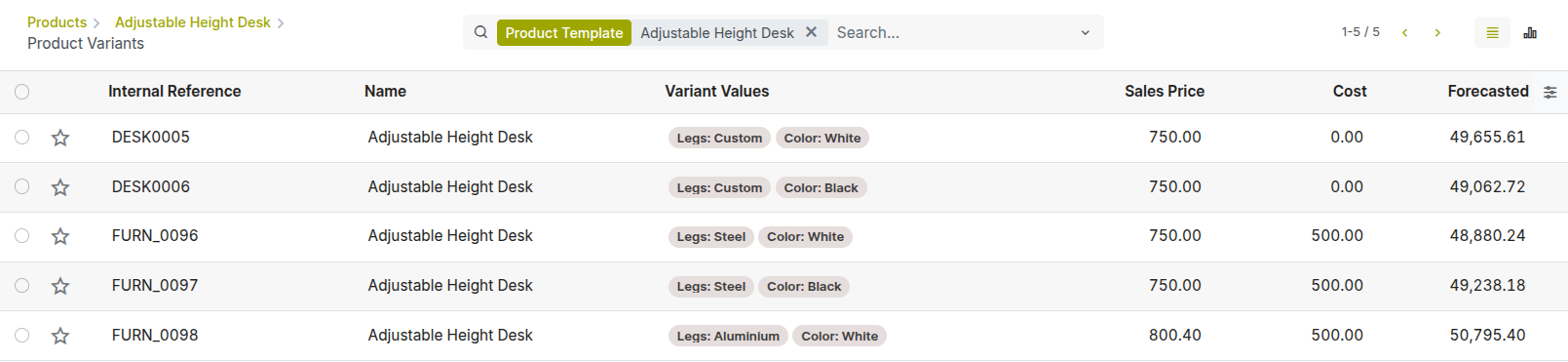
Fig 3.5 — Product packaging configuration
3.5 Unit of Measure (UoM)
Units of Measure define how products are quantified — for example, kilograms, litres, metres, or pieces. Cyllo supports conversion between different units of the same category.
Enabling Units of Measure:
- Go to Sales → Configuration → Settings
- Under Catalogue, enable Units of Measure
- Save settings
Configuring UoM:
- Go to Sales → Configuration → Units of Measure → Units of Measure
- Units are organized into UoM Categories (e.g., Weight, Volume, Length, Unit)
- Each category has a reference unit — conversions are relative to this
- Create custom UoMs within a category and set the conversion ratio
Using UoM on a Product:
- On the product form, set the Unit of Measure (sales UoM) and Purchase UoM
- Cyllo automatically converts between purchase and sales UoMs on orders
- Example: Buy in kg, sell in grams — Cyllo handles conversion automatically
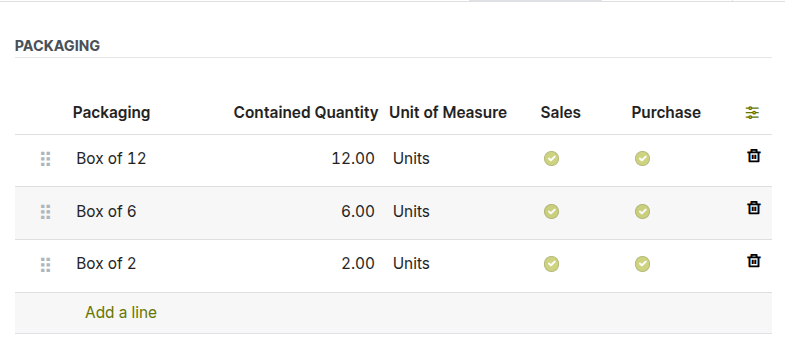
Fig 3.6 — UoM category with conversion ratios
Note
Use the Purchase UoM field on the product form when your supplier ships in a different unit than you sell in.
3.6 Warranty on Sale order
Warranty management can be enabled from the Sales settings to track product warranties throughout the sales process. Warranty details are automatically applied to sales and delivery orders, ensuring accurate coverage and simplified after-sales service.
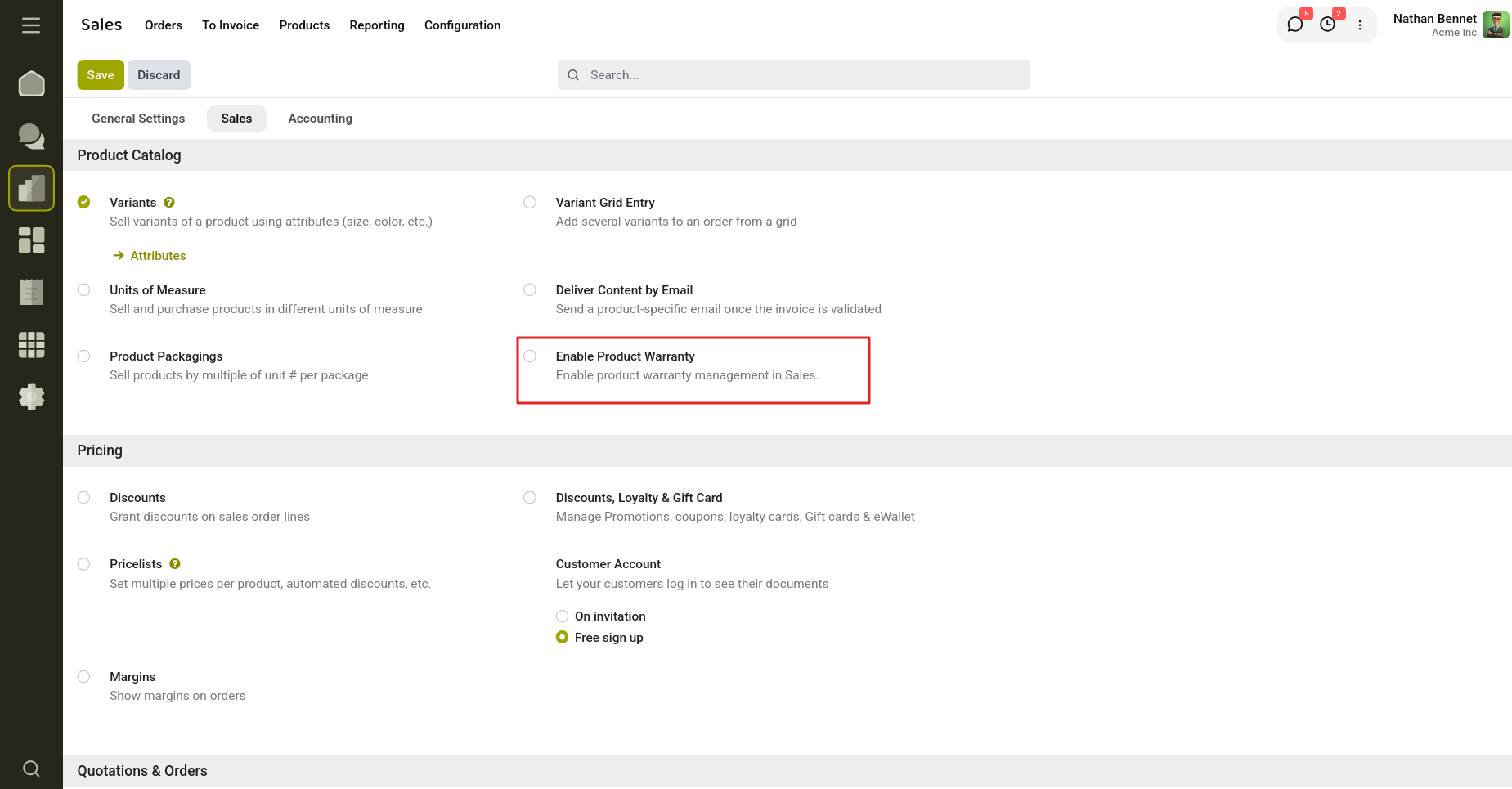
Fig 3.6 — Enable Product Warranty from Settings
When viewing a sales order, warranty expiration dates appear automatically on sales order lines once the order is confirmed:
- Navigate to Sales > Orders
- Open any sales order with a 'sale' or 'done' status
- In the order lines section, you will see the 'Warranty Expiration Date' column (may need to enable it)
- Click on any line to see detailed warranty information
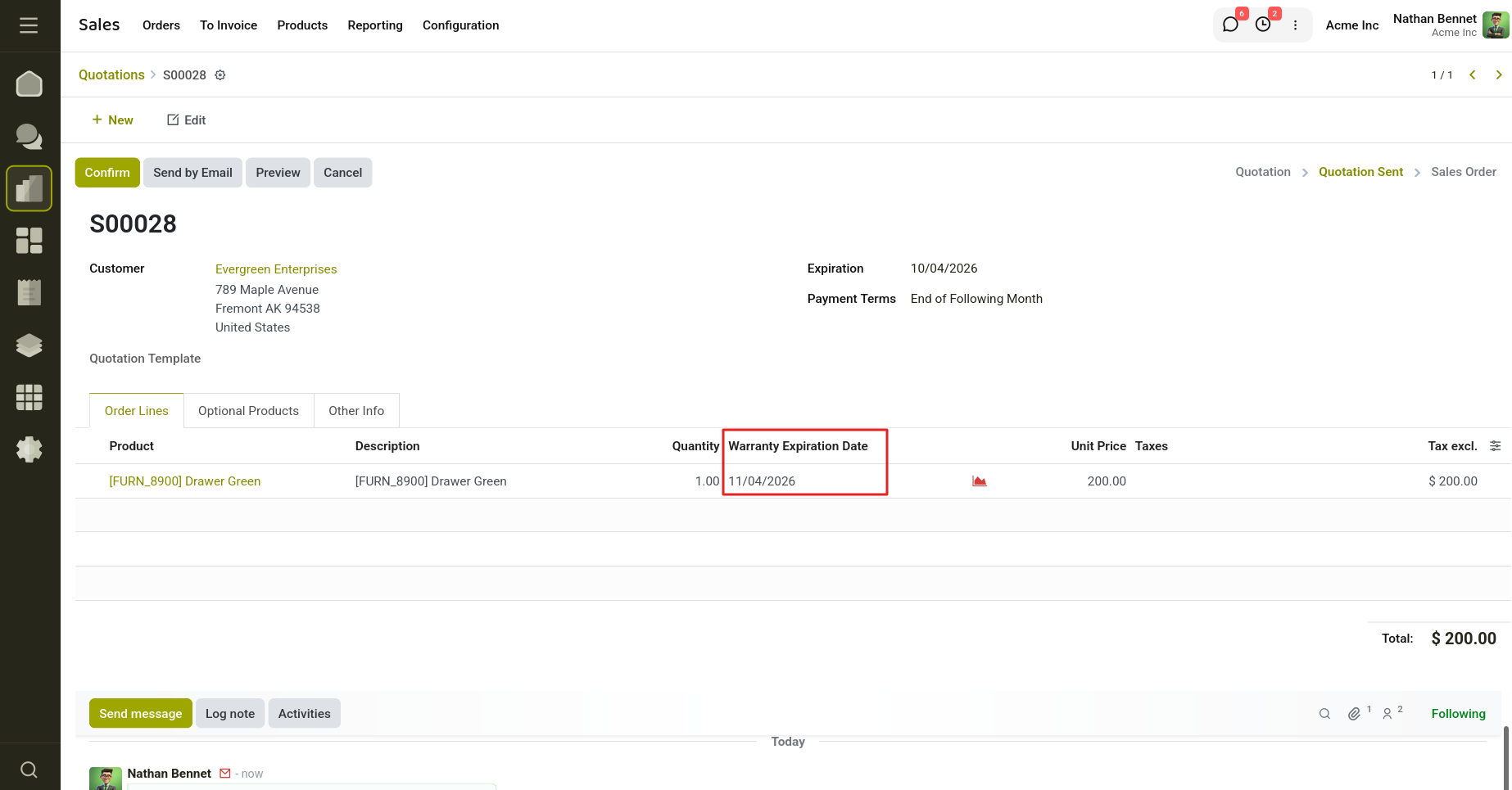
Fig 3.7 — Warranty Expiration Date visible from order lines
Extending Warranty on Sales Orders
The warranty extension feature allows you to add additional warranty coverage for sold items:
- Open a sales order in 'sale' or 'done' status
- If the order contains items with valid warranties and extension is enabled, an 'Extend Warranty' button will appear in the header
- Click the 'Extend Warranty' button
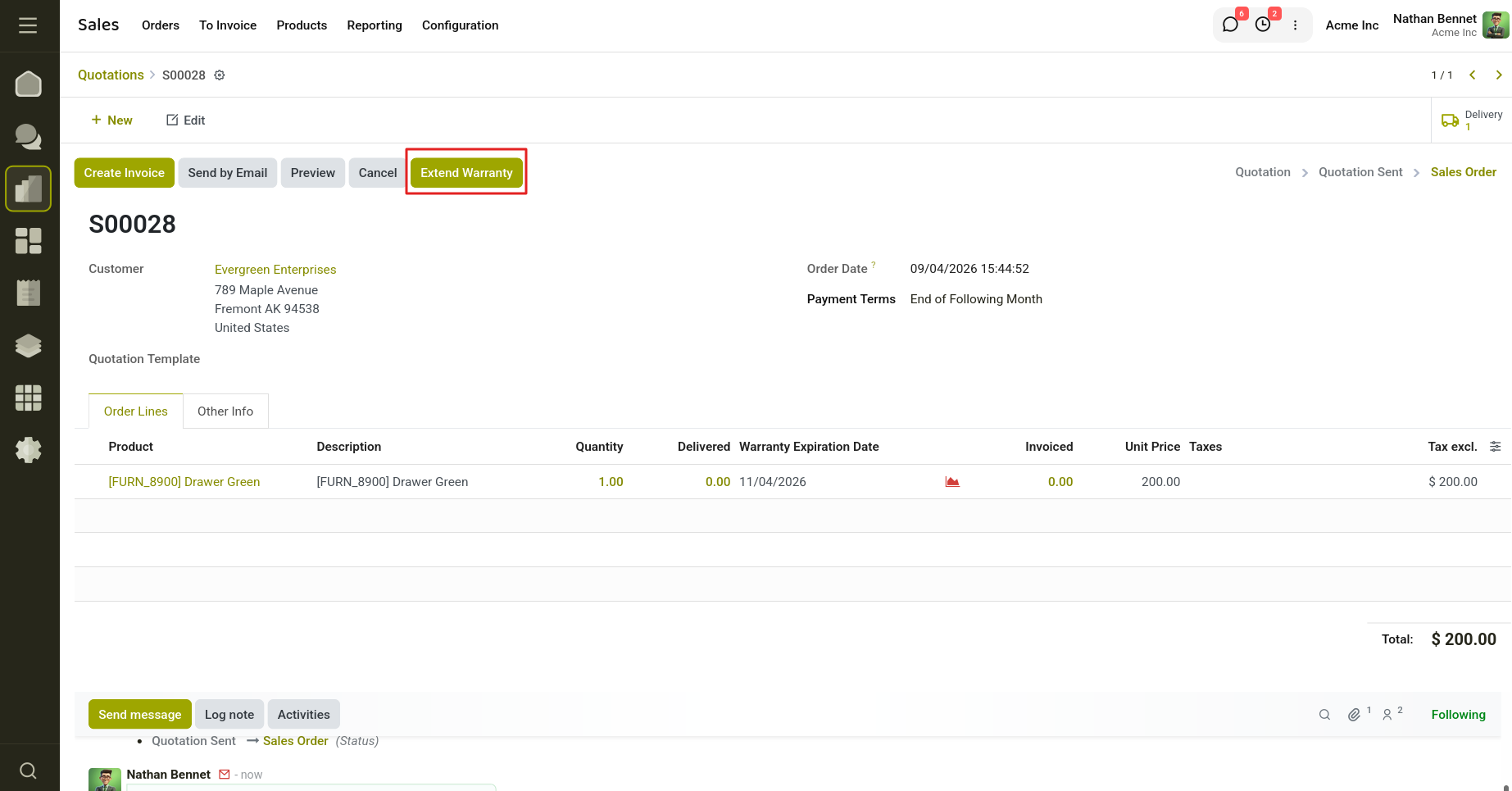
Fig 3.8 — Warranty Extension Button.
- The Warranty Extension Wizard dialog will open
- Select which order lines you want to extend warranties for (only lines currently under warranty appear)
- Enter the extension period (e.g., '1' for 1 month)
- Select the extension unit (days, months, or years)
- Click 'Confirm' to apply the warranty extension
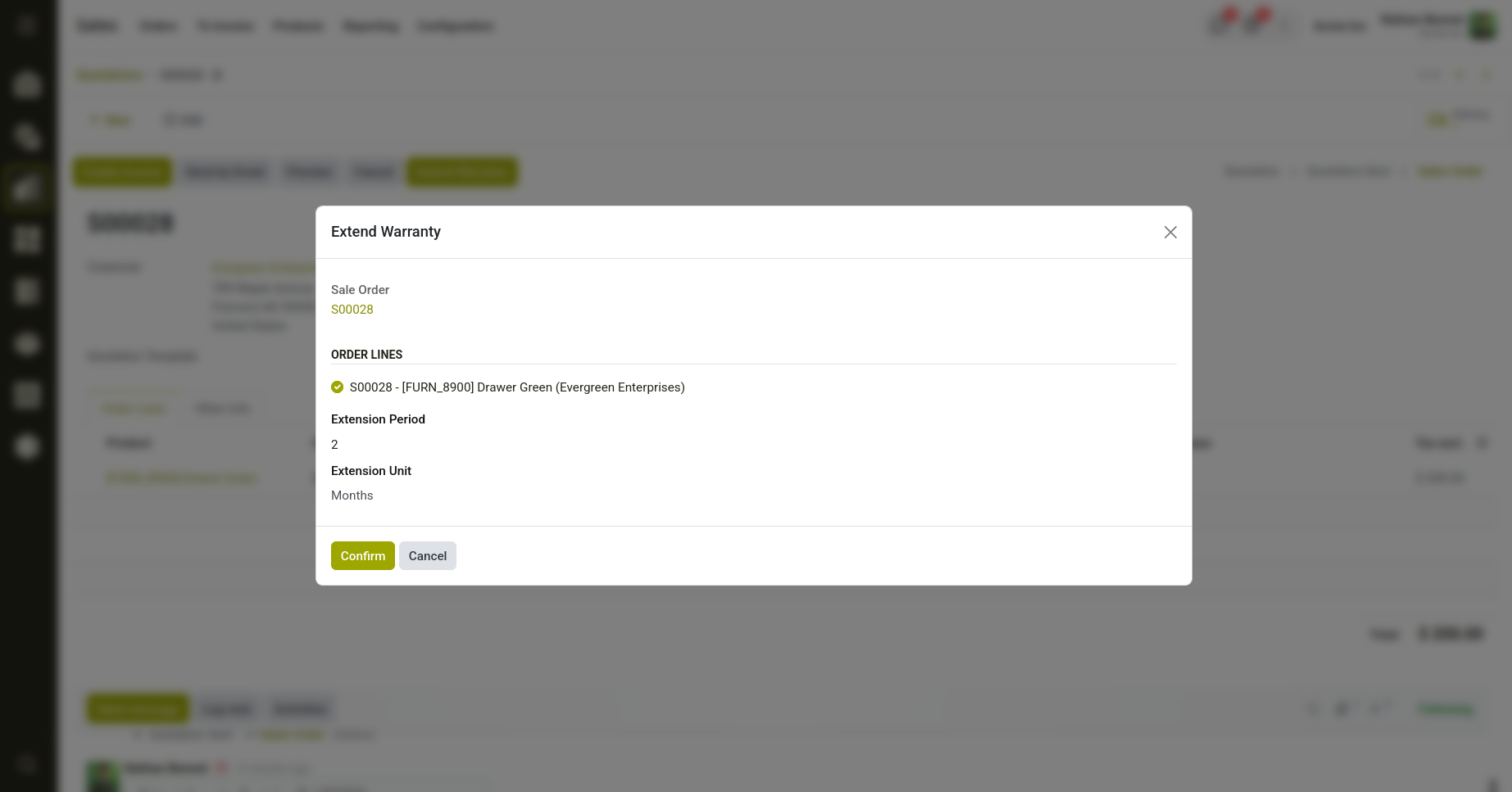
Fig 3.9 — Enter the Extension period and confirm.
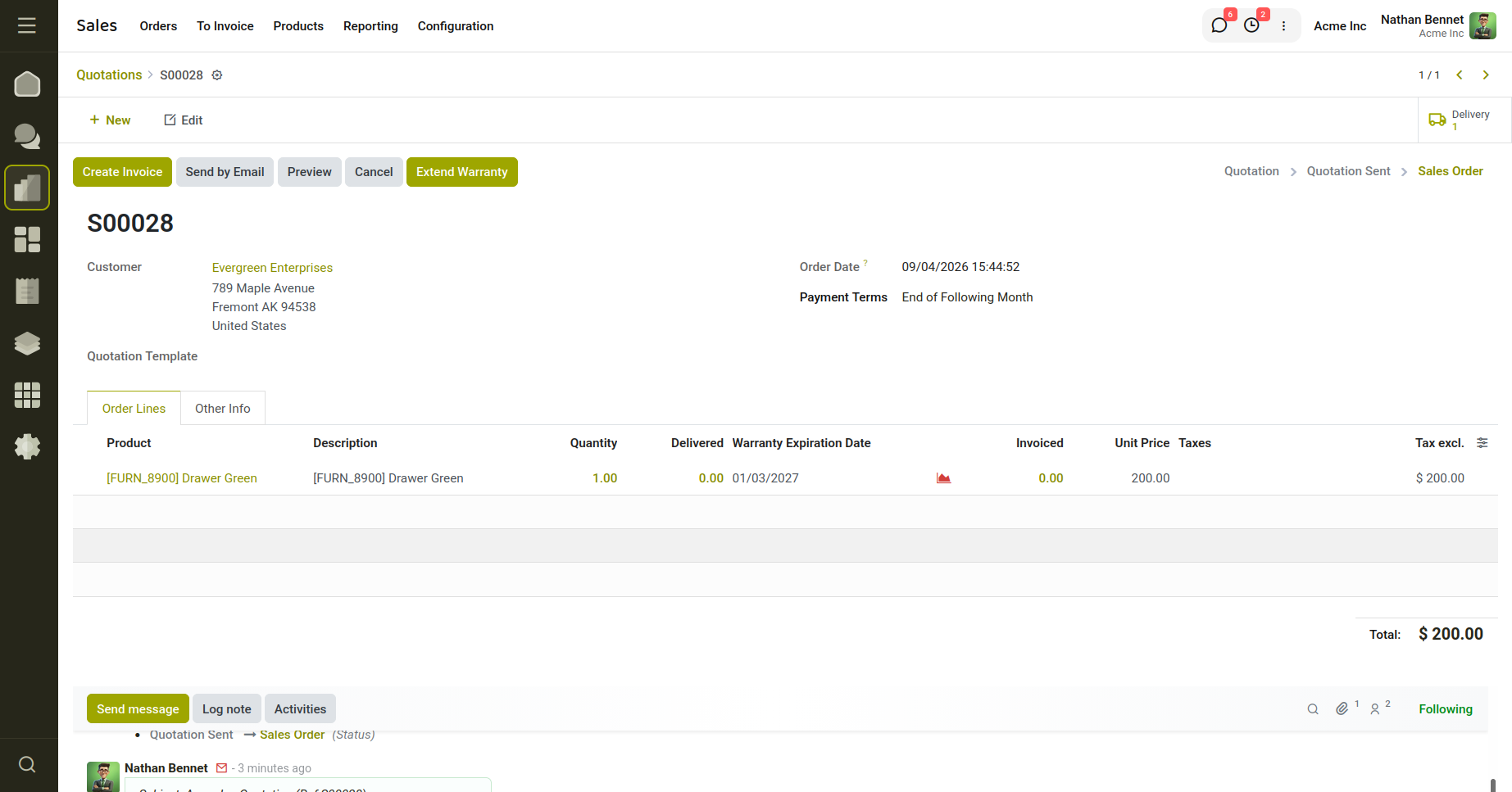
Fig 3.10 — Warranty extension date can be seen
4. Pricing & Promotions
Cyllo provides a complete set of promotional tools including coupons, gift cards, wallets, and loyalty programs — all managed from the Sales module and applied at checkout.
4.1 Coupon Codes
Coupon codes give customers a discount when they enter a valid code on a sales order or at the POS.
- Go to Sales → Configuration → Settings → enable 'Promotions, Loyalty & Gift Card'
- Go to Sales → Products → Discount & Loyalty
- Click New and select Program Type: Coupon
- Add Conditional rules and Rewards
- Generate single-use or multi-use coupon codes
- On a sales order, click Promotions → Apply Coupon and enter the code
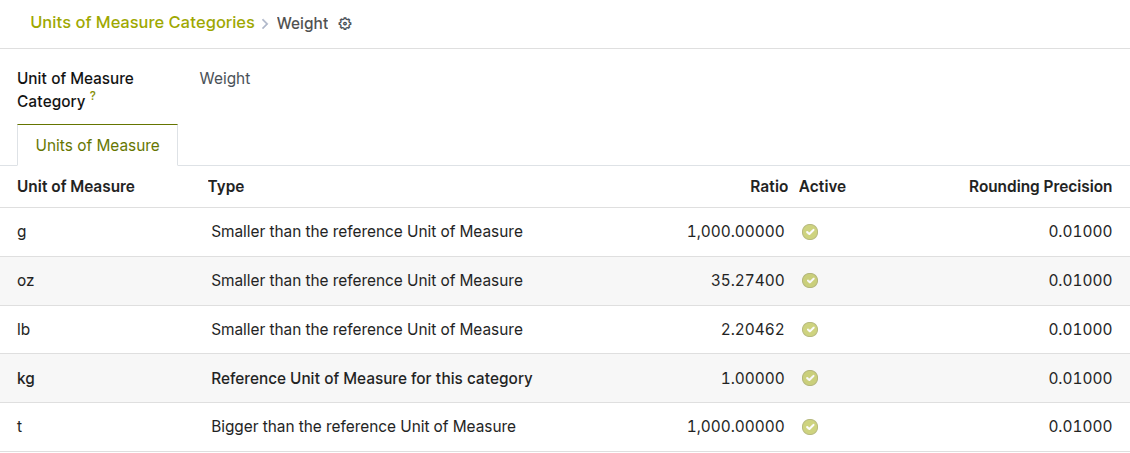
Fig 4.1 — Coupon program setup and code generation
4.2 Promotional Programs
Promotional programs apply discounts automatically when order conditions are met — no code required.
- Create promotions triggered by minimum order amount, specific products, or customer groups
- Discounts apply automatically when conditions match
- Support buy X get Y free, percentage off, and fixed price rules
- Set validity periods and customer restrictions
How to configure:
- Go to Sales → Products → Discount & Loyalty
- Click New and select Program Type: Promotions
- Program trigger: Automatic
- Add Conditional rules and Rewards
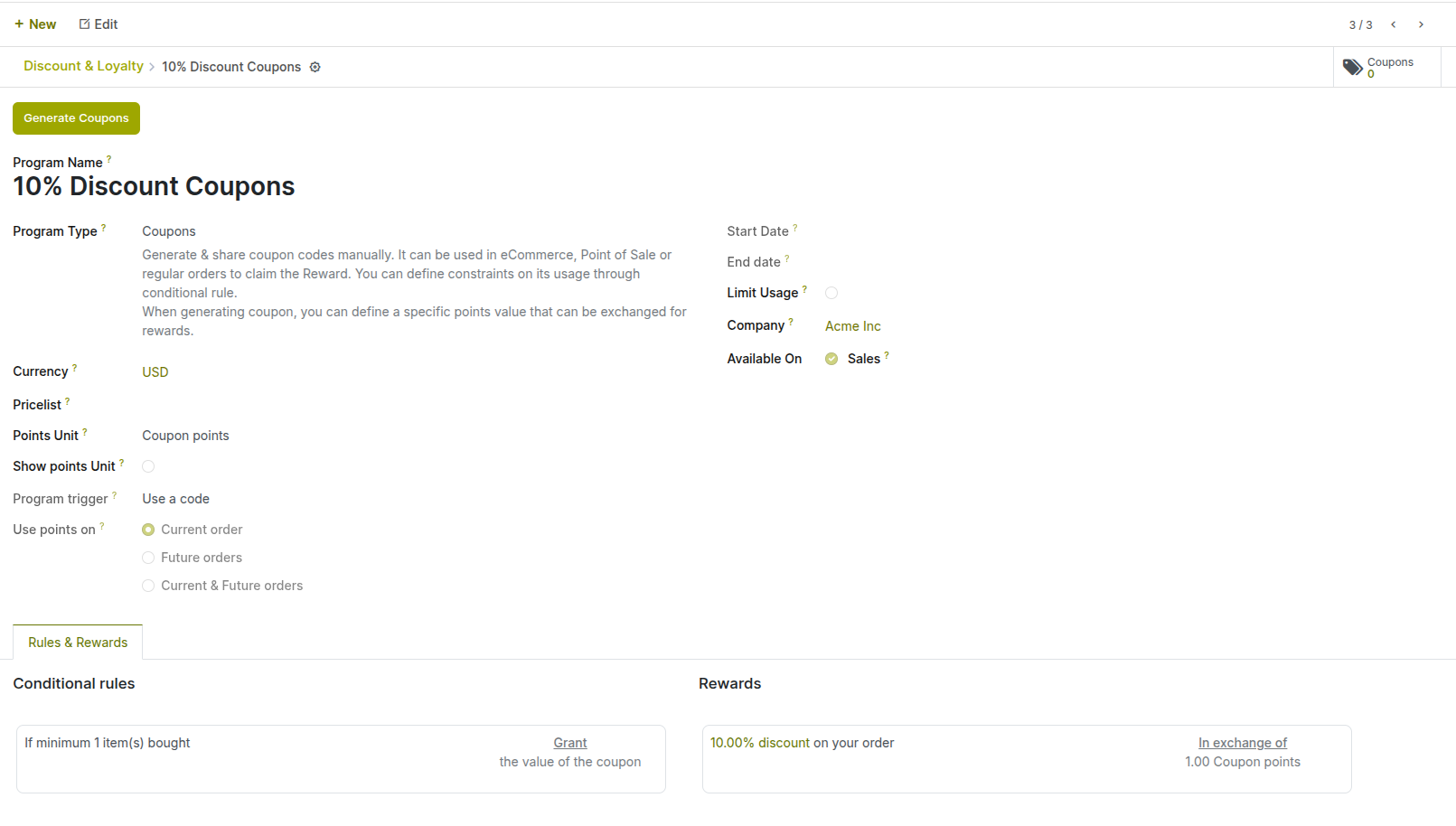
Fig 4.2 — Trigger condition in promotional program
4.3 Gift Cards
Gift cards are prepaid vouchers customers can purchase and redeem against future orders.
- Create Gift Card programs in Sales → Products → Gift Cards & eWallet
- Generate single-use or multi-use gift cards with custom amounts
- Customers can use a gift card code at checkout on eCommerce or POS
- Remaining balance is tracked and carried over to future purchases
4.4 eWallet
The eWallet is a stored credit balance linked to a customer account, which can be topped up and spent across orders.
- Customers can add credit to their eWallet via a top-up purchase
- eWallet balance is automatically applied at checkout
- Balance is visible on the customer portal
- Supports partial use — remaining balance stays in the wallet
4.5 Loyalty Program
The Loyalty Program rewards customers with points for each purchase, redeemable as discounts on future orders.
- Go to Sales → Products → Discount & Loyalty
- Click New and select Program Type: Loyalty Cards
- Configure point earning rules (e.g., 1 point per $10 spent)
- Set reward tiers: points required and the reward (discount, free product, gift card)
- Points are credited automatically when orders are confirmed
- Customers redeem points on the sales order or POS
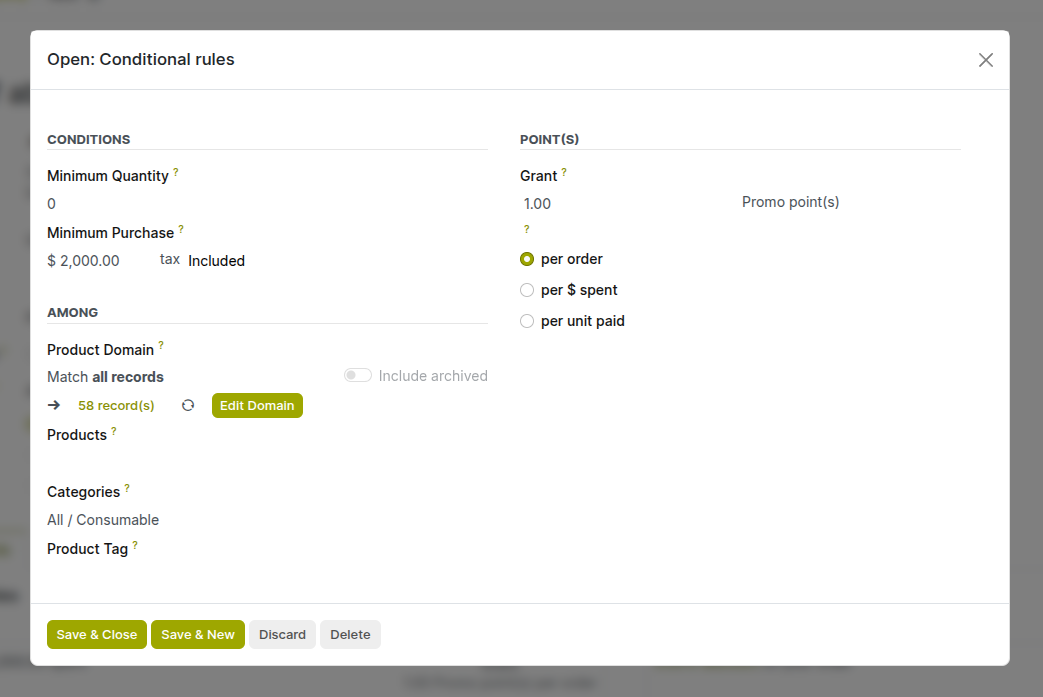
Fig 4.3 — Loyalty program with tiered rewards
5. Shipping & Delivery
Cyllo connects Sales Orders to the Inventory module for delivery management. Shipping costs, delivery methods, and multi-step routes are all configured here.
5.1 Delivery Methods
Delivery Methods define how products are shipped to customers and what charges apply.
- Go to Sales → Configuration → Settings → Under Shipping → Enable Delivery Methods
- Go to Sales → Configuration → Sales Orders → Shipping Methods
- Click New
- Enter a Name (e.g., Standard Shipping, Express, Free Delivery)
- Set the Provider: Fixed Price, Based on Rules, or carrier integration
- Define pricing rules by weight, volume, number of items, or order amount
- Publish it so it's available on eCommerce and sales orders
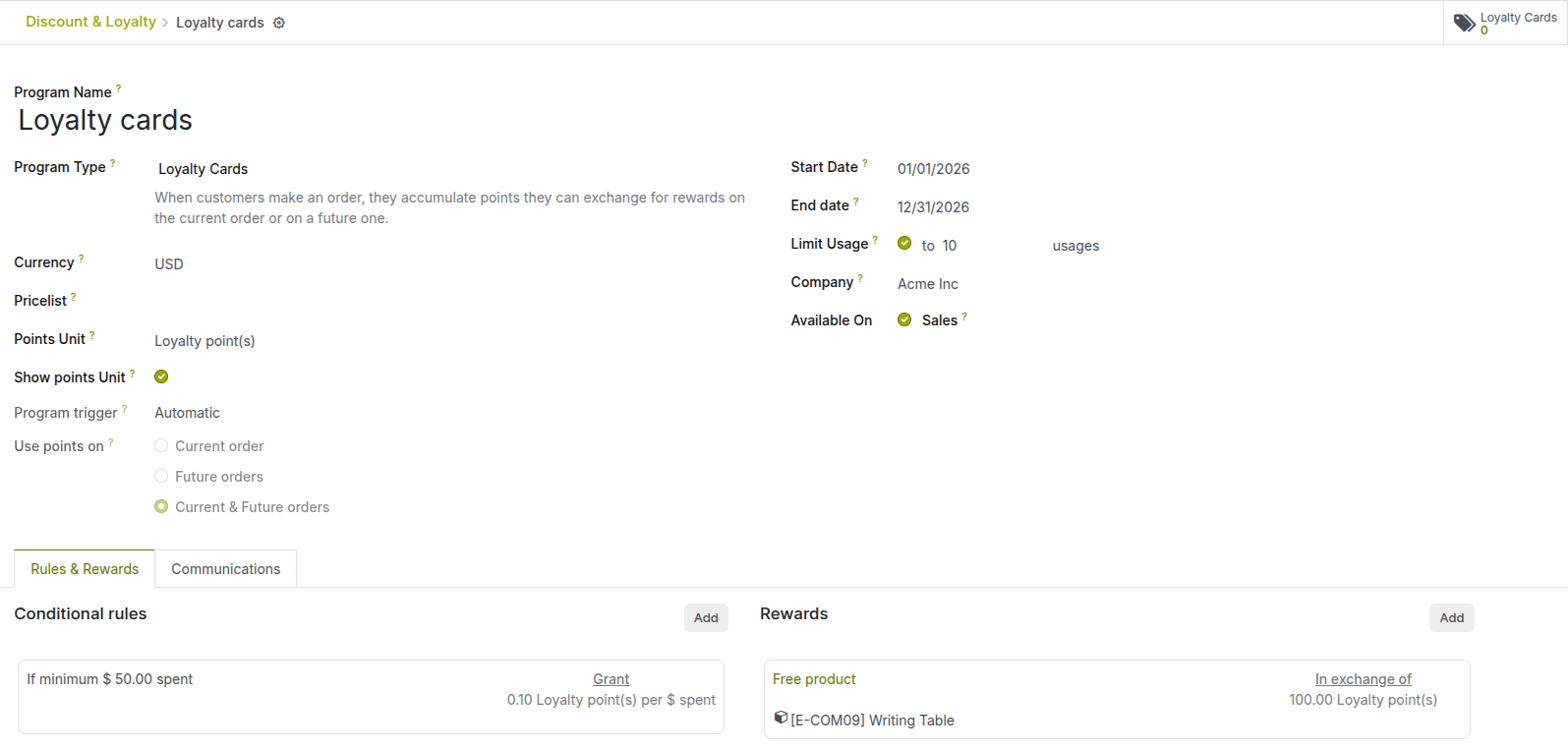
Fig 5.1 — Delivery method with pricing rules
5.2 Lead Times
Lead Times define how long it takes to deliver a product after an order is placed — helping you set accurate delivery date expectations for customers.
- Customer Lead Time: Days from order confirmation to delivery.
- Set on the Product form (Inventory tab).
- Security Lead Time: Buffer days added to handle unexpected delays.
- Set in Inventory Settings.
- Purchase Lead Time: Days from PO to receipt.
- Set on the Product form (Purchase tab).
5.3 Dropshipping
With dropshipping, your supplier ships directly to the customer without passing through your warehouse.
- Go to Inventory → Configuration → Settings and enable Dropshipping
- On the product form, go to the Inventory tab and add Dropship as a route
- On the sales order, when the product is selected and confirmed, a Request for Quotation is auto-sent to the vendor
- The vendor delivers directly to the customer address on the order
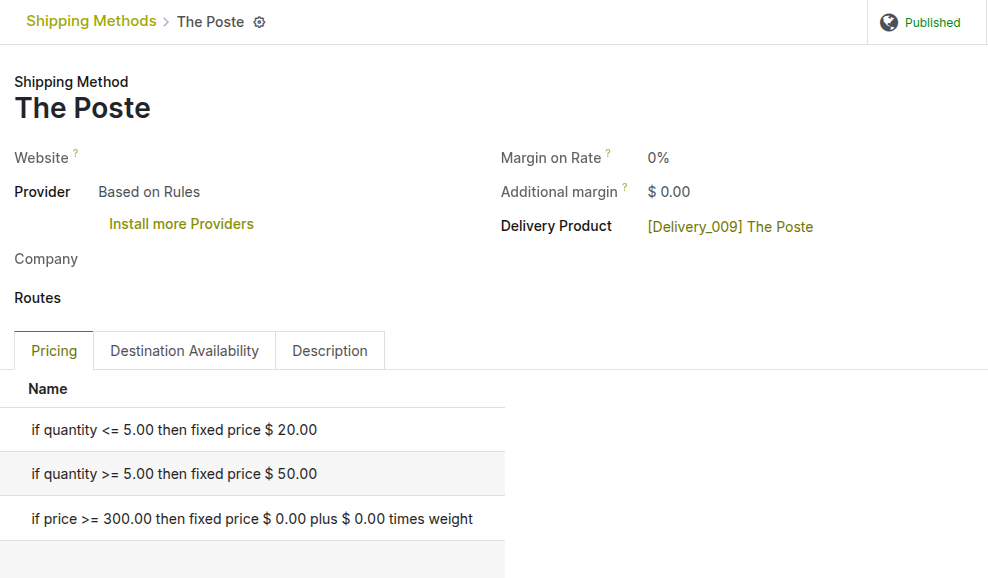
Fig 5.2 — Dropshipping route configuration on product
5.4 Multi-Step Delivery
Multi-step delivery allows complex warehouse flows: pick from shelves → pack → ship, rather than a single direct outgoing shipment.
- Go to Inventory → Configuration → Settings → Enable Multi-Step Routes
- Go to Inventory → Configuration → Warehouse Management → Warehouses
- Set Outgoing Shipments to 2-step (Pick + Ship) or 3-step (Pick + Pack + Ship)
- Cyllo generates separate transfer operations for each step automatically
- Each step must be validated before the next begins
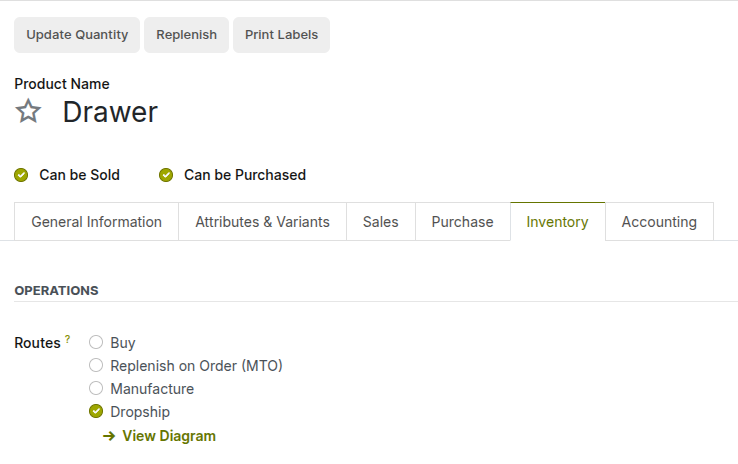
Fig 5.3 — Multi-step delivery route configuration
6. Customer Management
Customers in Cyllo are managed as Contacts — a unified record shared across Sales, Accounting, CRM, and other modules.
6.1 Customer Creation & Profile
- Go to Sales → Orders → Customers
- Click New
- Enter Company Name or Individual Name
- Set type: Company or Individual (linked to a company)
- Add contact details: email, phone, address
- Configure Sales & Purchase tab: Salesperson, Payment Terms, Pricelist, Credit Limit
- Add bank account under Accounting tab for direct debit or payment
- Save the customer record
Fig 6.1 — Customer contact form with sales configuration
6.2 Customer Tags & Segmentation
- Add Tags to customers for grouping (e.g., VIP, Wholesale, Retail, Region)
- Use tags to filter customers in list views and reports
- Create pricelist rules or email marketing campaigns targeted at specific tags
6.3 Credit Limits
- Go to Accounting → Configuration → Settings → Enable Sales Credit Limit
- Set a credit limit in settings or on the customer form under Invoicing tab
- Cyllo warns or blocks sales orders when the customer exceeds their credit limit
- Configure credit limit enforcement in Sales → Configuration → Settings
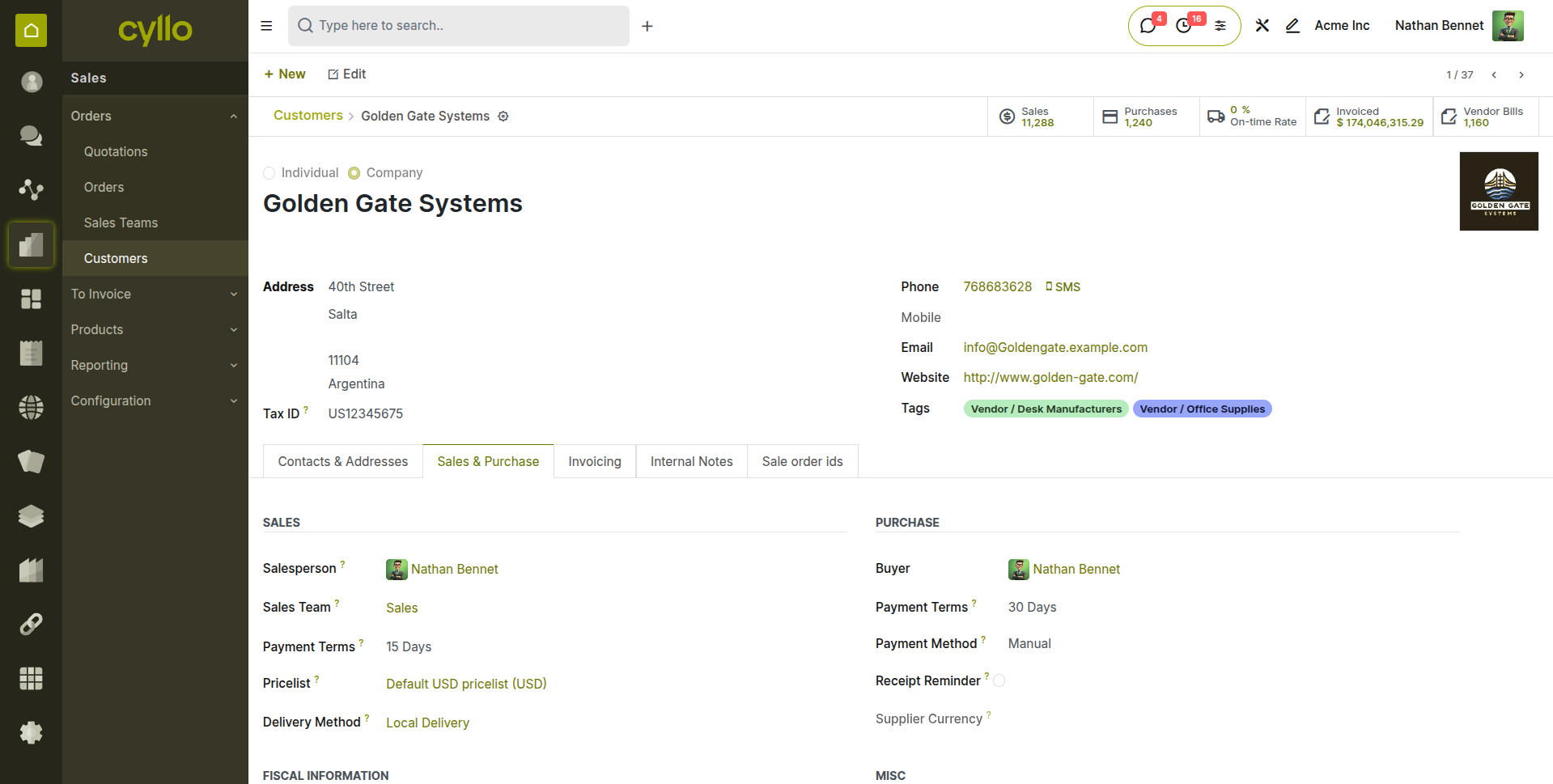
Fig 6.2 — Customer credit limit and outstanding amount
6.4 Payment Terms per Customer
- Assign default payment terms on the customer form (Sales & Purchase → Payment Terms)
- These terms auto-apply on every new invoice for that customer
- Override on individual invoices when needed
6.5 Customer Portal
The Customer Portal gives your customers a self-service area to view and manage their orders, invoices, and documents online.
- Customers receive a portal invitation by email — they set their own password
- Portal shows: all quotations, confirmed orders, invoices, delivery status
- Customers can accept quotes, sign online, and make payments from the portal
- No login required for single-link actions (e.g., sign a specific quote)
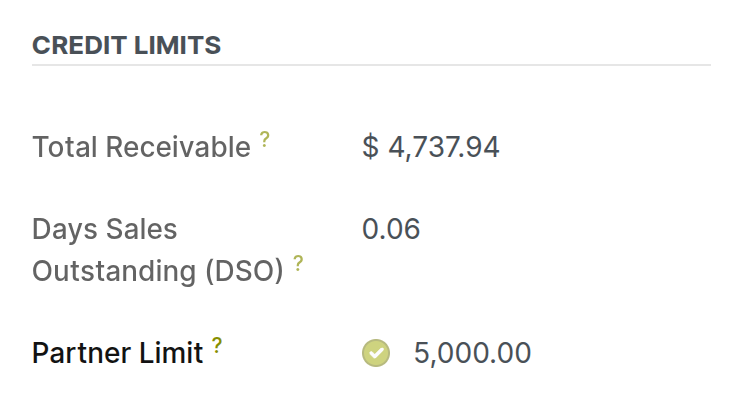
Fig 6.3 — Customer self-service portal with orders and invoices
7. Reporting & Analytics
Cyllo provides built-in sales reports and a dashboard to give full visibility into team performance, revenue trends, and pipeline health.
7.1 Sales Analysis Report
- Go to Sales → Reporting → Sales
- Use Group By to segment by: Salesperson, Product, Customer, Date, Team
- Switch between Pivot, Graph, and List views
- Apply Filters: time period, order status, product category
- Export the report as XLSX or PDF
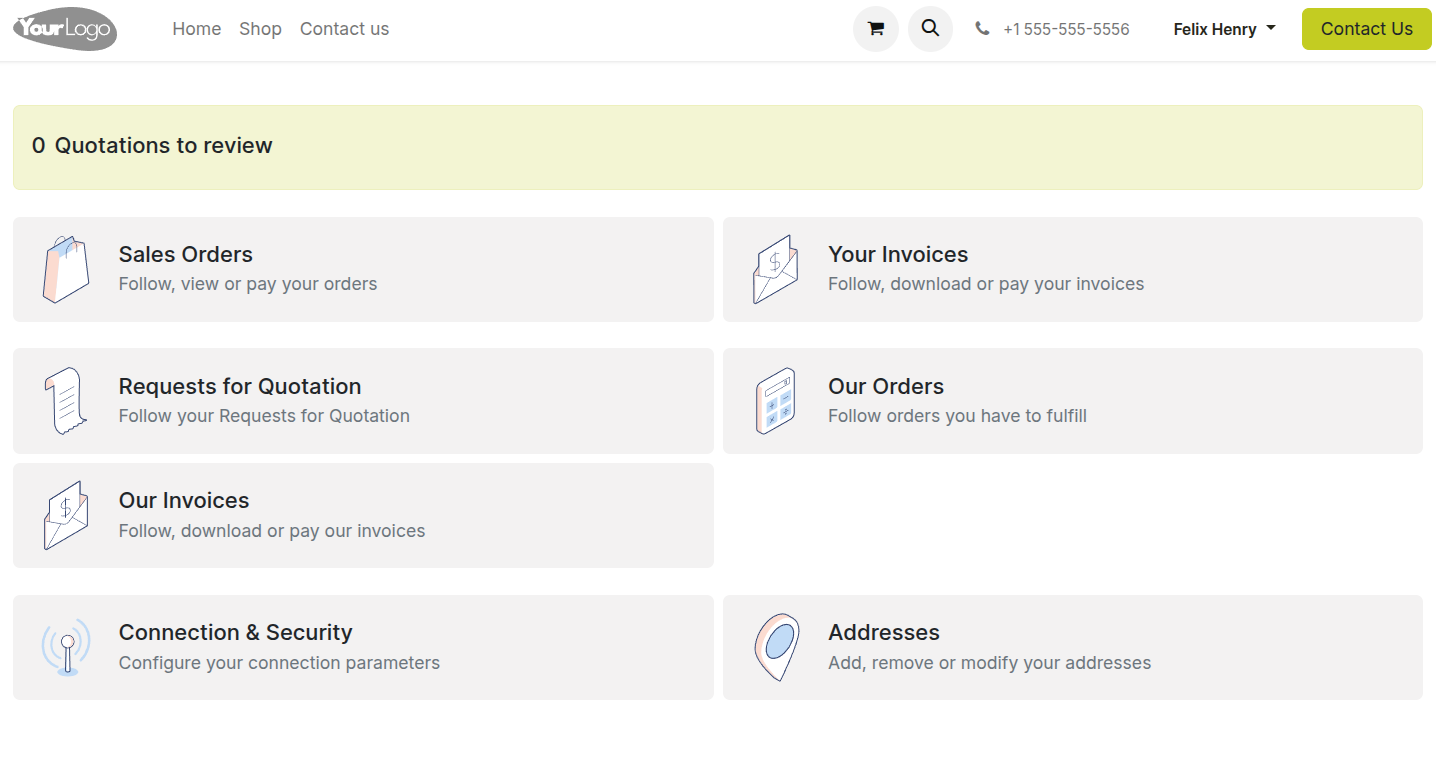
Fig 7.1 — Sales analysis graph report
7.2 Sales by Product / Team / Salesperson
- Filter the Sales Analysis report by Product Category, Sales Team, or Salesperson
- Use Stacked Bar Chart view to compare team contributions over time
- Export individual reports for team reviews or management presentations
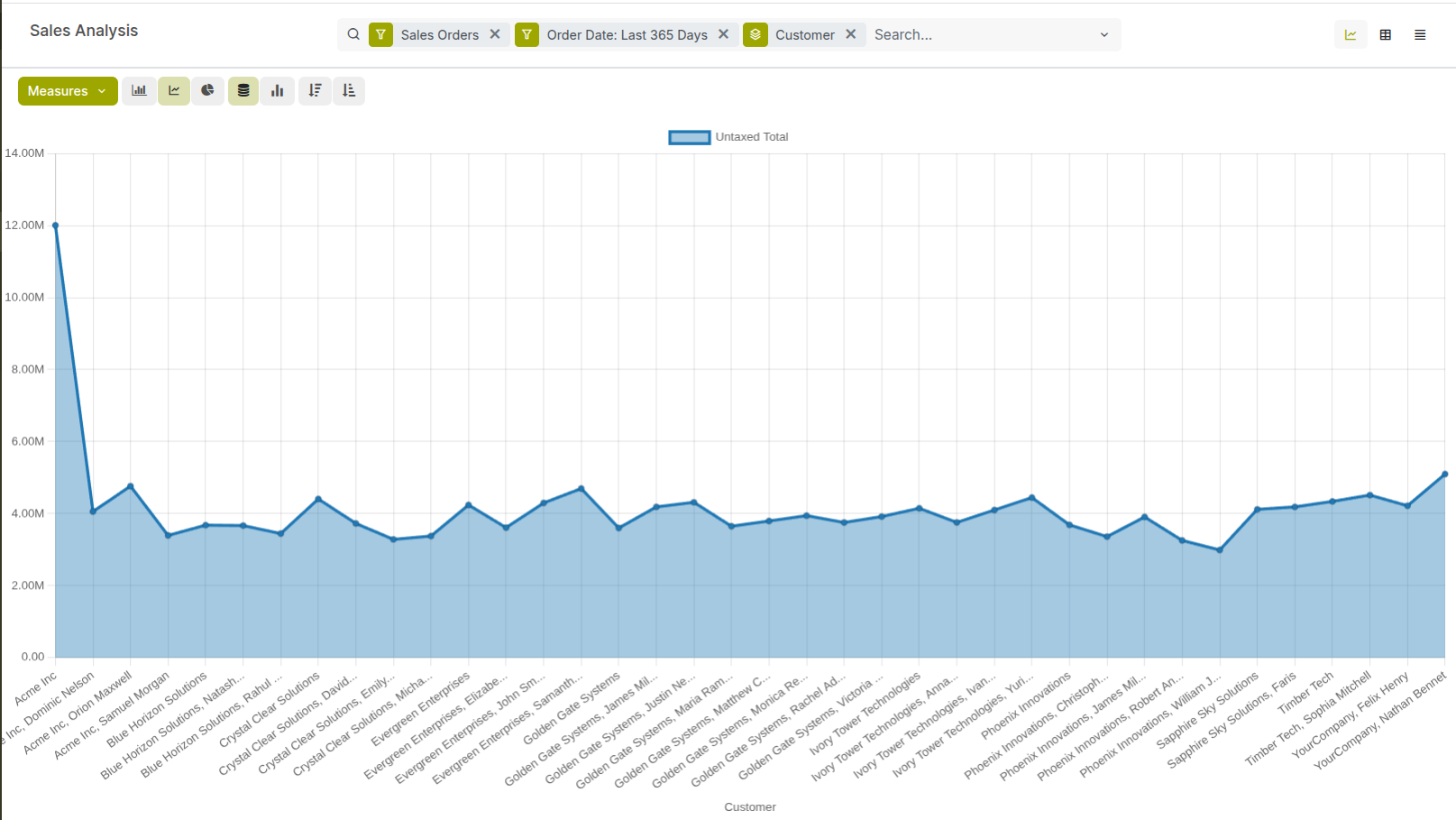
Fig 7.2 — Sales by products pie chart