

Cyllo Access Management Documentation
Introduction
Cyllo Access Management is a comprehensive, all-in-one security and permissions management suite for Cyllo. It is designed to simplify and enhance the way administrators manage user access rights. Instead of navigating complex technical groups and security rules, this module allows for centralized control via User Profiles. It provides a granular level of authority over nearly every element of the Cyllo interface—from menus and buttons to individual fields and records—ensuring that users see only what they are authorized to see.
1. Profiles
1.1 User Profiles
The User Profile is a core configuration in the Cyllo Access Management module. It is used to group users and assign security roles (via groups) so that access control, visibility, and permissions can be managed centrally instead of configuring each user manually. This acts as the foundation for applying role-based access rules, model restrictions, and UI-level control across the system.
How to Create a User Profile
- Go to Access Management → Profiles → User Profiles
- Click New
- Fill in the required details:
- Name of the profile
- Assign users under this profile
- Select color (for UI identification)
- (Optional) Adjust security groups if needed
- Save the record
- The system automatically assigns selected groups to users
Once created, the profile immediately synchronizes security groups with linked users.
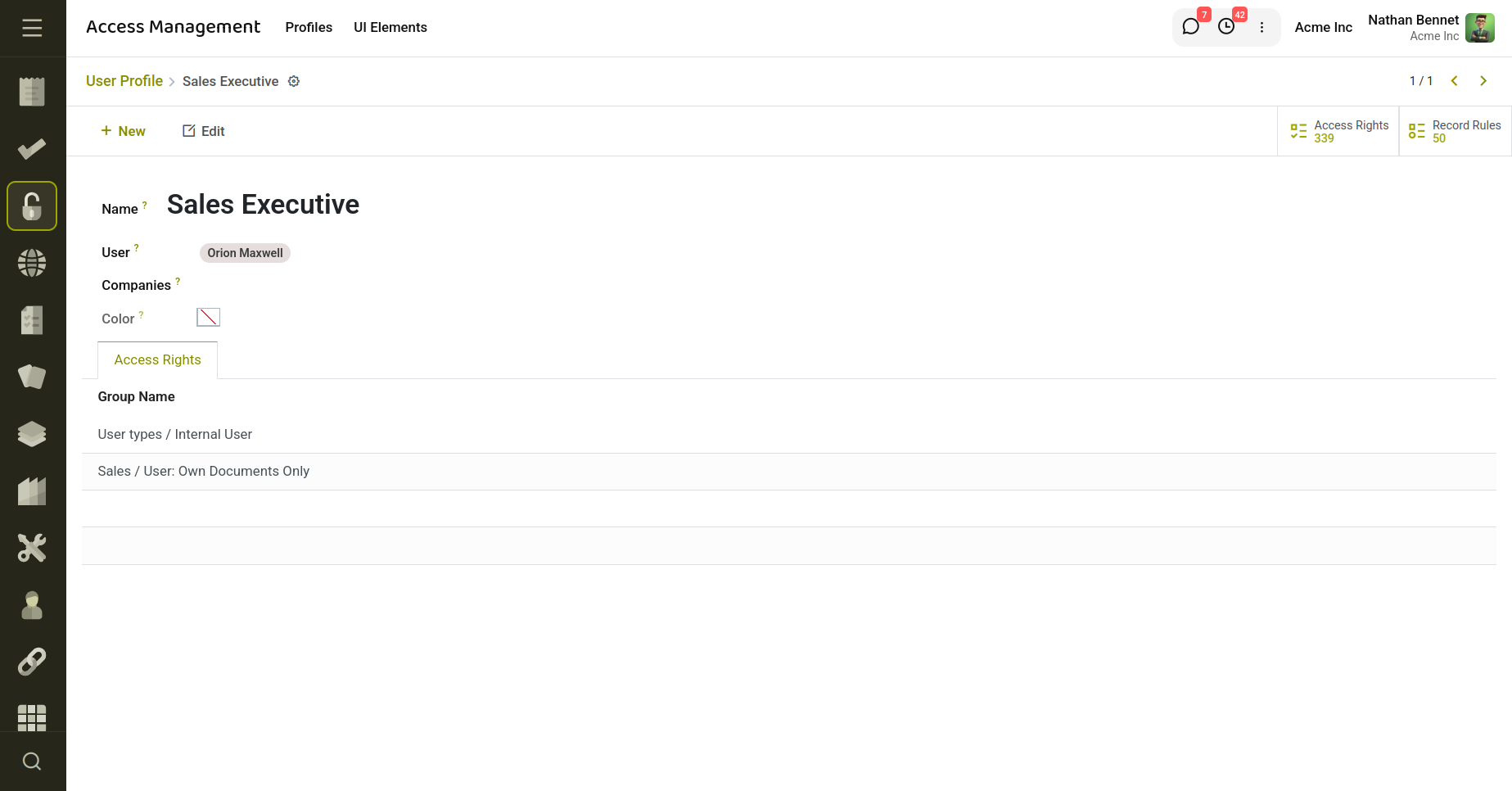
Fig 1.1 — User Profiles Created for Access management.
Key Fields
- Name: Name of the user profile used to identify the role (e.g., Sales Team, HR Manager).
- User : Internal Cyllo users assigned to this profile. All linked users inherit the profile’s access rules and security groups.
- Color: UI color index used to visually differentiate profiles in tags and views.
- Group IDs : Cyllo security groups linked to the profile. These groups define actual access permissions for users.
1.2 Profile Management
Profile Management is the central configuration layer of the Cyllo Access Management system. It defines how security rules, UI restrictions, and access controls are applied to one or more User Profiles.
It acts as a rule engine that connects profiles with companies, menus, models, and UI-level restrictions such as hiding buttons, fields, filters, and applying record-level access rules.
Profile Management is used to:
- Apply centralized security rules to multiple user profiles
- Control model-level access (readonly, hide create/edit/delete)
- Apply record-level filtering using domain rules
- Restrict UI elements like menus, buttons, filters, and tabs
- Enable or disable system-level restrictions (debug mode, chatter, login)
- Manage company-specific access control
- Go to Access Management → Profiles → Profile Management
- Click New
- Fill in required details:
- Name of the profile management rule
- Select one or more profiles
- Select the company (optional)
- Configure restrictions:
- Hide menus if needed
- Add button/tab restrictions
- Define field-level access rules
- Add model access rules (readonly, hide actions)
- Add domain access rules (record filtering)
- Enable required toggles:
- Readonly mode
- Disable chatter
- Disable debug mode
- Disable login (if required)
- Click Save
- Click Sync UI Components to update and reload components.
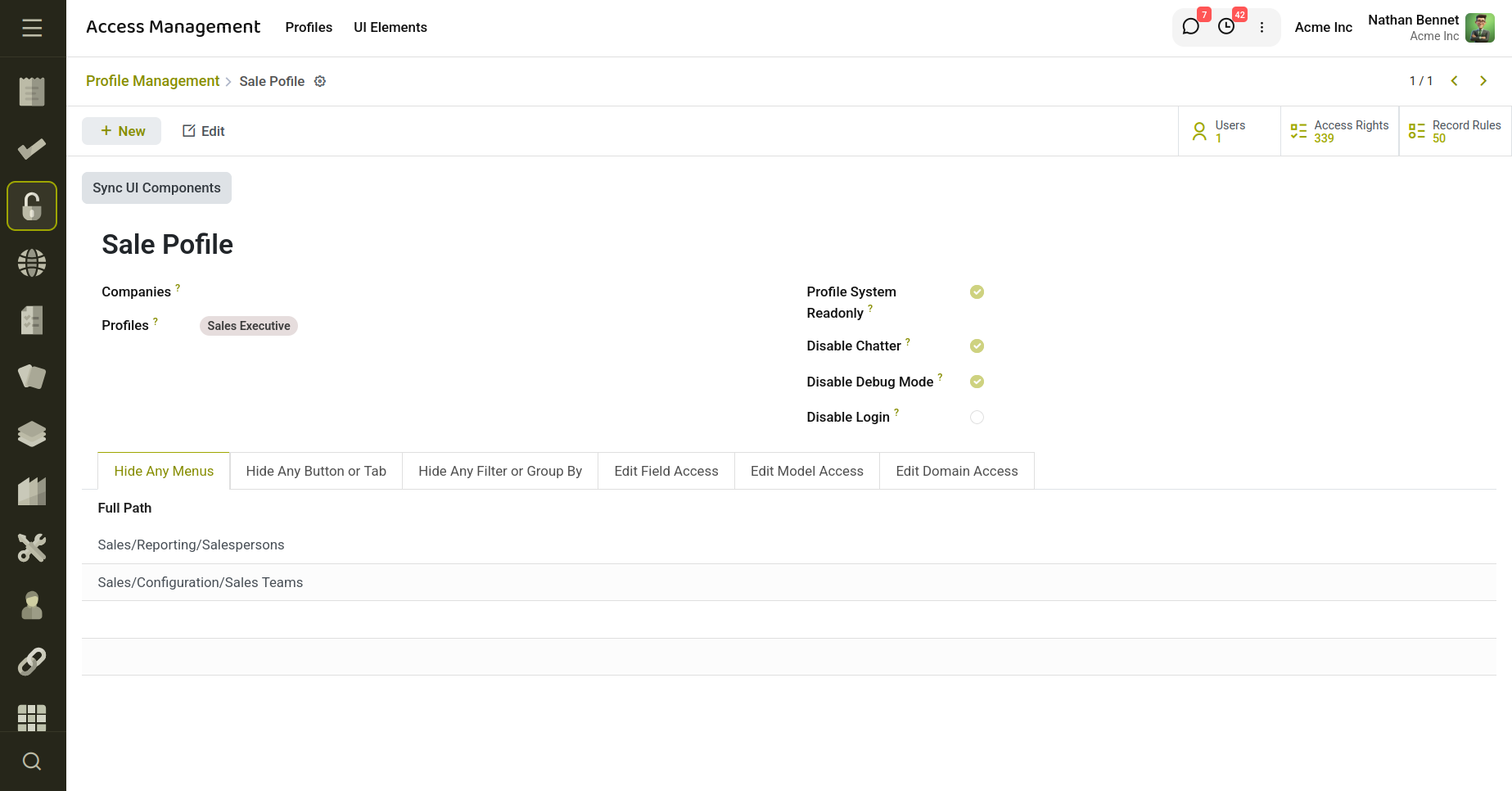
Fig 1.2 — Profile Management to hide menus, button, filter or allow access to fields.
Key Fields
- Name: Name of the profile management rule used for identification.
- Companies : Defines which companies the rule applies to.
- Profiles : User profiles linked to this configuration. All rules inside apply to these profiles.
- Readonly : Makes the system read-only for users under selected profiles (prevents write actions).
- Disable Chatter : Hides chatter and messaging features across all views.
- Disable Debug Mode : Prevents users from enabling developer/debug mode.
- Disable Login : Restricts users from logging into the system.
- Menu IDs : Hides or restricts specific menus from users based on profile rules.
- Hide Buttons & Tabs : Defines rules to hide specific buttons or notebook tabs in views.
- Hide Filters : Controls visibility of search filters and group-by options.
- Field Access: Defines field-level restrictions such as readonly, required, or invisible fields.
- Model Access : Controls model-level permissions like: readonly mode, hide create/edit/ delete actions
- Domain Access : Applies record-level filtering using domain conditions.
2 UI Elements
2.1 Buttons
The Buttons section provides a complete list of all buttons available in the system across different models and modules.
It acts as a centralized registry that displays every button currently present in the system, including both default Cyllo actions and custom buttons introduced by installed modules.
This view is mainly used for:
- Viewing all existing system buttons
- Identifying buttons added by custom modules
- Managing UI-level access restrictions on buttons
- Supporting profile-based hiding or control of button actions
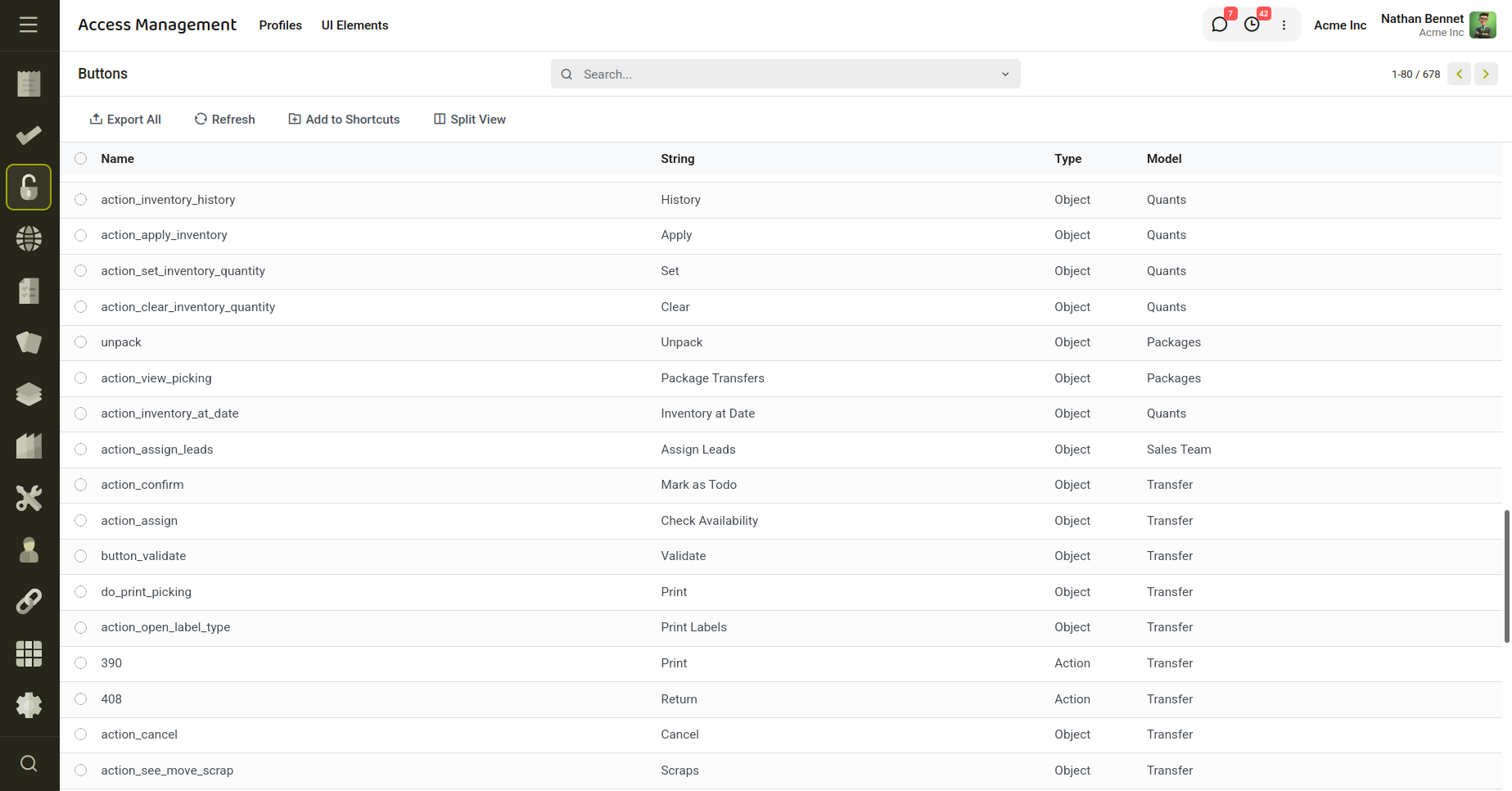
Fig 2.1 — Displays All the Buttons of installed modules.
2.2 Tabs
The Tabs section displays all notebook tabs available across the system in different models and views.
It provides a centralized list of every tab present in the application, including standard Cyllo tabs and custom tabs introduced through custom modules.
This section is mainly used for:
- Viewing all available form view tabs in the system
- Identifying tabs added by custom or installed modules
- Managing visibility and access control of specific tabs
- Applying profile-based restrictions to hide or control tab sections
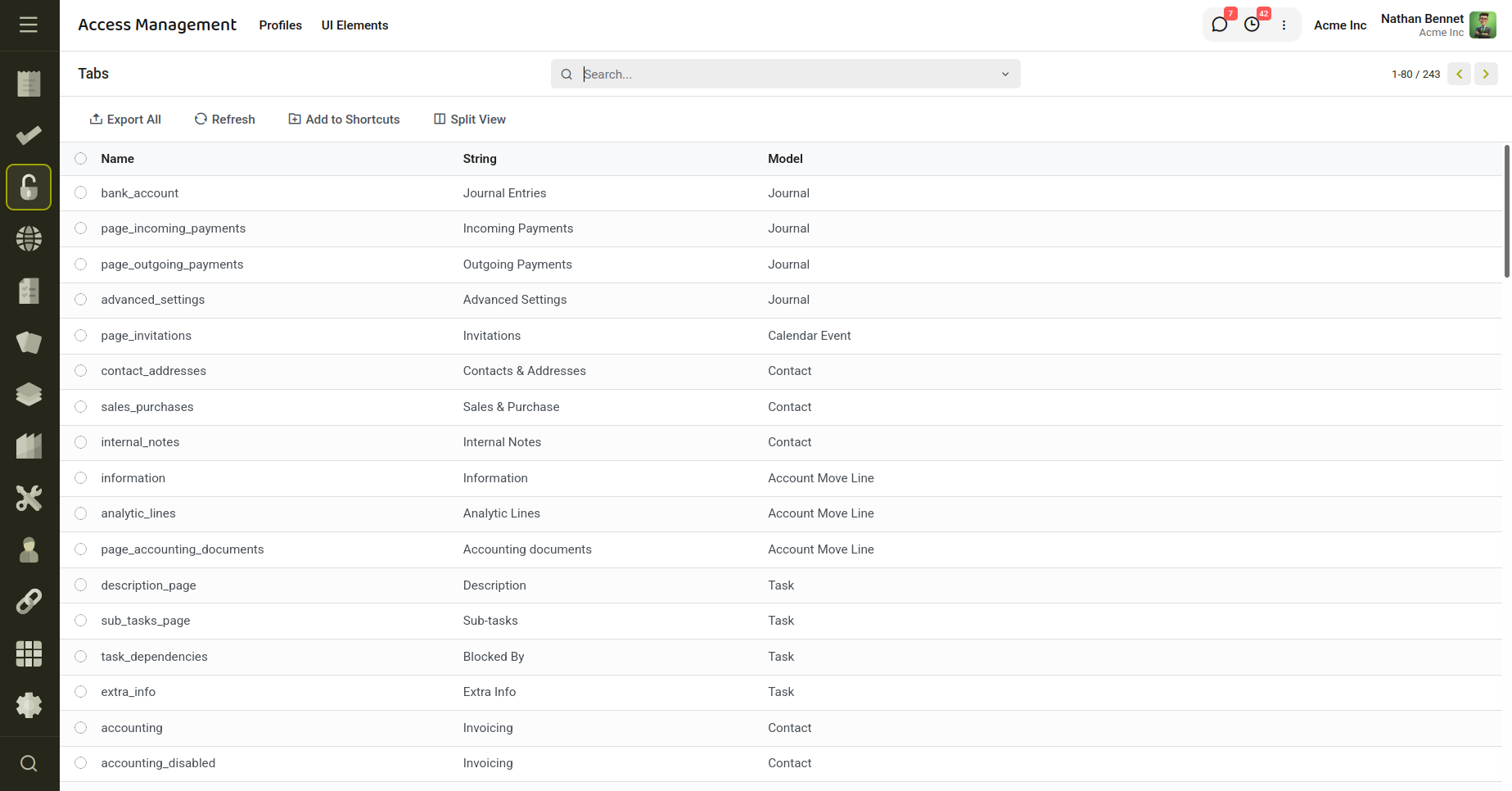
Fig 2.2 — Displays All the Tabs of installed modules.
2.3 Filters
The Filters section displays all search filters and group-by options available across different models in the system.
It provides a centralized view of every filter used in search views, including both default filters and custom filters created through custom modules.
This section is mainly used for:
- Viewing all available search filters in the system
- Identifying filters and group-by options added by custom modules
- Managing visibility and access control of specific filters
- Applying profile-based restrictions to hide or control filter/group-by options in search views
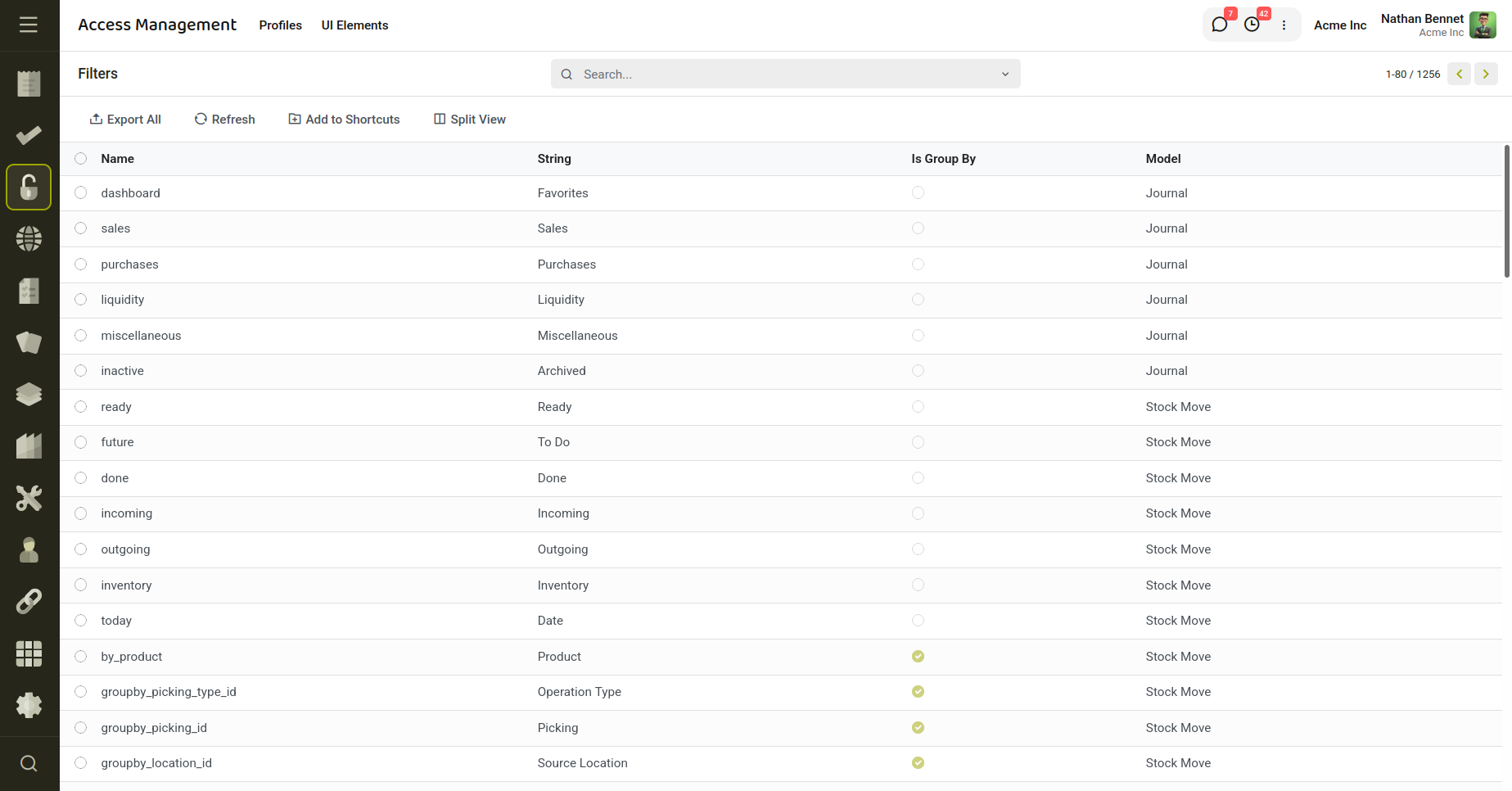
Fig 2.3 — Displays All the Filters of installed modules.